Can I Install Windows 11 on Windows 10? Download Windows 11 Now
Can I Install Windows 11 on Windows 10
Microsoft allows Windows 10 users to upgrade to Windows 11 for free, but only if their computer meets the minimum system requirements.
Microsoft posts a table to mention all ready-to-upgrade computers should check the hardware specifications as below:
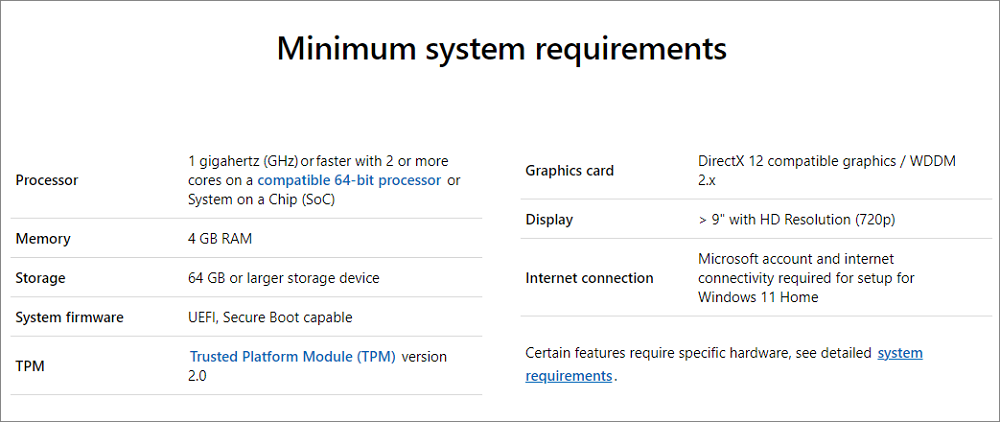
For devices within 3-5 years after purchasing a Windows device, users can upgrade to Windows 11 for free, meeting the minimum hardware specifications. However, it can be challenging to determine if a device is eligible for the upgrade. A Windows 11 Checker tool is available for download, allowing users to quickly check their device's specific configurations and determine eligibility.
Step 1. Download Qiling Windows 11 Upgrade Checker.
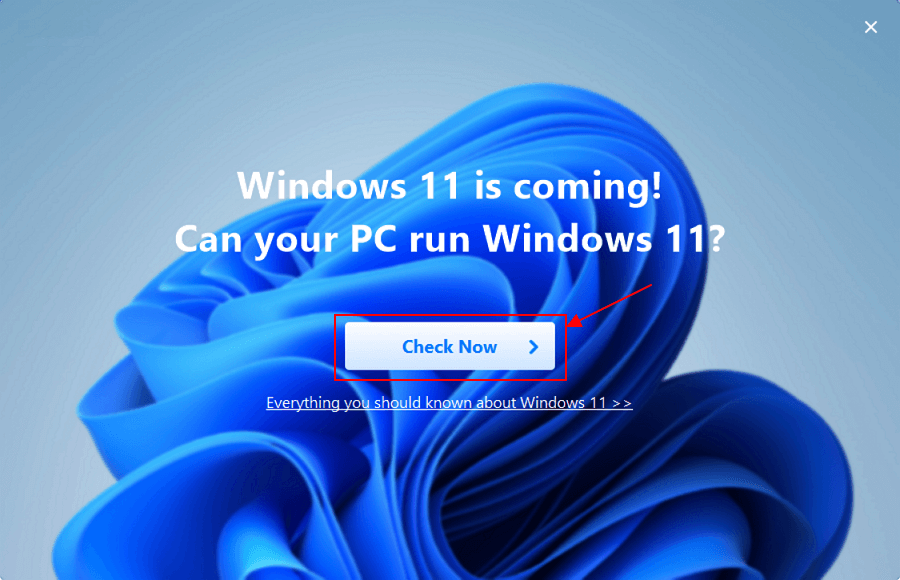
Step 2. Click the Check Now button to start.
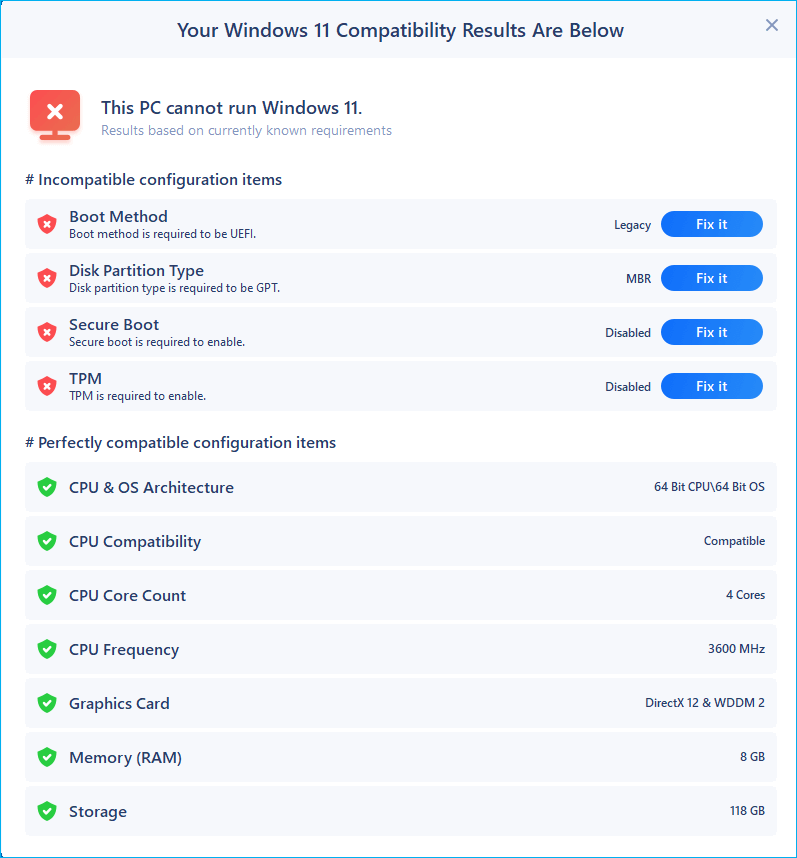
Step 3.The Windows 11 compatibility result window will soon appear, listing all the incompatible and compatible configuration items.
Do You Need to Change to UEFI Mode For Your Computer
To install Windows 11 on a Windows 10 machine, you need to boot your computer in UEFI mode, which requires a GPT partition style if your current partition style is MBR.
1 - Check Partition Style (MBR or GPT)
- Check as GPT - Move to Next Part
- Check as MBR - Convert MBR to GPT via partition converter
To check if your hard drive is using MBR or GPT partition style, follow these steps: Press Windows + X, click on Computer Management, select Disk Management from the left panel, right-click on the hard drive and choose Properties from the menu, then go to the Volumes tab to see if it's GPT or MBR.
2 - Convert MBR to GPT via Qiling Partition Master
For beginners, fewer steps and a straightforward interface are welcome because all of us do not want to get stuck at the very first stage of an upgrade. Qiling Partition Master features changing disk style from MBR to GPT, or GPT to MBR without any data loss, making it easy to use for beginners.
After converting your disk to a GPT partition style, your Windows 10 computer will not boot correctly until you switch from BIOS to UEFI. To resolve this, you can follow these steps.
Step 1.To proceed, go to Settings, then click on Update & Security, followed by Recovery. Under the Advanced start-up section, click on Restart Now.
Step 2. In the Advanced start-up screen, click on Troubleshoot, then Advanced options, followed by UEFI Firmware Settings, and finally click on the Restart button.
Windows 11 ISO File Download and Tip to Bypass TPM2.0
The TPM 2.0 chip may hinder the installation of Windows 11 on Windows 10, with some users suggesting that a free upgrade to Windows 11 is equivalent to buying a fresh Windows 11 computer or replacing hardware. However, it is possible to install Windows 11 on Windows 10 without a TPM chip by using the Qiling Windows 11 Builder to obtain an ISO image on a bootable USB device, then manually bypassing the TPM chip.
Download Windows 11 ISO File:
Step 1. The Win11 builder is integrated with the Qiling OS2Go software, allowing for a seamless download and installation process. After installing the program, simply click the download button to get started.
Step 2.The WinToGo Creator tool has been renamed to Windows Install Drive Creator. The tool provides real-time system information on its home screen, which is constantly updated. In addition to supporting Windows 11, the tool also allows users to download Windows 10 and 8.1.
Step 3. To create a Win11 installation media, connect your USB flash drive to the computer. The Win11 builder will automatically detect the USB device, and you can then click the "Create" button.
Step 4. The software will erase the data on your USB drive if it's a used one. Once you start the downloading process, simply wait until it's finished or take a break to attend to other tasks.
Step 5. After successfully downloading the Windows 11 iso image file on the USB drive, you can proceed to install Windows 11 from the bootable USB drive on your computer. Simply follow the installation wizard step by step to complete the installation process.
How to Bypass TPM2.0 When Installing Windows 11:
Step 1. When the error "This PC can't run Windows 11" appears, click the Back button.
Step 2. To access the Windows Registry, press Shift+F10 to open the Command Prompt, then type "regedit" and press Enter. This will launch the Registry Editor, allowing you to view and edit the registry settings.
Step 3. Go to HKEY_LOCAL_MACHINE\SYSTEM\Setup. Create LabConfig by Edit > New > Key.
Step 4. In the LabConfig, right-click in the blank space and click New > DWORD (32-bit) Value.
Step 5. Name it as BypassTPMCheck > Right-click on it and select Modify... > Type 00000001 and click OK.
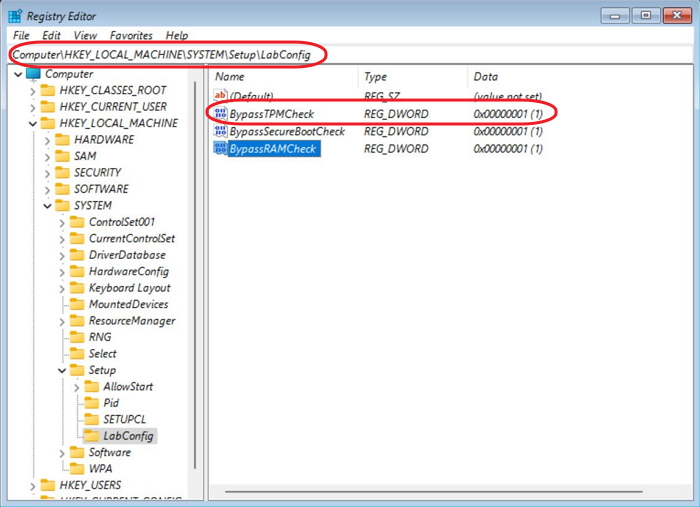
Step 6. Close Registry and go back to Windows 11 installation.
How to Install Windows 11 on Windows 10
Step 1. Connect a USB drive with an ISO image on a computer, and then go to Devices and Drives to see the USB device.
Step 2. To set up Windows 11, open the USB and launch the setup.exe file. This will initiate the installation process, allowing you to follow the on-screen instructions to complete the setup.
Step 3. To bypass the Windows 11 setup's update download, click on "Change how Setup downloads updates," select "Not right now," and then click "Next" in the setup window on Windows 11.
Step 4. Wait for a while and choose what to keep:
- Keep personal file and apps.
- Keep personal file only.
- Nothing.
And then, click the Next button.
Step 5. Check "Ready to install" message and click on Install.
Step 6. Wait for installing......
Once the Windows 11 upgrade is finished, enter your account and set personal settings.
Roll Back from Windows 11 to Windows 10
If Windows 11 is not suitable for your machine, you can still roll back to Windows 10.
Step 1. To access the Recovery settings in Windows, click on the Windows icon, then select the Settings option. From the Settings window, navigate to the Update & Security section, followed by System, and finally Recovery.
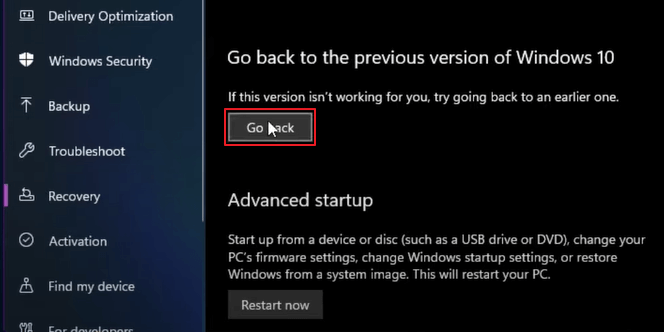
Step 2. Under the "Go back to the previous version of Windows 10", click the "Go back" button.
Step 3. Check reasons for uninstall.
Step 4. When asked to check for updates, click on "No, thanks".
Step 5. Read the message of "What you need to know". And then click the Next button.
Step 6. Click Next again > Click "Go back to earlier build".
Now the Windows is going to restart. You should wait for a few minutes.
Final Words
If you want to install Windows 11 on your Windows 10 device, this tutorial can guide you through the process. You can use a utility to check compatibility, convert your MBR to GPT, download the Windows 11 ISO file, and upgrade to Windows 11 smoothly. If you decide Windows 11 isn't for you after a free trial, you can always go back to your previous OS at any time.
Related Articles
- How Do I Format External Hard Drive for Xbox One Successfully? Here Is the Guide
- How to Fix Windows 11 Slow Startup? Your Complete Guide
- How to Convert MBR to GPT in Windows Server 2022/2019/2016/2012
- 8 Fixes: Can't Install Windows on GPT or Windows Cannot Be Installed to This Disk Error
- How to Securely Delete Multiple Recovery Partitions in Windows 10?
This article will introduce you why there are multiple recovery partitions in Windows 10 and how to remove these partitions. - 3 Ways to Resize Partition Windows 10 without Losing Data
How to resize partition Windows 10 without data loss? In this article, 3 ways are listed to help you extend or shrink partition on Windows 10 for free.
Products
Articles & Tutorials
- Data Recovery
- Data Backup
- File Recovery
- File Backup
- System Backup and Restore
- Disk and Partition Clone
- Technical articles
- Mobile articles
- Disk Master Help
- Windows Data Recovery Tutorials
- Windows Secure Delete Tutorials
- Windows Partition Management Tutorials
- Windows File Backup and Restore Tutorials
- Windows System Backup and Restore Tutorials
- Windows Disk Backup and Restore Tutorials
- Windows Clone Tutorials