How to Solve "Diskpart Failed to Extend the Volume" [3 Efficient Ways]
The "Diskpart failed to extend the volume" error occurs when Diskpart, a built-in utility in Windows, fails to extend a volume, resulting in insufficient disk space. This error can be caused by various factors, including disk corruption, faulty disk drivers, or insufficient permissions. To resolve this issue, you can try the following three methods: 1) Check for disk errors and correct them, 2) Update the disk drivers, and 3) Use a third-party partition manager to extend the volume. These methods can help you resolve the "Diskpart failed to extend the volume" error and ensure your disk is functioning properly.
What Is the "Diskpart Failed to Extend the Volume" Error?
Some users who are familiar with it use the Diskpart.exe utility to expand volumes, particularly some computer experts. It is a text-mode command line that supports storage objects, such as disk, partition, or volume configurations, and management from scripts, remote sessions, or direct input from a command prompt.
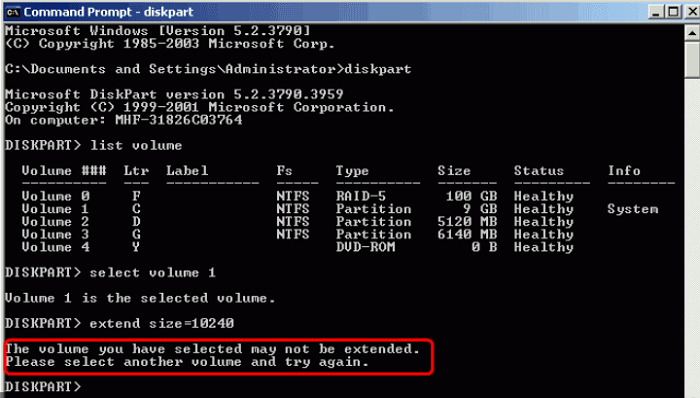
However, in some cases, when you perform the "Extend" command on the selected volume in DiskPart, you may receive error messages such as "The volume you have selected may not be extended. Please select another volume and try again." This issue can occur due to various reasons including the volume being too small, disk space issues, or corrupted disk structure. To resolve this issue, you can try running the "chkdsk" command to check and fix disk errors, or use the "resize" command in DiskPart to adjust the volume size. Additionally, you can also try to extend the volume by using the "extend" command with the "maxsize" option to specify the maximum size of the volume. If none of these methods work, it may be necessary to recreate the volume or seek further assistance from a professional.
You may encounter the error "Windows was unable to complete formatting to disk" if you're using the Disk Management tool. To resolve this issue, you can try using a different formatting tool, such as a third-party disk formatting software, or try formatting the disk through a different method, such as using a bootable USB drive or a Windows installation media.
What Causes the "Diskpart Failed to Extend the Volume" Error?
The error you're experiencing with Diskpart when trying to expand a volume is likely due to the volume being in use or having an active file system, which prevents Diskpart from resizing the partition. This can also be caused by the presence of a system file or a program that is using the volume, making it unavailable for resizing. To resolve this issue, you may need to close any programs using the volume, or use a different tool that can resize the partition while it's in use, such as a third-party partition manager. However, if the volume is still in use, you may need to restart your computer to ensure it's not being used by any system process.
There are two main reasons for not being able to use DiskPart to extend volumes:
- The selected volume doesn't use NTFS: Diskpart can only extend NTFS volumes, so if your selected volume is FAT, Diskpart will show this error message.
- Insufficient space: If there is no adjacent unallocated space behind the target partition, this error may also occur.
The expansion failure can be resolved by using the `expand` command in the Command Prompt, which is a more powerful tool than DiskPart. To do this, open the Command Prompt as an administrator, navigate to the root of the drive where the Windows installation is located, and then run the command `expand
How to Fix "Diskpart Failed to Extend the Volume" Error - Three Efficient Ways
We have identified the reasons behind the "Diskpart failed to extend the volume" error, and it's time to address it. To fix this issue, there are three efficient ways to consider. The first approach involves using a professional tool to extend the volume, which can be a viable solution. Now, let's dive into the details of this method.
Way 1. Use Qiling Partition Master to Extend Volume
Qiling Partition Master Professional is a user-friendly alternative to Diskpart that allows extending partitions in a few simple steps, eliminating the need for command lines, making it a great option for those not familiar with command lines, as it is much easier to use compared to Diskpart. To perform actions, download Qiling Partition Master and follow the provided steps.
Step 1. Locate the Target Partition.
To resize a partition in Windows, go to Partition Manager, locate the target partition and select "Resize/Move" to adjust its size.

Step 2. Extend the Target Partition.
To add unallocated space to your current partition, drag the partition panel rightward or leftward, incorporating the unallocated space into your current partition.

Extra Option: Get Space from Another Drive
If there's not enough free space on your disk, right-click on a larger partition with enough space, select "Resize/Move" to free up space.
To extend the target partition, select the partition you want to extend and click on the "Allocate Space to" column to add more space to it.
Step 3. Execute Operations to Extend Partition.
Drag the target partition dots into the unallocated space to merge them. This will remove the gap between the partitions and make the disk usage more efficient.
Then Click the "Proceed" to keep all the changes.
After using Qiling Partition, you can extend your volume without typing any commands, which is a convenient feature. In addition to this, Qiling Partition has many other useful features beyond just extending partitions, and learning more about them can be beneficial.
What Else Can Qiling Partition Master Do?
Qiling Partition Master is a professional and multifunctional disk management tool that offers a wide range of features, including disk partitioning, formatting, and management, as well as disk cloning, backup, and recovery. It also supports various file systems and can resize, move, or merge partitions, making it a powerful tool for managing and maintaining hard drives and solid-state drives.
- Merge partitions
- Fix the "C drive gets full" error
- Convert NTFS to FAT32 or vice versa
- Extend the C drive with the second disk
- Move partitions to make them adjacent
- Move unallocated space to C drive or other drives
If you're experiencing disk troubles, consider downloading Qiling Partition Master to help resolve the issue.
Way 2. Convert FAT32 to NTFS Before Extending the Volume
If the volume you're trying to extend is in FAT32 format, you can convert it to NTFS without damaging the internal data, allowing you to successfully extend the volume using DiskPart.
Step 1. Find the targeted drive letter.
Step 2. To open the Run box, press the Windows icon key + R on your keyboard. This will open a small window where you can type in a command or program name to run.
Step 3. Type cmd to launch the Command Prompt.
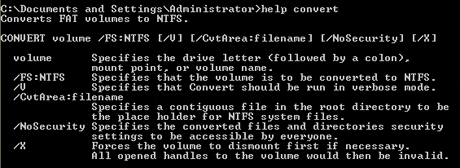
Step 4. Type help convert and then hit "Enter."
To convert a FAT volume to NTFS, you can use the built-in `convert` command in Windows. The command is typically run from an elevated command prompt.
Step 5. Then type convert drive: /fs:ntfs
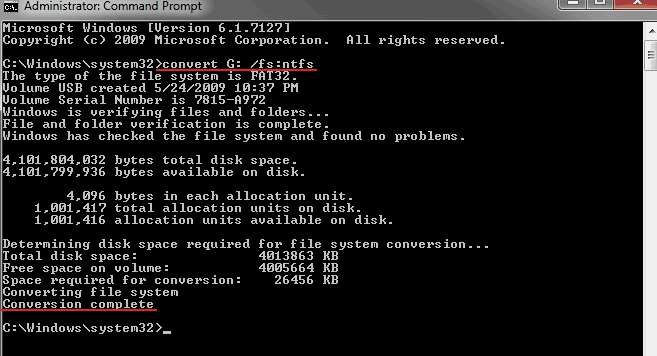
Step 6. The last step is to type "exit" when the conversion is finished.
The file system of the target device is changed to NTFS, allowing users to access and utilize the saved data on the drive once again.
Way 3. Delete the Volume Behind Targeted Partition
To extend a volume, you can delete the partition located to the right of the volume to be extended if there is no adjacent unallocated space. For example, if you want to extend your C drive, deleting the D partition would create an adjacent unallocated space, allowing you to extend the volume using the DiskPart command line.
Step 1. To open the Diskpart utility, press the Windows key + R at the same time to open the Run dialog, then type "Diskpart" and press Enter.
Step 2. Hit "Enter" every time you finish typing a command below:
list disk
select disk n (Replace n with the correct drive letter)
list partition
select partition x (Replace x with the partition number you want to delete)
delete partition
To delete a targeted partition, you will first need to format it. This can be done by going to the Disk Management tool, selecting the partition to be deleted, and then clicking on the 'Delete Volume' option. Once the partition is formatted, you can then delete it.
Conclusion
The article provides solutions to the issue of DiskPart being unable to expand a volume in Windows operating systems, including Windows 10/8/7/XP/Vista. It suggests using eMyPartitionMaster as the most effective and easiest method to expand a volume, and provides additional information for readers with related questions.
FAQs About Diskpart Failed to Extend the Volume
We have discussed a lot about "Diskpart failed to extend the volume" in this article. Here, we list some other questions related to today's topic. Hope it can help.
1. Why can't I extend disk volume?
There are many possible reasons, such as:
- Not enough unallocated space on your hard disk.
- There is no continuous free space or unallocated space behind the targeted partition.
- Windows can only extend the Raw or NTFS partition.
2. How do I extend a volume in Diskpart?
Hit "WIN+R," type "diskpart," and press Enter to open it.
Then, hit "Enter" each time you type a command below:
- list disk
- select disk 1 (1 refers to the disk number)
- list partition
- select partition 2 (2 is the target partition number)
- extend size=1024 (1024 is the size in MB of the targeted partition)
3. How do I extend volume with unallocated space?
To extend a volume with unallocated space, you can use Disk Management, Diskpart, or third-party software. However, if you're not tech-savvy, third-party software like Qiling Partition Master is a more user-friendly option. It guides you through the process of allocating your unallocated space with simple prompts.
Related Articles
- How to Stop Disk Check (CHKDSK) on Startup Windows 10
- Change GPT Disk to MBR Disk Without Formatting
- Fix 'Low Disk Space' Error in Windows Server 2019/2016
- Fixed: Windows Could Not Format A Partition on Disk 0 (Error Code 0x80070057)
- Top 3 Best Free System Clone Software Free Download for Windows [2024 Reviews]
If you're looking for reliable and free system clone software to clone the Windows operating system and transfer to a new disk in a few simple steps, this page collects 3 top free system clone software you can download to accomplish system migration operations on your own. - Detailed Guide: Get Toshiba Laptop to Boot From USB
To boot a Toshiba laptop from USB, first, ensure that the USB drive is formatted in FAT32 and contains a valid bootable operating system. Next, enter the BIOS settings by pressing the corresponding key (usually F2, F12, or Del) during startup. Save the changes and exit the BIOS settings.
Products
Articles & Tutorials
- Data Recovery
- Data Backup
- File Recovery
- File Backup
- System Backup and Restore
- Disk and Partition Clone
- Technical articles
- Mobile articles
- Disk Master Help
- Windows Data Recovery Tutorials
- Windows Secure Delete Tutorials
- Windows Partition Management Tutorials
- Windows File Backup and Restore Tutorials
- Windows System Backup and Restore Tutorials
- Windows Disk Backup and Restore Tutorials
- Windows Clone Tutorials