8 Fixes for WD External Hard Drive Slow Transfer Rate in 2022 [New]
If your external hard drive, such as a Seagate, Toshiba, or WD model, suddenly slows down while copying files, this issue can be easily resolved. This guide will show you how to fix it and improve your transfer speed. We'll take the WD external hard drive as an example to guide you through the process, so you can get back to copying files quickly and efficiently.
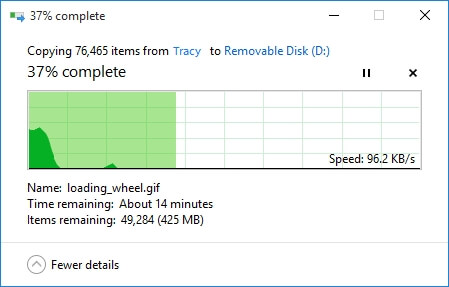
My WD USB 3.0 External Hard Drive Gets a Slow Transfer Rate, Help
I have a 1TB WD My Passport USB 3.0 external hard drive with 400GB of data stored on it, but it's become extremely slow when transferring data. Even a simple task like copying a single Word document to the drive takes around 5 minutes to complete, which is a significant slowdown from its usual performance.
Your WD external hard drive's slow performance might be due to various reasons such as outdated firmware, bad sectors, or disk usage. To resolve the issue, you can try updating the firmware, running a disk check, or clearing up disk space. You can also try using a different USB port or cable to rule out any issues with the connection. If none of these solutions work, it might be worth considering replacing the drive. Additionally, you can try using a disk cleaning software to clean up unnecessary files and free up space. If you're still experiencing issues, you can contact WD support for further assistance.
External hard drives may slow down or experience issues while copying or transferring data due to various reasons such as low disk space, fragmented files, or outdated firmware. This can lead to errors, lag, or even a complete failure of the drive. To resolve these issues, users can try updating the drive's firmware, checking for disk space and deleting unnecessary files, or using a disk cleanup tool to optimize the drive's performance.
- File copying stuck
- Data transferring slow
- File loss
- Drive crashing, hanging
- Computer freezing, etc.
To fix and get rid of the problems mentioned, continue reading to find solutions.
8 Fixes for 'WD External Hard Drive Data Low Transfer Rate' Error
If your WD external hard drive slows down or gets stuck while copying files, stop the current operation and try these fixes to improve its speed: immediately stop the current operation, check for any physical connection issues or loose cables, update the WD external hard drive's firmware, run a disk cleanup and disk defragmentation, and consider reformatting the drive if none of the above steps resolve the issue.
- #1. Change USB Port
- To free up disk space, you can backup files to another location, such as a cloud storage service. This will not only free up space on your device but also ensure that your files are safe and secure. You can use services like Google Drive, Dropbox, or OneDrive to upload your files, and then delete them from your device to free up space.
- #3. Clean Up Large & Useless Files - Free Up Disk Space
- #4. Defrag Disk - Free Up Disk Space
- #5. Update Disk Driver
- #6. Check and Fix Disk Error
- #7. Change File System - NTFS, Optimize Disk Performance
- #8. Run Antivirus
Method 1. Change USB Port - Reconnect External Disk to USB 3.0 Port
NotePlugging a USB 3.0 external hard drive into a USB 2.0 port can significantly slow down the drive's performance, making it sluggish when opening the drive or copying files, as it is not utilizing the drive's full capabilities. Most modern computers come equipped with both USB 2.0 and USB 3.0 ports to cater to a wide range of user needs.
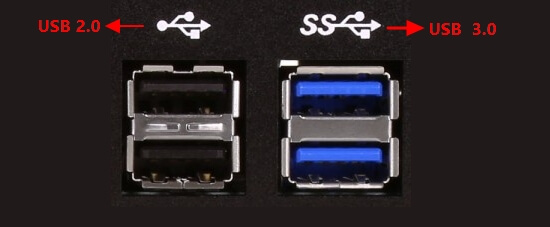
You can identify if your external hard drive is connected to the right USB port by classifying them through the colors of the USB port. Typically, USB ports are either blue, black, or white, and each type of port has a specific purpose and speed, with blue being the fastest and most commonly used for external hard drives. This means that if your external hard drive is connected to a blue USB port, it's likely to be the right port, while other types of ports may not provide the necessary speed or power for optimal performance.
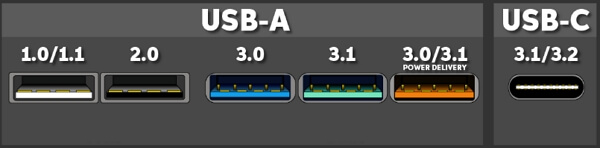
The differences between USB 2.0 and 3.0 can be identified through the icons displayed on the devices. These icons provide a visual representation of the USB version, allowing users to easily distinguish between the two.
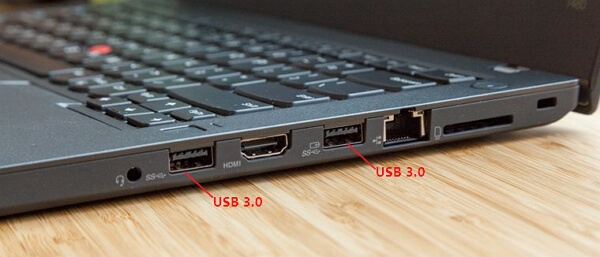
To change the USB port, connect your external disk to your PC via the USB 3.0 port, follow these steps:
Step 1. Connect your WD external hard drive with its original USB 3.0 cable.
Step 2. Locate the USB 3.0 ports on your PC.
Step 3. To connect the external hard drive to your PC, simply plug the drive into a USB 3.0 port using the provided USB 3.0 cable. This will establish a high-speed connection between the drive and your computer, allowing for efficient data transfer and access to the contents of the drive.
Now, you can try to copy and transfer data between your computer and external disk again. If the speed is normal now, you can stop here. If the speed is still slow, you may want to try checking your disk for errors or updating your disk drivers.
If the WD external hard drive still owns a slow transfer rate, try updating the firmware, checking for disk errors, and using a different USB port or cable. You can also try running a disk cleanup and disk defragmentation, or reformatting the drive if necessary.
Method 2. Compress, Backup Data to Another Location, Like Cloud
When your external hard drive is full of data, it can slow down. To resolve this, free up disk space by either compressing or backing up important data to another location, such as a cloud drive. This will help maintain the drive's performance.
We recommend trying Qiling Backup Home for backup and recovery needs.
You can use the WD external hard drive to selectively compress and backup files, freeing up space on your device. To do this, follow these steps:
Step 1. To resize, move, merge, split, or clone partitions on your Windows PC, download and install Qiling Partition Master Suite for free, and then launch it on your computer.
To install and launch Qiling CleanGenius, hover your mouse on the "PC Cleaner" option in the suite, then click the Download icon to initiate the installation process, and once installed, launch the application.
Step 2. To start scanning on Qiling CleanGenius, select "Cleanup" on the main screen and click "Scan".
Step 3.When the scanning process is finished, select the unnecessary large files and click "Clean" to remove them.
Step 4. When Qiling CleanGenius finishes cleaning the files you selected, click "Done" to complete the process.
You can also back up files to cloud storage like Google Drive, Dropbox, or OneDrive, and refer to a guide on backing up files to OneDrive for assistance.
Once the backup process is complete, you can safely delete the temporary files created during the process to free up space on your WD external hard drive and boost its transfer speed.
Method 3. Clean Up Large Useless Files on WD External Hard Drive
When a hard drive or external hard disk is cluttered with many large useless files, it can slow down its performance. To resolve this, use a cleanup software to remove these junk files and free up space.
Step 1. In the Backup and recovery page, click the File backup button to initiate a backup.

Step 2. Local and network files will be displayed on the left side, allowing users to extend the directory to select specific files to back up.

Step 3. To store the backup, select the location where you want to save it by following the on-screen instructions.

Step 4. Click "Options" to encrypt the backup with a password in "Backup Options". There are a variety of other customization options available for the tweaking the backup process.

Set up a backup schedule and choose to initiate a backup at a certain event in "Backup Scheme".

Step 5. You can save the backup to a local disk, Qiling's online service, or a NAS.

Step 6. To start a backup, click "Proceed" and once it's finished, the backup job will be displayed on the left panel as a card, where you can further manage it by right-clicking.

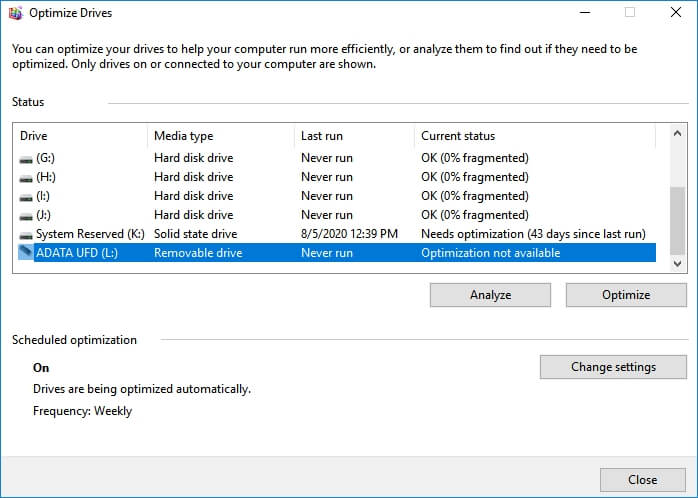
Method 4. Defrag and Clean Up Fragments on External Hard Disk
If your external hard drive is being used for a long time, it may accumulate many fragments, taking up a significant amount of space on your drive. The best solution is to clean up the existing fragments on the external hard drive.
Step 1. Connect WD external hard drive to PC, open File Explorer.
Step 2. Right-click the external disk and select "Properties".
Step 3. To optimize and defragment your drive, go to the Tools tab and click on the "Optimize" button under the Optimize and defragment drive section.
Step 4. Select "Remove customized settings".
Step 5. Choose your disk and click "Optimize" to complete.
Method 5. Update External Disk Driver
If the external hard drive driver is outdated, it may not function normally. To resolve this issue and potentially speed up its transfer rate, you can update the disk driver by following the provided steps.
Step 1. Right-click on This PC or My Computer, select "Manage".
Step 2. On Computer Management, select "Device Manager".
Step 3.To make a missing hard drive appear, expand the Disk drives section, right-click on the unshowing hard drive, and select the "Update driver" option.
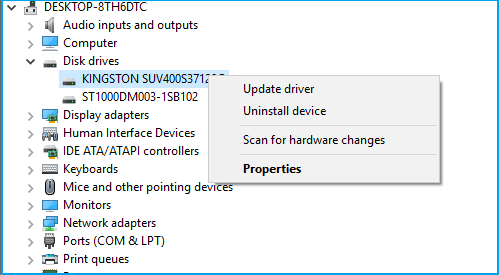
Step 4. Select "Search automatically for updated driver software".
Method 6. Check and Fix Corrupted File System/Bad Sectors on WD External Hard Drive
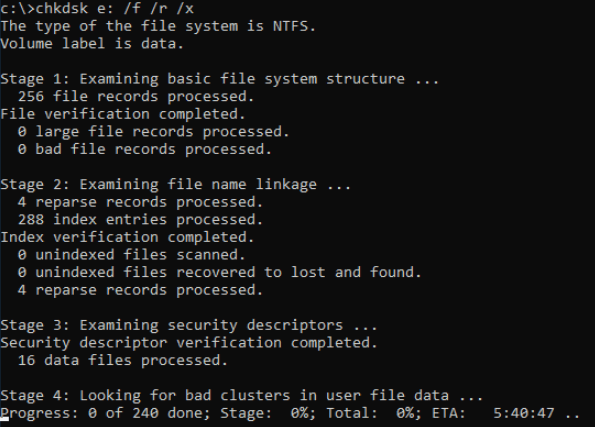
To fix a corrupted file system and bad sectors on an external disk, you can try running a disk check using the built-in Check Disk (chkdsk) utility on Windows or the Disk Utility app on a Mac. This can help identify and potentially repair any file system issues. If the issue persists, you may need to use a data recovery software to scan the disk and retrieve any recoverable files.
Step 1. Connect the WD external hard drive to your PC.
Step 2. Press Windows + R keys, type cmd and hit Enter.
Step 3. Click "Yes" when you are requested to launch Command Prompt as Administrator.
Step 4. Type chkdsk E: /f /r /x and hit "Enter".
Replace E with the drive letter of your WD external hard drive.
Method 7. Change File System, Convert WD Drive to NTFS, and Optimize Its Performance
If your WD external hard drive is experiencing a slow transfer rate, it may be due to an improper file system or other issues affecting disk performance. To resolve this, you can follow the tutorials listed to optimize its performance and fix the error.
#1. Convert WD External Hard Drive to NTFS
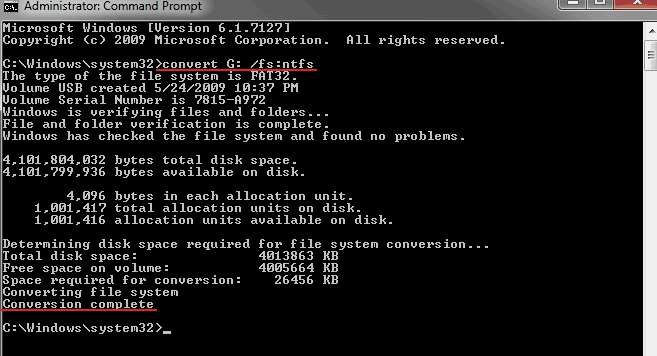
If you have a WD external hard drive with a FAT32 or exFAT file system, it's recommended to convert it to NTFS for optimal performance, especially if you plan to use it for large storage devices. To do this, simply follow the provided tips to convert your external hard drive to NTFS.
Step 1. Connect the WD external hard drive to your PC.
Step 2. Right-click on Start and select "Command Prompt (Admin)".
Step 3. Sign in with your Administrator account if necessary.
Step 4. Type convert G: /fs:ntfs and hit "Enter".
Replace G: with the drive letter of your WD drive.
#2. Optimize External Hard Disk Performance
Step 1. Connect the slow WD external hard drive to your PC.
Step 2. Right-click on the Windows icon and select "Device Manager".
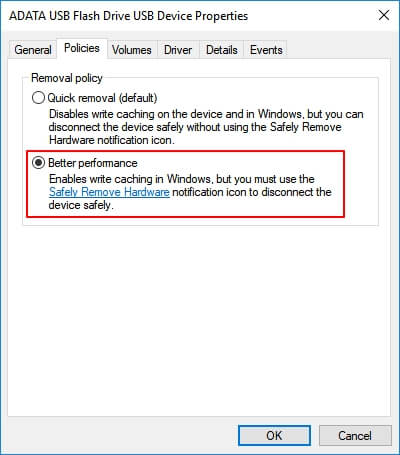
Step 3. To access the properties of your WD external hard drive, first expand the Disk Drivers, then right-click on your WD external hard drive, and select "Properties" from the context menu.
Step 4. Go to the "Policies" tab, select "Better performance", and click "OK" to confirm.
After upgrading your computer, you can consider getting a faster WD external hard drive to transfer and save files at a high transfer rate again.
Method 8. Run Antivirus
If your drive is experiencing a slow transfer rate, it may be due to a malware or virus infection. To resolve this issue, running antivirus software to scan and clean the infected drive is recommended. This can help identify and remove any malicious code that may be causing the slow transfer rate.
Step 1. Connect the slow external hard drive to PC.
Step 2. Run antivirus software or tool.
Step 3. Select to scan both PC and the external hard drive.
Step 4. Clear all found viruses and malware.
Step 5. Restart PC and reconnect the external drive to PC.
After this, you can use the external hard drive to copy and transfer data again.
Conclusion
If your hard drive or external hard drive suddenly slows down while copying or transferring files, you can try the fixes on this page to resolve the issue.
To prevent data loss, create an additional backup of important files from your external disk to another device or a Cloud drive, such as using Qiling Backup.
If you're still experiencing issues with your external hard drive's slow performance, check out the Q&A below for potential answers to your questions. Hopefully, these responses will provide the help you need to resolve the problem.
People Also Ask about External Hard Drive Slow
1. Why is my external hard drive transferring so slow?
According to experts, the below-listed errors are the main reasons that cause your external hard drive to experience slow transfer issues.
- Low storage space: storage device runs out of free space.
- The device is occupied by large useless files.
- Corrupted system files/bad sectors on the storage device.
- The issue is likely due to the external hard drive being set to an invalid or improper file system, which is preventing the data from being accessed or written to it. This can happen if the drive is not properly initialized or formatted before use, or if the file system is corrupted or incompatible with the computer's operating system.
- A user is experiencing issues with connecting an external hard drive to their computer, specifically noting that it is not connected via the USB 3.0 port, which is a high-speed port capable of transferring data at speeds of up to 5 Gbps. The user is likely experiencing slow data transfer rates or errors when trying to access the external hard drive, and may need to troubleshoot the connection or check the drive's compatibility with their computer's USB ports.
- The Disk driver is outdated.
- The disk contains too many fragments.
2. How fast do external hard drives transfer data?
The transfer speed of an external or internal hard drive is largely dependent on the USB device's performance, with different interfaces offering varying maximum speeds, including USB 1.0 (1.5 Mbps), USB 1.
- USB 3.0 - Up to 4.8 GB/sec
- USB 2.0 - Up to 480 MB/sec
- USB 1.1 - Up to 12 MB/sec
3. Why is my computer so slow all of a sudden?
Your computer's sudden slowdown can be attributed to various reasons. These include a cluttered hard drive, outdated software, a malware or virus infection, overheating, or a failing hard drive. Additionally, a large number of programs running simultaneously, a full disk, or a malfunctioning cooling system can also contribute to the issue.
- Many apps are running background
- High CPU or high RAM usage
- The hard drive is out of free space
- Virus or malware infection
- Windows is out of date
- Hard drive driver is out of date
- Hard drive failure
- ...
To resolve the issue of Windows 10 slowing down suddenly, refer to the article "Windows 10 Slow Suddenly" for troubleshooting steps and solutions.
Related Articles
- Windows 10 Quick Access Not Working, Not Responding, Slow to Open
- Solved: CMD.exe/CMD Keeps Popping up in Windows 10
- How to Restore Missing Downloaded Files Steam
- Windows 10 Creators Green Screen of Death Fix
- How to Boot Windows 11 in Safe Mode [2023 Update]
I was wondering how to Boot Windows 11 in safe mode. Worry no more; this article will help with multiple methods and easy-to-follow steps. - Windows Cannot Find Ms-Settings: How to Fix the File System Error
Are you unable to open the Windows Settings using the ms-settings shortcut? Then follow our guide to learn about 7 Fixes to the File System Error that can fix the Windows Cannot Find Ms-Settings. Many use shortcuts to open parts of Windows, and settings is an important one.
Products
Articles & Tutorials
- Data Recovery
- Data Backup
- File Recovery
- File Backup
- System Backup and Restore
- Disk and Partition Clone
- Technical articles
- Mobile articles
- Disk Master Help
- Windows Data Recovery Tutorials
- Windows Secure Delete Tutorials
- Windows Partition Management Tutorials
- Windows File Backup and Restore Tutorials
- Windows System Backup and Restore Tutorials
- Windows Disk Backup and Restore Tutorials
- Windows Clone Tutorials