How to Restore Missing Downloaded Files Steam
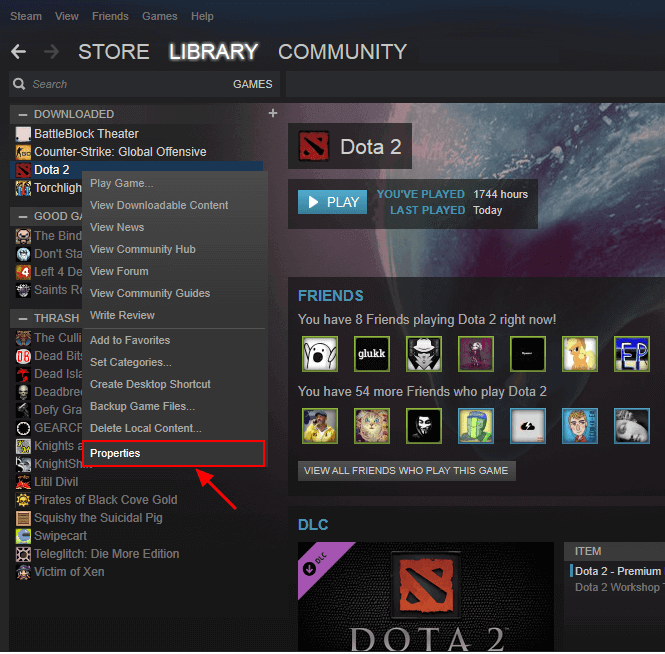 A brief guide on how to restore Steam missing downloaded files:
To resolve the issue of a game not running on Steam, go to the Steam Library, right-click on the game, select Properties, then click on Local Files and verify the game cache integrity. This may resolve the issue and allow the game to run or update successfully.
If you're experiencing issues with missing downloaded files on Steam, there are several effective methods to restore them. You can try checking the "Downloads" section in the Steam client, verifying the integrity of the game files, or using the "Repair" option. Additionally, you can check the Steam download logs for any errors or issues, and try restarting the Steam client or your computer.
| Workable Solutions | Step-by-step Troubleshooting |
|---|---|
| Fix 1. Restore from Steam library | Open the Steam game player and go to Library. Find the lost game name and select "Properties"...Full steps |
| Fix 2. Add installation libraries | Launch Steam. Go to "Steam" > "Settings" > "Downloads"> Click "Steam Library Folder"...Full steps |
| Fix 3. Rename ClientRegistry.blob | Open your Steam installation folder and selecting "Open file location". Locate the ClientRegistry.blob file...Full steps |
| Fix 4. Restore lost game files | Find Steam game files on PC, and then recover lost steam game files (including game videos, screenshots)...Full steps |
| Fix 5. Remove content and reinstall | Remove local content on Steam by going to Steam Library > right-click it and select "Delete Local Content"...Full steps |
Steam Games have gained a high reputation for bringing wonderful games to worldwide players. However, Windows users may inadvertently delete or remove Steam game files or patches from their computers, which can be a problem under Windows 10/8/7.
Fortunately, you can recover lost Steam games by following multiple solutions provided by the Steam support team, experienced YouTubers, and Qiling software, which can bring all lost games back immediately.
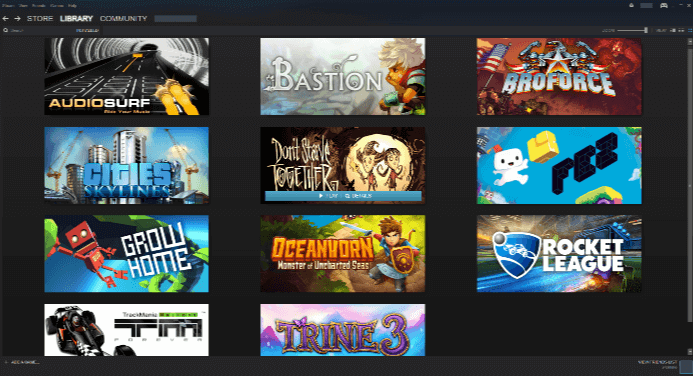
Steam Game Files Lost Problems
Q 1. Steam doesn't recognize my games, help.
"The Steam issue after upgrading to Windows 10 might be due to the game files not being recognized. Try checking if the Steam library is still located in the D: drive and if the game files are properly installed. You can also try verifying the integrity of game files through Steam's settings."
To get Steam to locate your games, try restarting Steam and your computer, then check the Steam library for the missing games. If they still don't show up, check the Steam installation directory for the game's folder and try reinstalling the game. You can also check the Steam settings for any issues with the game's installation.
To resolve the issue, try restarting Steam, then right-click on the game and select "Update Local Files" or "Verify Integrity of Game Files" to force Steam to re-scan for the game files. If the issue persists, you may need to reinstall the game, but this should only be a last resort. Reinstalling will not affect your game saves or progress. However, if the game was previously uninstalled, you will need to reinstall it from scratch. If you've already tried updating local files and the issue persists, you may want to check for any conflicting programs or file system errors that could be interfering with Steam's ability to locate the game files. If none of these steps resolve the issue, it's possible that there's a problem with your Steam installation or the game itself, and you may need to contact Steam support for further assistance.
Q 3. How do I restore deleted Steam game files?
Sorry to hear that you lost your Steam game files after a reboot. Try checking the Steam installation directory for the game files. You can also try verifying the integrity of the game files through Steam's client. If that doesn't work, you might need to reinstall the game. Alternatively, you can also check if the game files are stored in your Steam cloud saves, and if so, you can download them again. Would you like me to guide you through the process?
If Steam stops working or can't read your game files, don't panic! Instead, try these detailed solutions to recover your lost Steam game files. You can calm down and follow these steps to resolve the issue.
Solutions for Lost Steam Games Recovery
The solutions to lost Steam game issues vary. To bring lost games back, you need to choose the right solution carefully, as different problems require different approaches.
Method 1. Restore Lost Games from Steam Library
To resolve the greyed out or not recognizable issue with Steam games, try updating your Steam client to the latest version, as outdated software can cause compatibility problems. Additionally, ensure that your graphics drivers are updated, as outdated drivers can also cause issues.
Provider by: YouTubers, Steam game players
If Steam stops you from playing games, warning you that no files were found, or Steam games are greyed out in Steam LIBRARY, you can verify game files and make your games playable again by following these steps:
Step 1. To access the Steam game player on your device, open it up and navigate to the Library section.
Step 2. To find the lost game name, click on the left panel and select the game, right-click on it and choose "Properties".
Step 3. On the Properties window, click "LOCAL FILES" and select "VERIFY INTEGRITY OF GAME FILES..." to check and fix any corrupted game files.
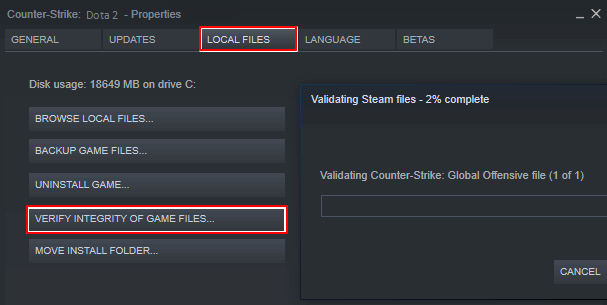
After you've removed Steam, wait for the verification process to complete. Once it's finished, you'll be able to open and play your favorite game on Steam again.
Method 2. Add Installation Libraries/Folders to Steam and Make Game Playable
When Steam no longer recognizes the installation files, Steam games may appear uninstalled, even if they were previously installed and played. This can occur due to various reasons, such as a corrupted Steam cache, incorrect game installation, or changes in the game's file structure.
Provided by: Steam support team, Steam game players.
If you're having trouble launching a game on Steam, try checking if the game folders are still in the correct location on your PC. As long as they are, Steam will automatically redownload the game for you when you try to launch it. To check the folder location, follow the path to ensure everything is in a helpful guide.
C:\Program Files (x86)\Steam\Steamapps\Common
If the game folder is in the Steam file location, you can relaunch the game to redownload it on your Steam. Alternatively, you can add alternative installation libraries or folders to Steam by following the steps below.
Step 1.To access the Steam Library Folder, launch Steam and navigate to the "Settings" menu, then select "Downloads" from the dropdown, and finally click on "Steam Library Folder".
This will open all your current Steam Library folders.
Step 2. To add a library folder, click the "Add Library Folder" button and select the folder containing your installed games. This will allow you to browse and play your games through the interface.
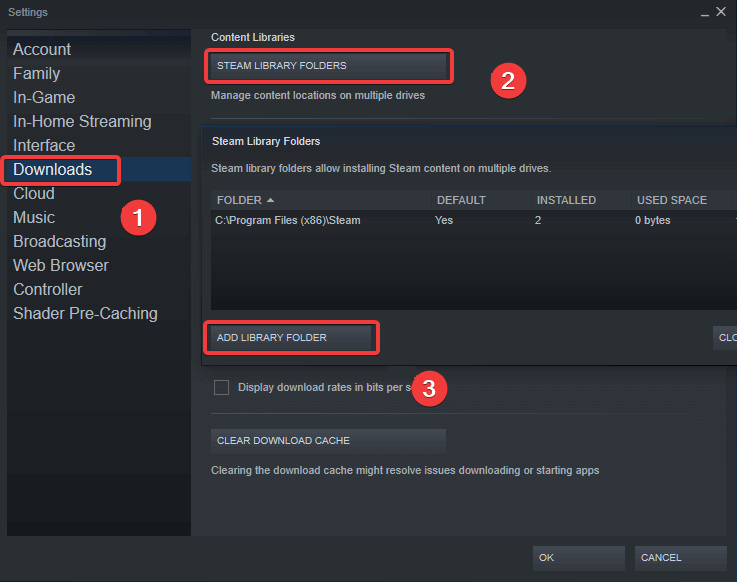
Wait for the adding process to finish, your installed games that appeared uninstalled will show up in your Steam Library, and you can play them again.
If this doesn't work, try the following tips provided by a Steam player to make Steam game show up in Steam again:
Step 1.Move all files and folders from the original Steam folder to a new folder, effectively emptying it. Then, rename the original (now empty) parent folder to a "Library" folder.
Step 2.Move all files and folders from the new folder back to the library folder, then restart the client to ensure the changes take effect.
Step 3.To access the Steam library folders, open Steam, go to Steam in the top menu, select Settings, then click on Downloads, and finally click on Steam Library Folders.
Step 4.Click "Add Library Folder" and select the newly renamed library folder.
Wait for the process to finish, your disappeared games would show up again.
Method 3. Rename the ClientRegistry.blob File to Restore Missing Steam Games
Applies to: Restore missing Steam game files that cause Steam games lost.
Provided by: Geeks, Steam game players.
The ClientRegistry.blob file contains info about your Steam installation and game installations, and resetting it will reset various settings to default, making missing games show up in Steam and work again.
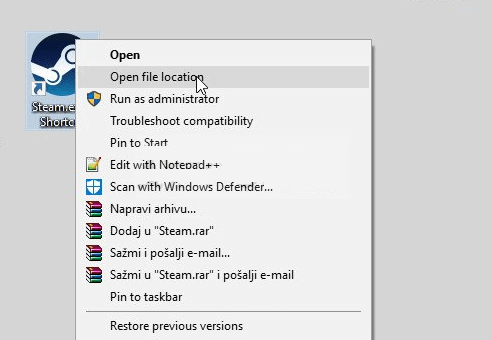
Step 1. To access the Steam installation folder, right-click on the Steam shortcut on your Desktop and select "Open file location" from the context menu. This will open the folder where Steam is installed on your computer.
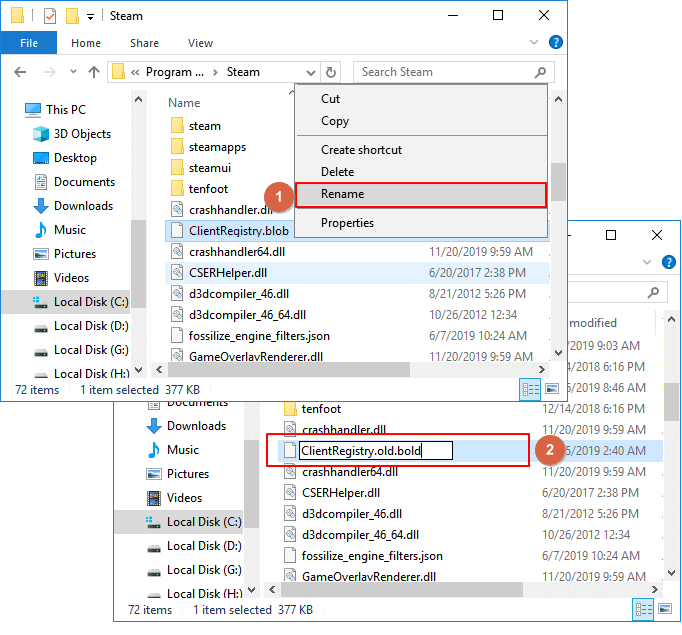
Step 2. Locate the ClientRegistry.blob file in the Steam folder, right-click on it and select "Rename" to change its name and prevent Steam from automatically launching the next time you start your computer.
Step 3. Change the ClientRegistry.blob to ClientRegistry.old.blob and confirm the changes.
Step 4. If you're experiencing issues with your Steam games not launching, try restarting your Steam client. This simple step can often resolve the problem and get your games up and running again.
Method 4. Restore Lost Steam Game Files - Recordings & Screenshots
The Steam client can be used to restore lost or missing game files, including installation files, recordings, and screenshots. This feature allows users to recover files that were deleted or lost due to various reasons, such as a system crash or a corrupted Steam library.
Provided by: Geeks, Qiling software.
When Steam fails to read or recognize game files, there might be an issue with the files in the Steam file location. To troubleshoot, check the Steam game files location to see if the files are present, or use a file recovery tool to scan and restore lost game files.
# 1. Find Steam Game Files on PC
To find the Steam game files on a PC, follow these steps: Right-click on the Steam icon in the system tray, select "Exit" to close Steam, then navigate to the Steam installation directory, which is usually located at "C:\Program Files (x86)\Steam" or "C:\Program Files\Steam" depending on your system architecture. Inside the Steam directory, look for a folder with the game's name, and within that folder, you'll find the game's files and settings. If the game files are not there, check the Steam library to see if the game is installed, and if not, try reinstalling it.
C:\Steam\Userdata\55230\Remote
C is the DriveLetter of the volume where Steam is installed onto.
Steam is the directory where Steam is installed into.
55230 is just the number Steam has assigned to your account.
If the files were not there, you may need to re-download the game files or follow the next tip to recover the lost Steam game files.
# 2. Recover Lost Steam Game Files (Including Game Videos, Screenshots)
Reliable file recovery software like Deep Data Recovery can find lost Steam game files, including game videos and screenshots, by scanning your computer's hard drive.
You can try Deep Data Recovery to scan and restore lost Steam game files in just 3 steps, and it supports all Windows systems, including Windows 10.
Note: To increase the chances of successful data recovery, install Qiling data recovery software on a separate disk, rather than the original disk where the files were lost.
Step 1. Launch Deep Data Recovery on your Windows computer, select file types, and click "Fast Scan" to start the recovery process.

Note: You can choose different search modes based on where and why the data was lost.
Step 2. To recover lost data, select the disk partition or storage location where the data was lost and click "Scan" to initiate the scanning process. This will allow the system to search for and identify the lost data.

Step 3. After running the recovery software, it will begin scanning the disk to locate all lost and deleted files. Once the scan is complete, you can click "Filter" > "Type" to specify the types of lost files you're looking for.

Step 4.To recover lost Windows files, simply double-click to preview the scanned files, select the target data, and click the "Recover" button to save them to a safe spot on your PC or an external storage device.
To fix the issue, save the found game files to a safe location, then move them back to the original Steam game file location, and finally restart the Steam client to make your games playable again.
# 5. Remove Local Content and Reinstall Lost Steam Games
If you've tried recovering lost Steam game files but the game still won't work, try removing the local content and reinstalling the game on Steam. This may resolve the issue.
Step 1.Remove local content on Steam
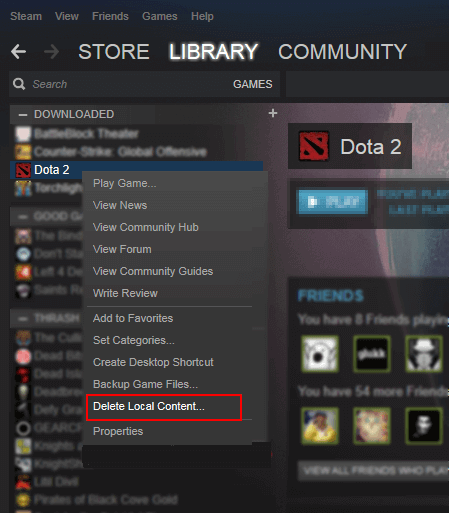
On Steam Library > Right-click it and select "Delete Local Content".
Step 2.Reinstall beloved Steam games
To install a greyed out game in Steam, navigate to the Steam LIBRARY, right-click on the specific game you want to install, and select "Install" from the context menu.
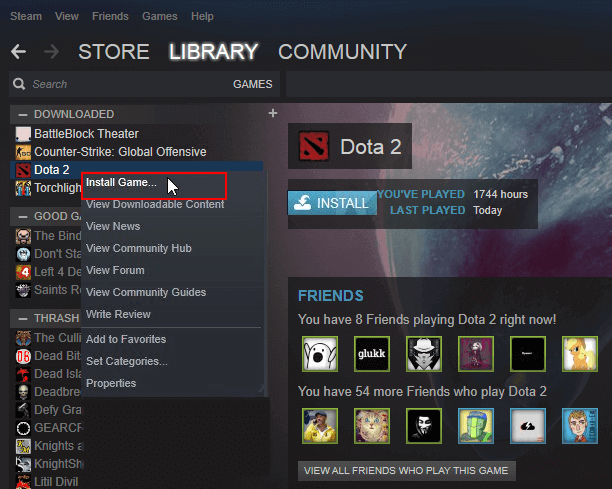
Install the games you want from the Steam store, and repeat the process until you have all the desired games installed. You can restart the Steam client to play games on your PC again.
Bonus Tips: Back Up and Restore Steam Games
Besides knowing efficient ways to recover lost Steam games, it's also essential to have reliable methods for backing up your Steam games, ensuring that your gaming collection is safe and secure.
To fully back up Steam games and related game files on your own, you can utilize the built-in Steam feature called "Steam Cloud Saves" to synchronize your game saves across all your devices, or use a third-party backup software like Qiling Backup to create a complete image of your system and store it on an external drive or cloud storage service. This way, you can ensure that your games and related files are safely backed up and can be easily restored in case of any data loss or system failure.
# 1. Manually Back Up Steam Games
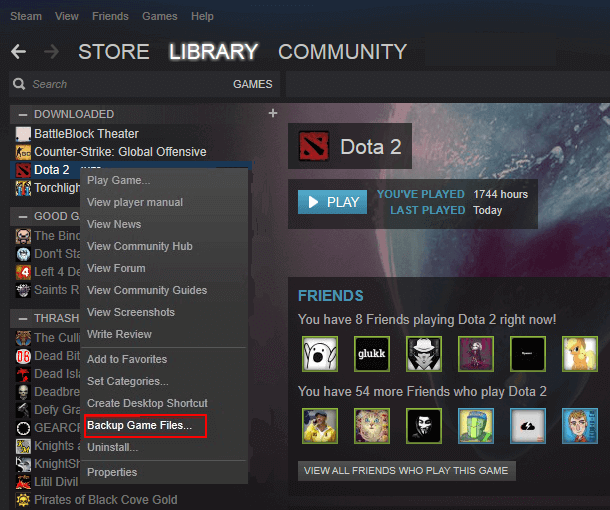
Step 1.To back up your Steam games, launch Steam on your PC, go to the LIBRARY, right-click on the downloaded games you want to back up, and select "Backup Game Files...".
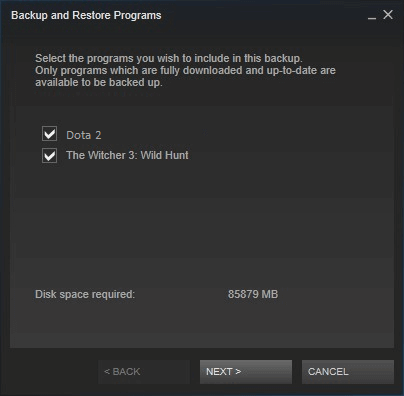
Step 2.Select the games you want to backup and click "Next" to proceed.
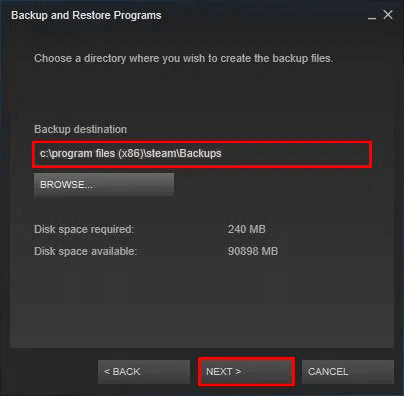
Step 3.Select the location to save your Steam games backup and click "Next" to proceed.
The default backup location is C:/programs files (x86)/steam/Backups/, but you can change it by clicking "Browse" to choose a new location.
Step 4. You can rename the backup files or keep the default generated name, and then click "Next" to proceed.
Wait until the backup operation finishes. The backup speed is based on the size of your selected games.
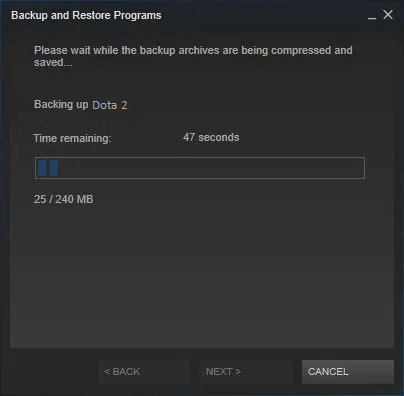
To restore Steam backups of your favorite games, go to Steam > Backup and Restore Games, and follow the onscreen instructions to complete the backup recovery process.
# 2. Back Up Local Saved Steam Game Files
To back up your saved files of Steam games on your local drive, you should identify the files that need to be backed up on your PC. These files are usually located in the "C:\Users\YourUsername\AppData\Local\VirtualStore\Program Files (x86)\Steam\userdata" or "C:\Users\YourUsername\AppData\Local\Steam\userdata" folder, depending on your Windows version and whether you're using a 32-bit or 64-bit system. The files to be backed up are typically the "localstorage" and "remotestorage" files, which contain your game saves and settings.
First. Find Game Files Location for Backup
- Game folders: C:\Program Files\Steam\SteamApps\common\(including the below listed folders)
- /cfg/ - Custom configurations and configuration scripts
- /downloads/ - Custom content for multiplayer games
- /maps/ - Custom maps that have been installed or downloaded during multiplayer games can be accessed and played on the game. These maps can be created by the game's community or by the game developers themselves, and can offer unique gameplay experiences that are not available on the standard maps.
- /materials/ - Custom textures and skins
- /SAVE/ - Single-player saved games
- Game recordings and screenshots are saved in various locations on your computer, including My Documents, Videos, and Pictures folders. Ensure you know the exact location where you saved all your games' recordings and screenshots.
Next. Back Up Game Files
You need now specify another secure drive or an external hard drive to continue the backup process.
After that, you can either manually copy each folder to the target device or use reliable file backup software like Qiling Backup to backup all files at once.
This backup software allows you to easily back up all desired files in just 3 simple steps, giving you peace of mind and protection for your important data.
Step 1. Click the "File backup" button to start backup.

Step 2. Local and network files will be listed at the top, and you can expand the directory to select the files to be backed up.

Step 3. Follow the on-screen guide to select the destination where you want to save the backup.

To encrypt the backup with a password, click on "Options" in the "Backup Options" section and select the desired encryption method. This allows you to customize the backup task according to your specific needs.

Set the backup schedule and choose to start back up at certain event in "Backup Scheme".

Step 4. The backup can be stored on a local drive, Qiling's cloud service, or a network-attached storage (NAS) device.

Step 5. Qiling Backup allows users to back up data to both third-party cloud storage and its own cloud storage.
Step 6. Click "Proceed" to start the backup process. Once the task is completed, the backup will be displayed as a card on the left side of the panel. You can right-click on the backup task to manage it further.

Related Articles
- Fix Kernel Security Check Failure Error in Windows 10/8/7
- [Solved] Your Computer Is Low on Memory Windows 7/8/10 in 8 Ways
- Use CHKDSK to Fix the Selected Volume Corruption Problem in Windows 10
- Fixed: SFC (SFC / SCANNOW) Is Not Working on Windows
- How to Make Windows 10 Manage Backups Automatically?
Find the backup disk is full? Learn how to make Windows 10 manage backups automatically from this page. - Use Windows 10 WBadmin to Create System Image Backup
You will learn how to use Windows 10 Wbadmin backup or easier alternative to create system image backup. Learn both software and select one to protect your computer!
Products
Articles & Tutorials
- Data Recovery
- Data Backup
- File Recovery
- File Backup
- System Backup and Restore
- Disk and Partition Clone
- Technical articles
- Mobile articles
- Disk Master Help
- Windows Data Recovery Tutorials
- Windows Secure Delete Tutorials
- Windows Partition Management Tutorials
- Windows File Backup and Restore Tutorials
- Windows System Backup and Restore Tutorials
- Windows Disk Backup and Restore Tutorials
- Windows Clone Tutorials