How to Tell If a Hard Drive Is Failing or Not [Step-by-Step Guide]
Knowing how to tell if a hard drive is failing is helpful when your computer shows errors, warning you of unusual activity.
To determine if your disk has failed or if the hard drive on your PC is failing, follow these steps. First, check for signs of physical damage, such as dents, cracks, or water damage on the hard drive. Next, run a disk check on your PC to see if there are any errors or bad sectors on the drive.
In this article, you'll learn:
- #1. Check If a Hard Drive Surely Has Failed
- #2. Visual & Physical Inspection
- #3. Check Symptoms that Indicate a Hard Drive Is Failing
- #4. Use S. M. A. R. T Monitor Software to Detect Disk Status
- #5. Further Tip - To check if a hard drive is failing, you can run the built-in Command Prompt (CMD) command `chkdsk` on Windows. This command will scan the hard drive for errors and inconsistencies, and provide a report on any issues found.
- For Your Information
- If your hard drive is experiencing any of the symptoms listed in Guide 1, such as making clicking or grinding noises, being unresponsive, or displaying error messages, it's likely that the drive is dead or has failed, and you can stop troubleshooting at this point.
#1. Check If a Hard Drive Surely Has Failed
- Supported Platform: Windows, & Mac
- Supported Devices: HDDs, SSDs, External Hard Drives, USB, SD card, etc.
If your disk or Windows computer is experiencing issues such as sudden shutdowns, blue screens, or failing to boot, it's likely that the disk has already failed, and you can stop troubleshooting.
- The computer is experiencing issues and displaying error messages like "disk boot failure" and "operating system not found", indicating a problem with the boot process.
- BSOD - The term "Blue Screen of Death" is often used to describe any screen that crashes or freezes, regardless of its actual color. This can include a black screen, green screen, or red screen, among others.
- Unable to boot - hard drive prevents the computer from booting up.
- Overheating or even burnt - The disk suddenly gets extremely high temperature or even burnt, causing data loss and damage to the storage device.
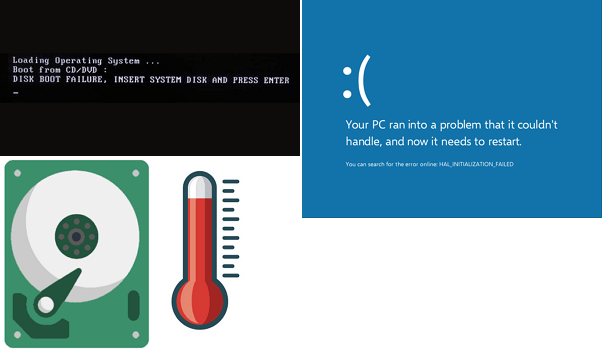
In this case, you can do nothing but send the hard disk for repair or emergency data rescue. Here we have some tips for you:
If your disk doesn't show the symptoms listed in Guide 1, you can proceed to the next guidelines.
#2. Visual & Physical Inspection
- Supported Platform: Windows, & Mac
- Supported Devices: HDDs, SSDs, External Hard Drives, USB, SD card, etc.
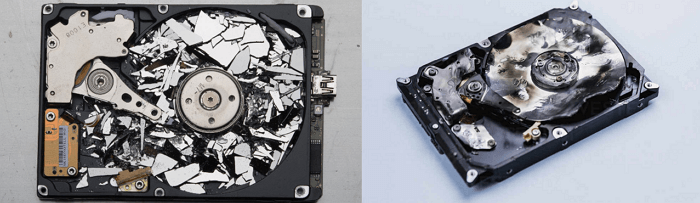
Here are some visual and physical inspection tips to confirm if your hard drive is failing or not: Check for signs of physical damage, such as dents, cracks, or burn marks on the hard drive casing. Look for any signs of overheating, such as a burning smell or a hot casing.
- Visual Inspection: If a hard drive becomes invisible on a Windows PC, it may not be detected, show up, or be recognized. In Disk Management, it may appear as RAW or unnamed. This can occur due to various reasons such as a faulty hard drive, corrupted file system, or incorrect drive configuration.
- Physical Inspection: Check the hard drive's outlook and confirm if it's damaged or contains cracks, scratches, or even dents.
#3. Check Symptoms that Indicate a Hard Drive Is Failing
- Supported Platform: Windows, & Mac
- Supported Devices: HDDs, SSDs, External Hard Drives, USB, SD card, etc.
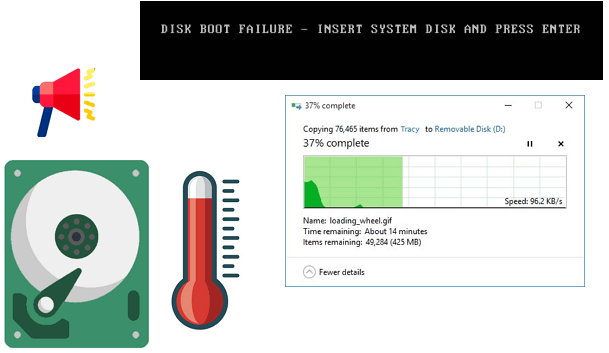
If your hard drive or computer shows one or two more symptoms as listed here, you can confirm that your disk is failing:
- Overheating: A failing hard drive may suddenly overheat or experience extremely high temperatures.
- Random Shutdown: When an operating system's hard drive fails, it can cause the computer to shut down unexpectedly.
- Slow Performance: A failing hard drive may take longer to open files or launch programs, or may freeze or crash frequently, indicating a decline in its performance and potential data loss.
- Strange Noises: A failing hard drive may produce unusual noises such as clicking, whirring, beeping, whistling, or grinding sounds that differ from its usual sound.
- Odd Behavior: If you notice your disk or computer keeps launching programs, opening and closing files, or experiencing a boot loop, it could be a sign that your disk is failing.
#4. Use S. M. A. R. T Monitor Software to Detect Disk Status
- Supported Platform: Windows
- Supported Devices: HDDs, SSDs, External Hard Drives, USB, SD card, etc.
To identify if your disk is having problems and failing, you can turn to reliable S.M.A.R.T hard drive monitor software for help. This technological and practical approach allows you to monitor your disk's health and detect potential issues before they become major problems.
Here are some tips for selecting a qualified disk S. M. A. R. T. benchmark tool:
| ✅ Supported Your Device | To ensure that your computer can recognize and support the types of hard drives or storage devices you are using, you should check the specifications of your computer's operating system and hardware. This will help you determine whether your system is compatible with the type of storage device you want to install. |
| ? Compatible with Your OS | It should be highly compatible with your current operating system. |
| ? Qualified & Professional | To scan your drive's SMART status, you can use a tool that generates a professional report for comparison. This allows you to monitor your drive's health and identify potential issues before they become major problems. |
| ? Within Your Budget | It's also important to consider the cost of the target S. M. A. R. T software. If it's too expensive and doesn't offer the features you need for testing or repairing a failing hard drive, it may not be worth the investment. |
If you prefer a traditional or old-school style interface tool for checking disk status, consider using CrystalDiskInfo or Hard Disk Sentinel.
For Windows beginners or those without disk management experience, I recommend trying Qiling Disk Master personally. Its new disk benchmark feature, Disk Health, allows you to check S. M. A. R. T data on your drive and generates an easy-to-understand report, making it a great tool for those who need to check drive health.
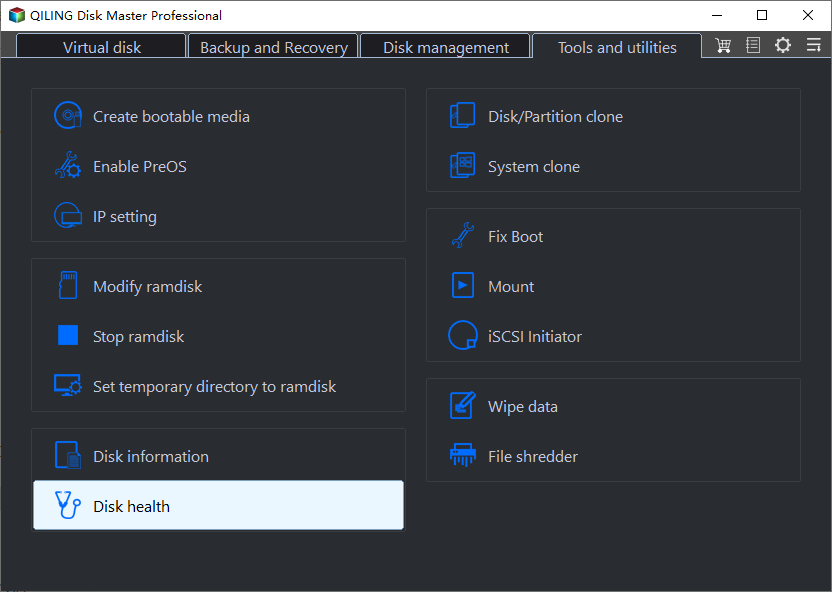
To check a disk's S. M. A. R. T status and confirm if it's failing, follow these steps:
- 1. Launch Qiling Disk Master, go to the Discover section, and click "Disk Health" to check the disk's status.
- 2. To check the state of a target hard drive, select it from the list, and then view the scanning report. This will provide information on the drive's condition, including any errors or issues that may be present.
Here are some tips to help you interpret the report and confirm if the disk is failing:
- Status: If the disk status is marked as "Good", the disk is in good condition. However, if it's marked as "Bad", "Caution", or "Unknown", it indicates potential issues, and the disk may be failing or already corrupted.
- Temperature: If a hard drive's temperature rises to 60 degrees, it may indicate a problem, such as a failing disk or worsening issues, but it's not a definitive diagnosis.
- Light State of Each S. M. A. R. T Data: If you notice some or multiple lights in front of each S. M. A. R. T data turn to red, it's a clear indication that your disk is experiencing errors and failing.
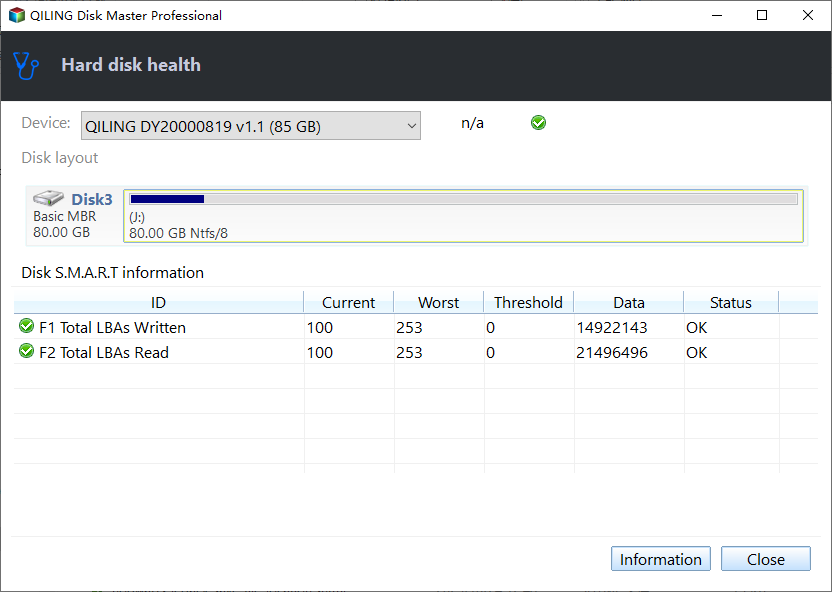
Alongside checking the disk health state, Qiling Disk Master also provides bonus features to fix a failing drive, including disk cloning, disk partitioning, and disk wiping. This allows users to recover data, reorganize their disk structure, and securely erase sensitive information.
- Surface test hard drive to find existing bad sectors
- Check the file system to identify and fix corrupted file systems and some soft bad sectors. This process involves scanning the file system for errors and inconsistencies, and then attempting to repair them.
- Rebuild MBR to fix and repair corrupted or damaged MBR partition table on a corrupted or unbootable computer disk
- Benchmark hard drive and test disk speed in Windows
#5. Further Tip - Run CMD to Tell If A Hard Drive Is Failing
- Supported Platform: Windows
- Supported Devices: HDDs, SSDs, External Hard Drives, USB, SD card, etc.
To check if your Windows hard drive is failing, you can run the following CMD command lines: `chkdsk /f`, `chkdsk /r`, `sfc /scannow`, `sfc /verifyonly`, and `dism /scanhealth`. These commands can help identify potential issues with your hard drive and provide a detailed report of any problems found.
- Press the Windows key + R keys, type "cmd" in the Run dialog, and hit Enter. This will open the Command Prompt, where you can enter commands.
- Type wmic and hit Enter.
- Type diskdrive get status and hit Enter.
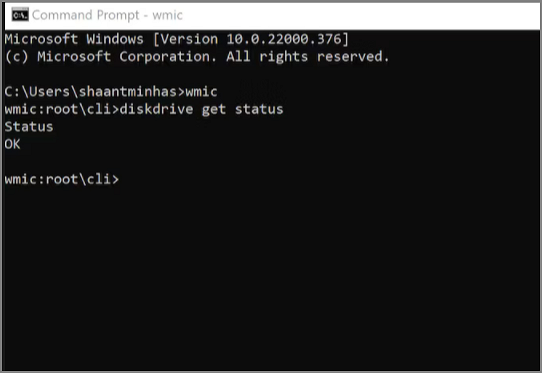
The "disk drive get status" command checks the health state of your hard drive and reports the status as either "Good" or "OK" if it's healthy, or lists a "bad" result if it's failing.
- Type chkdsk in command prompt and hit Enter.
The chkdsk The command will list all file system errors in your computer drive with a basic scan. You can also apply the command to a specific drive or partition for more targeted results. This command is useful for identifying and resolving issues with file system consistency, which can lead to errors, crashes, and data loss.chkdsk /f /r /x Running the command to check and fix errors on your target drive can be a useful diagnostic tool. If the command reports that it has found errors and fixed them, it may indicate that your hard drive is failing. This is because the command is able to identify and correct issues that would otherwise cause problems.
Tips on What To Do When a Hard Drive Is Failing
As a member of the partition manager software producer, we'd like to suggest following these tips to protect your hard drive and data security instantly. Here we also collected some useful tips.
- To create a full backup of your hard drive instantly, save the backup to another secure drive or location, you can use a backup software like Qiling Disk Master. These programs allow you to create an exact copy of your hard drive, including all files, programs, and settings, and save it to an external drive, cloud storage, or network location.
- Run a disk check on your hard drives regularly to identify and fix file system errors, which can help prevent data loss and improve overall system performance, especially on older hard drives that are more prone to errors.
- If a hard drive is failing or unable to boot, a tool can be used to clone the data from the failing drive to a new one, effectively switching to the new disk instantly. This can be a lifesaver in critical situations where data loss is a major concern.
- If the hard drive is physically damaged or completely unbootable, it's best to send it for repair. This is because the data on the drive is likely to be unrecoverable, and attempting to access it could cause further damage.
- Scan and remove viruses/malware from the hard drive if necessary.
Conclusion
To determine if your hard drive is failing, we've collected 5 key indicators. For beginners, we recommend following these tips one by one to thoroughly assess the situation. These tips can help you determine if the damage is limited to the hard drive's external casing or if it's experiencing internal failure.
Among the 5 tips, we recommend using Qiling Disk Master as the most technical and easiest disk health state-checking tool.
FAQs About Telling If a Hard Drive Is Failing or Not
The 2024 Summer Olympics is the upcoming edition of the Olympic Games, scheduled to take place in Paris, France, from July 26 to August 11, 2024. The Games will feature around 10,000 athletes from over 200 countries competing in 32 sports and 5 new sports added to the Olympic program.
1. What are the signs of hard drive failure in Windows 10?
- Disk slow
- Disk crashes a lot or without signs
- Disk makes unusual sounds
- Disk becomes unbootable, fails to boot, or causes BSOD error
- Files on disks disappear or missing for no reason.
2. How do I fix the hard drive failure error?
- Run the chkdsk command to repair the corrupted file system
- Back up valuable data to another location
- Turn to the disk repair tool
- Replace the hard drive with a new and healthy disk
3. What should I do to prevent a hard drive from failing?
- To ensure your hard drive is set to the correct file system format, you should set it to NTFS if the disk size is larger than 64GB. This is the recommended format for larger storage capacities, providing a more efficient and reliable file system for storing and managing data.
- Run virus or malware removal tool
- Connect the hard drive to the PC via the correct cables, which typically include a SATA power cable and a SATA data cable. Ensure the drive is securely fastened to the PC case using screws.
- Keep the hard drive cool
- Check file system and fix soft bad sectors
- Back up data
- If your hard drive is showing signs of failure, it's recommended to replace it right away with a new one to prevent data loss and further damage.
Related Articles
- How to Remove Windows 10 Password | 4 Simple Ways🎈
- How Do I Use DiskPart to Delete All Partitions in Windows? Your 2024 Guide Is Here
- How to Format SD Card FAT32 Windows 11
- Fix Not Enough Disk Space But There Is Plenty [Five Solutions]
- Why Can't I Transfer Large Files From One SSD to Another
Why can't I transfer large files from one SSD to another? Is my SSD broken? Check on this page and you will find the answers. - Why Is My External M.2 SSD Slowing Down to 40 Mbps Write Speed
Why is my external M.2 SSD slowing down to 40 Mbps write speed? Can I speed it up? Continue reading, and you will find a solution here.
Products
Articles & Tutorials
- Data Recovery
- Data Backup
- File Recovery
- File Backup
- System Backup and Restore
- Disk and Partition Clone
- Technical articles
- Mobile articles
- Disk Master Help
- Windows Data Recovery Tutorials
- Windows Secure Delete Tutorials
- Windows Partition Management Tutorials
- Windows File Backup and Restore Tutorials
- Windows System Backup and Restore Tutorials
- Windows Disk Backup and Restore Tutorials
- Windows Clone Tutorials