Guide to Test Disk Speed on Windows Computer [Your Free Guide Is Here]
In this article, you'll learn:
- When Do I Need to Test Disk Speed?
- How Do I Test Disk Speed on Windows PC?
- Bonus Tip: Optimize Disk Speed After Testing Disk Speed
Slow computers can be frustrating, but there are ways to identify and address the issue. One common cause of slow performance is a hard disk that's running at a slower speed than expected. You can test your disk speed to determine if this is the case. This can help you identify the root cause of the problem and take steps to improve your computer's performance.
Testing disk speed is a straightforward process that can help you optimize your computer's performance. To do it, you can use a tool to measure the speed of your disk, which provides you an idea of how well it's handling data transfer. This information can then be used to optimize your computer, such as by defragmenting your hard drive or switching to a faster storage option. We recommend using a tool to test disk speed and optimize it, making it easier to get the most out of your computer's performance.

When Do I Need to Test Disk Speed?
Regularly checking disk speed and running HDD benchmark tests are important for understanding your computer's internal condition, especially if it's running slowly. This can help you identify issues and take relative actions to improve performance. Testing disk speed can be particularly helpful in addressing common problems, such as slow computer performance.
1. Slow Computer
Running a disk speed test can help identify issues with your hard disks, such as slow read and write speeds, which can inform you about problems with storage space, allowing you to take appropriate action to resolve the issue.
2. Disk Health
Testing disk speed regularly helps keep you informed about the health of your hard disks, allowing you to identify potential issues before they become critical, and take corrective action to repair or replace the disk before it stops working.
3. Upgrading Hardware
Upgrading or expanding hard disks may improve system performance if the read and write speeds are slow, as indicated by a disk speed test.
4. Gaming
If games on your computer are running slow and taking a long time to load, it's likely due to slow disk speed. Running a disk performance test on your Windows or Mac can help identify and resolve the issue, ensuring a smooth gaming experience.
5. System Performance Optimization
Now that you know the speed of your hard disks, you can take a more targeted approach to optimizing your system. This knowledge eliminates the need to run multiple processes to boost performance, allowing you to pinpoint the main cause of any issues and take the most effective action.
How Do I Test Disk Speed on Windows PC?
Testing disk speed on your computer is a straightforward process, and various methods are available. Before using a technique, it's essential to ensure that it runs a detailed test to provide accurate results. A great tool can be used to test disk speed and optimize your system.
First, Download Hard Disk Speed Test Software
Qiling Disk Master is a tool that tests the speed of your system's hard disks. Its "DiskMark" feature runs a comprehensive speed test to determine reading and writing speed, and provides suggestions to optimize your system. It's a complete solution to hard disk-related issues.
Main Features
- Surface Test: Qiling Disk Master performs a comprehensive surface test to check disk health, fix bad sectors, and maintain hard disks in an optimal state.
- 4K Alignment: The tool allows you to run a 4K alignment on an SSD drive, clearing junk data that can slow it down and improving its performance.
- Merge Partitions: This tool allows you to merge two different partitions into one without affecting the data in them. It's a useful way to extend the C drive if it runs out of space.
- Change Cluster Size: You can use Qiling Disk Master to change the cluster size on your hard disk, which can improve its performance, especially on SSDs, without formatting the hard disk.
Qiling Disk Master is a powerful tool that offers various features to deal with hard disk issues, including disk speed tests, which can be run for free. With its comprehensive set of tools, it's a perfect solution for managing hard disk problems, making it a valuable asset for anyone needing to troubleshoot and optimize their disk performance.
Next, Test Disk Speed in simple steps
Testing disk speed through Qiling Disk Master is a straightforward and quick process. To test the disk speed of hard disks on your computer, you can simply follow these simple steps.
Step 1. To activate the "Surface test" feature in Qiling Disk Master, launch the application and navigate to the "Disk management" section. From there, click the download button to initiate the surface test. This feature allows you to evaluate the condition of your disk and identify any potential issues.
Step 2. Select the target drive, test data, and block size from the drop-down menus to proceed with the process.

Step 3. Once everything is configured, click "Proceed" to begin the disk test, and you'll see the Sequential read speed, I/O, and Delay data.
Bonus Tip: Optimize Disk Speed After Testing Disk Speed
If your hard disks have a slow speed that degrades your system performance, you can use these tips to optimize your computer after testing disk speed.
1. Defrag Hard Disk
Data fragmentation on your hard disks can significantly slow down their performance. This occurs when files are broken into smaller pieces and scattered across the disk, forcing your system to search through multiple locations to access the same file. To improve hard disk speed, you need to defragment your disk, which removes fragmentation and allows files to be stored in contiguous blocks, reducing the time it takes to access them.
Also Read: How to Defragment Disk in Windows.
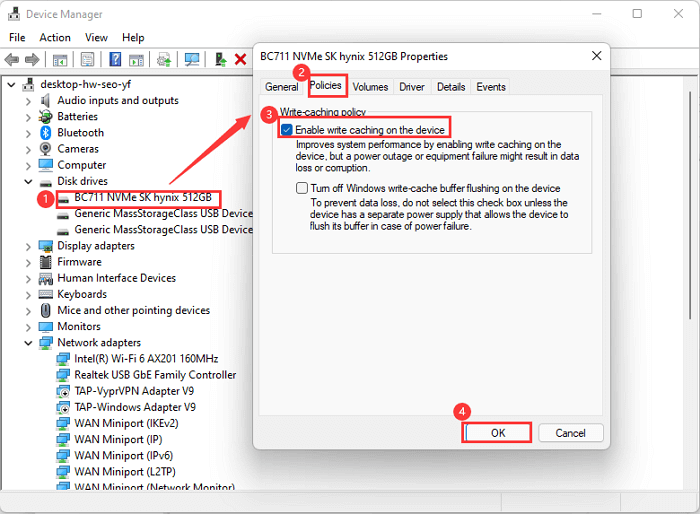
2. Enable Write Caching
Enabling write caching on your hard disk can improve its performance by temporarily storing data in memory before writing it to the disk, reducing the number of disk writes and enhancing overall disk performance.
3. 4K SSD Alignment
4K alignment on SSDs can improve performance by allowing the drive to use its smallest 4K sector to store data, resulting in faster read and write speeds.
For a step-by-step guide, follow the link here to get the correct solution:
4. Upgrade to SSD
Upgrading your hard disks to SSD will increase their speed and improve computer performance by significantly reducing your computer's boot and application load times, and can be achieved by following a step-by-step guide to clone your HDD to SSD.
For a complete guide on improving the disk speed on your PC, you may also follow this tutorial page for help:
Increase Hard Drive Speed on Windows 10
Here are some effective ways to resolve the issue and improve disk speed in Windows efficiently:
Final Verdict
Optimizing a slow-Running a computer with a slow hard disk can significantly degrade your system performance, making it difficult to stay productive. However, by taking a few simple steps, you can manage this issue. One effective solution is to use a free tool like Qiling Disk Master, which allows you to test and optimize your disk speed, making your system run smoother and more efficiently. With its range of features, you can easily identify and resolve any disk-related issues, ensuring a seamless working experience.
FAQs About Test Disk Speed
This FAQ section addresses common questions and concerns related to testing disk speed, providing concise and helpful information to users.
1. How can I test my disk speed?
To check the read and write data speed of your hard disks on Windows, you can use the Task Manager. Simply press the Ctrl + Shift + Esc keys on your keyboard to open Task Manager, then click on the "Performance" tab. Look for the "Disk" section, which displays the read and write speeds of your hard disks in megabytes per second (MB/s).
Step 1: Right-click on your Windows computer's "Taskbar" and select "Task Manager" to access the "Performance" tab.
Step 2: Select a hard disk from the list on the left side to view its read and write data speed.
2. How do I check my disk speed in Windows 10?
To check your disk speed on Windows 10, open Command Prompt and type 'wmic diskdrive get name, status, totalheight, totalwidth, totalcylinders, totaltracks, totalsectors, bytespersector, sectorspertrack, trackspercylinder' and press Enter. This will display information about your disk drives, including their speed. Alternatively, you can use the 'wmic diskdrive get name, status, totalheight, totalwidth, totalcylinders, totaltracks, totalsectors, bytespersector, sectorspertrack, trackspercylinder' command in a Command Prompt window to check the speed of your disk drives.
Step 1: To run the Command Prompt as Administrator on your computer, use the search bar to find it, right-click on the result, and select "Run as administrator" from the context menu. This will open the Command Prompt with elevated privileges, allowing you to perform administrative tasks.
Step 2: To see your disk's read and write speed, run the command "winsat disk – drive X" in the command prompt, replacing "X" with the name of the drive you want to test.
3. When do I need to run the disk speed test on Windows 11?
Running disk speed tests on Windows 11 can be helpful in various situations, such as when your computer is running slow, data transfer is taking a long time, or games are lagging. Testing disk speed can be beneficial in resolving these issues.
Related Articles
- Guide on Checking Disk Speed in Windows 10 Using CMD [2023 Tutorial]
- How to Clone Windows to External Hard Drive [100% Working Solution]
- Fixed: Your Password Has Expired and Must Be Changed
- How Do I Install a Second Hard Drive? Here Is the Complete Guide
- Will I Keep the Windows License After Format? I Need Answers
Do you want to know whether you kept the Windows license after you formatted your drive or computer? This page will solve your problem and give you a safe and secure way to finish formatting. - Windows 10 Drive Converted to RAW Format, How to Fix It
What should you do when your Windows 10 drive converted to RAW format? This short page focuses on this issue and guides you on this issue.
Products
Articles & Tutorials
- Data Recovery
- Data Backup
- File Recovery
- File Backup
- System Backup and Restore
- Disk and Partition Clone
- Technical articles
- Mobile articles
- Disk Master Help
- Windows Data Recovery Tutorials
- Windows Secure Delete Tutorials
- Windows Partition Management Tutorials
- Windows File Backup and Restore Tutorials
- Windows System Backup and Restore Tutorials
- Windows Disk Backup and Restore Tutorials
- Windows Clone Tutorials