Guide on Checking Disk Speed in Windows 10 Using CMD [2024 Tutorial]
Quick Navigation on Checking Disk Speed Windows 10:
| 🎯Goal: | To check disk speed in Windows 10, you can use the built-in "Disk Speed Test" tool or third-party software like CrystalDiskMark or HD Tune. For internal hard drives, you can also use the "Disk Performance" tab in the Task Manager to analyze read and write speeds. |
| 👔Who Need It: | All levels of Windows users |
| 🧰Tools: | Windows 10, hard drive |
| 🛠Applicable Methods: |
1. CMD - Free & Preinstalled 2. Disk Health Check Software 🏆- Efficient and Professional |
If you care about keeping your data safe, you need to know how to monitor the health of your SSD. To do this in Windows 10 using the Command Prompt, open the Command Prompt as an administrator, type "wmic diskdrive get status" and press Enter to check the disk status, type "wmic diskdrive get size" to check the disk size, and type "wmic diskdrive get free space" to check the free space available. You can also use the built-in Windows tool, Disk Cleanup, to clean up temporary files and free up space. Additionally, you can use third-party tools like CrystalDiskInfo or HWiNFO to monitor your SSD's health, performance, and temperature. This post demands your attention if you seek detailed instructions on this topic. Let's get going now.
How to Check Disk Speed in Windows 10 Using CMD
- ⏲Duration: 3-5 minutes or longer
- 🚩Applied for: advanced Windows users
- 💽Supported Devices: HDDs, SSDs, and external hard drives, etc.
Windows users can run the WinSAT command line utility to perform benchmarks on different aspects of the operating system and its components, which debuted in Windows Vista and is still included in Windows 10.
Guide to Check Disk Speed via CMD Windows 10
To examine your SSD's condition using CMD, follow these specific procedures:
Step 1. To open the Run window, press the Windows key + R on your keyboard, type 'cmd' in the text box, and then press Enter to execute the command. This will open the Command Prompt window.
Step 2. To run the command, type "wmic" followed by a space and then "computers" and press Enter. The command should be typed below: `wmic computers`.
Step 3. Enter "winsat disk -drive c", and press Enter again.
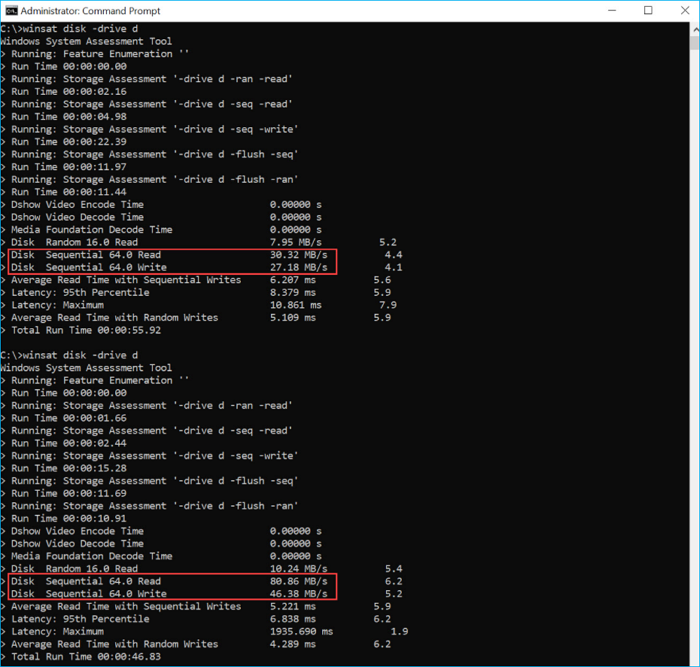
Step 4. The Command Prompt lists the drives and their current speed, providing information on the storage devices connected to the system. This includes details on the drive's capacity, free space, and current read and write speeds.
- Disk Sequential 64.0 Read meants its reading speed
- Disk Sequential 64.0 Wirte means its writing speed
CMD is also helpful in detecting other types of disk speed, making it a valuable tool for various disk-related tasks. This method can also be applied to help with other tasks.

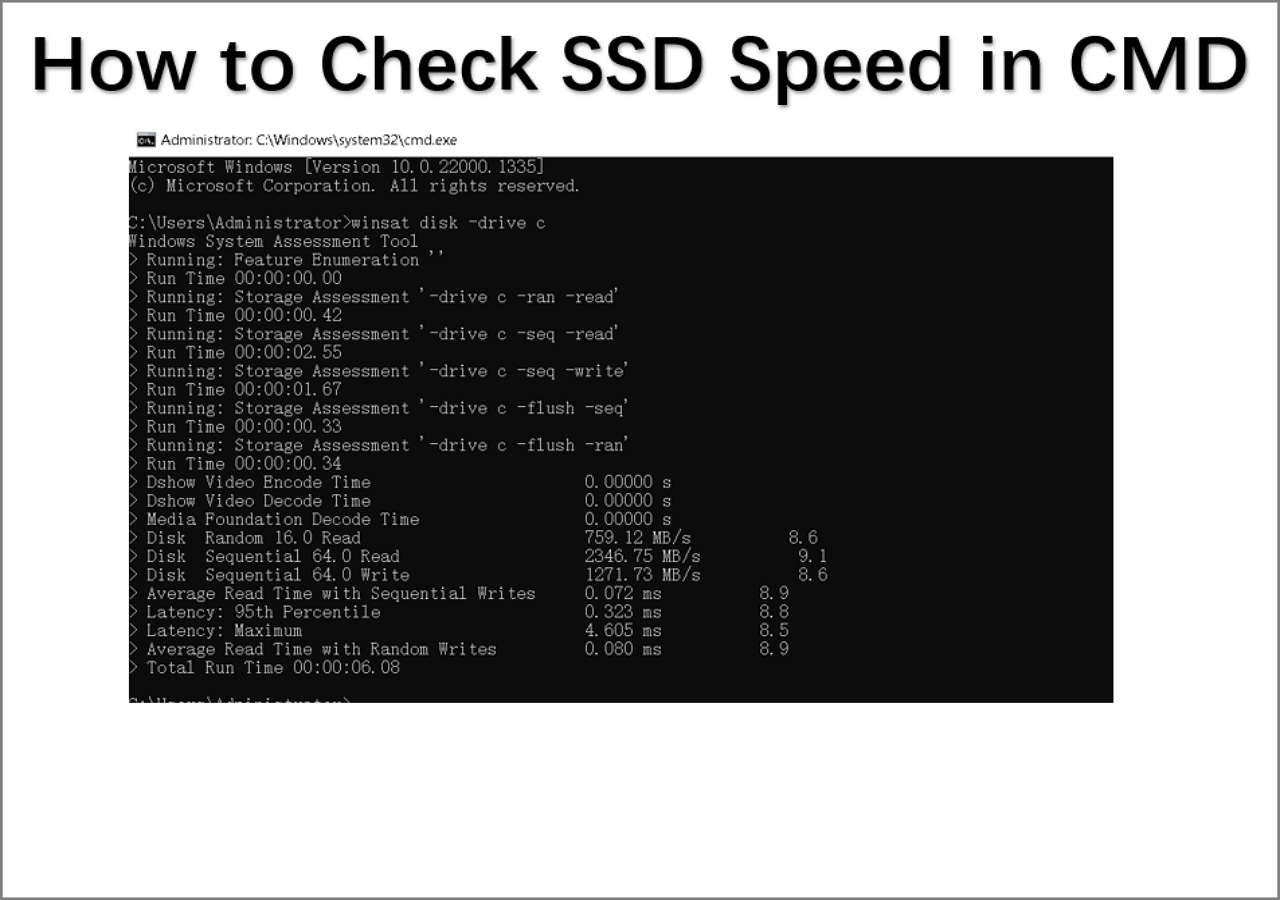
To check SSD speed in CMD, open Command Prompt as administrator, type `wmic diskdrive get name, size, status` and press Enter. This command will display the name, size, and status of all drives connected to your system, including the SSD.
To check the speed of your SSD on Windows 11/10, you can use the Command Prompt (CMD). Additionally, a reliable tool can also be used to easily check the SSD speed.
While the Command Prompt (CMD) can check a disc's health, it doesn't provide a comprehensive view of an SSD's overall health. For a more thorough and user-friendly check, consider using Qiling Disk Master, which can quickly and easily assess an SSD's condition without requiring advanced computer knowledge.
Pros and Cons of Using CMD to Check Disk Speed in Windows 10
Checking disk speed in Windows 10 using CMD has both advantages and disadvantages. On the one hand, using CMD provides a straightforward and efficient way to check disk speed, which is essential for identifying potential issues with storage devices.
| Pros✅ | Cons❎ |
|---|---|
|
|
While the CMD measuring solution has some drawbacks that may not meet the needs of most hard drive owners in specific situations, an alternative software is recommended for an all-in-one, free, and professional disk speed test tool. Qiling Disk Master is a suitable option to test and increase your drive's speed.
CMD Alternative Software to Check Disk Speed in Windows 10
- 📝Software Define: perfect CMD alternative software in checking disk speed.
- 💽Supported Devices: HDDs, SSDs, USB flash drives, SD cards, and hybrid-HDDSSDs, etc.
- 🖥Compatible Systems: Windows 10/11, older Windows 8/7/XP/Vista, an Sever systems.
- 👩💻Best For: All Windows beginners, geeks, hard drive manufacturers, and gaming lovers.
Qiling Disk Master is a reliable tool for assessing the state of a hard drive and SSD, and is a suitable alternative to the CHKDSK command. It works smoothly with various Windows versions, including Windows 11, 10, 8.1, 8, 7, XP, and Vista. Additionally, its DiskMark feature is a free tool that allows users to quickly and easily detect and check disc speed with minimal effort.
The tool allows you to check the speed status of your SSD with ease, providing a convenient way to monitor its performance.
Step 1. To activate the "Surface test" feature in Qiling Disk Master, launch the software and navigate to the "Disk management" section. From there, click the download button to initiate the surface test. This will allow you to assess the condition of your disk.

Step 2. To select the target drive, test data, and block size, click on the drop-down box and choose the desired options from the available selections.

Step 3. Once everything is configured, click "Proceed" to begin the disk test. This will display the Sequential read speed, I/O, and Delay data.

Video Tutorial in Check SSD Speed
If you notice your hard drive speed is slower than its average speed, don't panic. You can follow this tutorial guide to help resolve the issue.
How to Speed Up Hard Drive in Windows 11/10/8/7
If your computer is running slow, it's likely due to a slow hard drive, which can be sped up using various methods. To improve performance, consider upgrading to a solid-state drive (SSD), which can replace your traditional hard drive and provide significant speed boosts.
Why Choose Qiling Disk Master Over CMD
Selecting Qiling Disk Master over Windows 10's built-in CMD (Command Prompt) offers several advantages. A comparison table highlights the benefits, including improved functionality and features that make Qiling Disk Master a more desirable choice for users.
| Comparison | Qiling Disk Master | CMD |
|---|---|---|
| Check Disk Read/Write Speed | ✔ | ✔ |
| Display Disk Speed Test Report | ✔ | ✔ |
| Free to Use | ✔ | ✔ |
| Optimize Disk Speed | ✔ | ✖ |
| Who to Use It | Professionals, Geeks & Beginners | Professionals |
Qiling Disk Master also provides a feature to monitor disk health, which includes checking HDD and SSD status, temperature, powered-on hours, and total host writes and reads.
The software also includes some excellent features for managing partitions and optimizing disk performance, such as.
- Improve SSD performance by 4k alignment.
- Check and fix hard drive or SSD file system errors.
- Erase all data to reset HDD or SSD.
- Combined partitions.
- Migrate OS from HDD to SSD.
- Allocate hard drive space
Qiling Partition Manager offers various HDD and SSD management options, so you can try out the trial version to see its capabilities for yourself.
When Do I Need to Check Disk Speed in Windows 10?
You should periodically run speed tests on your hard drive to monitor its read and write speeds, as they can impact your Windows computer's overall performance.
A failing hard drive can cause performance and operating system boot issues, making it essential to check for disc problems. In Windows 10, you can perform a disc performance test under various conditions, such as when you notice slow performance, operating system boot issues, or broken/corrupted sectors on your hard drive.
- The computer is slow to transfer files.
- The computer becomes slow to boot up or shut down.
- C drive full or low disk space.
- Windows 10 warns of high RAM CPU usage issue
- The computer gets slow or stuck while playing games.
To determine the disc speed in Windows 10, you can access the command prompt (CMD) or alternative software, such as CrystalDiskMark or HD Tune, which provide detailed information about your disc's performance and speed.
Conclusion
On Windows 10, it's essential to regularly check the status of your SSD to ensure the integrity of your data, privacy, and games.
Qiling Disk Master can assess the health of an SSD, but we recommend Qiling Command Prompt due to its more user-friendly interface and additional features.
FAQs About Checking Disk Speed in Windows 10 Using CMD
Read these answers to avoid confusions.
1. How do I run SSD speed test in Windows 10 using CMD?
Regularly monitoring the disk can provide crucial information for maintaining the device's security. This includes other queries beyond the primary one, such as using the Command Prompt (CMD) to check the health of an SSD in Windows 10. These additional inquiries can be helpful.
To access the Command Prompt on Windows 10, press the Windows key + S to open the Search bar, type "cmd," and select "Command Prompt" from the search results. Alternatively, you can type "cmd" in the Run dialog box (Windows key + R) and press Enter. Once you have the Command Prompt open, you can run the SSD speed test using the command "CrystalDiskMark" or "CrystalDiskInfo" followed by the drive letter of your SSD (e.
- Launch the command line interface (as an Administrator, please!)
- The WinSAT disc was in Drive C:\. (where c is the drive letter that you want to check) This is a more accurate representation of the information, as the colon (:) is used to separate the drive letter from the root directory in Windows. The backslash (\) is used to separate directories and subdirectories within the drive.
2. Can I run Blackmagic Disk Speed Test in Windows 10?
BlackMagic Disk Speed Test is a free, open-source app that checks hard drive integrity, compatible with Windows 11/10/8.1/8/7/Vista. However, finding the genuine version online can be challenging for Windows users, prompting a search for a reliable alternative.
3. How can I check my hard drive health in CMD?
To check if your disk drive is healthy, enter "cmd" into the search bar, right-click on "Command Prompt" and choose "Run as Administrator", then type "wmic" and press Enter. Next, type "wmic diskdrive get status" and press Enter to run the command.
Related Articles
- How Do I Format SD Card for Raspberry Pi? Your Step-by-Step Guide Here
- How to Clone Only Used Space [Step-by-Step Guide]
- Full Guide on USB Benchmark and Check Your USB Speed
- How to Resize USB Flash Drive Partition with Magic Partition Software
- Yellow Screen of Death In Windows 10 [Detailed Info & Fixes]
The yellow screen of death is a common Windows 10 error that can be frustrating to deal with. Fortunately, resolving this issue is relatively straightforward, and there are several practical methods to try. - How to Fix Your PC Did Not Start Correctly | 8 Ways🔥
If you power up your computer and only find a warning message: Your PC did not start correctly, as this post will offer you eight workable solutions to fix this error immediately.
Products
Articles & Tutorials
- Data Recovery
- Data Backup
- File Recovery
- File Backup
- System Backup and Restore
- Disk and Partition Clone
- Technical articles
- Mobile articles
- Disk Master Help
- Windows Data Recovery Tutorials
- Windows Secure Delete Tutorials
- Windows Partition Management Tutorials
- Windows File Backup and Restore Tutorials
- Windows System Backup and Restore Tutorials
- Windows Disk Backup and Restore Tutorials
- Windows Clone Tutorials