Yellow Screen of Death In Windows 10 [Detailed Info & Fixes]
You may be familiar with errors like the Blue Screen of Death or Black Screen of Death, but have you encountered a Yellow Screen of Death error when starting your Windows 10 computer? The error message "Your PC ran into a problem and needed to restart. We're just collecting some error info, and then we'll restart for you" appears, and you can't access Windows until the process is complete. Don't worry, Qiling offers 5+ solutions to help you fix this issue.
What Caused the Yellow Screen of Death in Windows 10?
ASP. NET is an open-The Yellow Screen of Death (YSOD) is a common issue in Windows OS, particularly for web developers using ASP. NET to create web pages. It typically occurs after an ASP. NET web application crashes or encounters problems, displaying a yellow screen with an error message. This issue can also be caused by other factors, such as configuration problems, coding errors, or issues with the.
- Outdated or faulty drivers
- Corrupted file system
- Software/applications incompatibility
- Windows 10 updates issues
After exploring the main reasons for the Yellow Screen of Death (YSoD) error, we can now dive into the seven methods to help you identify and resolve this issue. These methods can be found by clicking the buttons below to share this excellent post on your social media, which contains seven reliable solutions for the YSoD error.
How to Fix the Yellow Screen of Death - 7 Ways
Here are seven frequently used solutions for the yellow screen of death:
- Way 1. Perform Boot Repair
- Way 2. Boot in Safe Mode
- Way 3. Update Driver/Reinstall Driver
- Way 4. Run Windows 10 Update/Restore Windows System
- Way 5. Use Clean Boot
- Way 6. Perform Automatic Repair
- Way 7. Rebuild MBR
Way 1. Perform Boot Repair - Qiling Disk Master
When it comes to fixing boot issues or screen of death errors, Qiling Disk Master is the best choice. It offers a "Boot Repair" tool, a one-click solution for various startup problems, including the blue/black/green/white screens of death, and doesn't require complicated operations.
Below is a full how-to-do guide with quick steps:
- Preparation
- Since you can't boot from this Windows computer, you'll need to use a different Windows computer to create a bootable USB drive that you can use to boot from instead.
Step 1. After connecting the external drive/USB to your computer, start Qiling Disk Master, go to Tools, and click Create bootable media.

Step 2. Insert a USB drive or CD/DVD and click "Proceed" to continue the installation process. Alternatively, you can burn the Windows ISO file to the selected storage media.

Step 3. Connect a bootable drive to a new computer, reboot by pressing F2/Del, enter the BIOS, set the bootable drive as the boot disk, and exit by pressing F10.
Step 4. Boot the computer again and enter the WinPE interface. From there, open Qiling Disk Master and click on the "Fix Boot" option under the "Tools" menu to proceed with the fix.

Step 5: Select the system you want to repair and click "Proceed".

Step 6. Wait a moment, and you will receive an alert that the system has been successfully repaired.
More Valuable Features of Qiling Disk Master
Qiling can also help resolve issues beyond the yellow screen of death, such as:
- Fix Lenovo Laptop Stuck in Boot Loop.
- Fix Windows 10 BSOD effectively.
- Fix disk boot failure in Windows 10.
- Resolve Windows 11/10/8/7 cannot boot from SSD.
- Fix Green Screen of Death on Windows PC
Don't let boot failures or startup errors ruin your experience with Windows computers. Start fresh today!
Way 2. Boot in Safe Mode
To resolve the yellow screen of death, reboot your Windows in safe mode. To do this, press the Windows key + X and select the Restart option. As your computer restarts, press the F8 key repeatedly until the Advanced Boot Options menu appears.
Step 1. To enter the Advanced Recovery Environment on a Windows computer, hold the Start button for 10 seconds to power up, then power down three times, with the third time entering the Advanced Recovery Environment.
Step 2. Select "Troubleshooting" > "Advanced Options" >"Startup Settings" > "Restart."
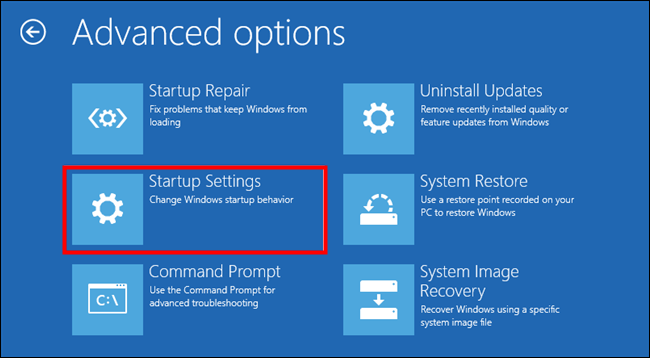
Step 3. After restarting, you'll have several options to choose from. To boot your computer in safe mode, select the option for four or press F4. This will start your computer with a minimal set of drivers and services, allowing you to troubleshoot and resolve any issues that may be preventing your computer from starting normally.
Way 3. Update Driver/Reinstall Driver
The main reason for screen-of-death errors is outdated or faulty graphic drivers, so try updating or reinstalling the driver.
Option 1. Update the Driver
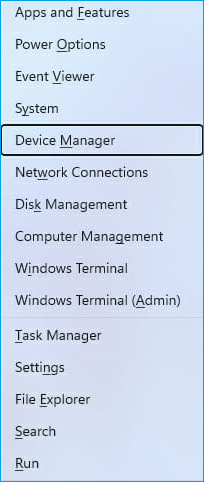
Step 1. Locate the start icon and select "Device Manager."
Step 2. To update the display driver, select "Display adapters" to expand the option and locate "Update driver."
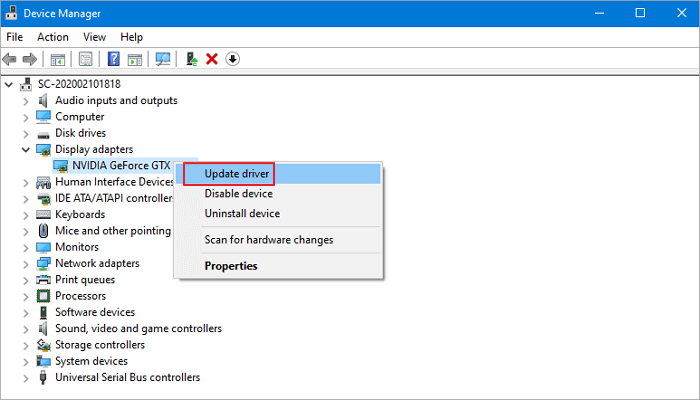
Step 3. To find and update the latest driver, select the "Search automatically for drivers" option. This will automatically search for the most recent driver for your device and install it, ensuring you have the most up-to-date software for optimal performance.
Option 2. Reinstall the Driver
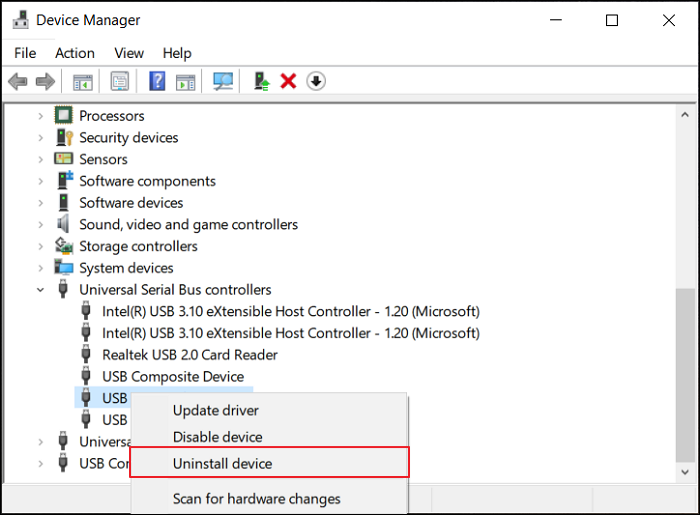
If you're unable to find available updates or updating the driver still doesn't work, you can delete the driver and reinstall it. To do this, go to the Device Manager, find the problematic driver, right-click on it, and select "Uninstall device". After that, restart your computer and Windows should automatically reinstall the driver.
Step 1. this is the rewritten text)
Step 2. In the next window, press "Uninstall" to confirm the deletion.
Step 3. Go to the manufacturer's website to download and install the latest graphics driver.
Way 4. Run Windows 10 Update/Restore Windows System
The yellow screen of death may occur due to errors during Windows 10 updates. To resolve this issue, running a Windows 10 update to a higher version or restoring the Windows system to its previous state can be a solution.
Option 1. Run Windows 10 Update
To update Windows 10, start by creating a bootable media using the Windows 10 Media Creation Tool. Once you have the bootable media, boot your computer from it and follow the on-screen instructions to enter the WinPE environment. From there, you can proceed with the update operation, which may involve downloading and installing the latest updates, drivers, and features.
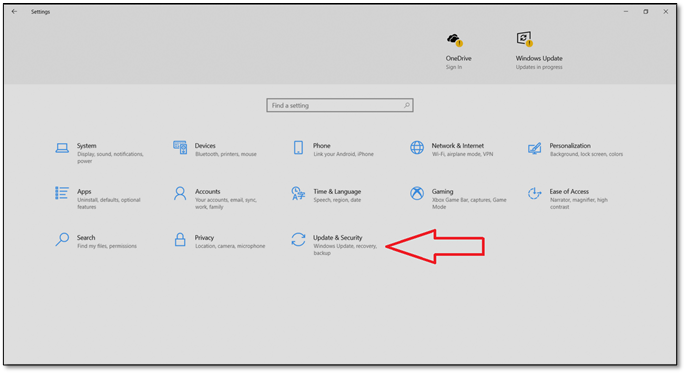
Step 1. Press the "Start" icon and choose "Settings."
Step 2. Navigate to "Update & Security" in the "Settings" window.
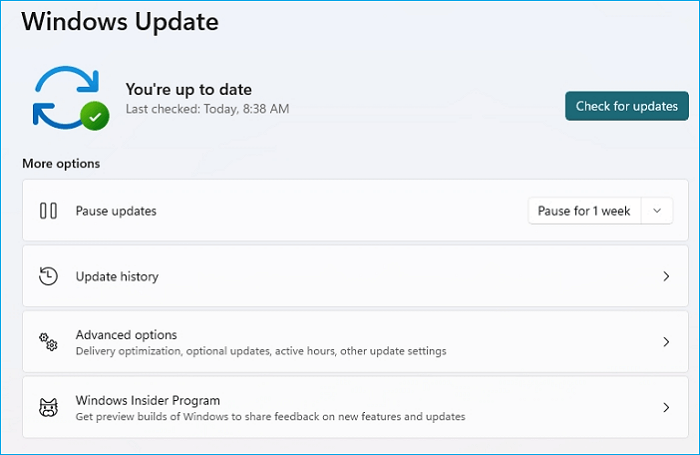
Step 3. To update Windows, you'll open the "Windows Update" window and click on "Check for updates" to download and install the available system edition.
Option 2. Restore Windows System
If you're experiencing the Yellow Screen of Death on Windows 10, you can try to resolve the issue by performing a system restore. This will restore all settings, preferences, and apps to a previous point in time, effectively reverting your system to a state before the issue occurred.
- Warning
- To delete data, you'll need to back up the data first, then proceed with the deletion process. This ensures that the data is safely preserved before it's removed.
Step 1. To create a restore point and use System Restore, open the Windows search box, type "Create a restore point," and click on the result. Then, click on "System Restore."
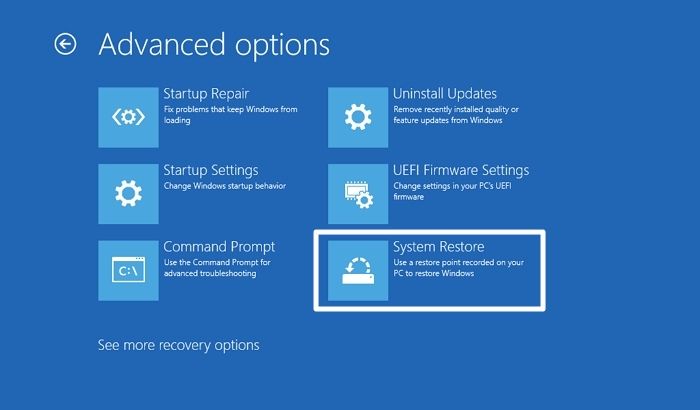
Step 2. To restore Windows 10 to a previous state, select the "Choose a different restore point" option and click "Next."
Step 3. Select the target restore point from the list, click "Next," and choose "Finish" when the operation is complete.
The methods mentioned above can also be applied to the black screen of death in Windows, and for more solutions to this error, you can refer to the article linked below.

If your Asus laptop is displaying a black screen, there are several methods you can try to resolve the issue. First, try pressing the power button for 30 seconds to discharge the laptop's power.
This page provides a comprehensive guide to resolving the issue of a black screen on an Asus laptop, covering the causes and offering ten efficient fixes to get your laptop up and running again.

Way 5. Use Clean Boot
Using the clean boot feature in Windows allows the operating system to launch with a minimal set of drivers and startup applications, reducing software incompatibility and making it easier to troubleshoot issues.
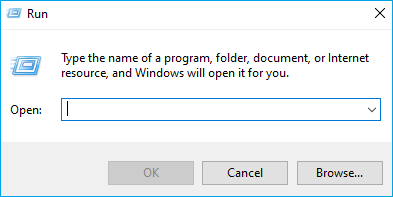
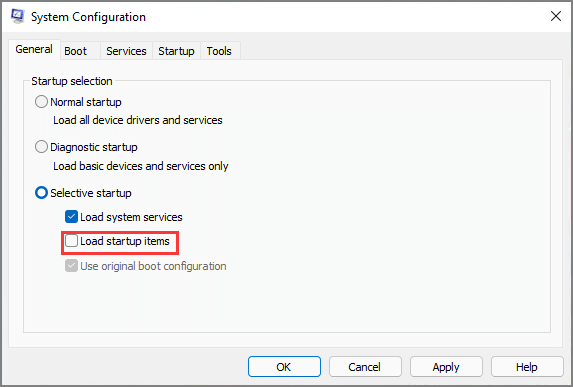
Step 1. Press "Windows + R," write msconfig, and choose "Yes."
Step 2. In the System configuration, go to the General tab, then select the Selective startup tab and check all boxes, but uncheck Load startup items.
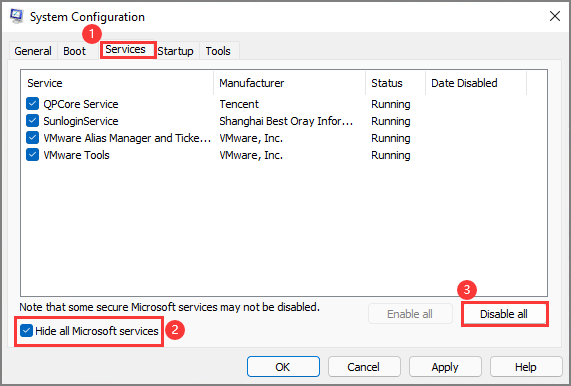
Step 3. To disable Microsoft services, navigate to the "Service" tab, select the box "Hide all Microsoft services", click "Disable all" and then "OK".
Step 4. To disable startup items, go to the "Startup" window and choose "Open Task Manager. Then, disable all the listed startup items before restarting your computer.
Way 6. Perform Automatic Repair
To use Automatic Repair in Windows, prepare Windows installation media first. This utility can check and repair boot failures. Follow the steps below.
Step 1. Insert the Windows installation media into the computer that's displaying a yellow screen error, then restart your PC.
A message will pop up - The computer screen displays "Press any key to boot from DVD." This message is usually shown when you insert a DVD containing an operating system or a program you want to install. To proceed, simply press any key on your keyboard, such as the space bar, enter key, or any other key.
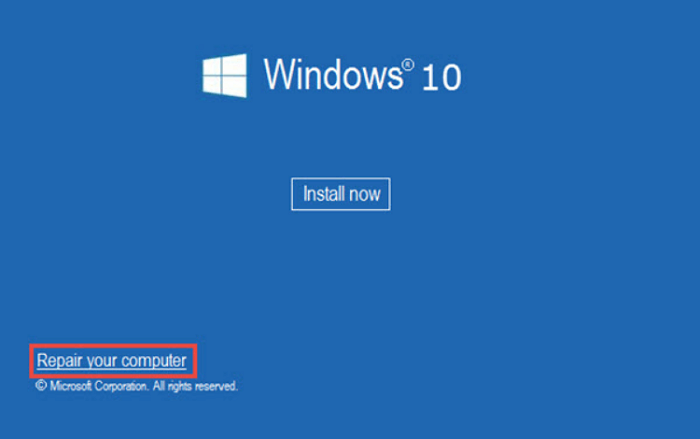
Step 2. To enter Windows Recovery Environment (WinRE), select "Repair your computer" on the "Install Windows" page.
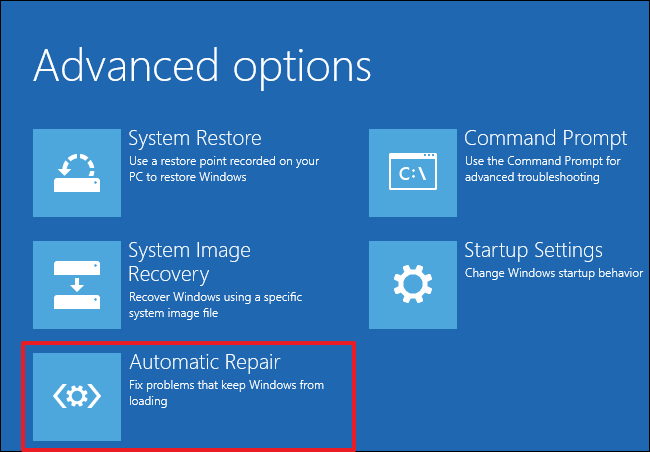
Step 3. To resolve the issue, go to the "Choose an option" screen and select "Troubleshoot" and then click on "Advanced options" and choose "Automatic Repair".
Way 7. Rebuild MBR
A corrupted Windows system boot file can lead to the infamous yellow screen of death. In such cases, it's recommended to use professional disk expert software that can safely rebuild the Master Boot Record (MBR). Qiling Disk Master is a top-notch option that can effectively repair the corrupted MBR table and resolve boot failure issues.
If you're having trouble creating a bootable USB drive using the first method, you can try using Rufus, a free, open-source utility that can create a bootable USB drive from a Windows installation media. To use Rufus, download the software from the official website, run it, and select the USB drive you want to use.
Step 1. Create a WinPE bootable disk
- Launch Qiling Disk Master, click "Bootable Media" on the toolbar, and select "Create bootable media".
- Click "Next" to finish the process.
Step 2. Boot Qiling Disk Master Bootable USB
- Connect the bootable USB or CD/DVD to your PC.
- To enter the BIOS screen, press F2 or Del when restarting the computer. Once in the BIOS, set the boot priority to "Removable Devices" or "CD-ROM Drive". After doing so, Qiling Disk Master will automatically run when you boot up your computer.
Step 3. Rebuild MBR
- Right-click the disk and choose "Rebuild MBR".

- Select the disk you want to install the operating system on and choose the type of Master Boot Record (MBR) you want to use. Click the "Proceed" button to continue with the installation.

- The process of rebuilding the MBR on Disk X has been completed successfully, as indicated by the message "MBR has been successfully rebuilt on Disk X".
Conclusion
The yellow screen of death error can be caused by various factors and is challenging to resolve. However, users can try seven reliable methods to fix the issue, including complex methods suitable for developers. For a safer and easier solution, Qiling Disk Master is recommended. The article also provides tutorials for resolving other screen-of-death errors.
FAQ of How to Fix Yellow Screen of Death
What is the Yellow Screen of Death (YSOD)?
1. What causes all the screen of death?
The "Screen of Death" (SOD), also known as a Blue Screen of Death (BSoD), is typically caused by faulty, outdated, or improperly installed hardware, or malfunctioning/incompatible software. Driver upgrades for graphics cards or other hardware components can also lead to a BSoD if they're incompatible with the rest of the system.
2. How do I fix the blue screen of death in Windows 10?
To reboot Windows 10 in safe mode, follow these steps: First, click on the Start menu and select the 'Settings' icon. Then, click on 'Update & Security' and select 'Recovery' from the left menu. Next, click on 'Restart now' under 'Advanced startup'.
Step 1. Hold the power button on your Windows device for 10 seconds, then release. Repeat this process two more times, for a total of three restarts.
Step 2. Then, your computer will boot into the safe mode.
Step 3. To troubleshoot, choose "Troubleshoot" and select "Advanced options". From there, click on "Startup Settings" and then click "Restart".
3. Which screen of death is the most fatal?
The blue screen of death (BSOD) is a sudden and frustrating error that occurs when a computer's operating system encounters a critical problem, resulting in the loss of all unsaved work.
Related Articles
- Windows 10 Won't Boot After Update? Easy Fixes
- How Can I Check M.2 SSD Temperature Like an Expert in Windows 11/10
If you're concerned about your M.2 SSD's health, you can check its temperature in Windows 11/10. To do this, you'll need to follow essential techniques to monitor your SSD's temperature like a pro, which are outlined in this comprehensive article. - CHKDSK Cannot Run Because the Volume Is in Use by Another Process
If you're getting the CHKDSK Cannot Run Because the Volume Is in Use by Another Process message when trying to run the CHKDSK program from the terminal. This guid can help to resolve it. - Guide to Clone SSD to NVMe SSD (with Pictures🏞️)
If you've upgraded your computer with a new NVMe drive and want to move your Windows OS, you can easily clone your existing SSD to the new NVMe drive using a cloning software. - How to Fix Hard Drive Won't Boot [Top 6 Fixes🏅]
If your hard drive won't boot and shows 'Disk Boot Failure, Insert System Disk, and Press Enter,' follow this guide to check the causes and try five effective solutions to repair the boot issue. - How Big Is Baldur's Gate 3: File Size on PC/PS5
The file size of Baldur's Gate 3 varies depending on the platform and the version you're downloading. On PC, the minimum space required is around 30 GB, while the recommended space is 50 GB.
Products
Articles & Tutorials
- Data Recovery
- Data Backup
- File Recovery
- File Backup
- System Backup and Restore
- Disk and Partition Clone
- Technical articles
- Mobile articles
- Disk Master Help
- Windows Data Recovery Tutorials
- Windows Secure Delete Tutorials
- Windows Partition Management Tutorials
- Windows File Backup and Restore Tutorials
- Windows System Backup and Restore Tutorials
- Windows Disk Backup and Restore Tutorials
- Windows Clone Tutorials