How Can I Check M.2 SSD Temperature Like an Expert in Windows 11/10
Monitoring the temperature of your M.2 solid-state drive (SSD) is crucial due to its compact size and high speed, which can lead to excessive heat generation. Excessive heat can negatively impact the performance and longevity of your SSD, making temperature monitoring a vital aspect to consider. To check the temperature of your M.2 SSD, experts use various practical methods.
Checking M.2 SSD temperature can be done through various methods, including the motherboard's BIOS or UEFI settings, the SSD manufacturer's software, or using an Infrared thermometer. However, these methods can be confusing and overwhelming for new users. This guide will explore the easiest method to check M.2 SSD temperature, providing a step-by-step guide to accurately determine your M.2 SSD's temperature.
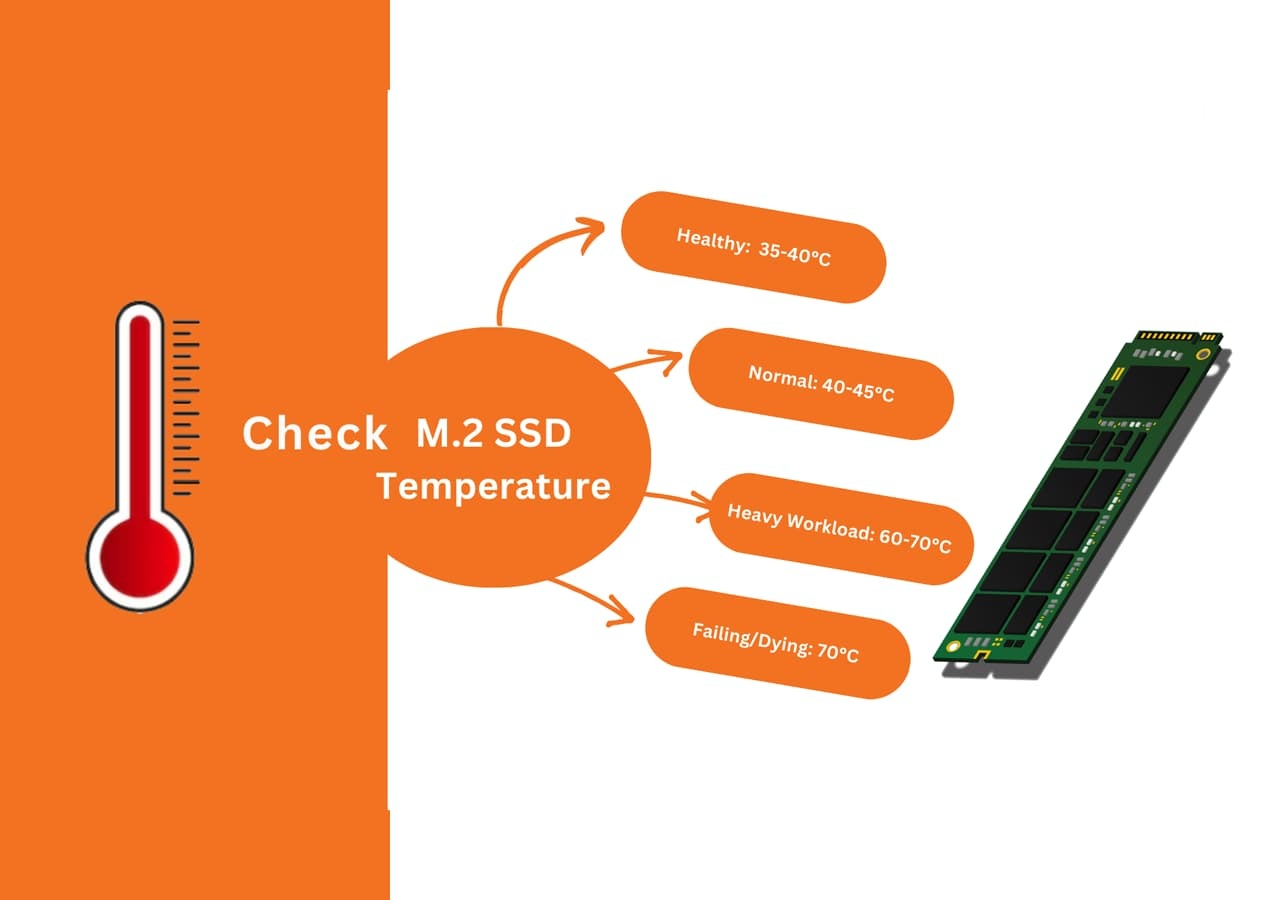
How to Check M.2 SSD Temperature [Step-by-Step Guide]
Checking the temperature of your M.2 SSD is a simple yet crucial task to ensure its optimal performance and prevent overheating. To do this, you can follow a step-by-step process to check the M.2 SSD temperature, which is described below.
#1. Preparations
Before checking the temperature of your M.2 SSD, you need to be fully prepared. The required preparations are listed below.
| M.2 SSD | Get your M.2 SSD ready that needs to be assessed. |
| M.2 SSD Temperature Check Tool | To check the temperature of an M.2 SSD, use Qiling Disk Master as the tool. |
| Windows Computer | Use it for checking the temperature of M.2 SSD. |
| M.2 Connection Cable | Used for connecting the M.2 SSD to the computer. |
#2. Download M.2 SSD Temperature Check Software/Tool
To continue with the process, download the free Qiling Disk Master tool, which offers an exceptional Disk Health feature, allowing you to check the temperature of your M.2 SSD.
Using the Disk Health feature, you can easily view the temperature, free space, health, performance, and other information of your M.2 SSD. This allows you to stay informed about the status of your SSD.
This tool is very user-friendly and provides clear health reports, even for those who aren't tech-savvy. Checking the temperature of an M.2 SSD is also a simple one-click process.
#3. Step-by-Step Guide to Checking M.2 SSD Temperature
To monitor the temperature and take necessary actions if needed, simply follow these steps below.
Step 1. Launch Qiling Disk Master, click the blue arrow to activate the "Disk Health" feature under the "Tools" section.

Step 2. To check the health condition of your disk, select the target disk and click the "Refresh" button. This will allow you to see the current status of your disk.

The disk health monitoring result window provides a clear view of the real-time temperature of your M.2 SSD in your PC.
Interpret the Temperature Test Result, Confirm If M.2 SSD Is Overheated
The normal temperature of an M.2 SSD is between 40°C to 80°C, which is equivalent to 104°F to 176°F. This temperature range is normal for an M.2 SSD, and it may vary depending on the usage and the environment.
- ✔️An M.2 SSD typically operates within a temperature range of 30ºC to 65ºC (86ºF to 149ºF).
Generally, temperatures between 0°C to 70°C (32°F to 158°F) are considered acceptable for M.2 SSDs, and staying within this range is usually not a concern.
- ✔️Nevertheless, surpassing a temperature of 70ºC Overusing the SSD may result in failure and ultimately terminate the lifespan of the SSD.
- ✔️As long as the temperature of your M.2 SSD remains above 60 degrees, it can cause performance issues, with its performance deteriorating rapidly as the temperature increases.
To prevent overheating and reduce performance, it's recommended to keep the SSD temperature below a certain threshold, known as thermal throttling.
During system idleness, it's crucial to monitor the SSD temperature, as it should not exceed 50 degrees. If it does, investigate the cause to prevent potential issues.
- 📌Ideally, when your computer is idle, the system temperature should not surpass 40 to 50 degrees Celsius.
The temperature range of an SSD (solid-state drive) is generally between 0°C to 70°C (32°F to 158°F). This temperature range is suitable for most consumer electronics, and it's also within the operating temperature range of most laptops and desktops.
Factors Affecting M.2 SSD Temperature with Tips to Cool Down Overheating M.2 SSD
To ensure optimal performance and prevent potential damage, it's essential to be aware of factors that can affect the temperature of your M.2 SSD. These factors include high ambient temperatures, low airflow, and power consumption, which can cause the drive to overheat. It's recommended to check the M.2 SSD temperature regularly, especially during intense usage or in hot environments. To cool down an overheating M.
Factors That Affect M.2 SSD Temperature 🌡️
Factors that can affect the temperature of your M.2 SSD include the drive's physical design, the type of NAND flash memory used, the operating system and software running on your system, the ambient temperature of your environment, and the power consumption of your system. These factors can all contribute to the temperature of your M.2 SSD, and understanding how they work together is essential for proper maintenance and cooling.
Drive Utilization 💽
The temperature of an SSD can be affected by how much it's being used, with continuous read/write operations or running intensive applications generating more heat and increasing the SSD's temperature.
Drive Capacity 🛠
An M.2 SSD's capacity can affect its temperature, as larger capacities tend to generate more heat due to increased activity from multiple NAND flash memory chips. However, the temperature difference is generally not significant.
Ambient Temperature 🔥
The temperature of the environment where the SSD operates can affect its overall temperature, making it harder for the SSD to dissipate heat, especially in poorly ventilated or hot environments.
Overclocking 🚀
Overclocking an SSD involves pushing its controller beyond its clock speed or voltage limits, which can lead to increased power consumption and higher temperatures, causing the SSD to heat up.
When Should You Check Their M.2 SSD Temperature
Here are some situations when you should consider checking the M.2 SSD temperature: Checking the temperature of your M.2 SSD is a good practice to ensure it remains within safe operating temperature ranges. This can help you detect and address potential issues like overheating. It's recommended to check the temperature in situations like intense gaming, video editing, or other resource-intensive activities that can cause the drive to heat up. Additionally, if you notice your system is producing excessive heat or if the SSD is located in a confined space, it's a good idea to check its temperature.
Intensive or Prolonged Usage
During resource-During intensive tasks like large file transfers, video editing, or gaming, your M.2 SSD experiences a heavier workload, which can lead to increased heat generation. This heat production can potentially affect the SSD's temperature, so it's a good idea to check the temperature periodically during or after such usage to ensure it's operating within safe temperature limits.
System Upgrades
Monitoring the temperature of your M.2 SSD is recommended after installing a new one or upgrading to a different model, as different SSDs have varying thermal characteristics and changes in storage capacity or performance may affect the temperature, ensuring the new SSD is functioning properly.
Performance Issues
If you notice a sudden drop in performance or system sluggishness during disk-intensive operations, it might be due to thermal throttling, a mechanism some SSDs use to protect themselves from overheating by reducing performance to dissipate heat and prevent damage.
Regular maintenance
Including temperature monitoring as part of your routine system maintenance can help you proactively identify temperature-related issues with your M.2 SSD by scheduling regular checks using monitoring software or manually checking the temperature occasionally. This allows you to establish temperature patterns under normal usage conditions and detect any unusual temperature spikes that may indicate a problem.
Tips To Optimize M.2 SSD Temperature
Keeping your M.2 SSD in optimal condition is crucial for its longevity. By implementing a few simple tips, you can maintain optimal operating conditions and potentially extend the lifespan of your SSD. This includes ensuring it's not overheating, which can be achieved by keeping your computer in a well-ventilated area or using a cooling pad.
- Ensure Proper Airflow: To prevent heat buildup in your computer case, ensure there are proper intake and exhaust fans to provide adequate airflow. Also, make sure the M.2 SSD has enough clearance for airflow. This will help keep your computer components cool and running smoothly.
- Use Thermal Pads or Heat Sinks: Thermal pads or heat sinks specifically designed for M.2 SSDs can be used to enhance heat dissipation by expanding the available surface area for heat transfer. This can help improve the overall performance and lifespan of the SSD.
- Avoid Overclocking: Overclocking an M.2 SSD can increase its temperature, so it's recommended to avoid overclocking to prevent heat-related issues.
- Monitor Temperatures: Use software utilities or monitoring tools to keep an eye on the temperature of your M.2 SSD. This will help identify potential overheating issues and prompt necessary actions.
- Avoid Extreme Ambient Temperatures: Avoid exposing your computer to extreme ambient temperatures, as this can affect the operating temperature of your M.2 SSD, potentially impacting its performance.
Conclusion
Qiling Disk Master is the best choice for monitoring the temperature of your M.2 SSD, thanks to its amazing Disk Health feature and user-friendly interface. This feature allows you to check the temperature of your M.2 SSD effortlessly, ensuring optimal performance and providing a comprehensive solution for keeping an eye on your SSD's health.
This valuable information empowers you to proactively address any potential issues arising from overheating, such as decreased performance or data loss, by regularly monitoring the temperature and taking timely actions to prevent damage and extend the lifespan of your SSD, which also includes features like 4K Alignment, check file system, surface test, and disk speed check to optimize your M.2 SSD to near-perfect condition.
FAQs about Checking M.2 SSD Temperature
Here’s how to check M.2 SSD temperature in Windows 11/10: you can use software like CrystalDiskInfo, HWiNFO, or AIDA64 Extreme to monitor your M.2 SSD temperature, or check the Event Viewer for temperature-related logs, or use the Task Manager to check for any temperature-related issues.
1. What is the best SSD temperature monitor?
Qiling Disk Master is a reliable and effective SSD temperature monitor that stands out from the rest. Its Disk Health feature allows you to easily and accurately monitor the temperature of your M.2 SSD in real-time, giving you a close look at your SSD's thermal performance.
2. When should I monitor or test my M.2 SSD temperature?
Monitoring your M.2 SSD temperature is crucial for ensuring its optimal performance and longevity, especially when engaging in resource-intensive tasks or experiencing system crashes or slowdowns. Regular monitoring is part of preventative maintenance.
3. How do I test my M.2 SSD on Mac?
Here is how you can test your M.2 SSD on Mac: To test your M.2 SSD on a Mac, first, ensure that your Mac is compatible with M.
Step 1: To access System Information, click the Apple icon from the top left corner and hover the mouse pointer on "About this Mac". Press the "Option" key from the keyboard, and the "About this Mac" will change to "System Information", which you need to click.
Step 2: To view the S. M. A. R. T status of your M.2 SSD, navigate to the "System Information" section, then click on the "Storage" tab and select your M.2 SSD. You will be able to view the S. M.
Related Articles
- Free Partition Tool for SD Card [With How-to Guide]
- 3 Best Disk Repair Tools for Windows Server Free Download 2024
- How to Delete OEM Partition in Windows 11/10 [2024 Updated]
- Format/Reformat Seagate External Hard Drive on Windows or Mac
Formatting a Seagate external hard drive on Windows or Mac can be a straightforward process, even if it was preformatted with the exFAT file system. To format it on Windows, connect the drive to your computer, right-click on it in File Explorer, and select “Format” from the context menu. - How to Boot Windows 10 from USB Flash Drive
If you want to install Windows or run the same OS on different devices, you can create a bootable USB and boot Windows 10 from USB by following this guide. This will allow you to install Windows on different devices or run it on multiple machines. - Best Bootable Manager Software for Windows 2024 Recommend
Are you having an issue with booting on your PC? Do you need to manage the boot configuration? Then follow this complete guide to download and get the best bootable manager software to better manage Windows computers on their own without booting into Windows.
Products
Articles & Tutorials
- Data Recovery
- Data Backup
- File Recovery
- File Backup
- System Backup and Restore
- Disk and Partition Clone
- Technical articles
- Mobile articles
- Disk Master Help
- Windows Data Recovery Tutorials
- Windows Secure Delete Tutorials
- Windows Partition Management Tutorials
- Windows File Backup and Restore Tutorials
- Windows System Backup and Restore Tutorials
- Windows Disk Backup and Restore Tutorials
- Windows Clone Tutorials