Free Partition Tool for SD Card [With How-to Guide]
To effectively use and manage an SD card, it's often necessary to partition or format it into a compatible file system like NTFS, FAT32, ext, or exFAT. Windows offers the Disk Management tool to partition or format an SD card, but it has some limitations.
- It cannot recognize SD cards in ext format.
- It cannot format SD cards larger than 32GB to FAT32.
- It requires some computer experience.
That's why we need an easy-Get the powerful SD card partition software from Qiling, a tool that breaks all the limitations of Windows Disk Management, and continue to get the Partition tool for SD cards.
Best Free Partition Tool for SD Card (Download)
Qiling Disk Master Free is a reliable SD card partition tool for Windows, allowing you to resize SD card partitions, create new partitions, and format SD cards into different file formats to ensure compatibility with various devices.
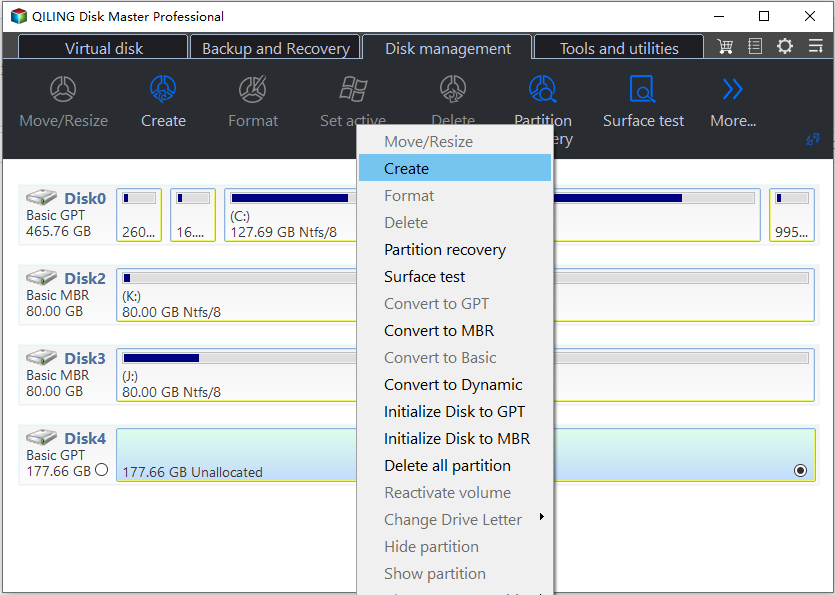
The tool has a user-friendly interface that makes partitioning easy and smooth, and it also offers advanced features as a professional SD card management tool.
- 👍Partition SD card for Android/PC/Camera/Playstation
- 👍Format SD card (larger than 32GB) to FAT32
- 👍Support ext file system
- 👍Test SD card speed
- 👍Check errors on the SD card
- 👍Create/delete/extend/shrink/merge/split partitions on an SD card
Qiling Disk Master Free offers several features to help manage your SD card, including formatting, partitioning, and wiping. According to a review on Lifewire, these features make it a useful tool for managing your SD card.
The interface of Qiling Disk Master Free is user-friendly and intuitive, making it easy to manage and understand the computer's partitions, with clear and accurate option names that avoid overwhelming the user.
Install the tool and follow the how-to guide to learn how to partition an SD card.
How to Use the Partition Tool for SD Card
The SD card partitioning software has a clear interface. To use it on Windows, you can follow these steps:
Step 1. Launch Qiling Disk Master, right-click on unallocated space on your hard drive or external storage device and select "Create".
Step 2. Adjust the partition size, file system, label, etc.
Step 3. Click the "Proceed" button to create a new partition.
Watch the video tutorial to learn how to create a partition in various file systems, including NTFS, FAT, and EXT, and discover the process step by step.
Now, you can store data on your SD card. Qiling Disk Master is not only a partitioning tool, but also a data storage solution that allows users to store and manage data on their SD cards. This feature is especially useful for users who need to store large amounts of data, such as videos, images, and files. With Qiling Disk Master, users can easily store, manage, and access their data on their SD cards, making it a convenient and practical tool for everyday use.
Conclusion
An SD card is a small storage device designed for portable devices, with capacities ranging from 1GB to 2TB. To manage SD card space and improve performance, users can partition their SD cards using specialized tools, such as Qiling's professional SD card partitioning software for Windows.
SD Card Partition Tool FAQs
SD cards come in various types, including full SD cards, mini SD cards, and micro SD cards. These types can be further distinguished based on their size and functionality, with each type catering to specific needs and devices.
1. Which is the best partition tool for SD cards?
Windows partition manager software like Qiling Disk Master and Paragon Partition Manager are more effective than Disk Management in partitioning SD cards and USB drives, offering a wider range of features to cater to different needs.
2. How can I partition an SD card?
To partition an SD card on a PC, follow these steps:
To create a new partition on your SD card, start by opening Disk Management. From there, right-click on the SD card and select "New Simple Volume." Follow the prompts in the New Simple Volume Wizard to assign a size to the new partition and choose a drive letter to identify it.
3. What is a 100% free partition tool?
Qiling Disk Master Free is a free tool that allows users to manage their disk partitions, including creating, deleting, merging, and resizing partitions.
4. What is the best partition type for an SD card?
SD cards are commonly used in various devices, including PCs, cameras, Android mobile devices, and gaming consoles like the Playstation, Steam Deck, and Switch. To ensure compatibility, it's best to use either exFAT or FAT32 file systems with these devices, as they are widely supported.
Related Articles
- Solved: Can't Remove Windows.old Folder in Windows 11/10
- How to Clone Windows to a New Drive [2024 Full Guide]
- How to Use Unallocated Space After Cloning to A Larger HDD/SSD?
If you've cloned your hard drive to a larger HDD or SSD, you might notice unallocated space left behind, this space can still be utilized, and this post will guide you through the process of making full use of it in Windows 11/10/8/7. - Quick Fixed: Extend Volume Is Disabled in Windows 11, 10, 8, 7 for C Drive
If you're encountering the issue of Extend Volume being disabled in Windows 11, 10, 8, 7, particularly for the C drive, you can resolve it using a reliable partition manager. - How to Convert Dynamic Disk to Basic Disk without Deleting?
Converting a dynamic disk to a basic disk can be a straightforward process that doesn't require deleting any data. To do this, you can simply open the Disk Management console, right-click on the dynamic disk you want to convert, and select “Convert to Basic Disk”. - Fix Dynamic Disk Missing/Offline in Windows 10/8.1/8/7 [Case Study]
If you find the dynamic disk shows missing or offline in Disk Management, read this post and you can find the easy yet efftcive solution.
Products
Articles & Tutorials
- Data Recovery
- Data Backup
- File Recovery
- File Backup
- System Backup and Restore
- Disk and Partition Clone
- Technical articles
- Mobile articles
- Disk Master Help
- Windows Data Recovery Tutorials
- Windows Secure Delete Tutorials
- Windows Partition Management Tutorials
- Windows File Backup and Restore Tutorials
- Windows System Backup and Restore Tutorials
- Windows Disk Backup and Restore Tutorials
- Windows Clone Tutorials