How to Clone Windows to a New Drive [2024 Full Guide]
You can clone your operating system to a new drive without reinstalling Windows 11, 10, 8, or 7 by using a tool like Qiling Backup, which can create a bootable clone of your operating system and transfer it to the new drive. This process involves creating an image of your current operating system, and then restoring that image to the new drive. This method allows you to transfer your operating system, programs, and settings to the new drive without having to reinstall Windows. You can also use the built-in Windows feature called "Clone" or "Disk Image" in some versions of Windows, but it's not available in all versions. It's recommended to back up your data before cloning your operating system to ensure that everything is transferred correctly.
| ⏱️Duration: | 3-5 minutes of reading |
| 🎯Goal: | For Windows beginners and non-technicals, cloning Windows to another drive can be a daunting task. However, with the right guidance, it can be a straightforward process. |
| 🧰Tools: | To clone a PC's hard drive or SSD, you'll need an empty target drive, a Windows cloning software, and to have the correct BIOS settings. The cloning software will create an exact copy of the original drive, including all operating systems, programs, and data, onto the empty target drive. |
| 🔢Procedure: |
Cloning Windows to a new drive is a challenge since Windows doesn't offer built-in tools to help with this issue. However, this article provides a detailed guide on cloning Windows and covers a professional tool that can assist with the process.
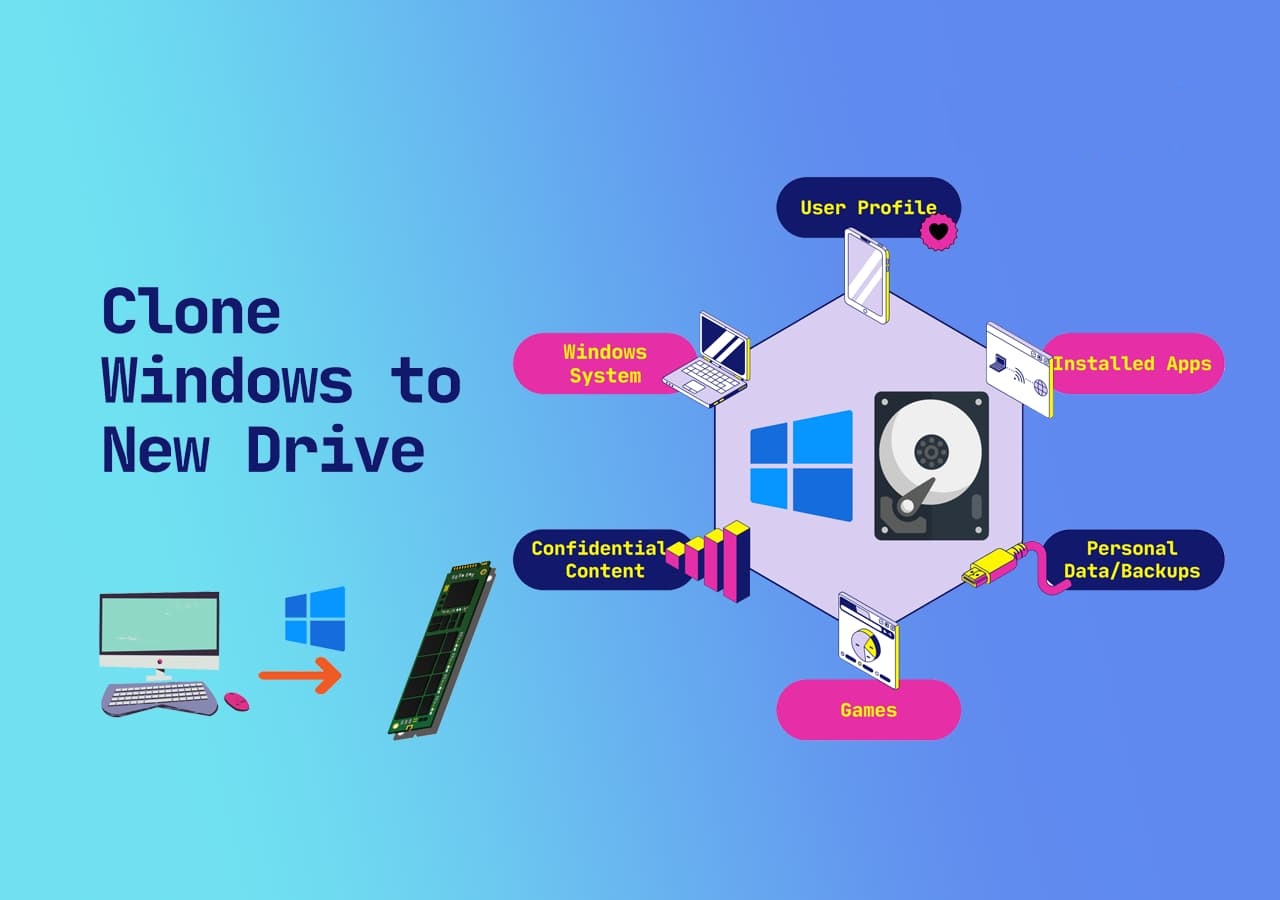
If you're looking to upgrade your Windows disk, you can clone the system to a new drive, making it easier for friends to follow along. To do this, you'll need to prepare the new drive by formatting it and creating a bootable USB drive with a Windows installation media.
Full Guide to Clone Windows to New Drive [With Pictures]
Note To clone Windows to a new disk, ensure the target disk has equal or bigger storage space than the OS disk, allowing for a smooth and successful OS cloning and migration. This involves creating a new disk, preparing the target disk, cloning the OS to the new disk, and verifying the cloned OS. The process ensures the new disk is compatible with the original OS, allowing for a seamless transition.
1. Back Up New Drive Content (Optional)
If you plan to clone your Windows OS to a target disk that contains important data, make sure to back up that data to an external disk first. This is because the cloning process will overwrite the target disk's contents, so it's a good idea to safeguard your valuable data by backing it up before proceeding.
For a reliable tool, you can easily use Qiling Disk Master Free to back up a hard drive to an external hard drive.
2. Clone Windows to Another New Drive via Third-Party Software
To copy the operating system to a new hard drive, you can use a professional cloning program like Qiling Disk Master Professional, which has a "Clone OS disk" feature that allows you to clone the operating system and its associated partitions to the new drive, making the process easy and straightforward even for a novice.
Download it and follow the guide below.
Step 1. Launch Qiling Disk Master, go to the Disk Clone tab, select Clone OS Disk, click Next.
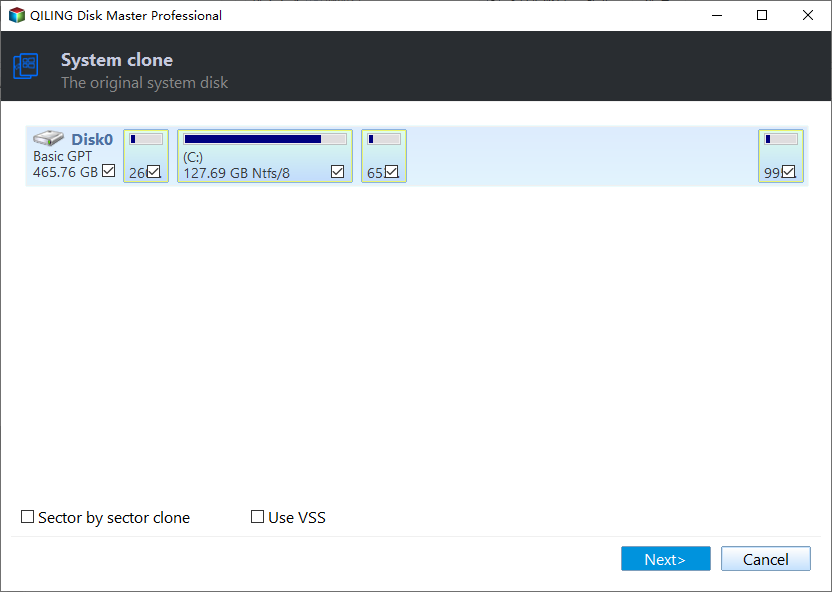
Step 2. To clone the OS to a new drive, select the target drive where you want to clone the OS to, and click "Next".

The cloning process will begin after confirmation, and the OS will be copied from the source disk to the target disk.

Step 3. The cloning process can be initiated by viewing the disk layout and clicking the "Start" button to begin the OS cloning procedure.

Step 4. When the process completes, you'll see a confirming message asking if you want to start up your computer from the cloned target disk.
- Reboot Now Rebooting and configuring a PC to boot from a new disk means restarting the computer and setting it to load the operating system from the new disk as soon as it boots up. This process allows the computer to recognize and use the new disk as its primary boot device, effectively replacing the old one.
- Done means you want to make the changes later.
If you didn't configure the computer to reboot immediately, move on to the next guide to set the new disk with cloned Windows as the boot drive. Alternatively, if you encounter a clone error during the cloning process, you may want to refer to the troubleshooting guide for assistance.
3. Set the New Drive as the Boot Disk (Optional)
Step 1. To access the BIOS settings on your computer, simply restart it and immediately start pressing the F2, F8, or Del key (depending on your computer model) to enter the BIOS setup utility. This will allow you to configure various settings, such as boot order, time and date, and more.
Step 2. To set the new hard drive with cloned OS as the boot drive, navigate to the Boot menu, where you can configure the boot priority or order. In this section, specify the new hard drive as the primary boot device, ensuring it takes precedence over any other drives.

Step 3. Exit after saving all your changes.
If you're looking for a solution to copy partition to another drive, this guide on cloning Windows to a new disk drive is a helpful resource. You can share this tutorial with your friends who are searching for a way to clone their Windows partition to a new disk drive online.
Bonus Tip: What to Do with Old OS Disk After Cloning Window
Apart from cloning Windows to a new disk, here in this part, we'd like to show you some additional tips for managing the old OS disk. As a professional disk management tool, Qiling Disk Master can do far more than clone the operating system.
Also, you can apply it to re-To manage and set the old system disk for new usage, consider the following tips:
1. Set the Old OS Disk as the Second Data Drive
To repurpose your old system drive as a storage drive, you can use Qiling Disk Master's features to delete all existing partitions and then repartition the hard drive with a new disk layout, effectively clearing and reusing the drive for storing data.
For a step-by-step guide, follow these two tutorials for help:
2. Wipe the Old Disk for Selling
If you no longer need an old disk and want to erase its content for resale, you can use Qiling Disk Master's Wipe Disk feature to completely clean the disk.
We've set two options for you to wipe data. Choose the one you need.
Option 1. Wipe Partition
- Right-To erase data from a partition, click on the partition you want to erase data from, and select the "Wipe" option.
- In the new window, set the time for which you want to wipe your partition.
- Click the "Proceed" button to wipe data.
Option 2. Wipe Disk
- Select the HDD/SSD. And right-click to choose "Wipe Disk".
- Set the number of times to wipe data to 10 at most.
- Click the "Proceed" button to wipe data.
Qiling Disk Master is a powerful tool that offers a range of features, including disk imaging, cloning, and wiping. It can create a bootable USB drive from a system image, allowing users to boot from it and run a system in a virtual environment.
Other Features of Qiling Disk Master
- Migrate OS to SSD
- Clone larger HDD to Smaller SSD
- Clone SD card to external hard drive
- Clone Windows to external hard drive
- Clone SD card, USB, or external hard drives
- Check disk speed, health
Why Clone Windows to a New Drive
Cloning Windows to a new drive creates a copy of your computer, including the operating system, essential programs, and installed drivers. This process is helpful in various situations, such as when you need to upgrade your computer's hardware, recover from a system failure, or even sell or give away your old device. By having a cloned version of your Windows installation, you can easily restore your system to its previous state, minimizing downtime and data loss. This can be especially useful for businesses or individuals who rely heavily on their computers for work or other critical tasks.
- To avoid manually reinstalling: You can clone an old Windows installation to a new one, preserving the operating system and all applications, without having to reinstall everything.
- To get more space on the original drive: After cloning Windows to a new drive, you can format or completely wipe the original hard drive to free up space and make it usable again.
- Clone the operating system to a new hard drive as a backup: When the OS crashes, you can simply clone it back to the hard drive without having to reinstall the OS and programs.
Cloning Windows to a new hard drive can be a time-saving alternative to manually copying programs and files one by one, allowing for a more efficient transfer of the operating system and all associated data.
Conclusion
Cloning Windows to a new hard drive using Qiling Disk Master is a convenient and efficient way to transfer your operating system and data to a new drive. This process is useful for upgrading to a faster drive, replacing a failing drive, or simply having a backup of your system. Qiling Disk Master is a professional cloning software that can accurately clone Windows to a new drive, preserving all your installed programs, settings, and data.
With this tool, cloning Windows to another new hard drive is not a difficult task. After finishing the cloning, you can boot Windows from the cloned new drive, and it also allows you to migrate your OS to HDD or SSD with simple steps. Download it to manage your disk partition.
You may also like the following:
Clone Windows to New Drive FAQs
There are several frequently asked questions about cloning Windows to another new hard drive. Some of these questions include what happens if the new hard drive is larger or smaller than the original, how to clone Windows to a new hard drive with a different file system, and what to do if the cloning process fails. Additionally, there are questions about how to clone Windows to a new hard drive with a different operating system, such as cloning Windows 10 to a new hard drive with Windows 7. These questions and others can be answered with a little research and patience.
1. How to clone a hard drive Windows 11/10?
To clone a hard drive on Windows 11/10, you can use Qiling Disk Master. This software allows you to clone a hard drive to a new drive, preserving all data, settings, and programs. To do this, you'll need to download and install Qiling Disk Master, then launch it and select the source and target drives.
Step 1. Download Qiling Disk Master.
Step 2. Click "Clone Data Disk" or "Clone OS Disk" and proceed with "Next."
Step 3. To initiate the cloning process, select the target disk in the clone section and click the "Next" button.
Step 4. Check the disk layout and edit the target disk partition size.
Step 5. Click "Start" to clone.
2. Does cloning a hard drive copy the OS?
Cloning the hard drive where the operating system is installed will also copy all the programs and data on the drive, resulting in a complete replica of the original system. This is often used for backup and data recovery purposes.
3. How do I clone my Windows operating system to a new SSD?
To turn to a professional third-party tool, such as Qiling Disk Master, follow these steps:
Step 1. Download Qiling Disk Master.
Step 2. Select the source disk in the "Clone OS Disk" section and proceed to the next window.
Step 3. Choose your new SSD as the target disk.
Step 4. Click "Start" to clone.
Related Articles
- Solved: HP Recovery Drive Full on Windows 10/8/7
- SSD Optimzier for Windows 11 Free Download with Ultimate Guide
- CHKDSK Cannot Run Because the Volume Is in Use by Another Process
- How to Format a USB for Xbox 360 on PC/Mac/Xbox 360 [Newest Solution]
- How to Disable PIN on Windows 11? 2024 Guide
If you're looking to disable the PIN on Windows 11, this guide provides the best methods to help you achieve that. - Top 5 Best Disk Formatter Software Free Download [Benefits Listed]
If you're looking for a reliable disk formatter tool, you can consider one of the top 5 best disk formatter software and tools listed here, which enable you to successfully format and reset all types of hard disk drives and storage devices for both Windows and Mac usage.
Products
Articles & Tutorials
- Data Recovery
- Data Backup
- File Recovery
- File Backup
- System Backup and Restore
- Disk and Partition Clone
- Technical articles
- Mobile articles
- Disk Master Help
- Windows Data Recovery Tutorials
- Windows Secure Delete Tutorials
- Windows Partition Management Tutorials
- Windows File Backup and Restore Tutorials
- Windows System Backup and Restore Tutorials
- Windows Disk Backup and Restore Tutorials
- Windows Clone Tutorials