Top 5 Best Disk Formatter Software Free Download [Benefits Listed]
Key Takeaways of Best Disk Formatter in Windows:
1. Before getting the best disk formatter, make sure you understand what will happen if you perform disk formatting. Formatting a disk will erase all data on it, including files, folders, and operating systems.
2. Before applying the best disk formatter to format and reformat a hard drive, make sure to back up valuable data to prevent any loss.
On this page, you'll learn about disk formatters, what they can do, and their benefits and drawbacks. You'll also find the best disk formatter software or tool to format a hard drive or external storage device with ease.
Topics You May Also Like:
To get a reliable disk formatter software or program for free, you can look for open-source options or free trials of paid software. Some popular choices include Qiling Partition Master, which offer free versions or trials that can help you format your disk drives with ease. These programs can be downloaded from their official websites or through reputable software repositories.
Top 5 Best Disk Formatters for Windows 11/10 Free Download [2024 Recommend]
We've selected the top 5 best disk formatter software and utilities from 50+ options for Windows users to successfully format their disks. Among these, we've identified the best disk formatter software and programs that can help users apply and format their disks efficiently. If you're wondering which one is the best, please see following.
Check the comparison table and find which one suits your needs the most:
| Disk Formatter | Formatting Level | Format Method | Supported Formats |
|---|---|---|---|
| 1. Qiling Disk Master Free🏆 | High-Level Format |
|
|
| 2. File Explorer | High-Level Format |
|
|
| 3. Disk Management | High-Level Format |
|
|
| 4. Command Prompt | High-Level Format |
|
|
| 5. HDD Low-Level Format Tool | Low-Level Format |
|
\ |
Qiling Disk Master Free is recommended as it supports most file system formats, making it easy to set up formats on hard disk drives, SSDs, and USB devices.
#1. Qiling Disk Master Free - Easiest Disk Formatter
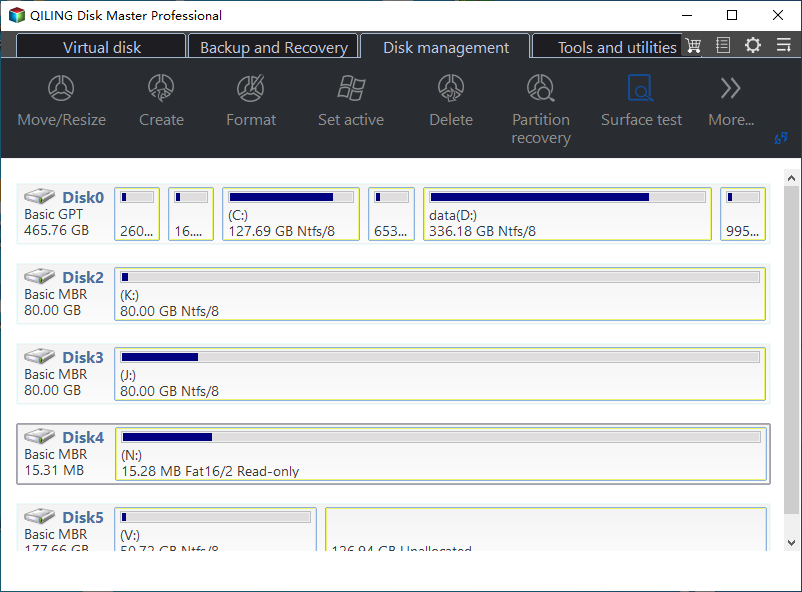
Qiling Disk Master Free Edition is a free partition manager software that allows you to format disk drives and external storage devices with ease. It simplifies the process of partitioning hard drives, allocating disk space, and optimizing disk performance in just a few clicks. Aside from formatting disks, the software also offers additional free features.
Qiling Disk Master Free Edition is incredibly simple to use, one of many reasons that you should consider it when looking for a good free disk partitioning tool. - posted by Tim Fisher from CNET.
Free Features:
- Manage your hard disk drives easily with this free tool, which allows you to create, delete, extend, shrink, and merge partitions as needed.
- Convert NTFS to FAT32, convert FAT32 to NTFS for free.
- Convert data disk between MBR and GPT for free.
- Conver disk between dynamic and basic for free.
- Hide/unhide, check file system errors for free.
- Format or wipe disk partitions for free.
- 4K align SSD, initialize disk for free.
- Clone system partition for free.
- Clone data disk for free.
Pros:
- 24*7 free tech support
- Email support: support@idiskhome.com
- Easy to use with stylish UI design
- 100% secure, free, and user-friendly
- Fully support Windows 11/10/8.1/8/7/XP/Vista
- Stable and safe, regularly updated with sophisticated algorithms.
Cons:
- Doesn't support macOS
- Some advanced features like Migrate OS to HDD/SSD require activation.
Verdict:
Qiling Disk Master Free provides a user-friendly interface that enables all Windows users to successfully format their internal and external hard drives with ease.
Guide to Format Hard Disk for Free:
Step 1. To format a hard drive partition, start Qiling Disk Master, right-click the intended partition and select "Format".

Step 2. In the new window, set the partition label, file system (NTFS/FAT32/EXT2/EXT3/EXT4/exFAT), and cluster size for the partition to be formatted.

Step 3. To start the partition formatting process, click on the "Proceed" button. This will initiate the formatting of the partition on your hard drive.

Step 4. Then you will see a warning window, click "Yes" in it to continue.
#Disk Formatter#Free Disk Formatter Software#Free Formatting Software#Windows
#2. File Explorer - Windows Beginners' Disk Formatter
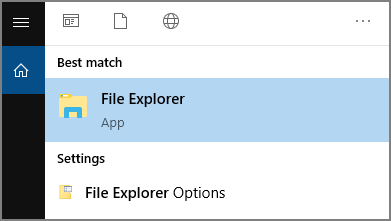
File Explorer allows Windows users to easily format their own hard disk drives, making it accessible to users of all skill levels.
Free Features:
- Full format hard drive partition.
- You can format your SD card, USB drive, and external hard drive for free using built-in formatting tools on your computer. This process will erase all data on the device, so make sure to back up any important files before proceeding.
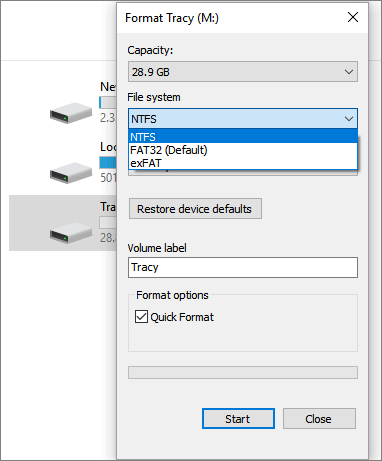
- Format your external hard drive or removable storage device to NTFS, FAT32, or exFAT.
Pros:
- Easy-to-use, 100% free
- Doesn't require software installation
- Quick to access
Cons:
- Doesn't support EXT2/3/4
- Can't format large drive 32GB+ to FAT32
- Can't format a raw drive
Verdict:
To format a small-sized storage device in Windows, you can use the built-in File Explorer to quickly access the storage device and format it to NTFS, FAT32, or exFAT without needing any additional software. Simply press the Windows + E keys to open File Explorer, then right-click on the storage device and select "Format" from the context menu. In the Format window, choose the desired file system (NTFS, FAT32, or exFAT) and click "Start" to begin the formatting process.
Guide to Format Hard Disk for Free:
- Open File Explorer.
- Locate and right-To format a drive, click on the target drive you intend to format and select the "Format" option.
- To format your external hard drive, select it in the Disk Management window, right-click on it, and select "Format". Then, select the file system you want to use, such as NTFS or exFAT, and choose the allocation unit size.
If Windows displays the error message "Windows Was Unable to Complete the Format", it could be due to various reasons. To resolve this issue, you can directly use Qiling Disk Master, which is a recommended tool, to fix the problem and format your disk instantly.
#Drive Formatter#Free Disk Formatter#Free HDD Formatter#Windows
#3. Disk Management
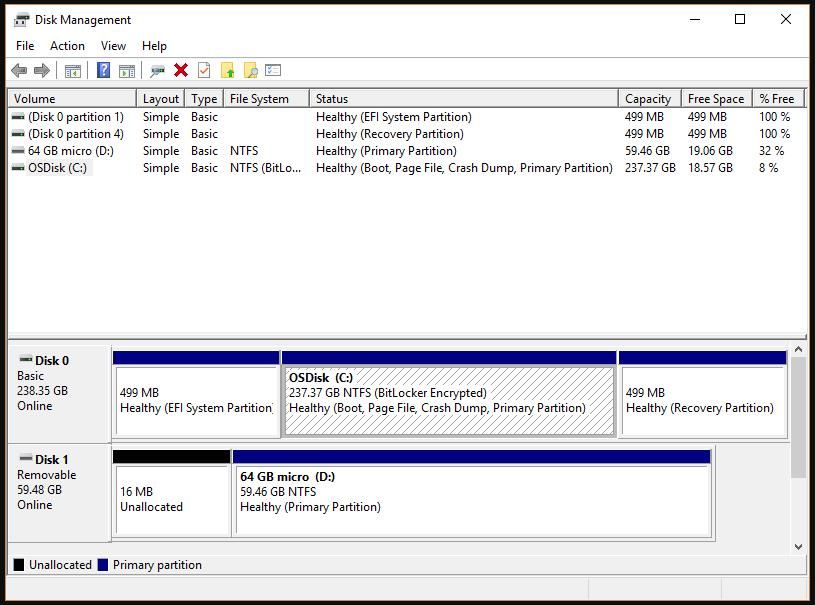
Disk Management is a tool in Windows that allows users to manage and configure disk partitions, including formatting, creating, deleting, and resizing partitions, as well as assigning drive letters and changing the drive letter of a partition. It provides a graphical interface to perform various disk-related tasks, making it a more comprehensive tool than File Explorer for disk management.
Free Features:
- You can use the built-in disk management tool on your computer to format disk drives, SD cards, USB flash drives, or external hard drives for free. This tool is usually found in the computer's settings or control panel and allows you to erase all data on the device and prepare it for new data.
- Create a new simple volume for free.
- Shrink volume for free.
- Convert basic disk to dynamic.
- Initialize disk to MBR or GPT for free.
Pros:
- Simple to use
- All features are free
- Fulfill basic disk management partitioning demands
Cons:
- Not for beginners.
- Doesn't support EXT2/3/4.
- Easy to make mistakes for Windows beginners.
Verdict:
Disk Management is a feature that allows experienced Windows users to effectively utilize disk space on their computers. However, it requires caution, especially when partitioning hard drives, as deleting or formatting a partition can be irreversible.
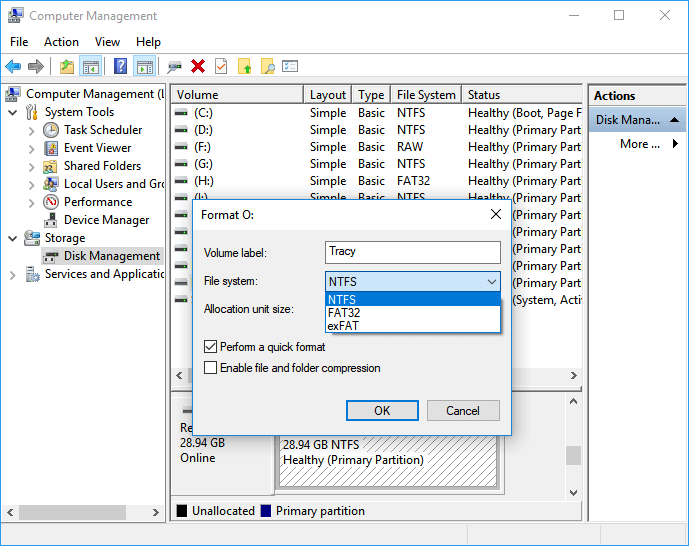
Guide to Format Hard Disk for Free:
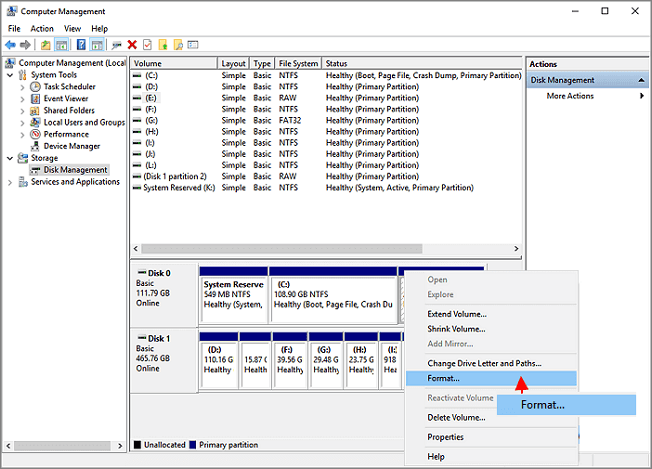
- Right-click on Windows icons and select "Disk Management".
- Right-To format a hard drive, click on the target hard drive you want to format, and select "Format Volume".
- To set a new drive letter and file system format to the drive, click on the "Drive" tab, select the drive you want to change, click on the "Change" button, select a new drive letter, and choose a file system format from the dropdown menu, then click "OK".
#Free Disc Formatter#Windows Disk Formatter#Hard Drive Formatting Software#Windows
Bonus Tip: If the format option in Disk Management is not available, you can try using the built-in Command Prompt utility to format the disk instead. To do this, open Command Prompt as an administrator, navigate to the disk you want to format, and use the `

Fix Disk Management Format Option Greyed Out in Windows
If the format option is not available in disk management on your Windows 11/10, 8.1, 8, 7 PC, don't worry! We've got three useful solutions to help you repair and fix the issue.
#4. Command Prompt - Administrative Disk Formatter
The Command Prompt is a command line tool used by Windows administrators to execute disk partitioning and volume formatting tasks, making it a preferred choice for many.
Free Features:
- Free to format hard disk partitions.
- Free to create, delete, extend, and shrink volumes.
- Convert MBR to GPT, or GPT to MBR for free.
- Convert basic to dynamic for free.
Pros:
- Free-to-use
- More than a disk formatter.
Cons:
- Complex to use
- Doesn't support EXT2/3/4
- Easy to make mistakes
Verdict:
Windows administrators are recommended to use the Command Prompt to partition and format hard disk drives, while beginners can use Qiling Disk Master Free or File Explorer for formatting storage devices.
Guide to Format Hard Disk for Free:
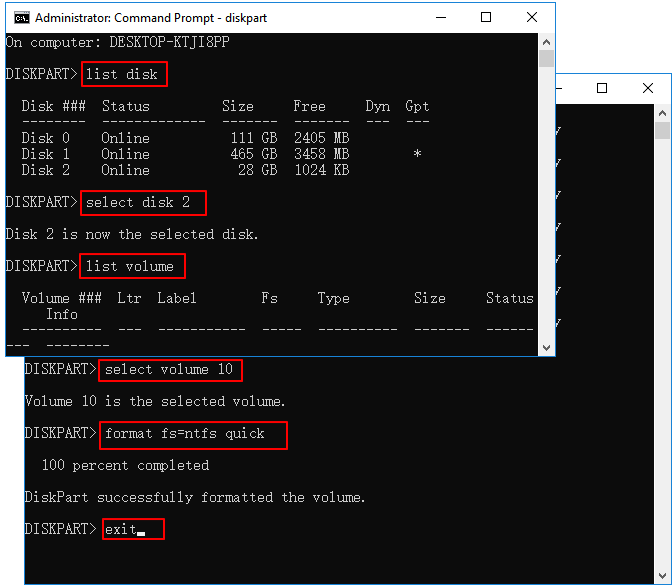
- Press the Windows + R keys, and type cmd.
- Once the command prompt opens, type diskpart and hit Enter.
- Type the following command lines one by one and hit Enter each time:
- list disk
- select disk * (replace * with the disk number of your target disk.)
- list volume
- select volume * (replace * with the volume number you tend to format.)
- format fs=ntfs quick
- exit
#Windows Disk Formatter#Format CMD#Disk Formatter Windows 10#CMD
If you encounter disk formatting errors while running Command Prompt format lines on the target disk, don't worry - you can resolve the issue by following the guide here.
#5. HDD Low-Level Format Tool - Renowned Low-Level Format Software
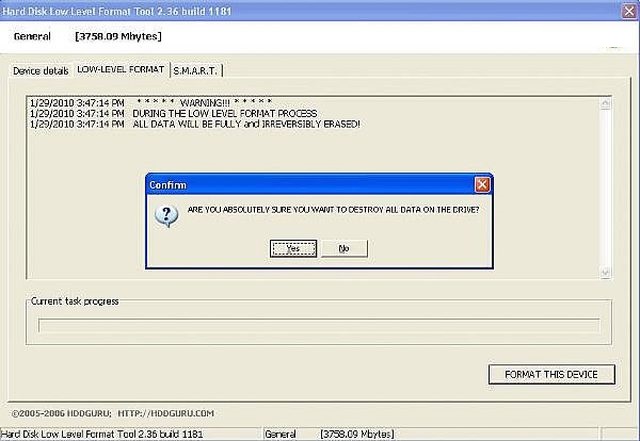
HDD Low-The Level Format Tool, also known as HDD LLF, allows users to low-level format Windows 10, Windows 11, or older Windows disk drives and external hard drives, restoring them to their original state.
Free Features:
- Support low-: Various storage interfaces are used to connect hard disk drives to a computer system. These include:
- The software supports a wide range of hard drive brands, including Seagate, Samsung, Western Digital, Toshiba, Maxtor, and others.
Pros:
- Easy to use.
- Low-level format hard disk drives to their original state.
Cons:
- Not for beginners.
- May cause physical damage to hard disk drives when used too frequently.
Verdict:
Low-The HDD Low-Level Format Tool, a level disk formatter software, is not for beginners and even experienced users should exercise caution when using it to format storage devices. If you want to fully format hard drives or storage devices and completely clean up existing data at once, it's recommended to try one of the four disk formatters mentioned earlier.
Guide to Format Hard Disk for Free:
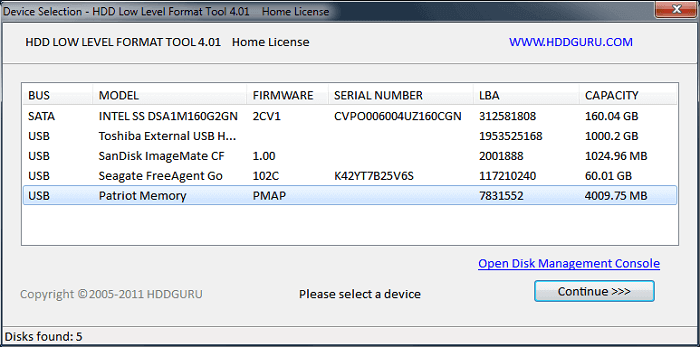
- Run the Hard Disk Low-Level format tool.
- Select the disk partition you need to format and select "Continue".
- Click "Format This Device" in the Low-Level FORMAT section.
#Free HDD Low Level Format Tool#LLF Disk Formatter#Format Program
What Is Disk Formatter?
There are third-party software options that can perform a full format, similar to Windows, but with more features and capabilities. Some examples include Qiling Partition Master. These tools can resize partitions, move operating systems, and even recover data from damaged or corrupted partitions. They may offer more flexibility and control over the formatting process compared to Windows. However, it's essential to note that some of these software may not be able to fully replicate the exact behavior of Windows, especially when it comes to low-level disk formatting. If you're looking for a more comprehensive solution, you might want to explore specialized disk management tools like Hiren's BootCD or Parted Magic, which can provide a more extensive set of features and options.Reddit
Formatting a disk refers to the process of preparing a storage device, such as a hard drive, solid-state drive, or USB drive, for use by erasing any existing data and creating a file system on it. This process involves dividing the disk into smaller, manageable sections called clusters or blocks, and assigning a file system to manage the data stored on the disk.
Disk formatting is the process of preparing a data storage device, such as a hard disk drive, solid-state drive, floppy disk, memory card, or USB drive, for initial use. Formatting may also create one or more new file systems in the process.
A disk formatter is a tool that formats a storage device, assigning a new drive letter and file system format, making it ready for new usage.
Alongside hard disk formatter, you can also find other formatter software designed for formatting SD cards, external hard drives, and USB drives.
What Does Disk Formatter Do?
A disk formatter can securely erase data from a disk, making it suitable for reuse or resale, and can also format the disk to a specific file system, such as FAT, NTFS, or HFS+. Additionally, it can create a bootable disk, allowing you to install an operating system or boot from the disk. Furthermore, a disk formatter can also partition and manage disk space, making it easier to organize and utilize your storage devices.
- To fix the "type of the file system is raw" error on hard drive partitions, SSDs, SD cards, USB drives, etc., you can try the following: Use a tool like Qiling Partition Manager or MiniTool Partition Wizard to check and repair the file system.
- To securely wipe data from a hard drive, SSD, or other storage devices, quickly remove or clean up all existing data. This process ensures that sensitive information is completely erased, protecting against unauthorized access.
- To change the file system format on a disk drive, you can use the built-in Disk Management tool in Windows or a third-party software like Qiling Partition Master. The process typically involves selecting the disk drive, choosing the desired file system format (e.
- Make unreadable storage devices readable and accessible.
- Fix drive access denied error on HDDs, SSDs, etc.
- Fix internal file system corruption error.
- Remove unknown viruses.
- Fix soft bad sectors.
Why and When Do I Need Disk Formatter?
A reliable disk formatter can help resolve various storage device issues, such as formatting hard disk drives instantly, recovering data from corrupted drives, resizing partitions, and fixing boot issues, making it a valuable tool in multiple situations.
- To restore a full capacity to your USB or hard drive, you can format it. Formatting will erase all data on the drive, so make sure to back up any important files before proceeding.
- To switch file systems on disk drives, such as formatting an SD card to FAT32, or converting a hard drive to NTFS, you need to use the appropriate formatting tool for your operating system. For example, if you're using Windows, you can use the built-in Disk Management tool to format a drive to NTFS.
- The hard drive partition is inaccessible, showing raw on Windows.
- The computer is warning you that the external hard drive or USB file system is not supported, meaning it cannot read or write data to it. This is likely due to the drive being formatted with a file system that the computer does not recognize, such as a Mac formatted drive being used on a PC.
- SD card is blank or has an unsupported file system.
- The hard drive or USB drive is locked or write-protected.
- The external hard drive or USB drive is not showing.
- The hard drive partition is not being recognized or displayed in File Explorer due to the lack of a partition label. This is a common issue that can be resolved by assigning a drive letter to the partition or by creating a partition label using the disk management tool in Windows.
- Virus removal software alerts the user that viruses or malware have been detected on the target drive or storage device.
Can Disk Formatter Be Free?
Yes, a disk formatter program or software can be free.
Most operating system manufacturers provide a built-in free disk formatting tool, allowing users to format their disks for free, regardless of their operating system, such as Windows, macOS, Linux, or Ubuntu.
Conclusion
This page recommends 5 best free disk formatters that allow all levels of Windows users to fully format their hard disks, USB drives, SSDs, and external hard drives with ease, accompanied by simple tutorial guides.
Qiling Disk Master is a comprehensive disk manager software that goes beyond being a simple disk formatter. It's perfect for both Windows beginners and administrators, offering a user-friendly interface for easy disk management.
If you're looking for help with formatting disks on your Mac or other operating systems, you can find a tutorial guide here that can assist you.
FAQs of Best Disk Formatter for Windows
Here are some of the most frequently asked questions and answers on various topics, including science, technology, and culture. If you have a similar question, feel free to explore and find the answer.
1. What is the best formatting software?
When searching online for the best formatting software, you may come across various options. If you're looking for a free alternative, consider using File Explorer, Qiling Disk Master Free, Disk Management, or even the Command Prompt (CMD) on Windows computers to format a disk drive without incurring any costs.
2. Does formatting a disk clear it?
Formatting a disk not only changes its file system but also cleans up existing data and restores the drive to its full size.
3. What is the best program formatting hard drives?
- On Windows computers, File Explorer and Disk Management are useful programs for formatting hard disk drives.
- On Mac computers, Disk Utility is highly recommended for formatting hard disk drives.
- As for third-Qiling Disk Master is a software that can be used to format disks. It can be used to format various types of disks, including hard drives, solid state drives, and USB drives.
4. What types of format can a drive have?
- For internal hard drives, you can format a partition to NTFS, exFAT, or FAT32, but if the partition is over 32GB, only NTFS or exFAT are options.
- You can format an external hard drive or USB drive with exFAT, FAT32, or NTFS file systems, or even EXT2/3/4 for compatibility with Linux systems.
Related Articles
- Unable to Install Windows 10 on Dynamic Disk? 3 Fixes 💡
- How to Check SD Card Health on Windows [Safe & Efficient]
- Partition Magic Server 2003 Free Download for Windows Server 2003 [How-To Guide]
- How to Format USB to NTFS & Convert USB to NTFS in Windows 10/11 (All 4 Ways)
- Format/Reformat Seagate External Hard Drive on Windows or Mac
Formatting a Seagate external hard drive on Windows or Mac can be a straightforward process, even if it was preformatted with the exFAT file system. To format it on Windows, connect the drive to your computer, right-click on it in File Explorer, and select “Format” from the context menu. - How Do I Format SSD Partition as FAT32 from Command Prompt (CMD)? [2024 Tutorial]
This page provides a step-by-step guide on how to format an SSD partition as FAT32 using the Command Prompt.
Products
Articles & Tutorials
- Data Recovery
- Data Backup
- File Recovery
- File Backup
- System Backup and Restore
- Disk and Partition Clone
- Technical articles
- Mobile articles
- Disk Master Help
- Windows Data Recovery Tutorials
- Windows Secure Delete Tutorials
- Windows Partition Management Tutorials
- Windows File Backup and Restore Tutorials
- Windows System Backup and Restore Tutorials
- Windows Disk Backup and Restore Tutorials
- Windows Clone Tutorials