How to Format a USB for Xbox 360 on PC/Mac/Xbox 360 [Newest Solution]
The Xbox 360 has a dedicated gaming console developed by Microsoft, with more functionality than its predecessors. However, adding a USB external device to increase available space often results in the USB not functioning when connected to the console.
Formatting a USB for Xbox 360 may be necessary if it's not recognized by the console, possibly due to a wrong file system format. To resolve this, you can format the USB using different methods depending on your operating system - on Windows or Mac, you can use built-in formatting tools, while on Xbox 360 itself, you can format it directly on the console.
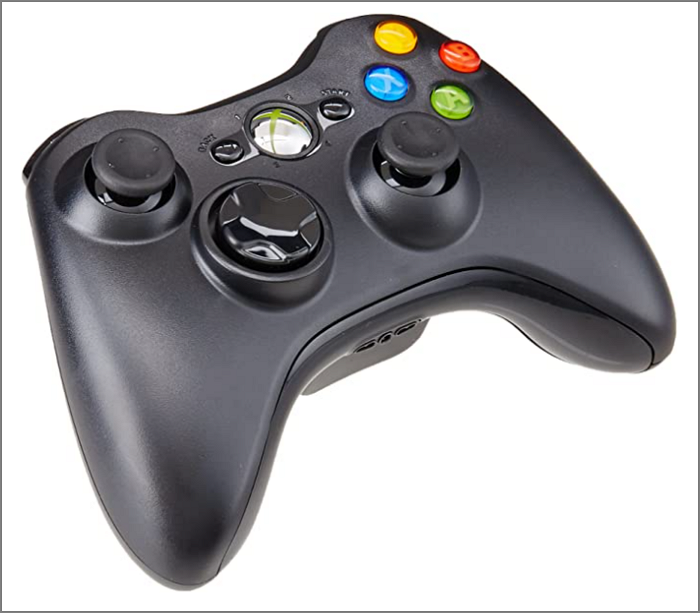
What Is the File Format for Xbox 360?
To upgrade your Xbox One or Xbox 360, you need to format the new hard drive or SSD first. For Xbox 360, use FAT32 format, while NTFS and FAT32 are compatible with Xbox One, but not with Xbox 360. Some USB drives may not work on Xbox 360.
To use an external hard drive on Xbox 360, format it as FAT32 on your computer first and ensure the USB is larger than 1GB for optimal gaming performance.
Read Also: Format A USB Drive That Doesn't Show Up
How to Format a USB for Xbox 360
After determining that FAT32 is the best file system format for Xbox 360, you'll need to learn how to format a USB for Xbox 360 to FAT32. Fortunately, this can be done regardless of whether you're using Windows, macOS, or only have a gaming console. We'll cover all three methods in the following content.
Format a USB for Xbox 360 via Qiling Disk Master
Format a USB for Xbox 360 via Disk Utility
To format a USB for Xbox 360 using an Xbox 360 controller, you'll need to connect the USB drive to the controller and then to the Xbox 360. Next, navigate to the "Settings" menu on the Xbox 360, select "System Settings", and choose "Storage Devices".
How to Format a USB for Xbox 360 on a PC – Qiling Disk Master
On Windows, you can use Qiling Disk Master Free to easily format a USB for Xbox 360, even if you're a novice, with the software's user-friendly interface. It can format USB drives larger than 32GB to FAT32 format for free.
Step 1. Launch Qiling Disk Master, right-click the partition on your external hard drive/USB/SD card which you want to format and choose the "Format" option.

Step 2. Assign a new partition label, file system (NTFS, FAT32, EXT2, EXT3, EXT4, exFAT), and cluster size to the selected partition.

Step 3. To start formatting your external hard drive/USB/SD card, click the "Proceed" button. This will initiate the formatting process, which will erase all data on the device.
Step 4. In the Warning window, click "Yes" to continue.
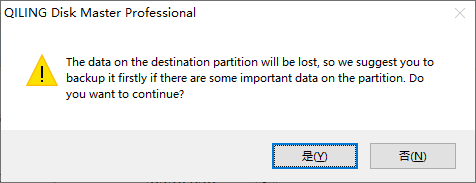
Qiling Disk Master can also convert NTFS to FAT32 directly, making it a good alternative to Windows built-in tools, which have limitations in formatting files larger than 32GB.
How to Format a USB for Xbox 360 on Mac – Disk Utility
Formatting an external hard drive for Xbox 360 on a Mac can be done using the Disk Utility or the Terminal command. For those who prefer a more user-friendly approach, Disk Utility is the way to go. This method is suitable for most users and does not require any advanced knowledge of commands. To format using Disk Utility, follow the steps below.
Step 1. Connect the USB for Xbox 360 to your Mac.
Step 2. Open "Disk Utility."
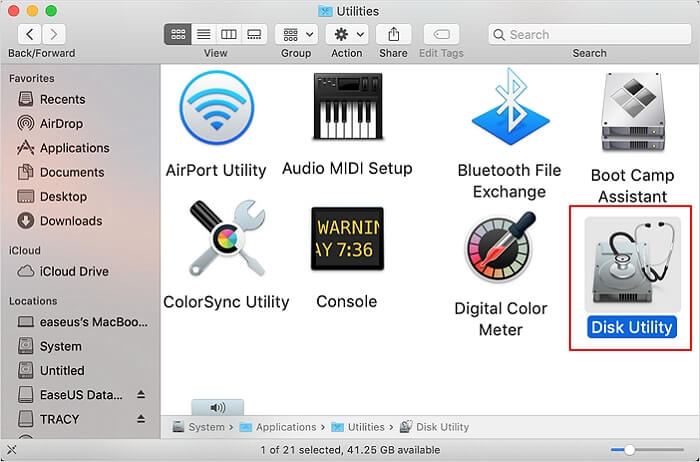
Step 3. Select USB and click "Erase."
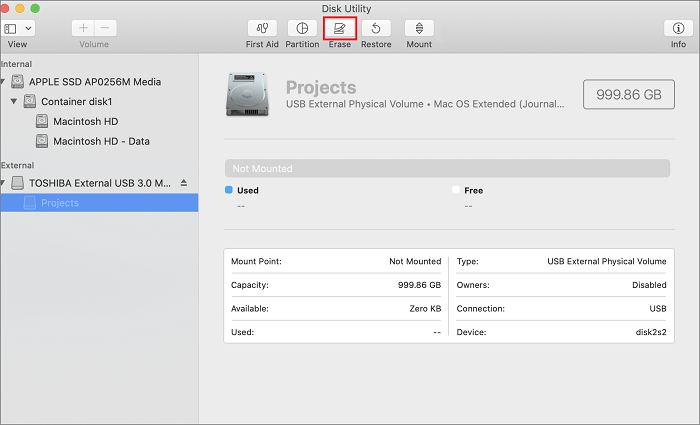
Step 4. The USB drive should be formatted to FAT32. To do this, plug the USB drive into the Xbox 360, go to the "Settings" menu, select "Memory," then "USB Storage Device," and choose the USB drive. Select "Format" and choose "FAT32" as the file system.
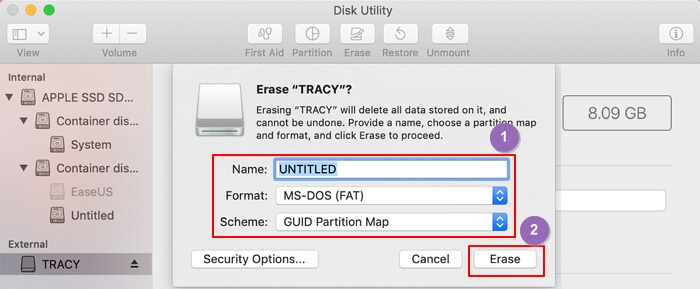
Step 5. Finish formatting the USB for Xbox 360.
To format a USB for Xbox 360 on Mac, follow these steps. If you encounter issues with an external hard drive on Mac, you may find helpful solutions in the provided links.
How to Format a USB for Xbox 360 on Xbox 360 – via Xbox 360 Controller
If you don't want to format the USB on your computer, you can also format it directly on the console. This process is also simple and can be completed by following the steps below to format your USB for Xbox 360.
Step 1. Connect the USB to the Xbox 360 USB port.
Step 2. Select "Settings" and then "Storage."
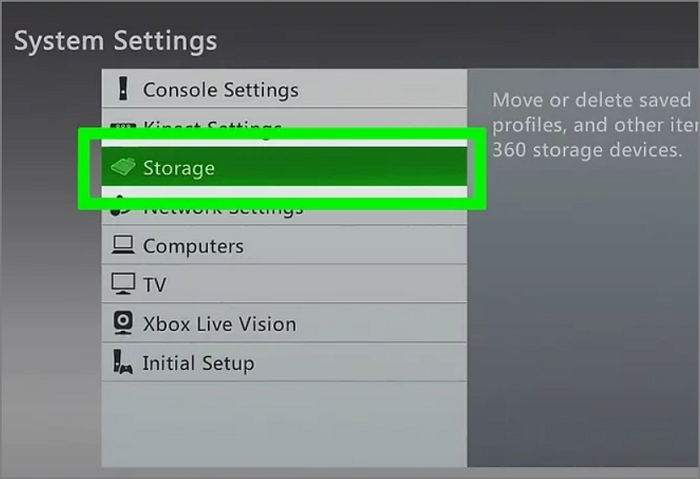
Step 3. To format the USB, go to the "Configure USB Device" menu and select "USB Storage Device", then the USB drive will show up as unformatted.
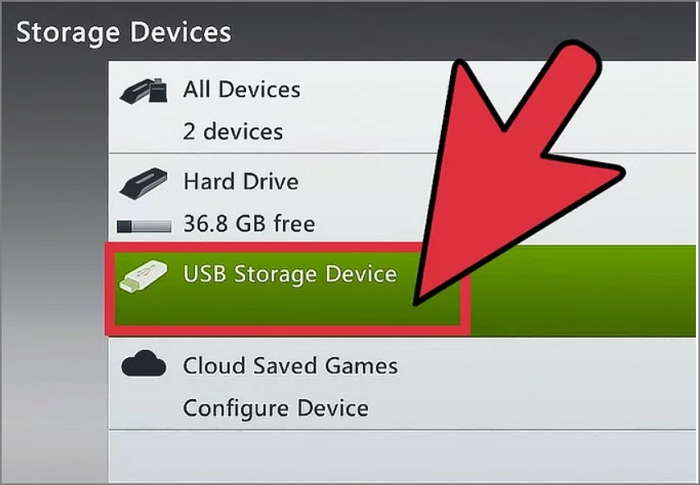
Step 4. To format the USB to FAT32 for Xbox 360, select the "Configure" option.
Conclusion
The recommended format for Xbox 360 is FAT32, and Qiling Disk Master allows for easy formatting to FAT32 and conversion of NTFS to FAT32 without data loss. Additionally, you can also format a USB drive on a Mac or Xbox 360.
After reading this article, you should be able to easily format your USB for Xbox 360 and enjoy a better gaming experience on the console. If you have any further questions, here are some additional FAQs about Xbox 360.
FAQs About How to Format a USB for Xbox 360
If you are interested in Xbox 360 USB format, keep reading.
1. What format does a USB need to be for Xbox 360?
The Xbox 360 only supports FAT32 on external USB drives, not NTFS, which was developed by Microsoft.
2. Why won't my Xbox 360 Read my USB?
If your USB drive isn't recognized, it could be due to a faulty USB cable connection or a wrong USB file system. Try reinserting it or testing it on another device to see if the issue lies with the drive itself.
3. Does Xbox 360 support NTFS USB drives?
The Xbox 360 and Xbox One have different file system support, with the Xbox 360 only supporting FAT32 and the Xbox One's internal hard drive supporting NTFS in addition to FAT32.
Related Articles
- How to Clone C Drive to Larger SSD in 2024 [Full Guide]🔥
- How Long Do SD Cards Last? Check SD Card Lifespan
- How to Remove SD Card Notification in Samsung S7/S7 Edge
- Fixed: The Disk Is Write Protected Windows 11
- How to Fix SD Card Write Protected But Not Locked [100% Working]
This blog post provides a solution to fix an SD card that is write-protected but not locked. It addresses common questions and provides a clear answer to help resolve the issue. - [Fixed] Seagate External Hard Drive Slow on Windows 11/10
The article offers nine solutions to address Seagate external hard drive slow error, including using professional tools to test speed, deleting unnecessary files, defragmenting, and fixing bad sectors, among other methods, to resolve issues with slow read/write or transfer speeds.
Products
Articles & Tutorials
- Data Recovery
- Data Backup
- File Recovery
- File Backup
- System Backup and Restore
- Disk and Partition Clone
- Technical articles
- Mobile articles
- Disk Master Help
- Windows Data Recovery Tutorials
- Windows Secure Delete Tutorials
- Windows Partition Management Tutorials
- Windows File Backup and Restore Tutorials
- Windows System Backup and Restore Tutorials
- Windows Disk Backup and Restore Tutorials
- Windows Clone Tutorials