How to Fix SD Card Write Protected But Not Locked
Encountering a write-A protected SD card can be frustrating to deal with, especially when there's no visible lock switch to toggle, hindering our ability to manage or modify the stored content, which is a common issue with SD cards used in digital devices for portable storage solutions.
Qiling software addresses the issue of a write-protected SD card that is not locked, exploring possible causes and providing effective solutions to fix it, allowing you to regain control over your SD card and resume its read-write functionality.
View some necessary information about SD card is write protected but not locked:
| 🥎Goal | Remove the write protection from SD card |
| ✍️Suitable for | A write-protected SD card, micro SD card, or other external device is one that has been set to prevent any new data from being written to it. This means that any files or data on the device cannot be modified, deleted, or added to, and the device can only be used to read data that was already stored on it. |
| 🧑💻Solutions |
✔️Remove Write-Protection on SD Card Directly |
| 👣Operation Difficulty | Easy with professional tools to help you |
How to Fix SD Card Write Protected But Not Locked?
Multiple reasons can cause an SD card to be write-protected but not locked, and it's time to explore effective methods to overcome this obstacle and ensure a seamless user experience. To resolve the write protection, let's dive into the instructional steps.
Fix 1. Remove Write-Protection on SD Card Directly
With Qiling Disk Master, you can easily remove write protection from your USB, USB external disk, or SD card in just a few clicks, directly unlocking the write protection and regaining full access to your storage device.
Step 1. Download and install Qiling Disk Master, then go to the Disk management section.
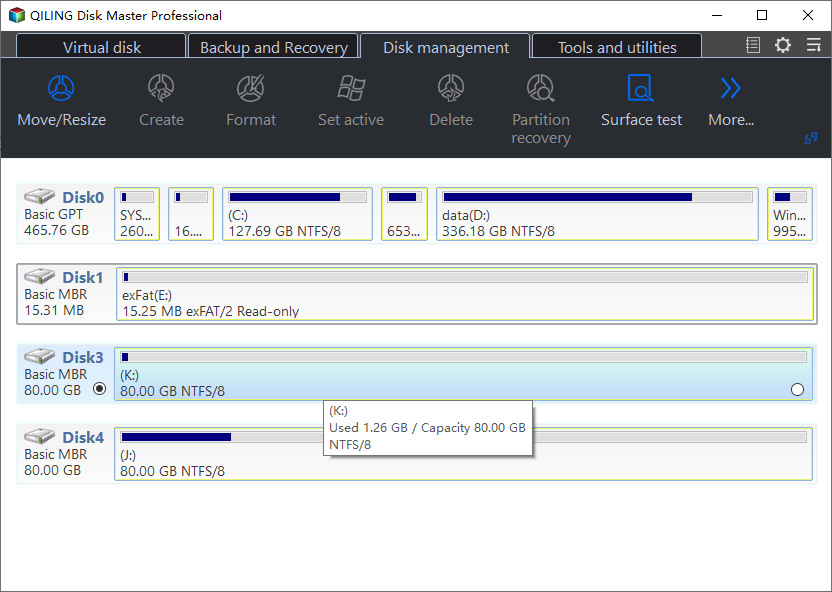
Step 2. Right-click on your write protected USB, external disk or SD card, and select "Remove disk readonly" from the context menu.

Qiling Disk Master also supports other devices, and it can remove write protection from Pen Drive and format the write-protected USB, among other valuable features and advantages.
Fix 2. Modify Windows Register
An incorrect value in the Windows Registry Key can cause SD card write protection, even if it's not physically locked. To fix this, you can modify the value data in the Registry Key, but be cautious and follow the steps carefully, as a small mistake can lead to significant problems.
Follow the steps below:
Step 1. Press your keyboard's "Windows + R" keys simultaneously to open the Run box, type "regedit" and then hit the "Enter" button to open the Registry Editor.
Step 2. In the left pane of the Registry Editor window, navigate to the following directory: HKEY_LOCAL_MACHINE\SOFTWARE\Microsoft\Windows\CurrentVersion\Run. This directory contains a list of programs that run automatically when Windows starts.
HKEY_LOCAL_MACHINE\SYSTEM\CurrentControlSet\Control\StorageDevicePolicies.
Note: If the "StorageDevicePolicies" file does not exist, you can create a new key under the "Control" folder and name it "StorageDevicePolicies".
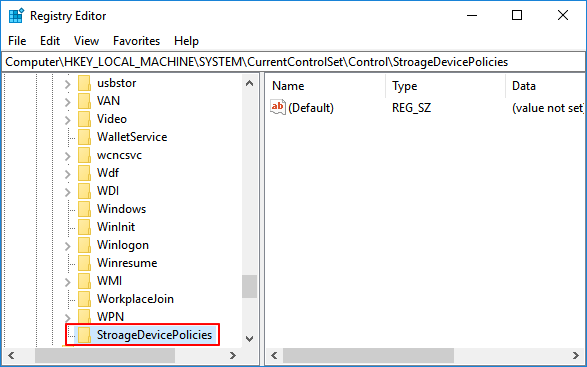
To prevent unauthorized changes to a storage device, you can create a DWORD (32-bit) Value in the "StorageDevicePolicies" key. To do this, open the "StorageDevicePolicies" key, right-click on a blank space, and select "New" > "DWORD (32-bit) Value" to create a new file. Name this file "WriteProtect".
Step 3. Open the "WriteProtect" file and modify the value data to "0".
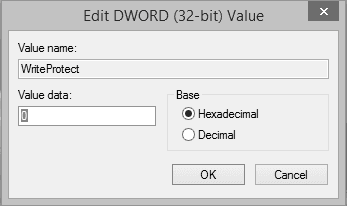
Step 4. Click "OK" to save the changes, then reconnect the SD card and check if the write protection issue is resolved.
To fix the write protection issue on your SD card, you can modify the Windows Registry Key value by following these steps. This solution can be helpful, and if it works for you, consider sharing it with others. We will provide more solutions in the guide, so continue reading for additional assistance.
Fix 3. Fix Write Protected SD Card via CMD
If your SD card is set to read-only, you can fix it by removing the read-only attribute using Command Prompt/CMD. This can also be the case even if it's not physically locked, as it can be write-protected.
Follow the steps below:
Step 1. Type "CMD" in the search box of the taskbar, then click on Command Prompt in the search results to open it.
Step 2. To open the Command Prompt, type "disk part" and press the "Enter" button.
Step 3. Enter the following commands in the DiskPart, and hit the "Enter" button after writing each command to execute it.
- list disk
- select disk n (the letter of your SD card)
- attributes disk clear readonly
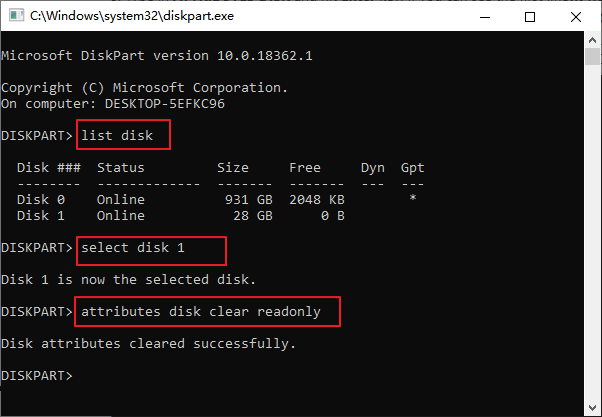
Step 4. Once you've cleared the disk attributes, you'll see the message "Disk attributes cleared successfully." At this point, type "exit" to exit the DiskPart utility and verify that the write protection has been successfully removed.
Windows offers a powerful tool called CMD (Command Prompt). If you're interested in learning more about its features and commands, click on the buttons provided.
Fix 4. Run AntiVirus Software
Viruses and malware can sometimes attack your device, causing write protection on your SD cards. To overcome this issue, running reliable anti-virus software can help remove the write protection viruses.
Follow the steps:
Step 1. To protect your computer, download and run reliable anti-virus software. This will help detect and remove any malicious software that may be present on your device.

Step 2. Connect your SD card to your computer/laptop.
Step 3. Run an anti-virus scan on the SD card to remove any viruses, including the write protection virus, that may be causing the issue. This will help clean up the card and potentially resolve the problem with write protection.
Bonus Tip to Format Write-Protected SD Card
By following the steps outlined, you can effectively remove the write protection on your SD card. After removing the write protection, you can use Qiling Disk Master to format the SD card. This user-friendly tool offers a direct approach to unlock the write protection and restore complete access to your storage device, efficiently overcoming the write protection obstacle and regaining control over your SD card.
Follow these steps to format your write-protected SD card using Qiling Disk Master:
Step 1. To format a partition on your external hard drive, USB, or SD card, launch Qiling Disk Master and right-click the partition you want to format. Then, select the "Format" option from the menu.

Step 2. Assign a new partition label, file system (NTFS, FAT32, EXT2, EXT3, EXT4, or exFAT), and cluster size to the selected partition.

Step 3. Click the "Proceed" button to start formatting your external hard drive/USB/SD card.

Step 4. In the Warning window, click "Yes" to continue.
Qiling Disk Master is a powerful format tool that offers various useful features, including formatting SD cards for Steam Deck and external hard drives that are not visible, making it a versatile tool for formatting needs.
Why SD Card Write Protected But Not Locked?
When an SD card is described as "write protected but not locked," it means that the card is preventing any changes or additions to its content, even though the lock switch is not in the locked position. This implies that the write protection is being enforced through other means, such as software settings or underlying issues with the card itself.
Here are a few reasons why an SD card might be write-protected without any visible lock:
- 1. SD card is set to read-only: Some SD cards have a built-in switch that can accidentally be toggled on, restricting write operations on the card even if it appears unlocked physically.
- 2. Error values for Windows registry entries: In Windows operating systems, issues such as incorrect or corrupted registry entries associated with an SD card can lead to write protection, as can improper card removal, software conflicts, or system glitches.
- 3. SD card is corrupted: Physical damage or logical errors within the SD card's file system can trigger write protection as a safety measure, often caused by improper ejection, power fluctuations, or other unforeseen events.
- 4. Virus attack: Malware or viruses can modify the properties of an SD card, enabling write protection, among other changes.
- 5. The computer cannot read the SD card: Compatibility issues between the SD card and the card reader or device can sometimes result in write protection, which could be caused by outdated drivers, incompatible file systems, or faulty hardware connections.
The write protection issue may be caused by a combination of factors, including the operating system, the firmware, or the physical properties of the storage device itself. Understanding these potential causes will help us identify the appropriate solutions for the write protection issue.
Conclusion
This article identified the main causes of SD card write protection, including read-only settings, registry errors, card corruption, viruses, and compatibility issues, and offered step-by-step solutions to resolve the problem.
To remove write protection from an SD card, use Qiling Disk Master, a user-friendly tool that allows you to regain full access with just a few clicks. Alternatively, you can format the write-protected SD card using Qiling Disk Master, which will resolve the write protection issue and enable you to freely manage, modify, and access your data.
FAQs About SD Card Write Protected But Not Locked
The SD card write-protected but not locked issue can be frustrating. To resolve this problem, you can try removing the write protection by accessing the card's properties in the computer, or by using a card reader and a computer to remove the write protection.
1. How to remove the write-protected SD card without a lock?
If your SD card is write-protected without a physical lock, you can try the following solutions:
- To remove write protection from a disk, you can use software tools like Qiling Disk Master, which allows you to directly remove the write protection. This can be a useful solution for situations where the write protection is no longer needed or has been inadvertently applied.
- Modify Windows Registry settings to correct any incorrect values.
- Clear the read-only attribute using Command Prompt.
- Format the write-protected SD card using Qiling Disk Master.
2. Can I remove write protection on the SD card with Android Phone?
You cannot directly remove write protection on an SD card using an Android phone, but you can connect the SD card to a computer or use a card reader and apply the recommended solutions to remove write protection.
3. Why my micro SD card is write protected but not locked?
There can be several reasons why a micro SD card is write-protected without being physically locked, including software settings, file system issues, or hardware problems. This can occur when the card's file system is corrupted or if the operating system has issues recognizing the card, leading to a write protection error.
- The SD card may be set to read-only mode, either accidentally or due to a faulty mechanism.
- Incorrect values in the Windows Registry settings associated with the SD card can cause write protection issues.
- The SD card may be corrupted, which can cause the write protection to be triggered as a safety measure.
- Virus or malware attacks can modify the properties of an SD card, allowing write protection to be enabled.
- Compatibility issues between the SD card and the device can also result in write protection, making it difficult or impossible to modify or delete files on the card.
Related Articles
- Qiling Disk Master Full Version Free Download with Serial Code/Key
- How to Fix 'SD Card Is Blank or Has Unsupported File System' [100% Working Solutions]
- Fixed: Your Password Has Expired and Must Be Changed
- [Explained]: Is It Safe to Delete Temp Files on Windows 10?
Deleting temp files in Windows 10 is generally safe, and you can do so without risks. You can find more information and learn how to delete temp files from the provided post. - How to Create New Partition from C Drive in Windows 7 Home?
This tutorial will introduce how to create partition from C drive in Windows 7 Home Basic using Disk Management and freeware Qiling Disk Master. - How to Format a Hard Disk Drive in Windows 7?
Learn how to format hard drive in Windows 7 quickly to prepare a clean installation of Windows or for other purpose.
Products
Articles & Tutorials
- Data Recovery
- Data Backup
- File Recovery
- File Backup
- System Backup and Restore
- Disk and Partition Clone
- Technical articles
- Mobile articles
- Disk Master Help
- Windows Data Recovery Tutorials
- Windows Secure Delete Tutorials
- Windows Partition Management Tutorials
- Windows File Backup and Restore Tutorials
- Windows System Backup and Restore Tutorials
- Windows Disk Backup and Restore Tutorials
- Windows Clone Tutorials