How to Fix 'SD Card Is Blank or Has Unsupported File System'
SD cards are widely used on cameras or Android to transfer working paper, save photos, or extend internal storage, but they can also have many problems such as being unable to read, being unable to write, being unable to format, or being unable to recognize by the computer or Android.
If you also encounter the error "SD card is blank or has an unsupported file system." Don't worry. I will help you to analyze the reasons and give you different solutions.
Why "SD Card Is Blank or Has Unsupported File System" Error
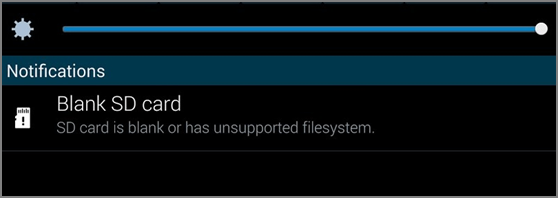
The "SD card is blank or has unsupported file system" error occurs due to several reasons, including corrupted file system, improper ejection, physical damage, or formatting issues. This error can also occur if the SD card is not recognized by the computer or device, or if the card is not properly initialized. In some cases, the error may be caused by a virus or malware that has infected the SD card. To resolve this issue, you can try formatting the SD card, checking for physical damage, or using a card reader to access the card.
- Corrupt file system
- USB port or card reader faulty
- SD card has bad sectors
- SD card is not safely removed
- Connect the SD card to a different system
- Remove the SD card without turning off the connected device
- It's not recommended to use a compromised SD card in a computer system that may contain a virus. This is because the virus can spread to the computer and cause damage to the system, files, and potentially even the entire network.
If your SD card is blank, it's likely due to a problem with the card itself or human error. Fortunately, many issues can be resolved on your own before seeking professional help. Simple methods can help fix the issue, allowing you to recover your data.
How to Fix "SD Card Is Blank or Has Unsupported File System"
Fix 1. Restart the Device
Rebooting the device is the simplest solution to fix the SD card blank issue. It may resolve the problem and restore access to the card.
Step 1. Turn off the device.
Step 2. To troubleshoot the issue with the SD card, try rebooting the device. This will restart the operating system and may resolve any software-related issues that are causing the problem.
Fix 2. Reinsert the SD Card
The SD card slot may occasionally malfunction. Try removing and reinserting the SD card to see if it's blank or has an unsupported file system.
Fix 3. Try Another Device
If you're experiencing issues with your USB port or card reader, try using a different card reader to connect your SD card, or insert the card into another device to rule out any problems with the card itself.
Fix 4. Check SD Card
You can use Qiling Disk Master Free, a professional disk management tool, to check your SD card and fix corrupted file systems, as well as check for bad sectors and resolve issues where the SD card appears blank or has an unsupported file system.
Step 1. Right-click the target partition that has a problem.
Step 2. Choose "Advanced" > "Check File System".
Step 3. Confirm if you want to hide the partition or not.
Step 4. In the Check File System window, select the "Fix the error on the disk" option to correct the file system errors.
Step 5. Click "Start" to check errors on your partition.
Fix 5. Show Hidden Files
Inserting an SD card into a different device may leave hidden files that are incompatible with the current system, causing the SD card to appear blank. To resolve this issue, you can remove the hidden files by following these steps.
Step 1. Insert the SD card into a card reader and connect it to your computer.
Step 2. Open "Control Panel" and select "Programs."
Step 3. Select "Appearance and Personalization" on the left side.
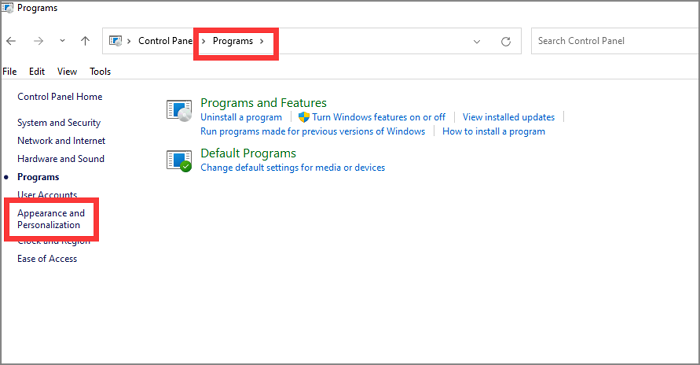
Step 4. Click on "File Explorer Options" and select "View."
Step 5. Check "Show hidden files, folders, and drives."
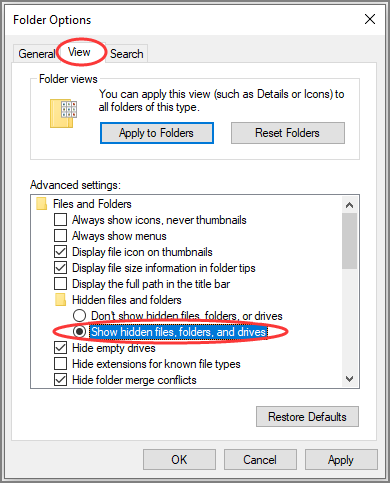
Step 6. If there are hidden files, please delete them and fix the SD card blank. Select "Apply" and save.
Fix 6. Run Anti-Virus Software
To prevent your SD card from being blanked or attacked by a virus, make sure it's connected to a secure device and run antivirus software to check for any malware. You can use the built-in security tool of your operating system to scan the SD card and remove any viruses. This can help keep your SD card safe and prevent it from being blanked.
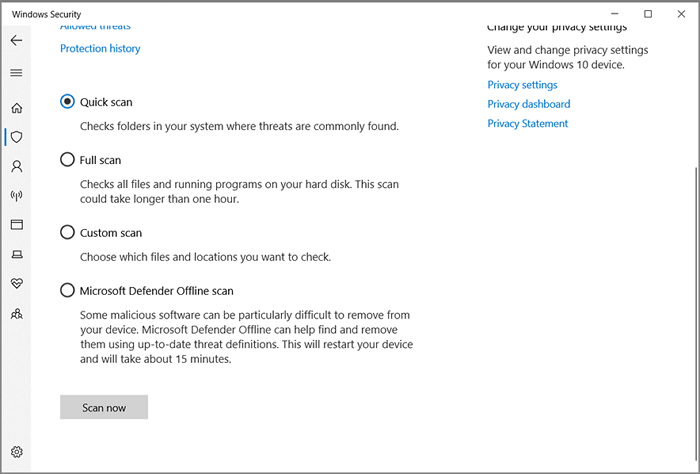
Step 1. Type "Windows Security" and open the window.
Step 2. Click on "Virus & threat protection."
Step 3. Select "Scan options."
Step 4. Select "Custom scan" and start scanning, then select the SD card.
Fix 7. Format SD Card
If all methods fail to solve the problem, you can try formatting the SD card. This will not only solve the "SD card is blank or has unsupported file system" issue, but also make the SD card usable again. Qiling Disk Master is a powerful tool that can easily format the SD card, specifically in FAT32 format, and is very easy to use.
Step 1. To format your SD card, locate it on your computer, right-click on the partition you want to format, and select the "Format" option from the context menu.
Step 2. Set a new partition label, file system (NTFS, FAT32, EXT2, EXT3, EXT4, exFAT), and cluster size to the selected partition.
Step 3. Click the "Proceed" button to start formatting your SD card.
Step 4. Click "Yes" on the pop-up window to continue.
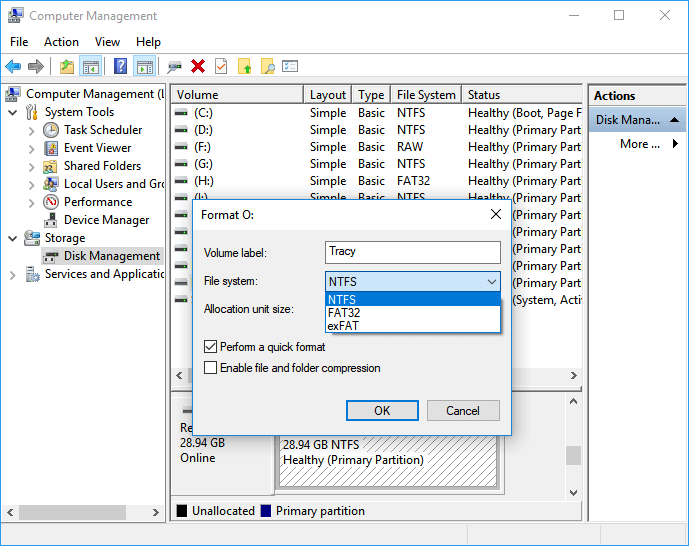
You can also use Disk Management or Diskpart on your PC to format the SD card. However, if using Diskpart, be cautious with the command, and you can find a step-by-step guide by clicking the link below.

How to Format SD Card on Windows 11?
Formatting an SD card in Windows 11 can be achieved through several methods. The most straightforward approach is to use the built-in Disk Management tool, which allows you to format the SD card with a specific file system, such as FAT32 or exFAT.
Fix 8. Buy a New SD Card
If your SD card is damaged beyond repair, you can simply purchase a new one to replace it.
If you're experiencing issues with your SD card, there are eight ways to solve the problem. However, if you encounter other problems with your SD card, you can click the button below to see additional solutions.
Conclusion
The SD card is blank or has an unsupported file system error, which can be caused by various factors. To resolve this issue, you can try checking the SD card for physical damage, ensuring it's properly inserted, or using a card reader. If the problem persists, you can try formatting the SD card, checking for corrupted files, or using a data recovery software. If the issue is caused by a man's behavior, be more cautious when removing the SD card.
If the SD card is the cause, you can use Qiling Disk Master to check for errors or format it.
FAQs About SD Card Is Blank or Has Unsupported File System
If your SD card appears blank or has an unsupported file system, you may have some questions. For your convenience, I've compiled a list of frequently asked questions on this topic. Would you like to read them?
1. What causes SD card errors?
SD card errors can be caused by improper use, bad sectors, physical damage, and corrupted file system, but they can be fixed by following certain solutions.
2. How do I fix a blank SD card error?
To fix SD card blank errors, you can use Qiling Disk Master to check for bad sectors or format the SD card, or simply delete any hidden files that may be causing the issue.
3. How do I know if my SD card is corrupted?
If your camera or other devices can't recognize the SD card, or SD card readers can't list the card, or you can't open files on the SD card, it's likely that the SD card is corrupted.
Related Articles
- How Much Disk Space Does Windows 10 Take [Full Explanation]
- How to Create a (New) Partition in Windows 8? [QuickStart]
- How Do I Format SSD Partition as FAT32 from Command Prompt (CMD)? [2024 Tutorial]
- How to Fix Unexpected Store Exception in Windows 10/11
- Guide | Enable UEFI Secure Boot for Windows 11 Update
Enabling UEFI Secure Boot is one of the essential requirements for Windows 11 upgrade. This page gives a comprehensive introduction to UEFI Secure Boot and shows how to enable UEFI Secure Boot step by step. - [2 Simple Ways] How to Allocate a Hard Drive in Windows 11?
How to allocate a hard drive in Windows 11 when there's not enough free space? In this post, 2 easy ways will be introduced to help with the allocation.
Products
Articles & Tutorials
- Data Recovery
- Data Backup
- File Recovery
- File Backup
- System Backup and Restore
- Disk and Partition Clone
- Technical articles
- Mobile articles
- Disk Master Help
- Windows Data Recovery Tutorials
- Windows Secure Delete Tutorials
- Windows Partition Management Tutorials
- Windows File Backup and Restore Tutorials
- Windows System Backup and Restore Tutorials
- Windows Disk Backup and Restore Tutorials
- Windows Clone Tutorials