How to Fix Unexpected Store Exception in Windows 10/11
The Blue Screen of Death (BSOD) issue with an Unexpected Store Exception error code can be a frustrating obstacle, causing a system crash and stopping all processes on your computer. However, Qiling offers ten reliable solutions to help you solve the Unexpected exception error and restore your device's health.
How to Fix Unexpected Store Exception Error in Windows 10/11
- Way 1. Apply Boot Repair
- Way 2. Run System File Checker
- Way 3. Check Hard Drive Health
- Way 4. Adjust the BIOS Configuration
- Way 5. Update the Display Driver
- Way 6. Disable the Fast Startup and Sleep Features
- Way 7. Temporarily Disable Your Anti-Virus Software
- Way 8. Update Your Windows 10/11
- Way 9. Use the High-Performance Power Plan
- Way 10. Disable File History & Clear Temporary File
Your computer displays a blue screen with the message "Your PC ran into a problem and needed to restart" and shows the "Unexpected Store Exception" error. Don't worry, this issue can be resolved with the following steps: check for driver updates, run a virus scan, check for malware, disable recently installed software, run a System File Checker, check for corrupted system files, run a disk check, check for overheating, check for power supply issues, and update Windows. Each step provides detailed instructions to help you address this error and get your computer up and running smoothly again.
Common Unexpected_Store_Exception Errors:
Many problems are classified as BSoD errors and fixed with similar techniques we will cover in the article.
- Unexpected Store Exception No bootable device: The error message suggests that the bootable device is not properly seated in its slot, likely indicating a hardware issue with the device or the slot itself.
- Unexpected Store Exception critical process died: This error occurs when a system file becomes corrupted, preventing the boot process from completing.
- Unexpected Store Exception SSD and hard drive: This problem is caused by defective or improperly installed hardware.
- Unexpected Store Exception Blue Screen Error: Driver corruption is the main cause of this problem; therefore, updating or reinstalling drivers is necessary.
- Unexpected Store Exception while gaming: The error is caused by a driver issue that leads to system restarts while gaming.
Way 1. Apply Boot Repair
Qiling Disk Master Professional is a powerful tool that helps users fix various Windows startup issues, including system crashes and boot freezes, and is available in most Windows versions. It also has a "Boot Repair" feature that can repair errors like the Unexpected Store Exception error.
This process creates a bootable media and fixes BSoD errors in the WinPE environment using a simple and user-friendly approach.
Here are easy steps:
Step 1. To create bootable media with Qiling Disk Master, start the application after connecting an external drive or USB to your computer. Then, navigate to the "Tools" section and click on "Create bootable media" to proceed.

Step 2. Insert a USB drive or CD/DVD and click "Proceed" to continue the installation process. Alternatively, you can burn the Windows ISO file to the storage media for installation.

Step 3. Connect a bootable drive to a new computer, reboot by pressing F2/Del, enter the BIOS, set the bootable drive as the boot disk, and exit by pressing F10.
Step 4. Boot the computer again and enter the WinPE interface. From there, open Qiling Disk Master and click "Fix Boot" under the "Tools" option.

Step 5: Select the system you want to repair and click "Proceed".

Step 6. The system has been successfully repaired. Click "OK" to complete the boot repair process.
You can also apply Qiling Disk Master when you experience the following scenarios:
Way 2. Run System File Checker
Corrupted system files can cause an Unexpected Store Exception blue screen error, but you can use advanced options to diagnose and repair the issue by using the System File Checker (SFC) and the Deployment Image Servicing and Management (DISM) tool. These tools can identify and replace corrupted system files, helping to resolve the error.
Option 1. Qiling Disk Master
Qiling Disk Master offers a one-click "Check File System" tool, allowing beginners to easily check and repair system files without needing to spend time on it.
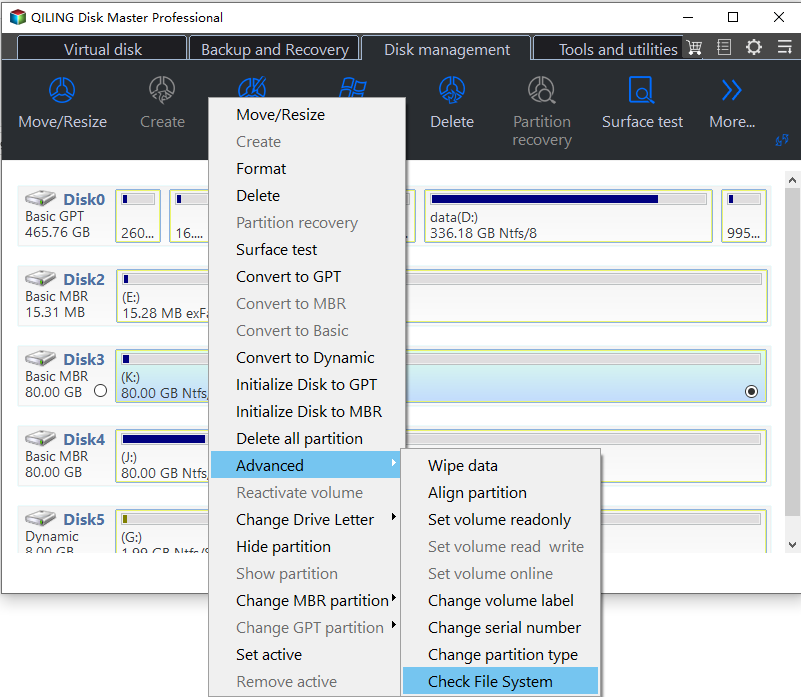
Step 1. To check the file system on a partition using Open Qiling Disk Master, simply open the program on your computer, locate the disk, right-click the partition you want to check, and select "Advanced" followed by "Check File System".
Step 2. In the Check File System window, select the "Fix the error on the disk" option and click "Proceed".
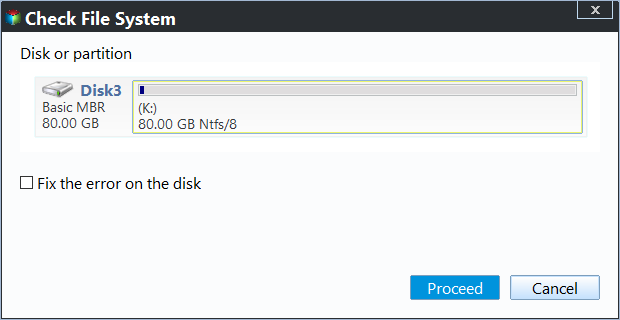
Step 3. The software will start checking your partition file system on your disk.
Option 2. Run SFC scannow Command
Windows also offers a built-To run a system file checker scan, follow this tutorial to use a tool that can check system files and fix problems with them.
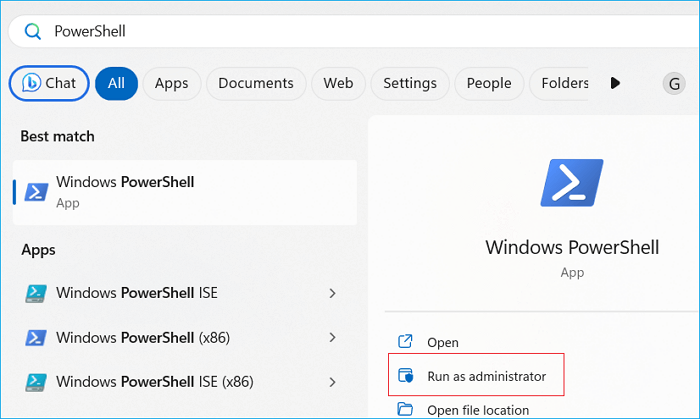
Step 1. Click on the Start button and search for Windows Powershell. Right-click it and select Run as Administrator.
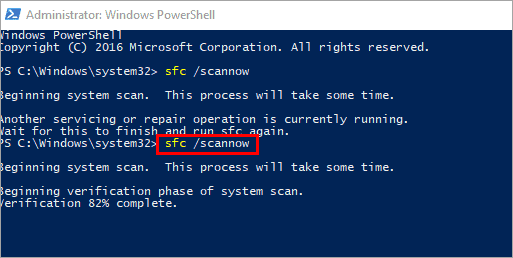
Step 2. A blue window will open, type sfc/scannow and tap Enter key to begin.
Step 3. After the process, you can exit this window by typing "quit" and hitting "Enter".
This system file check program may take a long time, so don't close the PowerShell window or shut down your computer.
Way 3. Run Check Disk Utility
To fix the Unexpected Store Exception issue caused by bad sectors or file system corruption on your hard disk, you can run the CHKDSK utility to identify and fix the disk issues.
Step 1. To run the Command Prompt utility as an administrator in Windows 10/11, type cmd in the search dialog and select the "Run as administrator" option from the right-click context menu. This will open the Command Prompt with elevated privileges, allowing you to execute commands that require administrative access.
Step 2. To run a full disk check on your C drive, open the Command Prompt window, type the command `chkdsk C: /f /r /x`, and press Enter to execute it.
Note: Replace the C: with the target disk name that you want to run the disk check.
Way 4. Check the BIOS Configuration
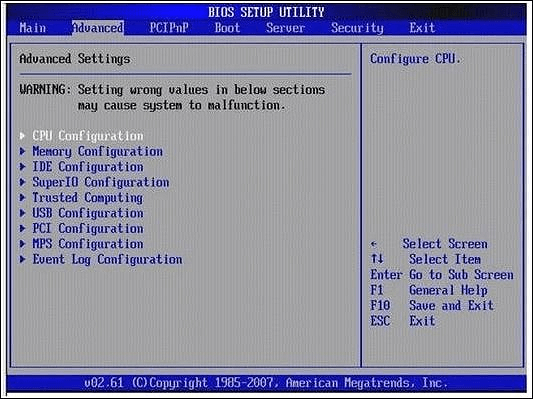
If you recently updated your machine and are experiencing a Windows halt code Unexpected Store Exception issue, it's possible that your BIOS setup was compromised. This could be due to improper hard disk configuration, which may cause your system to crash. To resolve this, you'll need to check and adjust the incorrect BIOS configuration, which requires some technical knowledge. It's recommended that you consult your motherboard manual for guidance on making these changes.
🔍Suggested Reading: To fix Blue Screen Error APC Index Mismatch in Windows 10, try restarting your computer in Safe Mode, checking for corrupted system files, and updating your drivers. You can also run the System File Checker (SFC) tool, disable any recently installed drivers, and enable the Last Known Good Configuration.
Way 5. Update the Display Driver
An outdated display driver or malfunction in it can cause the Unexpected Store Exception error, which can be resolved by updating the display driver.
Step 1. Press the "Windows" key + "X" on your keyboard to open the Device Manager. This will allow you to view and manage all the hardware devices connected to your computer, including any potential issues or conflicts.
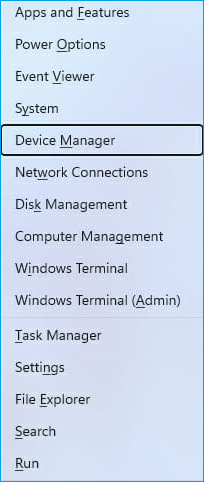
Step 2. To update the display driver, go to the Device Manager, find and right-click on "Display driver", and then select "Update driver" from the menu.

Step 3. To update the driver software automatically, select the option "Search automatically for updated driver software" in the next window.
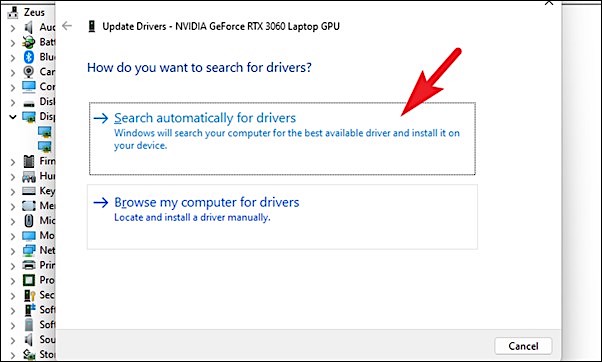
Step 4. Wait patiently till the process is complete.
Way 6. Disable the Fast Startup Features
Disabling Fast Startup can resolve issues like Unexpected Store Exception in Windows. To do this, go through the steps to turn it off, which can help shorten boot times.
Step 1. To access additional power settings, click the "Start" button, then select "Settings" and navigate to "System" > "Power & Sleep". From there, choose "Additional power settings".
Step 2. Select "Choose the power buttons" / "Choose what the power buttons do."
Step 3. Select the "Change settings that are currently unavailable" option, which may require entering administrator credentials.
Step 4. To disable fast startup, uncheck the box next to "Turn on fast startup (recommended)" and click "Save changes" to apply the changes.
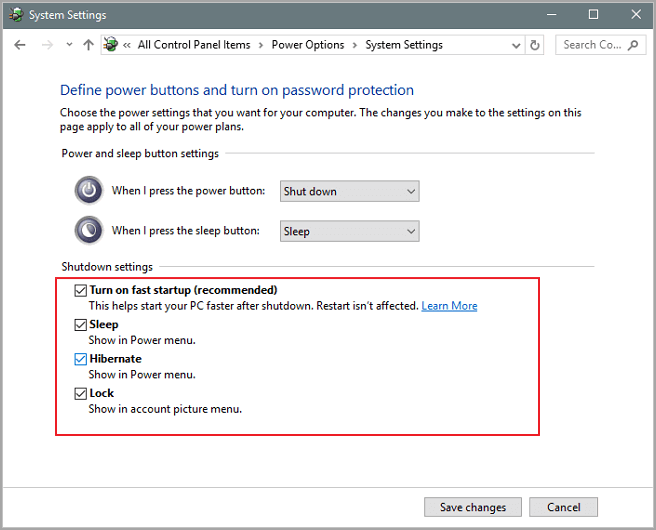
To resolve the BSOD error, restart your computer by shutting it down and then turning it back on. This simple step can often resolve the issue, and you may not need to take any further action.
Way 7. Temporarily Disable Your Anti-Virus Software
Disabling antivirus software can resolve the Unexpected Store Exception issue by preventing interference with internet connections or program operations, allowing you to troubleshoot the root cause of the problem.
- Warning
- Disable or uninstall your anti-Be cautious when using a virus application, as it may expose your device to risk and damage. It's recommended to make a backup of your data before using this method, to prevent any potential harm.
For Windows Built-in Anti-virus Program:
Step 1. Open "Windows Settings" and select "Update & Security."
Step 2. Tap "Windows Security" and click "Virus & Threat Protection."
Step 3. Turn off real-time protection by switching the slider to off in the Virus & Threat Protection Settings.
For Third-party Anti-virus Software:
Step 1. Press the "Windows" key and hold it, then press the "X" key to open the menu, and then select "Task Manager" from the menu.
Step 2. When Task Manager is displayed in compact mode, you can expand details by clicking on the "Mode details" option. This allows you to view more information about the running processes, including CPU, memory, and disk usage.
Step 3. To access the start-up tab, click on the tab labeled "Start-up" located at the top of the window. This will allow you to view and manage the programs that run automatically when your computer starts up.
Step 4. Locate your antivirus software from the App list and click on it.
Step 5. Select the Disable option in the bottom-right of the window.
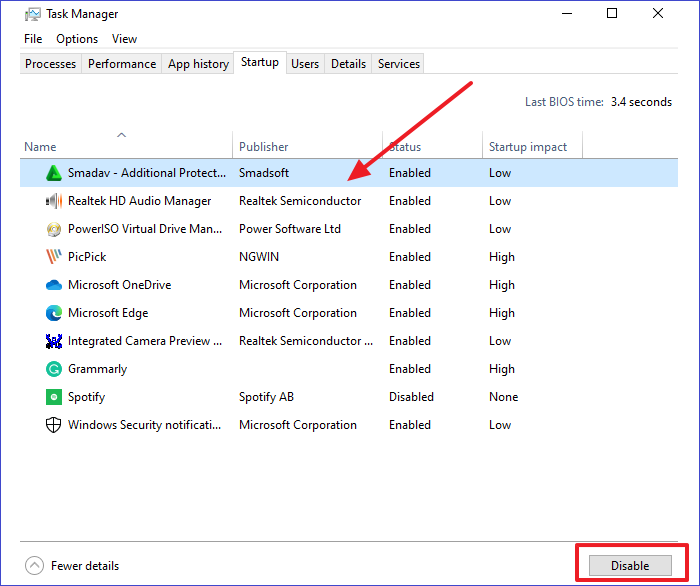
Reboot your computer and check if the Windows 10 Unexpected Store Exception error is resolved.
Way 8. Update Your Windows 10/11
Corrupted files can cause the system to encounter stop code unexpected store exception errors. Updating your Windows 10 or 11 system to the latest version may resolve the issue, as outdated systems can be incompatible with software that requires advanced versions.
- To access the Settings utility, click the Start icon or use the shortcut keys "Windows + I" to quickly open it.
- Select "Update & Security" > "Windows Update."
- Choose the "Check for updates" button.
- When a new update is found, click the Install button and wait for the system to apply the update.
If you've recently updated your Windows 10 system and encountered an Unexpected Store Exception error, you can also restore Windows to its previous version. This can be done by going to the System Restore feature, which allows you to revert back to a previous point when Windows was working normally.
Way 9. Use the High-Performance Power Plan
Switching to the "High-Performance" power plan is necessary to prevent a decrease in your computer's performance, which can also lead to the Windows halt code unexpected store exception issue, especially if you're currently on the "Balanced" or any other power plan.
- To access the power settings, click the Start button, then select "Settings," followed by "System," and finally "Power & Sleep." From there, select "Additional power settings."
- To change your internet plan settings, select the "High Performance" option and then click on "Change plan settings."
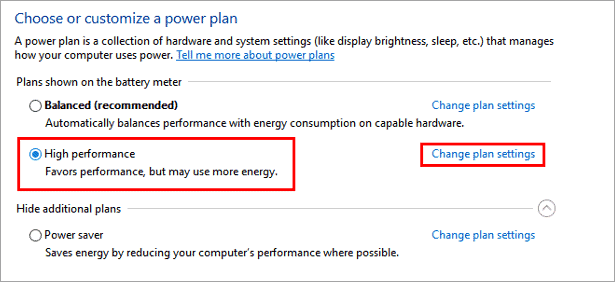
- To put the computer to sleep, go to the "Power options" tab, select "Change plan settings" next to "Balanced (recommended)", then choose "Change advanced power settings", select "Sleep" and set it to "Never", then click "Save changes".
If you're experiencing the Unexpected Store Exception issue in Windows 10, the ten fixes provided can help you resolve the problem. To assist others who may be seeking help, consider sharing this page with them.
Way 10. Disable File History & Clear Temporary File
File History is a Windows utility that enables users to backup and repair corrupted files, but it's reported to be a reason for the Unexpected Store Exception blue screen error. To resolve this issue, you can disable File History by going to Settings > Update & Security > Backup, and then toggle off the "Backup using File History" switch. This should help prevent the Unexpected Store Exception error from occurring.
Disable File History:
- To access the backup settings in Windows, navigate to the Windows Settings, select the "Update & security" option, and then click on "Backup."
- Uncheck the "Automatically back up my files" option.
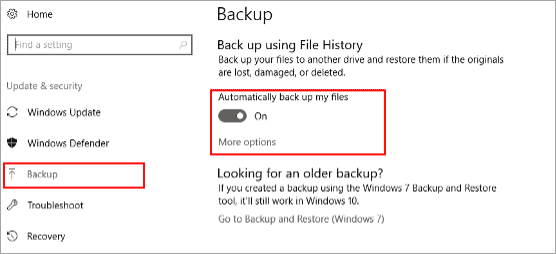
Delete Temporary Files:
- To quickly access Windows Settings, press the "Windows + I" keys on your keyboard. This will open the Settings app. From there, click on "System" followed by "Storage" to access the storage settings.
- Choose "This PC (C:)" to analyze.
- Choose "Temporary files".
- Check the box of the content you want to delete and select the "Remove files" button.
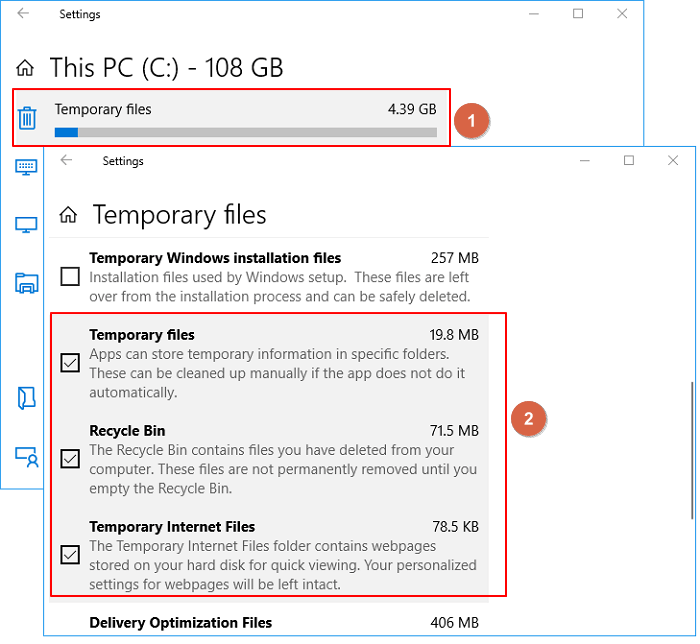
⭐Ask For Help
If you need additional help or clarification on any method or step, our dedicated support team is available to provide personalized guidance and assistance.
Qiling experts offer 1-on-1 manual services 24/7 to help with Windows boot errors, BSOD, and computer boot loops. They provide free evaluation, diagnose and resolve system boot failures, Windows stop codes, and OS lagging issues with their decades of experience.
- 1. To fix a BSOD error caused by a Windows update or other reasons, restart your computer immediately if it crashes. Then, check for updates again and install any pending updates.
- 2. Get rid of Windows boot error such as no bootable device found, or BCD file corruption.
- 3. 0X000_error codes on Windows system or OS boot loop issues can be fixed by using the built-in System File Checker tool, which scans and replaces corrupted system files. Additionally, the Windows Recovery Environment can be used to run a System Restore or System File Checker from a bootable USB drive or CD/DVD.
Why Windows Unexpected Store Exception Error Arise
To avoid the Windows Unexpected Store Exception error in the future, it's essential to identify the underlying causes, which may include software conflicts, hardware issues, or corrupted system files, among other reasons. By understanding the root of the problem, users can take proactive measures to prevent its occurrence, such as updating drivers, running disk cleanup and disk defragmentation, and ensuring system files are intact. This approach can help prevent the error from happening in the first place.
- Corrupted system files: If important system files are corrupted or damaged, it can lead to the Unexpected Store Exception error.
- Incompatible hardware or drivers: This error can occur due to compatibility issues with specific hardware components or drivers.
- Memory issues: The Unexpected Store Exception error can be caused by problems with the computer's memory, such as faulty RAM modules.
- Bad sectors on the hard drive: Issues with the hard drive, such as bad sectors or filesystem corruption, can cause this error.
- Software conflicts: Conflicts between different software programs or system settings can also cause the Unexpected Store Exception error.
- Windows Update Conflicts: If you apply a Windows update and your PC gets a blue screen, you can restore the Windows to the previous version.
- Malware or virus infections: Malicious software can cause system disruptions and errors, including the Unexpected Store Exception error, which can occur when a program attempts to access or manipulate data in an unexpected way, leading to system instability or crashes.
Conclusion
This article provides multiple solutions to repair BSoD issues with Unexpected Store Exception errors, including the use of Qiling Disk Master, a professional tool that can fix most Windows unbootable or color screen errors. The tool's functions, such as "Boot Repair," "Check File System," and "Check disk health," can be used to diagnose and fix the root cause of the BSoD error. By applying these functions, users can effectively resolve their BSoD issues and get their Windows system up and running again.
FAQs About Unexpected Store Exception Error
Unexpected Store Exception BSoD Errors occur when the Windows operating system encounters an unexpected error while accessing or storing data in memory. This can be caused by hardware issues, driver problems, or software conflicts.
1. What causes the Unexpected Exception error in Windows?
Unexpected Exception errors occur due to various reasons like incorrect user input, programming errors, device malfunctions, lost network connections, memory conflicts, division by zero, or inaccessible files.
2. How do you fix a blue screen of death?
To fix a BSoD (Blue Screen of Death), you can try restoring Windows, checking system files, or using Boot Repair via Qiling Disk Master, which is the quickest and easiest solution. You can find step-by-step tutorials for each method on the following page.
💡Further Reading: How to Fix BSOD: Blue Screen of Death Error
3. How do you factory reset a Windows PC?
To factory reset your PC, click Start, then Settings, followed by Update & Security, Recovery, Reset this PC, and Get Started. You'll then choose to keep your files in the cloud or locally, adjust settings as needed, and set up the option to restore preinstalled apps.
Related Articles
- How Can I Check USB Health and Fix USB Errors on Windows 11 and Mac
- How to Resize USB Flash Drive Partition with Magic Partition Software
- Samsung Format Utility Download Free [With Guide] 🚩
- Solved: Second Hard Drive Not Detected in Windows 11/10/8/7
If you find your second hard drive not detected in Windows 10, read this post, please. It teaches you what to do respectively when second hard drive is not detected in FIle Explorer, Disk Management, BIOS or after Windows 10 update. - [100% Fixed] Can I Extend C Drive from Another Disk in Windows 10/11?
You can extend your C drive in Windows 10/11 by using a professional disk manager, such as Qiling Partition Master, to merge free space from another disk into your C drive, even if there is no unallocated space available. - Can I Install Windows 11 on Windows 10? Download Windows 11 Now
Many users are eager to upgrade to Windows 11, and with its release, installing the new operating system on Windows 10 is now possible. This article will guide you through the process of installing Windows 11 on your existing Windows 10 system.
Products
Articles & Tutorials
- Data Recovery
- Data Backup
- File Recovery
- File Backup
- System Backup and Restore
- Disk and Partition Clone
- Technical articles
- Mobile articles
- Disk Master Help
- Windows Data Recovery Tutorials
- Windows Secure Delete Tutorials
- Windows Partition Management Tutorials
- Windows File Backup and Restore Tutorials
- Windows System Backup and Restore Tutorials
- Windows Disk Backup and Restore Tutorials
- Windows Clone Tutorials