Fixed: Your Password Has Expired and Must Be Changed
Dealing with an expired password prompt on Windows 10 can be frustrating, especially when it interrupts your workflow unexpectedly, causing confusion and disruption, prompting users to search for quick solutions to regain access to their systems.
Fortunately, resolving an expired password on Windows 10 is a straightforward process that doesn't require extensive technical expertise or hassle. Qiling will explore this prompt comprehensively, examining the implications of an expired password, and provide step-by-step guidance to efficiently rectify this situation.
- Fix 1. Change Expired Windows 10/11 Password Using a Disk
- Fix 2. Change Expired Windows 10/11 Password From Login Screen
- How to Prevent Windows 10/11 Password From Expiration
Overview of Your Password Has Expired and Must Be Changed Error
The "Your password has expired and must be changed" error on Windows 10 is a security protocol that requires regular password updates, causing system access to be halted abruptly.
To quickly reset your expired password and prevent future expirations, follow this step-by-step guide. We'll show you how to regain control of your Windows 10 account and take necessary measures to avoid future login interruptions.
How to Fix - Your Password Has Expired and Must Be Changed
To resolve the "Your password has expired and must be changed" error on Windows 10, follow these steps: click on the Start button, select Settings, then click on Accounts, and choose Sign-in options. From there, click on Password, then click on Change. Enter your current password, then create a new password and confirm it.
Fix 1. Change Expired Windows 10/11 Password Using a Disk
Qiling Disk Master Professional offers a convenient password reset feature that allows users to create a password reset disk, addressing the issue of expired passwords on Windows 10/11 by simplifying the process and enabling password alteration without extensive technical knowledge.
This adaptable tool functions perfectly on various Windows editions, including Windows 11, Windows 10, Windows 8.1, Windows 8, and Windows 7.
Steps to Use Qiling Disk Master's Password Reset Feature
To resolve the issue of a password expired on Windows 10/11 using Qiling Disk Master's password reset feature, download the software, install it, and follow the steps to create a password reset disk and change the expired password.
Step 1. Insert the target USB disk into the computer, download and run Qiling Disk Master, and click "Toolkit" > "Create bootable media".
Step 2. A small window will appear. Read the information carefully, then click on "Proceed".

Step 3. Select the correct USB flash drive or external mobile hard disk and click "Create" again. Wait patiently. Once the password reset USB flash drive is created, click "Finish."

Step 4. Insert the password reset USB into the locked PC, restart, and change the boot drive to boot from USB. The system will then automatically boot from USB.

Step 5. After restarting, find Qiling Disk Master again and go to "Password Reset". All accounts on the PC will be displayed in the interface; click on the target account and check "Reset".

To resolve the expired password issue in Windows 10/11, utilize the Qiling Disk Master tool to gain access to a straightforward method of resolving the issue. This tool ensures a smooth re-entry into your system, and by downloading and following the subsequent steps, you can effectively address the password expiration prompt.
Fix 2. Change Expired Windows 10/11 Password From Login Screen
To resolve the "Your password has expired and must be changed" error on Windows 10/11, you can reset your expired password directly from the login screen without using third-party software. To do this, follow these steps:
Step 1. Reboot your computer, and once you see the prompt "Your password has expired and must be changed," tap "OK."
Step 2. Enter your old password, then a new one, and confirm it. Click the arrow key to confirm your new password.
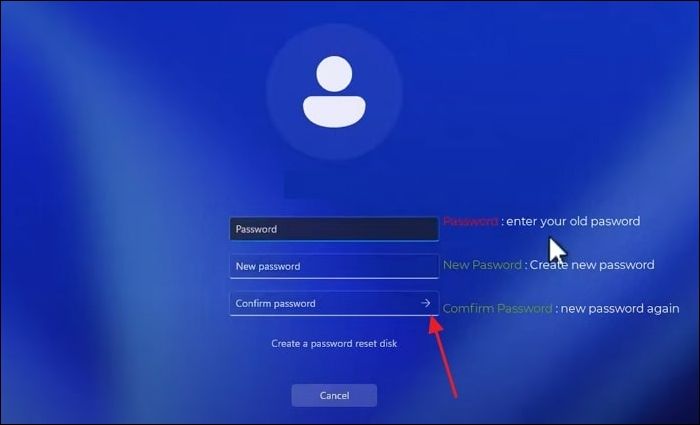
Step 3. Once you've changed your password, click "OK" on the "Your password has been changed" message and then log in with your new password.
Feel free to share this article with others who might be facing password expiration issues on Windows 10/11. Sharing this information can help them resolve the issue quickly and effectively.
How to Prevent Windows 10/11 Password From Expiration
To avoid encountering the inconvenience of an expired password prompt on Windows 10/11, adjust password expiration settings. This can be done by following these simplified steps:
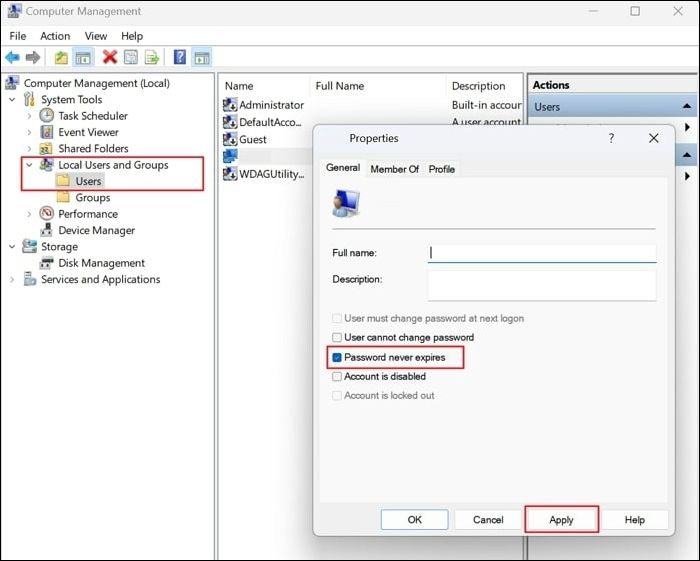
Step 1. Once logged in, navigate to "This PC" and right-click on it to choose "Manage" from the context menu to open the "Computer Management" window.
Step 2. To change the password settings for a specific user account, go to the "Local User and Groups" section, expand it, and select "Users." Right-click on the desired username and choose "Properties." In the properties window, check the box that says "Password never expires" and then click "Apply" to apply the changes.
You May Also Like:
Conclusion
Encountering the "Your password has expired and must be changed" error on Windows 10/11 can disrupt your workflow and access to your system. However, this issue can be effectively addressed using tools like Qiling Disk Master, which allows users to change the expired password using a disk.
This guide offers various solutions to regain access to your Windows 10/11 account, including using the built-in password reset feature, navigating to the login screen to reset the password, and using additional software. By taking these steps, users can regain access to their account without needing to reinstall the operating system. Additionally, the guide provides preventive measures to avoid future password expiration, empowering users to adjust settings within the system and mitigate the recurrence of this inconvenience.
Your Password Has Expired and Must Be Changed FAQs
If you're experiencing the "Your password has expired and must be changed" error, you may have questions about it. Fortunately, we've got answers to common FAQs about this error, where you can learn more about what's going on and how to resolve the issue.
1. Why does Windows say your password has expired, and what should I do?
Windows prompts password expiration to ensure security by requiring regular password updates. To resolve the issue, you can create a new password using recovery options or specialized software.
2. How do I change my Windows password after it expires?
If your Windows password has expired, follow these steps to change it:
Step 1. You will see a prompt saying 'Your password has expired and must be changed, click OK.'
Step 2. To change your password, enter your current password, create a new one, and then log in with the updated password.
3. How to fix Windows 10? Must the user's password be changed before signing in?
To address concerns about Windows 10, open the Start menu and click on the Settings icon. In the "Update & Security" window, click on the "Windows Update" tab and check for updates.
Step 1. Insert a USB disc into your computer and open Qiling Disk Master. From there, click Password Reset in Toolkit, and a small window will appear. Read the instructions carefully and then click Create.
Step 2. Select the correct USB drive and click Create again. Wait for the password reset USB or disk to be created, then click Finish.
Step 3. Insert the password reset USB into the locked PC, restart the system, change the boot drive to USB, and the system will boot from it.
Step 4. After restarting, open Qiling Disk Master, go to "Password Reset," select the target account, check "Reset & Unlock," and click "Confirm" to erase the password. This will remove the password from the account.
Related Articles
- Locate, Remove and Delete Large Files in Windows
- Portable Partition Manager Download Free | With Guide
- How to Tell If a Hard Drive Is Failing or Not [Step-by-Step Guide]
- 6 Solutions to External Hard Drive Not Initialized in Windows 10, 8, 7
Sometimes, you may find your external hard drive is not initialized and cannot be opened. Refer to this post, it will demonstrate 6 solutions to "external hard disk not initialized" in Windows 11, 10, 8, 7. - Effective Ways to Repair Invalid Dynamic Disk without Data Loss Using CMD
How to repair invalid dynamic disk without data loss using CMD in Windows 7/8/10/11? Effective ways are provided in this article for you to reactivate invalid dynamic disk. - Should I Convert to Dynamic Disk in Windows 7/8/10?
Should I convert to Dynamic disk in Windows 11/10/8/7? The article provides you the best advice to weigh pros and cons of dynamic disk, and show you how to convert basic disk to dynamic without losing data.
Products
Articles & Tutorials
- Data Recovery
- Data Backup
- File Recovery
- File Backup
- System Backup and Restore
- Disk and Partition Clone
- Technical articles
- Mobile articles
- Disk Master Help
- Windows Data Recovery Tutorials
- Windows Secure Delete Tutorials
- Windows Partition Management Tutorials
- Windows File Backup and Restore Tutorials
- Windows System Backup and Restore Tutorials
- Windows Disk Backup and Restore Tutorials
- Windows Clone Tutorials