Reset Windows 10 Password with USB Drive - 3 Ways with Guide
Forgot your Windows 10 password? Don't worry, a bootable USB flash drive can help you reset it. Whether you log in with a local account or a Microsoft account, this page shows you how to reset your Windows 10 password using a bootable USB drive, with three quick and easy methods to choose from.
| Tools | Features |
|---|---|
| 🥇Qiling Disk Master |
|
| 🥈Standard Password Reset USB Drive |
|
| 🥉Use Windows Installation USB |
|
To reset a Windows 10 password using Qiling Disk Master, you can create a password reset USB drive that can be used to reset the password on the current PC or on other PCs, even if they are locked. This tool allows you to create a password reset USB for the current PC and for other PCs, and it can be used even if the PC is locked. To use Qiling Disk Master, you can download the tool, follow the installation instructions, and then create a password reset USB drive by following the on-screen instructions. Once the USB drive is created, you can use it to reset the password on the desired PC.
Read Also: Crack Windows Password
Reset Windows 10 Password with USB Drive Using Qiling Disk Master
Resetting Windows 10 with a USB drive can be straightforward using Qiling Disk Master Professional. This tool simplifies the process of creating a bootable USB drive and wiping your Windows 10 password, making it a hassle-free experience without risking your data or OS. With just a few clicks, you can achieve this without any complications.
To reset the Windows 10 password using a USB drive, you can use Qiling Disk Master, a tool that helps you reset the password without reinstalling Windows. First, download and install Qiling Disk Master on your system. Next, create a bootable USB drive using the software, which will then allow you to access the Windows 10 system and reset the password.
Step 1. To create a bootable USB disk, insert the target USB disk into the computer, download and run Qiling Disk Master, and then click "Tools" > "Create bootable media" in the program.

Step 2. Select the correct USB flash drive or external mobile hard disk and click "Proceed" again. Wait patiently, then click "Finish" after the password reset USB flash drive is created.

Step 3. To reset a locked PC, remove the password reset USB, insert it into the PC, and restart. You will then be prompted to change the boot drive to boot from the USB, and once done, the system will automatically boot from it.

Step 4. After restarting, find Qiling Disk Master again, go to "Password Reset", and select the target account to reset its password.

Step 6. When you receive this prompt, click "Yes" to continue. Your password will be erased.

Qiling Disk Master quickly solves issues with its numerous useful features, as seen in the above steps. Download the Qiling Disk Master to experience its benefits for various purposes.
Manually Use USB Drive to Reset Windows 10 Password
To reset the Windows 10 password using a USB drive, there are two stages involved. First, you need to create a bootable USB beforehand, which involves preparing the USB drive with the necessary files. Once you have the bootable USB, you can proceed to the second stage, where you'll use the USB drive to reset the password on your Windows 10 system. This process involves following a series of instructional steps to complete the password reset successfully.

How to Make a Password Reset Disk for Another Computer
To create a Windows 10 password reset USB or disk for another computer, follow this guide. It provides a step-by-step tutorial on creating a password reset disk that can be used on another PC, allowing you to reset or recover a forgotten password.
To create a bootable USB, follow these steps: first, download the ISO file of your desired operating system or software, then use a tool like Rufus or Etcher to create a bootable USB drive from the ISO file. This process typically involves selecting the correct drive, choosing the correct boot mode, and starting the creation process. Once complete, you can use the bootable USB to install the operating system or software on a computer.
Stage 1. Create a Password Reset USB Drive
Step 1. To create a password reset disk, insert a qualified USB flash drive into your PC, and back up any data on the drive beforehand, as the process won't format or reformat the drive, but it's always better to be safe.
Step 2. Type the command "create password reset disk" in the search box on the toolbar, and then select "Create a password reset disk" from the search results. This will start the Password Reset Wizard, which will guide you through the process of creating a password reset disk.
Step 3. In the Forgotten Password wizard window, select Next. Click and choose your USB flash drive and select Next.
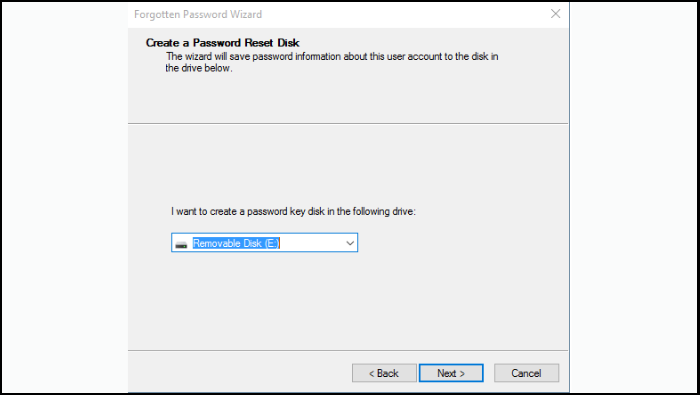
Step 4. Type your current password and select Next. When the wizard is done, click Finish.
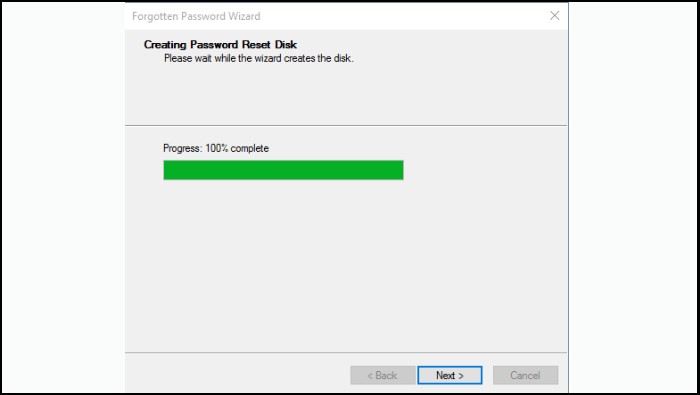
Even if you change your password multiple times, you don't need to create a new disk. Just keep the USB drive in a safe place, so you don't forget where it's located.
You've created a bootable USB drive using the Forgotten Password Wizard tool. The solution is now at your fingertips. Simply connect your USB drive to your PC, click on "Reset Password" to initiate the Password Reset Wizard, and reset your password effortlessly.
Windows 7 Password Reset Tools - Top 5 Checklist
If you're running Windows 7 for professional or personal reasons and got locked out of your account, don't panic! You can use one of the top 5 Windows 7 password reset tools to regain access to your account without formatting your PC. This guide will walk you through the process of using these tools to reset your password and get back to work.
Stage 2. Use Bootable USB to Reset Windows 10 Password
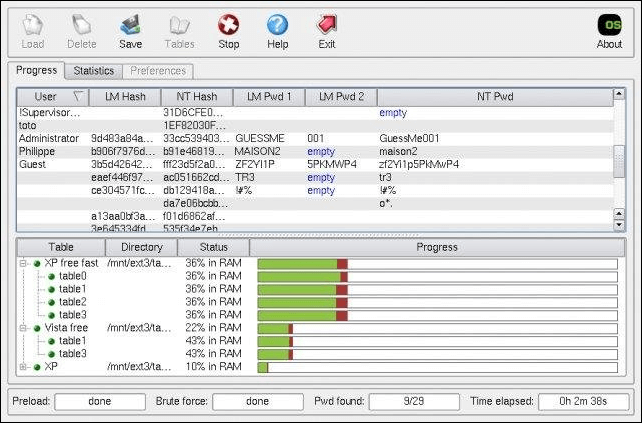
To reset the Windows 10 password using a bootable USB drive, follow these steps: Insert the USB drive into the locked Windows 10 computer. Boot the computer from the USB drive by entering the BIOS settings, selecting the USB drive as the first boot device, and saving the changes. Once booted, select the language and other preferences, then click Next.
Step 1. Connect that bootable USB drive to your PC.
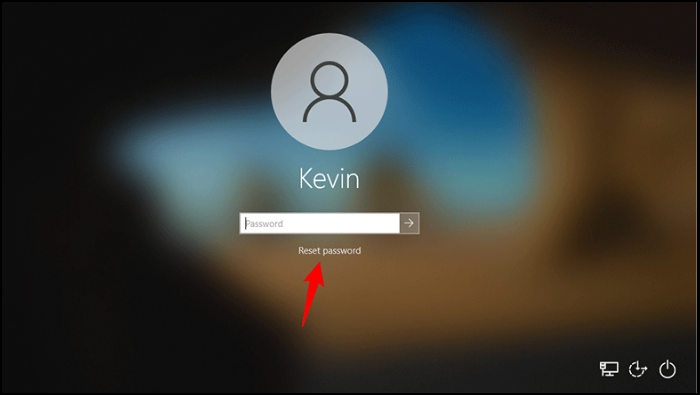
Step 2. At the Windows 10 login screen, enter an incorrect password, which will prompt the option to "Reset password".
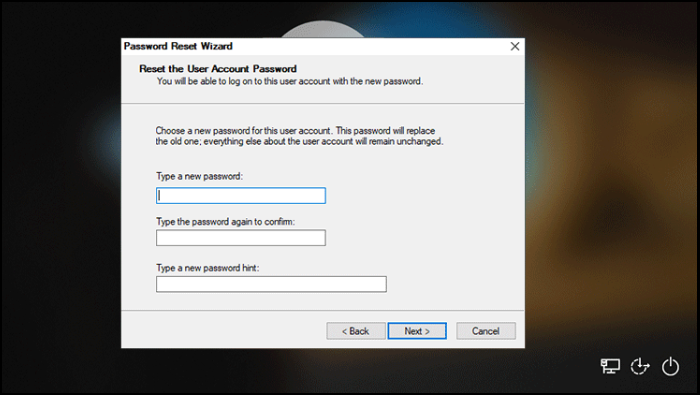
Step 3. To reset your password, click on "Reset password" and the Password Reset Wizard will be opened.
Step 4. To reset your Windows 10 password, go to the login screen and click on "Forgot password". You'll be asked to answer security questions or provide a recovery email address. If you don't have a recovery email address or can't answer the security questions, you can create a new user account by going to Settings, then Accounts, then Family & other users, and clicking on "Add someone else to this PC".
Read Also:
Use Windows Installation USB
To reset your Windows 10 password, create a Windows USB installation disk on another computer, then boot your locked PC from the USB disk using Command Prompt to reset the password.
To create a Windows USB installation disk, use Microsoft's Media Creation Tool or an ISO file. The process is similar to burning an ISO to a USB drive for Windows 10 or 11, as described in this article.
To reset your Windows 10 password, start by booting your computer from the USB installation disk you created. Once the installation process begins, select your language preferences and click on "Next".
Step 1. Insert the USB installation disk into your computer's USB port and restart your computer. The computer should automatically boot from the USB disk.
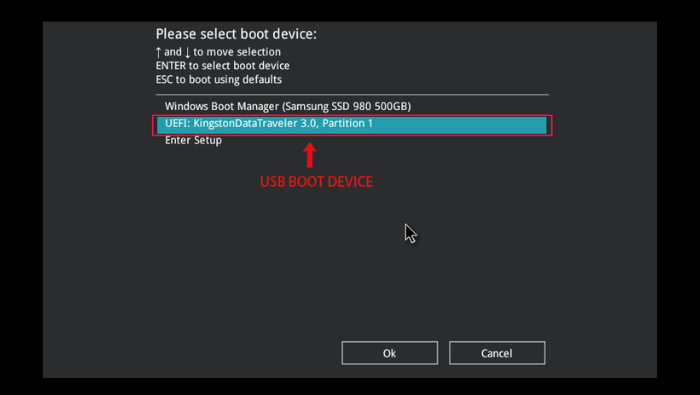
Step 2. To boot your locked computer from a USB installation disk, restart the computer and repeatedly press the Boot Menu key (usually F12 or ESC) during startup until the Boot Menu appears, allowing you to select the USB drive as the boot device.
Step 3. To boot from a USB drive in the Boot Menu, select the USB-HDD option and confirm to boot from the USB drive.
Step 4. After booting, access the Windows Setup screen and press Shift + F10 to open a Command Prompt.
Step 5. In the Command Prompt, type these two commands by pressing the Enter button after each. (Make sure to replace the "c" letter in the commands with the drive letter of your operating system.):
- move c:\windows\system32\utilman.exe c:\
- copy c:\windows\system32\cmd.exe c:\windows\system32\utilman.exe

Step 6. To complete the Windows PE installation, remove the installation disk and restart your computer. You can either use the command "wpeutil reboot" or simply shut down and restart your computer.
Step 7. At the Windows 10 sign-in screen, click the Ease of Access icon to open a Command Prompt and enter the command "net user Administrator /active:yes" to enable the built-in Administrator account. This will allow you to access the account and make any necessary changes.
Step 8. Type these commands in the Command Prompt:
net user username new_password
To reset the password for a user account, open the Command Prompt as an administrator, type "net user" followed by the username and a new password, and press Enter. For example, "net user Sherly 0222". This will reset the password for the specified user account. After resetting the password, you can use the new password to log in to your computer.
Follow the specific guide video to recover Windows password effortlessly:
You May Also Like:
Conclusion
In today's digital landscape, password-related challenges are not uncommon, but this guide has empowered users with the know-how to regain access to their Windows 10 system, offering alternatives such as Qiling Disk Master or manual USB drive methods.
Creating a bootable USB drive allows you to confidently reset your Windows 10 password, ensuring you're never locked out for long. With the right tools and knowledge, regaining access to your system is a straightforward and secure process. This guide has equipped you to tackle password issues and maintain uninterrupted access to your digital world, and we recommend sharing it with others.
Reset Windows 10 Password via USB FAQs
If you have more queries or want to learn more about resetting your Windows 10 password using a USB drive, please read the FAQs below.
1. How do you reset the password on Windows 10 using a USB?
To reset a Windows password using a USB, you can either create a password reset disk on a USB drive in advance if you're using Windows 10, or create a bootable USB drive on another accessible computer to boot your locked computer from it. This allows you to reset your password even if you're stuck at the login screen.
2. How do you reset your Windows 10 password without logging in with USB?
If you've forgotten your Windows 10 password, there are several methods to reset it. You can use a USB installation disk, a password reset disk, or a bootable USB drive to regain access to your account. This allows you to regain control of your computer even when you've misplaced or forgotten your password.
3. How do you reset the Windows 10 password using CMD?
To reset the Windows 10 password using the Command Prompt, start by booting your computer from a Windows 10 installation media or a USB drive with the installation media. Once you're at the login screen, click on the "Repair your computer" option.
Step 1. Boot your PC into Safe Mode.
Step 2. Open Command Prompt as an administrator.
Step 3. Execute the following command: net user Sherly 0222; replace the username with yours and the password with your desired new password.
Step 4. Restart your system and login using a new password.
Related Articles
- How Do You Format a Micro SD Card [Step-by-Step Guide on Each Way]
- How to Solve "Diskpart Failed to Extend the Volume" [3 Efficient Ways]
- How to Copy NTFS Partition [2024 Detailed Guide]
- Can I Upgrade Windows 8.1/8 to Windows 11? Detailed Guide
- How to Solve C Drive is Full in Windows 10/8/7?
The issue C drive full Windows 10 is a headache and can bring you quite a lot of trouble. If you want to find out where those extra files come from and the solution to this issue, this should be the right article for you. - [Quickly Solved] Cannot Delete Partition in Windows 11, 10, 8, 7
Cannot delete partition in Windows 10? Refer to the post for realizing how to remove the partition that cannot be deleted, like recovery partition, system partition.
Products
Articles & Tutorials
- Data Recovery
- Data Backup
- File Recovery
- File Backup
- System Backup and Restore
- Disk and Partition Clone
- Technical articles
- Mobile articles
- Disk Master Help
- Windows Data Recovery Tutorials
- Windows Secure Delete Tutorials
- Windows Partition Management Tutorials
- Windows File Backup and Restore Tutorials
- Windows System Backup and Restore Tutorials
- Windows Disk Backup and Restore Tutorials
- Windows Clone Tutorials