How to Make a Password Reset Disk for Another Computer 🔥
To create a password reset disk or USB for another PC, you can follow these steps: Insert a blank USB drive into your computer, then go to the Start menu and search for "Create a password reset disk". Select the drive you inserted and follow the prompts to complete the process.
| ⚙️Complex Level | Low, Beginners |
| ⏱️Duration | 2-4 minutes |
| 💻Tools |
|
Forgetting your Windows computer login password can be frustrating, but creating a password reset disk for another computer can solve the problem. This article will guide you on how to create a password reset disk for another PC or laptop to regain access and regain control of your computer. Share this tutorial with others who may need help.
First, let's see a real user case from the forum:
To better answer this question, we need to learn more about this topic first.
🚩Further Reading: To reset Windows 7 password with a USB drive, you can use the built-in tool "Password Reset Wizard" or a third-party tool like Ophcrack. First, create a bootable USB drive with a Windows 7 installation media or a password reset tool.
Can You Create a Password Reset Disk for Another Computer
A password reset disk is a handy tool that lets you reset your computer password if you forget it. It's a removable storage device like a USB flash drive or DVD/CD with the files and instructions needed to reset your password.
You May Also Like to Learn the Following Topics:
See also:
Windows has a built-in tool to create a password reset disk, but its limitation is that it can only be used on the current computer. To create a password reset disk for another computer, a third-party tool like Qiling Disk Master is required. This tool provides a solution for creating a password reset disk that can be used on another computer, and can also be used to reset the Windows 10 password, ensuring that you're never locked out again.
How to Make a Password Reset Disk for Another Computer
The password reset disk created by Windows' built-in method can only be used on the current computer and must be created before the computer is locked or the password is forgotten. If you've forgotten your password or need a password reset disk for other computers, use Qiling Disk Master.
A comprehensive disk partition management software provides a series of functions that go beyond Windows' own tools, enabling users to create a password reset USB for another computer, making it a useful feature for those with multiple computers or needing to assist someone with password reset.
Step 1. Connect a USB drive or external drive to a working computer, open Qiling Disk Master (RE) and click "Create Bootable Media".

Step 2. Select your movable device and click "Proceed" to create an image on your USB drive/external drive.

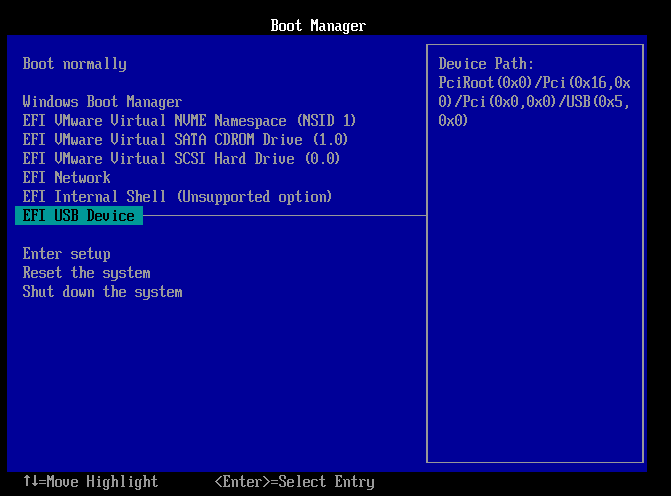
Step 3. Connect a bootable drive to the faulty computer, reboot it by pressing and holding "F2"/"Del" to enter the BIOS, set the bootable drive as the boot disk, and exit the BIOS by pressing "F10" to boot from the drive.
Step 4. The computer will enter WinPE desktop, where you can find and launch Password Reset.

Step 5. To reset your Windows, select the version of Windows you are using, and then choose the Windows account you want to reset. This will initiate the reset process, which will restore the system to its default settings.

Step 6. Wait patiently for a message confirming that the password has been changed successfully, then click "OK" to complete the password reset process.

If you've forgotten your Windows password and want to reset it without losing any data, you might also be interested in a guide video that can help you with that.
To create a Windows Password reset disk for another PC, you can follow the steps to unlock the target PC. However, Qiling Disk Master offers more features beyond just password reset, allowing you to unlock the target PC with ease.
- Reset Windows 10 forgotten password
- One-click remove the Windows 10 password
- Create bootable USB for locked laptops/PC
- Reset Windows 10 password without a disk
- Remove Microsoft login passwords safely and efficiently
You can use Qiling Disk Master to create a password reset disk for another computer, simplifying the process and ensuring a reliable password reset disk to regain access if you forget your password.
Conclusion
Forgetting a Windows password can be frustrating, but creating a password reset disk beforehand can save the day. Unfortunately, many people regret not making a reset disk when they're locked out of their computer. Fortunately, it's easy to create a password reset disk using various tools, which can then be used to access other computers with a Windows operating system.
Password reset USB drives created by Qiling Disk Master can be used on different computers without system lock or reinstallation, making it easy to share with others.
Create the Password Reset Disk for Another PC FAQs
Creating a password reset disk for another PC is possible and easy. You can create a password reset disk on a different computer, which can then be used to reset the password on the original PC. This is a convenient option if you don't have access to the original computer. If you have any further questions about this topic, feel free to ask, and I can provide additional clarification.
1. Are password reset disks universal?
A password reset disk created by Windows can only be used on the computer it was made on, but using Qiling Disk Master allows you to create a password reset disk that can be used on another PC.
2. How can I create a password reset disk if I forget my password?
To create a password reset disk, follow these steps:
- To create a password reset disk, log in to Windows using the local account that you want to reset the password for, then go to User Accounts in the Control Panel, click on Create a password reset disk, and follow the prompts to create a password reset disk on a floppy disk or USB drive.
- To add an external storage device, insert a USB drive or connect an external hard drive to the computer.
- To reset your password, search for "Password Reset" in the search box and select "Create a password reset disk". Then, click "Next" to proceed.
- Use the USB drive to create a password key disk. Click Next after selecting the USB drive.
- Enter the current account password and click Next.
- Click Next, wait for a moment, and click Finish.
3. How to unlock a laptop using the password reset disk?
To unlock your laptop using the password reset USB, follow these steps: First, insert the USB drive into your laptop's USB port. Next, restart your laptop and press the key to enter the BIOS settings.
- Boot the PC and enter the key in the password.
- Click OK when the password fails.
- Insert the Password Reset Disk and choose Reset Password.
- Click Next to continue.
- Choose the Password Reset Disk option and click Next.
- Type and confirm a new password.
- Create a password hint.
- Click Next to finish the process.
Related Articles
- How to Create Bootable USB to Wipe Hard Drive
- How to Install APK on Windows 11 to Sideload Android Apps
- Best 3 DBAN Alternatives to Wipe Hard Drive - 2024 New
- How to Speed Up Hard Drive in Windows 11/10/8/7 [100% Working Solutions]
- How to Create Unallocated Space on Windows 7, 8, 10, 11
To create unallocated space on Windows 11, 10, 8, 7, you can follow the steps outlined in this post. However, it's worth noting that using unallocated space to extend a partition is often a more practical solution, and we would recommend this approach instead. - How to Increase C Drive Space from D Drive?
How to increase C drive space from D drive to solve low disk problem in Windows 11, 10, 8, 7? Here are two ways you can try to extend C drive by taking space from D drive.
Products
Articles & Tutorials
- Data Recovery
- Data Backup
- File Recovery
- File Backup
- System Backup and Restore
- Disk and Partition Clone
- Technical articles
- Mobile articles
- Disk Master Help
- Windows Data Recovery Tutorials
- Windows Secure Delete Tutorials
- Windows Partition Management Tutorials
- Windows File Backup and Restore Tutorials
- Windows System Backup and Restore Tutorials
- Windows Disk Backup and Restore Tutorials
- Windows Clone Tutorials