Quick Guide: Unlock Dell Laptop Without Password
The demand for a balance between secure and convenient access to our personal devices is more critical than ever before, as evident from the panic and frustration that can ensue when you can't access your Dell laptop, whether it's due to a forgotten password or unexpected issue.
If you're having trouble accessing your Dell laptop due to a forgotten password, don't worry - there's a solution. A comprehensive guide from Qiling provides step-by-step instructions on how to unlock your Dell laptop without a password, applicable to Windows 11, 10, or earlier versions. This resource is designed to empower you with the knowledge and confidence to resolve this issue and regain access to your device.
When your Dell laptop is locked, performing a factory reset may seem like the only solution, but it's worth considering an alternative approach. Using Qiling Disk Master can be a more efficient and user-friendly way to regain access to your laptop, saving you from the hassle of reinstalling applications and settings. This method can be a more convenient option to unlock your Dell laptop without losing your data.
Here's why it stands out:
Data Preservation: Qiling Disk Master allows you to unlock your Dell laptop without losing data, preserving your files, applications, and settings during the process.
Time Efficiency: Qiling Disk Master streamlines the process of regaining access to a laptop, saving time compared to manual methods like a factory reset. It enables quick and minimal effort access.
Additional Features: Qiling Disk Master offers a comprehensive laptop management experience, not only unlocking your device but also providing a range of partition management tools. These tools enable you to resize, merge, and create partitions as needed, giving you greater control and flexibility over your laptop's storage configuration.
Unlock Dell Laptop Without Password Using Third-Party Software
In our pursuit of providing the most effective solutions for unlocking your Dell laptop, we now introduce a powerful third-party software tool. This alternative to manual methods like factory resets offers a more convenient and data-friendly approach, and among the available options, Qiling Disk Master stands out for its comprehensive functionality, particularly its "Password Reset" feature.
This feature is designed to help you regain access to your Dell laptop without needing a password. Employing advanced techniques, it efficiently resets your Windows password, allowing you to quickly unlock your laptop. To unlock your Dell laptop using Qiling Disk Master, follow these steps:
Step 1. To reset the password on a USB disk, insert the target USB disk into the computer, download and run Qiling Disk Master, and click on the "Toolkit" tab followed by "Password Reset."

Step 2. A small window will appear, and after reading the information, click the "Create" button.

Step 3. Select the correct USB flash drive or external mobile hard disk, click "Create" again, and wait patiently. After the password reset USB flash drive is created, click "Finish."

Step 4. Insert the password reset USB into the locked PC, restart it, and follow the on-screen instructions to change the boot drive to boot from USB. The system will then automatically boot from the USB and guide you through the password reset process.
Step 5. After restarting the computer, find Qiling Disk Master again and go to the "Password Reset" section. In the interface, all accounts on the PC will be displayed, and you can click on the target account and select "Reset & Unlock" to reset the password.

Step 6. When you receive this prompt, click "Confirm" to continue. Your password will be erased.

5 Quick Ways to Unlock a Dell Laptop Without Password
If you find yourself locked out of your laptop without a password, don't panic - there are ways to regain access. We've identified five effective methods that can help you unlock your device, regardless of your Windows version, and they're adaptable to various Dell laptops, so you can find a solution that suits your needs.
Way 1. Press Ctrl+Alt+Del keys
Pressing "Ctrl + Alt + Del" can sometimes unlock a locked Dell laptop by bringing up a menu with options like "Lock," "Switch User," "Sign Out," and "Task Manager."
By switching users to admin, you can log in without a password. Here are the detailed steps to log into a Dell laptop without a password:
Step 1: Reboot your Dell laptop and press the "F8" key once it reboots, which will take you to the admin login screen on your laptop.
Step 2: To access your laptop without a password, press the "Ctrl + Alt + Del" keys simultaneously. Select "Switch User" from the available options, use "Administrator" as the username, and leave the password field blank before hitting "Enter." This allows you to sign into your laptop without a password.
Further Reading: How to Reset Windows 10 Password Without Logging in
Way 2. Use CMD
If you've forgotten your Dell laptop password, you can unlock it using the Command Prompt (CMD) as a handy alternative. This method involves resetting the password through CMD, allowing you to regain access to your laptop.
If you're comfortable with using the Command Prompt, you can try logging into your Dell laptop by following these steps. First, open the Command Prompt as an administrator, then type "net user" and press Enter to see a list of user accounts. Next, type "net user [username] /active:yes" (replace [username] with the actual username of the account you want to log in to) and press Enter.
Step 1: To reset a Dell laptop, reboot the device and on the login screen, hold the "Shift" key and click "Restart". On the "Choose an Option" screen that appears, select "Troubleshoot".
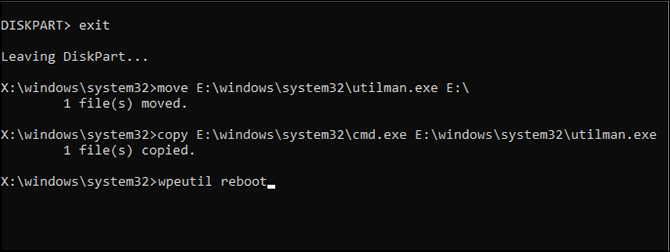
Step 2: To access the Command Prompt, go to "Advance Options" and click on "Command Prompt." Then, run the command: move E:\windows\system32\utilman.exe E:\ to restore the original Utilman.exe file.

Step 3: Run the command "copy E:\windows\system32\cmd.exe E:\windows\system32\utilman.exe" and then type "wpeutil reboot" and press Enter. The command "copy" will copy the contents of "cmd.exe" to "utilman.
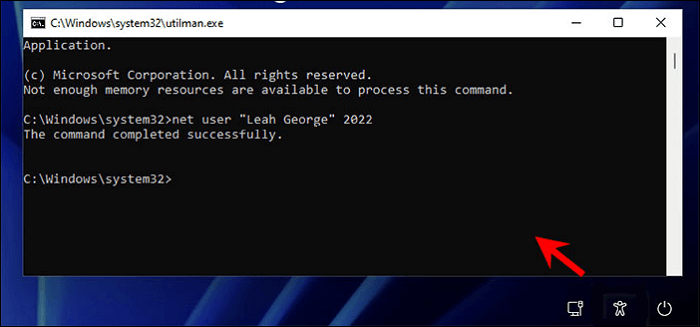
Step 4: To access your Dell laptop, first, tap the human icon near the bottom right corner. Then, run the command "net user username password" and replace "username" and "password" with your actual credentials. This will update your password, allowing you to log in with the new one.
You may also like:
Way 3. Use Password Reset Disk
Having a password reset disk for your Dell laptop can be a lifesaver if you ever forget your password. This disk allows you to regain access to your laptop easily without having to remember the initial password, making it a convenient and time-saving solution.
Once you've located the password reset disk you prepared, follow these steps to gain access to your Dell laptop without requiring the password:
Step 1: Connect a password reset disk to your Dell laptop, restart it, and enter an incorrect password at the login screen. Once the "Reset Password" option appears, click it.
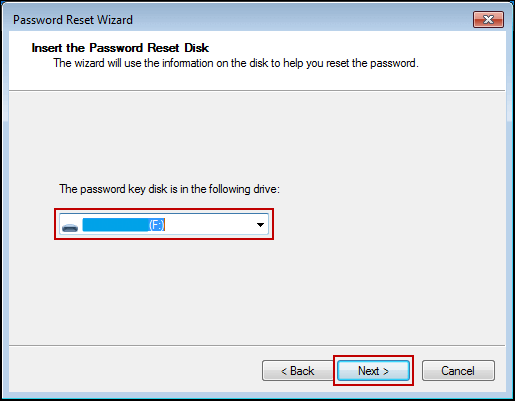
Step 2: To reset your password, tap "Next" on the password reset wizard, then select the password reset disk and press "Next" to proceed.
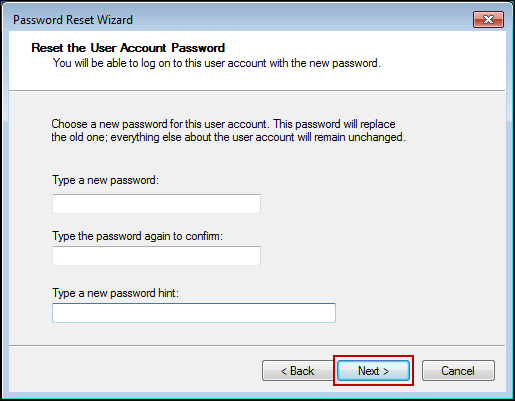
Step 3: Create a new password, confirm it, add a hint, and then click "Next" and finally "Finish" to complete the process and log in with the new credentials.

5 Ways | Reset Windows 10 Password Without a Disk
To reset your password without a password reset disk, follow these easy steps. You can try multiple methods to regain access to your account.
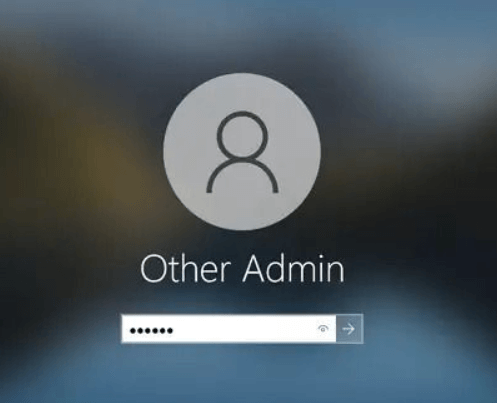
Way 4. Use Microsoft Account
To log into your Dell laptop using your Microsoft account, you can use the account to unlock the laptop without a password. It's essential to recall the password associated with your account. Follow these steps:
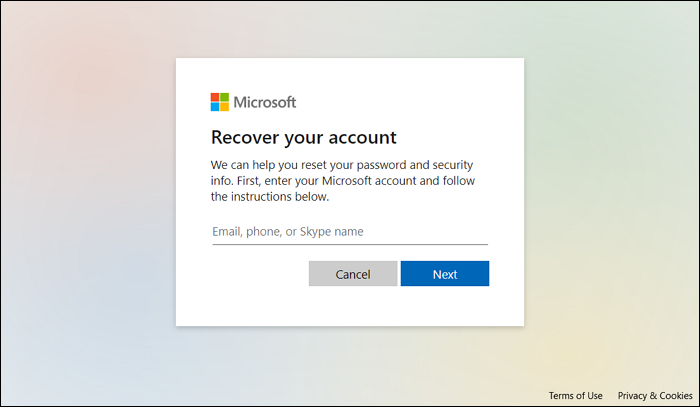
Step 1: If you can't remember the website, you can use a web browser on any device to access the "Recovery Your Account" website and type in your Microsoft email ID. It will then ask you to verify your identity by entering the last four digits of your linked phone number.
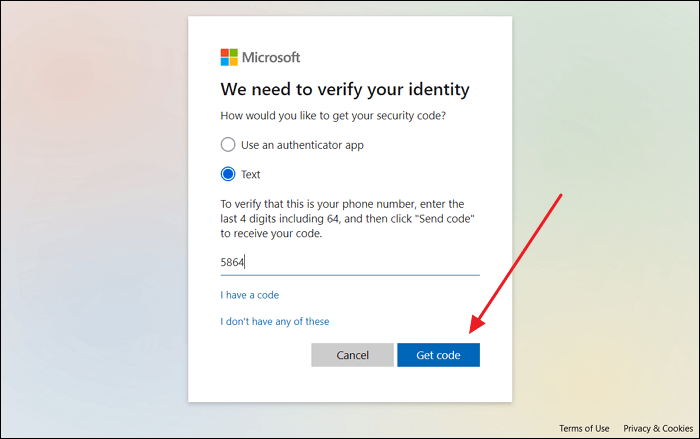
Step 2: Tap "Get Code" to receive a confirmation code on your phone number, then insert the code and press "Next" to reset your password and access your Dell laptop using your Microsoft account.
Way 5. Factory Reset Dell
If you're unable to access your Dell laptop due to a forgotten password, you can try initiating a factory reset as a last resort. This will erase all data on the device, so be sure to back up any important files before proceeding. To do this, turn off your laptop, press the Power button and the volume down button simultaneously, and release the Power button while continuing to hold the volume down button.
Here’s how you can factory reset your Dell laptop:
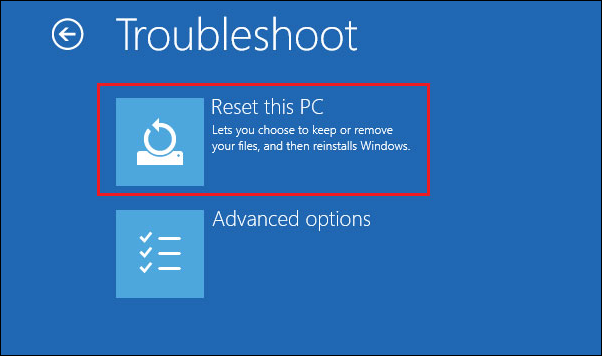
Step 1: To reset your Dell laptop, restart it and press the "Shift" key and "Restart" together on the login screen. This will take you to the "Choose an Option" screen, where you should click "Troubleshoot."
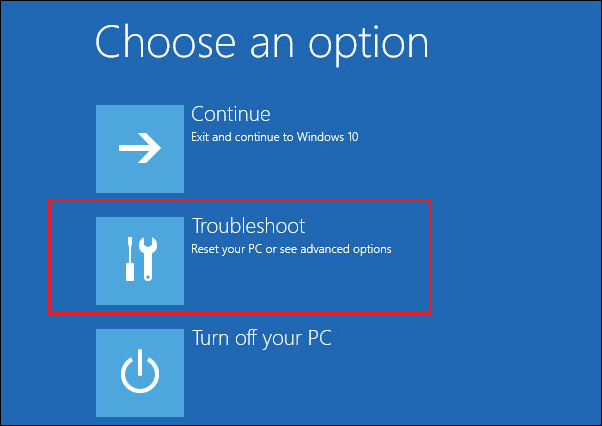
Step 2: Choose the "Reset your PC" option from the available options on the next screen and follow the on-screen instructions to factory reset your Dell laptop.
Conclusion
Getting locked out of your Dell laptop due to a forgotten password can be frustrating, but with the right steps, you can unlock it. A comprehensive guide is available that offers various methods suited to different situations and user preferences, starting with the familiar "Ctrl + Alt + Del" keyboard shortcut that can resolve login issues quickly.
For those with a password reset disk, we provided a step-by-step guide on using it to safely regain access to your laptop. We also mentioned the convenience of using your Microsoft account to recover your password. If all else fails, a factory reset is an option.
Our article introduced a simplified approach to unlocking a Dell laptop using Qiling Disk Master, a third-party software tool that offers a "Password Reset" feature, allowing users to regain access to their laptop without the need for complex manual methods.
Unlock Dell Laptop Without Password FAQs
Forgetting your Dell laptop password can be frustrating, but there are solutions available. To regain access, you can try resetting your password, which can usually be done by following the on-screen instructions during the boot process. If that doesn't work, you can also try using a password reset disk or USB drive, or seek assistance from Dell's support team.
1. How do I unlock my Dell computer if I forget my password?
To unlock your Dell computer if you've forgotten your password, you can try booting in safe mode, resetting the password through the BIOS settings, or using a password reset disk. If none of these methods work, you may need to reinstall the operating system or contact Dell support for further assistance.
Step 1: Reboot your laptop, access the login screen, and then press the 'Ctrl + Alt + Del' key combination.
Step 2: To switch to the administrator user, select the 'Switch User' option from the available choices. Then, enter 'administrator' as the username and leave the password field blank. Finally, press the 'Enter' key to log in.
2. How do I factory reset my Dell laptop?
Follow these steps to factory reset your Dell laptop:
Step 1: To restart your Dell laptop in safe mode, move to the login screen and click the 'Power' option, then hold the 'Shift' key and tap 'Restart.'
Step 2: To troubleshoot, tap "Troubleshoot" and then select "Reset your PC". On the next screen, choose "Remove Everything" and confirm by clicking "Remove My Files".
3. How do I unlock my laptop if the screen is black?
If your laptop has biometric authentication, try unlocking with your thumbprint. If that doesn't work, press 'Win + Ctrl + Shift + B' instead. If the issue seems to be with the hardware, take your laptop to a certified repair center.
Related Articles
- MBR2GPT Disk Layout Validation Failed | 3 Proven Fixes
- How to Fix Samsung Magician Won't Recognize SSD [Full Guide]
- How to Fix Disk 1 Unknown, Not Initialized Western Digital in Windows 10/8/7
- Unable to Extend C Drive? Fix It Now
If you're having trouble extending the C drive on your Windows computer, this article can help. It provides causes and practical solutions to resolve the issue. - What is Seagate Discwizard? How Can I Use It and Its Alternative?
If you're looking for a suitable alternative to Seagate DiscWizard, Qiling Partition Master is a great option. This software offers a range of essential features that can help ease your troubles. - What Is A Typical Symptom That Might Indicate the MBR Record Is Damaged? Fix MBR in Windows 10/11
A common symptom of a damaged MBR record is the inability to boot into Windows, resulting in a “no bootable device” error message. To fix MBR in Windows 10 and Windows 11, you can use free MBR repair tools like Qiling MBR Repair Tool.
Products
Articles & Tutorials
- Data Recovery
- Data Backup
- File Recovery
- File Backup
- System Backup and Restore
- Disk and Partition Clone
- Technical articles
- Mobile articles
- Disk Master Help
- Windows Data Recovery Tutorials
- Windows Secure Delete Tutorials
- Windows Partition Management Tutorials
- Windows File Backup and Restore Tutorials
- Windows System Backup and Restore Tutorials
- Windows Disk Backup and Restore Tutorials
- Windows Clone Tutorials