MBR2GPT Disk Layout Validation Failed | 3 Proven Fixes
The MBR2GPT.exe utility, created by Microsoft, can convert a disk's partition style from MBR to GPT without formatting or erasing data. However, users may encounter the "MBR2GPT disk layout validation failed" issue when converting an MBR drive to GPT using MBR2GPT.exe, as reported by Diskpart users.
- 💡User case:
-
When I try to run MBR2GPT /validate /disk:0 /allowFullOS, I get the following output:
Disk layout validation failed for disk 0 - Microsoft Forum
Don't worry. this guide will explain what causes this problem and show you how to resolve it with three practical and safe methods. If you know someone who is trapped by this issue, share this helpful page on your social media to help them:
How to Fix MBR2GPT Disk Layout Validation Failed - 3 Solutions
The MBR2GPT.exe tool is essential for converting MBR disks to GPT disks, particularly for hard drives larger than 2TB or disks with more than four primary partitions, as MBR drives do not support these configurations. However, to use this command line successfully, several requirements must be met to avoid failure in the conversion process.
Way 1. Use a Better Disk Converter - Qiling Disk Master
Due to Windows system restrictions, you can't convert an MBR drive to a GPT drive using MBR2GPT.exe if it's not a system disk. However, you can use Qiling Disk Master Professional as a reliable alternative to convert disks between MBR and GPT without losing data, and it's compatible with all Windows editions, including Windows 11/10/8/7, 8.1, XP, and Vista.
- Important
- To convert a MBR disk to a GPT disk, you must first make a comprehensive backup of your drive, as the process will erase all data on the disk. Additionally, ensure that your computer motherboard supports the UEFI mode, as some older systems may not be compatible. Once you have a backup and have verified your system's compatibility, you can proceed with the conversion process.
Step 1. Download and launch Qiling Disk Master on your computer.
Step 2. To convert a MBR disk to GPT, go to Disk Converter, right-click the target disk, and select "Convert MBR to GPT".
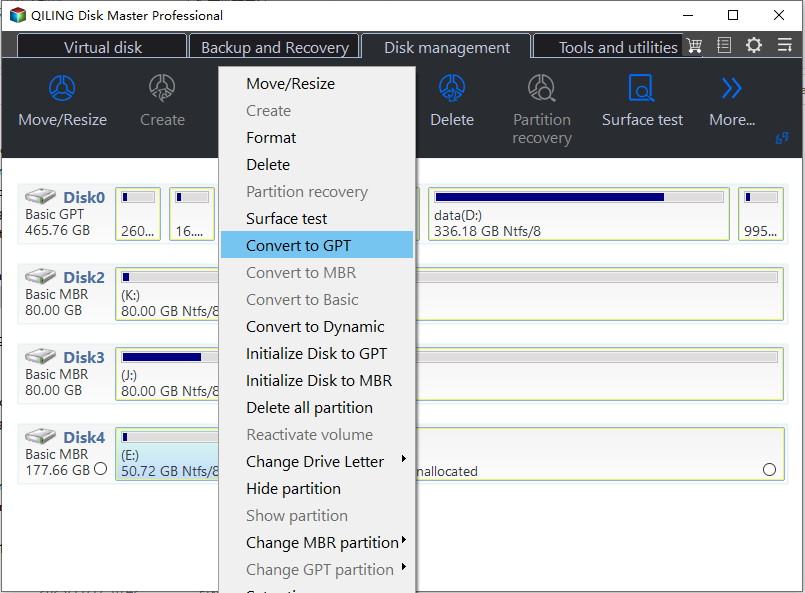
Step 3. Wait a moment, and it convert it to GPT.
You can also refer to the steps in the video:
Qiling Disk Master can convert a GPT disk to an MBR disk without formatting, allowing you to reverse a decision if needed.

To convert GPT to MBR, you can use one of the three converters: Qiling Partition Master. These tools allow you to convert the disk from GPT to MBR, making it possible to boot from it.
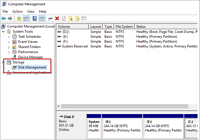
You can convert a GPT disk to an MBR disk using various tools, including Disk Management, Diskpart, or Qiling Disk Master. To do so, you can use Disk Management, which allows you to convert a GPT disk to an MBR disk by selecting the disk, right-clicking, and choosing "Convert to MBR".
Way 2. Upgrade to Higher Edition of Windows
The MBR2GPT.exe tool may fail to validate the disk layout due to an incompatible Windows version, specifically Windows versions prior to 1703. To resolve this issue, you may need to upgrade your Windows to a version that is compatible with the MBR2GPT.exe tool, such as Windows 11.
Step 1. To begin, click the "Start" icon, which is usually located at the bottom left corner of the screen, and then navigate to the "Settings" app.
Step 2. To check for Windows updates, go to "Update & Security" in the Settings app, then select "Windows Update" and click on "Check for updates."

Step 3. If there's an available upgrade for your computer, download and install it to ensure you have the latest features and security patches.
Way 3. Remove a Primary Partition on the MBR Drive
To resolve the error message when trying to convert a MBR drive to GPT with four primary partitions, delete one of the partitions using Qiling Disk Master after backing up your data, allowing the conversion to proceed successfully.
Step 1. Launch Qiling Disk Master, and click "Partition Manager".
Before deleting any partition on your disk, make sure you've backed up any important data to prevent loss.
Step 2. You have the option to delete a specific partition or delete all partitions on your hard drive. This decision will depend on your specific needs and goals, so it's essential to carefully consider the consequences of each choice before proceeding.
- Delete single partition: Right-click on a partition you want to delete and select "Delete".
- Delete all partitions: To delete all partitions on a hard drive, right-click the drive and select "Delete All".
Step 3. Click "Yes" to confirm the deletion.
Why Will MBR2GPT Disk Layout Validation Failed Happens?
The "MBR2GPT disk layout validation failed" issue can arise from three primary reasons. Firstly, it can occur when the system is upgraded from a traditional BIOS to UEFI, and the disk layout is not properly converted. Secondly, it can happen when the disk layout is not properly updated after a system restore or when the system is booted in a different mode.
🖼️Inapplicable Windows Version: Windows 10 versions 1703 and later can use the MBR2GPT utility, but earlier versions like Windows 7/8 will cause a disk layout failure.
🥌Non-system Disk: The MBR2GPT program in Diskpart can only convert the system disk from MBR to GPT, but doing so will result in the "MBR2GPT Disk Layout Validation Failed" error message.
💷Four Primary Partitions on the MBR Drive: If the target MBR disk already has four primary partitions, the conversion will fail. Removing one of the primary partitions may help.
Conclusion
If you're experiencing issues with MBR2GPT disk layout validation, there are a few effective methods to resolve the problem. One approach is to use Qiling Disk Master, a professional disk converter that can easily convert MBR to GPT. Alternatively, you can try upgrading your Windows edition or deleting one primary partition. However, we highly recommend using Qiling Disk Master, as it is a reliable and efficient solution to this conversion failure.
FAQs About Fixing MBR2GPT Disk Layout Validation Failed
To better understand MBR2GPT disk layout validation failure, you may want to check out some related queries, which could help clarify the issue.
1. What does MBR2GPT validate do?
The MBR2GPT.exe command allows users to convert a disk from the Master Boot Record (MBR) partition style to the GUID Partition Table (GPT) partition style without erasing any data on the drive.
2. How to validate MBR to GPT in Windows 10?
To change a drive from MBR to GPT, launch the "Start" button, search for "Command Prompt", right-click the first result and choose "Run as administrator". Then, enter the command line "mbr2gpt /validate /allowFullOS" which can verify the drive after you type it.
3. Is it possible to convert MBR to GPT without formatting?
You can convert a Master Boot Record (MBR) disk to a GUID Partition Table (GPT) disk without formatting using Qiling Disk Master's "Disk Converter" function. This powerful tool can help you achieve this conversion.
Related Articles
- How to Merge Partitions in Windows 10 [Safe and Quick Guides]
- How to Download Windows 11 23H2 Update from Microsoft✅
- How to Create New Partition in Windows Server 2022/2019/2016 - Qiling
- How to Perform Xbox 360 Hard Drive Format [Easy Guide]
- How to Fix BOOTMGR Is Missing Windows 10/8/7
If you're experiencing a black screen with an error message saying 'BOOTMGR is Missing' and being prompted to press Ctrl+Alt+Del to restart, this article provides effective fixes to help you resolve the issue in Windows 7, 8, or 10. - How to Fix Can't Download Windows 11 Error | 2026 Guide
If you face any issue while downloading Windows 11, there is a possibility that your PC isn't compatible. Here are a few common issues that you might be struggling with and some helpful solutions if your PC is compatible.
Products
Articles & Tutorials
- Data Recovery
- Data Backup
- File Recovery
- File Backup
- System Backup and Restore
- Disk and Partition Clone
- Technical articles
- Mobile articles
- Disk Master Help
- Windows Data Recovery Tutorials
- Windows Secure Delete Tutorials
- Windows Partition Management Tutorials
- Windows File Backup and Restore Tutorials
- Windows System Backup and Restore Tutorials
- Windows Disk Backup and Restore Tutorials
- Windows Clone Tutorials