How to Fix Can't Download Windows 11 Error
If you're trying to download Windows 11 through the Insider Program, you may encounter a compatibility issue and receive the error "Can't download Windows 11." This is likely due to Windows 11's stricter system requirements compared to previous versions, such as dedicated storage space, more RAM, and a recent-generation processor.
If you're experiencing issues downloading Windows 11, it's possible that your PC isn't compatible. Some common problems include the download process getting stuck, the download file being corrupted, or the installation failing. To resolve these issues, ensure your PC meets the minimum system requirements, check for any BIOS updates, and disable any third-party antivirus software.
| Workable Solutions | Step-by-step Troubleshooting |
|---|---|
| How Do I Download Windows 11 | Download with Qiling Windows 11 Builder > Enable UEFI Mode > Extend C Drive Space...Full steps |
| How to Install Windows 11 Manually | Try every USB port available; Determine you're using USB 2.0 or 3.0...Full steps |
Why Windows 11 Not Downloading
Users who encounter the error "This PC can't run Windows 11" when trying to download or upgrade to Windows 11 are likely experiencing this issue due to several reasons. The error is caused by the system not meeting the minimum requirements to run Windows 11, which includes a 64-bit processor, 4GB of RAM, and a Trusted Platform Module (TPM) 2.
1. To enable Unified Extensible Firmware Interface (UEFI) secure boot, you need to ensure that your system firmware (BIOS) supports UEFI secure boot. You should also check if your operating system supports UEFI secure boot.
2. Windows 11 requires a Trusted Platform Module (TPM) 2.0, but the TPM is not enabled or is too old to meet the minimum requirements.
3. Your disk space is running out of storage.
Can I still Download Windows 11?
If you're experiencing issues with Windows 11, you can try downloading the latest version and resolving the problems by following these steps. First, ensure your PC meets the minimum system requirements for Windows 11.
How Do I Download Windows 11?
If Windows 11 is not downloading on your PC, try restarting the download, checking for any system updates, and ensuring the correct download media is being used. You can also try running the Windows Update Troubleshooter, resetting the Windows Update components, or using the Media Creation Tool to download and install Windows 11.
1. Download with Qiling Windows 11 Builder
Windows 11 offers a range of new features and tools to enhance the user experience, including a new taskbar and start menu. To perform a clean install of Windows 11, you'll need a bootable USB drive, which we'll guide you through creating to install the new OS using a USB drive.
To create a Windows 11 bootable USB, you'll need to use the Qiling Windows 11 Builder, a free tool that automates the process by downloading necessary files from the internet, eliminating the need to manually find and download Windows 11 files.
To start, download the Qiling Win11 Builder on your PC, then follow these steps.
Step 1. The Windows 11 builder is integrated with the Qiling OS2Go software, allowing users to download and install the program, which can then be launched to build Windows 11.
Step 2.The name of the application was changed from WinToGo Creator to Windows Install Drive Creator, and it also supports the creation of Windows 10 and 8.1 install drives in addition to Windows 11.
Step 3. Connect your USB flash drive to the computer, and the Win11 builder will automatically detect it. Click the "Create" button.
Step 4. The software will erase data from your used USB drive, so make sure to download it and wait until the process is complete. Once the downloading process begins, you can leave it to run in the background while you attend to other tasks.
Step 5. After downloading the Windows 11 iso image file to a USB drive, proceed to install Windows 11 on your computer by following the on-screen installation wizard, starting from booting your computer from the USB drive.
This application will download Windows 11 files and make your pen drive bootable, a process that will take time depending on your internet speed.
Once the process is completed, the bootable USB drive will be ready to use, allowing you to install Windows 11 on your PC.
This application is portable and free, so you can download and run it without installing anything, and use it to create a bootable USB drive.
2. Enable UEFI Mode
UEFI mode is an advanced system firmware that provides a faster and more secure boot process compared to traditional BIOS. It supports larger storage capacities, up to 2.2 TB for HDD or SSD, making it a suitable replacement for traditional BIOS boot. To root a computer in UEFI mode, the hardware's partition style should be set to GPT.
Here's how you can enable UEFI mode:
A. Run Qiling Partition Master to Convert MBR to GPT
The Legacy mode is compatible with MBR, while the UEFI mode is compatible with GPT. To boot from UEFI mode, you'll need to convert your partition and modify your system firmware to UEFI, which also requires converting MBR to GPT. For a reliable conversion from MBR to GPT without data loss, use Qiling Partition Master.
B. Set UEFI Mode
Follow these steps to enable UEFI mode on your PC:
1. Open Settings on your PC.
2. Go to Update & Security.
3. Open Recovery.
4. The Restart Now button can be found under the Advanced startup section, allowing for immediate system restart.
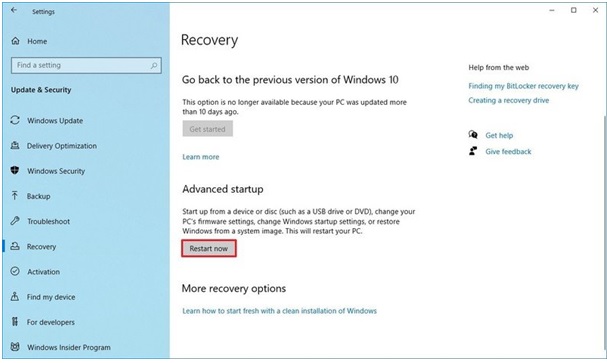
5. Once the system has entered the advanced startup after restarting, click on troubleshoot.
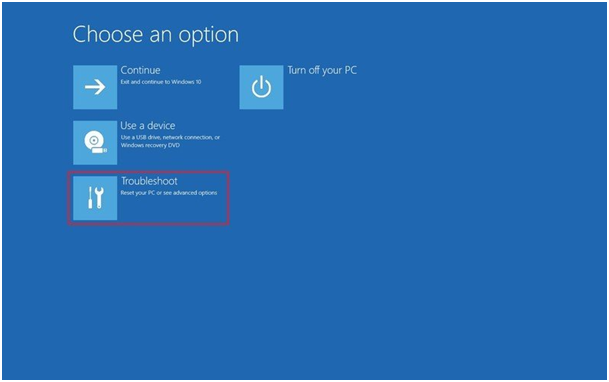
6. Now, click on Advanced options.
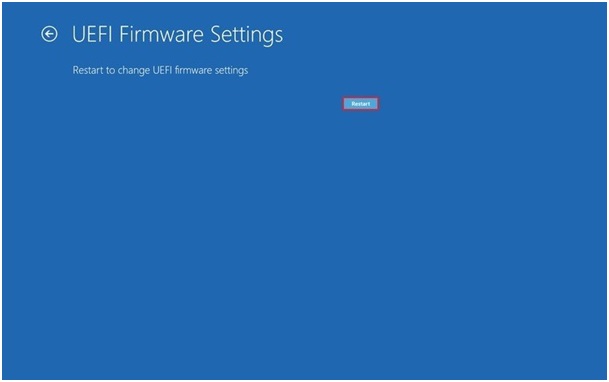
7. Once you have entered into advanced options, click on the UEFI Firmware Settings.
The UEFI Firmware settings option will not be visible if you have a legacy BIOS.
8. After selecting the UEFI Firmware setting, click on the restart button.
3. Extend C Drive Space
If your PC has low space or you need to allocate more space to C drive, you can use Qiling Partition Master to easily resize/move to extend your disk space and install Windows 11.
Option 1. Extend System C drive with unallocated space
- 1. Click on the System C: drive and select "Resize/Move".
- To resize the system partition, drag the system partition end into the unallocated space, effectively adding it to the C: drive. This action will increase the size of the C: drive.
- Click "Proceed" to execute the operations and extend the C drive. 4. Confirm that the disk space has been successfully extended.
Option 2. Extend System C drive without unallocated space
- 1. To resize a partition, click on a large partition with sufficient free space on the system disk, then select the "Resize/Move" option.
- 2. To free up space, drag the end of the big partition to the left to shrink it, making room for the unallocated space. Confirm the action by clicking "Proceed".
- 3. Select the system drive at "Disk management" page, and dselect "Resize/Move".
- 4. Extend the C drive by dragging the end of System C drive into the unallocated space and clicking "Proceed" to extend the C drive.
How to Install Windows 11 Manually
After using Qiling Windows 11 Builder to download Windows 11 files onto a USB drive, you can manually install Windows 11 by using the USB device.
Follow the steps below to install Windows 11 manually:
Step 1:Connect the Windows 11 bootable USB to your computer, then go to File Explorer, and open the connected USB drive.
Step 2: Open the file named "setup.exe" and launch Windows 11 setup.
Step 3: Choose Yes to confirm the User Account Control window.
Step 4:When starting the Windows 11 setup, select "Change how Setup downloads updates" and choose "Not right now" to continue the process.
Step 5: You will find the three options on the screen:
- Keep personal files and apps.
- Keep personal files only.
- Nothing.
Choose your desired action and click on the Next button.
Step 6: Check the "Ready to install" message and then click on Install.
Step 7: Your system will now start to install Windows 11.
Step 8:After a few minutes, the installation of Windows 11 on your PC will be complete. You can now enjoy the latest version of Windows.
Final Words
If you're experiencing issues with downloading Windows 11, this guide can help. Our guide provides solutions to common problems and helps you install Windows 11 on your PC with ease. Whether you have a compatible or non-compatible PC, this guide will walk you through the process of downloading the latest version of Windows and enjoying its new features. If you have any questions or feedback, feel free to drop us a comment below!
Related Articles
- Fix 'Windows Cannot Be Installed to This Disk MBR'
- How to Restore USB Drive/Flash Drive/Pen Drive Back to Full Capacity
- How to Make C Drive Bigger Windows 7/10| Assigning More Space to C Drive
- Android Deleted Files and Photos Keep Coming Back (Get 4 Easy Fixes)
- Tutorial: Surface Pro 8 SSD Upgrade [Step-by-Step Guide]
If you're running low on space on your Surface Pro 8 and want to upgrade the SSD, this guide can help. To do this, follow the step-by-step process outlined in this article, which will guide you through the process of upgrading the SSD on your device. - How to Fix Surface Won't Turn On [100% Working Solutions🚩]
If your Microsoft Surface won't turn on, try charging it for at least 30 minutes, then press and hold the power button for 30 seconds. If that doesn't work, try booting in safe mode or using the Surface's built-in troubleshooting tools.
Products
Articles & Tutorials
- Data Recovery
- Data Backup
- File Recovery
- File Backup
- System Backup and Restore
- Disk and Partition Clone
- Technical articles
- Mobile articles
- Disk Master Help
- Windows Data Recovery Tutorials
- Windows Secure Delete Tutorials
- Windows Partition Management Tutorials
- Windows File Backup and Restore Tutorials
- Windows System Backup and Restore Tutorials
- Windows Disk Backup and Restore Tutorials
- Windows Clone Tutorials