What Is MBR2GPT and How to Use It on Windows 10 [Full]
MBR2GPT.exe is a utility that can convert a Master Boot Record (MBR) to a GUID Partition Table (GPT) in Windows 10 versions 1703 and above. To use MBR2GPT, you can run the command "MBR2GPT.exe /allowBcd" in the Command Prompt as an administrator, and then restart your computer. This process will convert the MBR to GPT without affecting the existing partitions or BCD (Boot Configuration Data) settings.
What Is MBR2GPT on Windows 10/11
MBR2GPT.exe is a built-in tool for Windows 10 v1703 and above that converts a disk from Master Boot Record (MBR) to GUID Partition Table (GPT) without modifying or deleting the disk data. The tool can run from the Windows Preinstallation Environment (Windows PE) Command Prompt or from the full Windows 10 operating system (OS) using the /allowFullOS option, and is located in the Windows\System32 directory on computers running Windows 10, version 1703, or later versions.
You can use the MBR2GPT tool to convert a Master Boot Record (MBR) disk to a GUID Partition Table (GPT) disk, which can help you manage your disk partitions better.
- 🔦Convert any attached MBR-This tool can only convert system disks from MBR to GPT partition format, not non-system disks.
- ⌨️The tool converts operating system disks that have earlier versions of Windows 10 installed, but requires running on Windows 10 version 1703 or later and performing an offline conversion.
- 🧮If you suspend BitLocker protection on a disk that uses Master Boot Record (MBR), you can convert the disk to use GUID Partition Table (GPT) if the disk has BitLocker encrypted volumes. This is because GPT is more flexible and can handle larger disk sizes, which is beneficial for disks with encrypted volumes.
The MBR2GPT.EXE tool is a safe and effective tool, but to use it successfully, certain prerequisites must be met.
- 🚩The disk is currently using MBR.
- 🚩There is a system partition, which is set as active.
- 🚩The disk does not have any extended/logical partitions.
- 🚩There is enough space not occupied by partitions to store the primary and secondary GPTs. The space is located at the beginning of the disk, which is not occupied by the primary GPT, and at the end of the disk, which is not occupied by the secondary GPT.
- 16 KB + the first two sectors of the disk
- 16 KB + 1 sector at the end of the disk is a common issue that can occur when a disk is almost full. This can happen when a user tries to save a large file, but there isn't enough free space on the disk to accommodate it.
- 🚩Up to 3 primary partitions in the MBR partition table.
- 🚩The BCD store on the system partition contains the default OS entry pointing to the OS partition.
- 🚩The volume ID for each volume that is assigned a drive letter can be retrieved.
- 🚩All partitions on the disk are of type MBR recognized by Windows or have a map specified with the /map command-line option.
If any of these checks fail, the conversion process will be halted and an error message will be returned.
You can click the buttons below to share this article and let more users know about MBR2GPT.
💡How to Use MBR2GPT to Convert MBR to GPT
To convert an MBR system disk to a GPT disk in Windows 10 using the MBR2GPT tool, you need to run different command lines depending on your situation. The command lines are: mbr2gpt.exe /allowBootIfNotFixed, mbr2gpt.
- To convert a Windows PE system to a GPT disk, type the command: mbr2gpt /convert /disk:n
- To convert a disk to GPT in a full OS environment, type the command: mbr2gpt /convert /disk:n /allowfullOS, where n is the disk number you want to convert. This command will convert the disk to GPT while allowing the system to boot from it.
- Important
-
1. Before attempting to convert a disk from MBR to GPT, ensure your computer supports UEFI booting.
2. After converting the OS disk to GPT, you must reconfigure the firmware to boot into UEFI mode instead of Legacy BIOS.
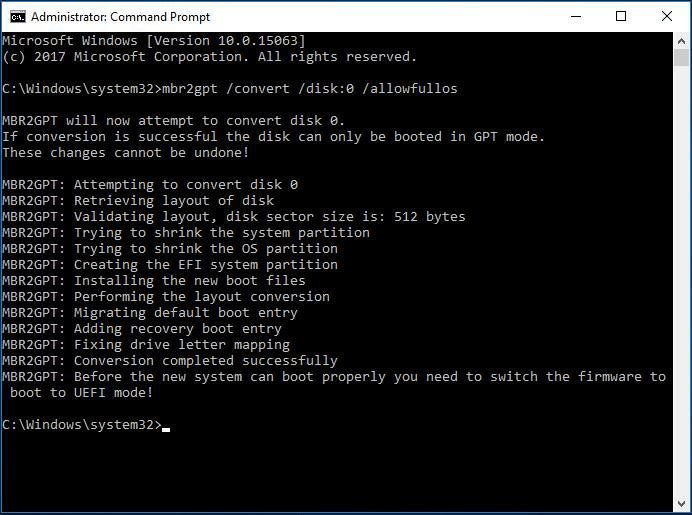
The MBR2GPT tool in Windows 10 can safely convert a Windows 10 computer from a legacy BIOS to a UEFI disk partition, but it cannot be used to convert a non-system disk from MBR to GPT.
If your disk doesn't meet the prerequisites, you may encounter issues like "disk layout verification failed for disk 0" or "MBR2GPT.EXE has stopped working" due to the disk not meeting the necessary requirements.
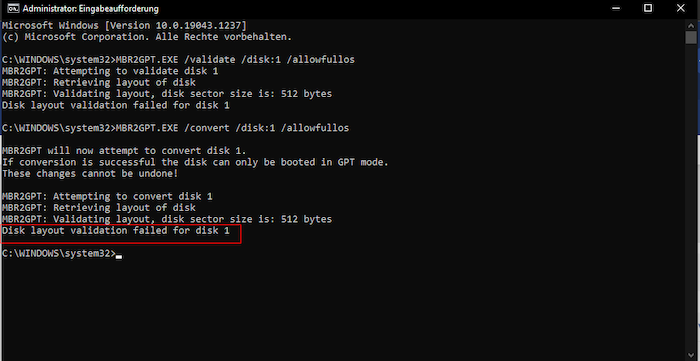
The MBR2GPT disk layout validation failed, so to fix it, you can use a reliable third-party tool like Qiling Disk Master.
Safe Alternative to MBR2GPT EXE on Windows 10
While MBR2GPT is a popular tool, its command-line interface may be too complicated for the average user. To avoid this, I recommend using Qiling Disk Master, a user-friendly tool designed for Windows users that can safely and quickly convert system/data disks from MBR to GPT without data loss. It's a great alternative to Windows 10's MBR2GPT tool, and its simple guide makes it easy to use, even for those without a computer background.
Step 1. Download and launch Qiling Disk Master on your computer.
Step 3. To convert the target MBR disk to GPT, right-click on it and select "Convert to GPT" from the context menu. This will initiate the conversion process.
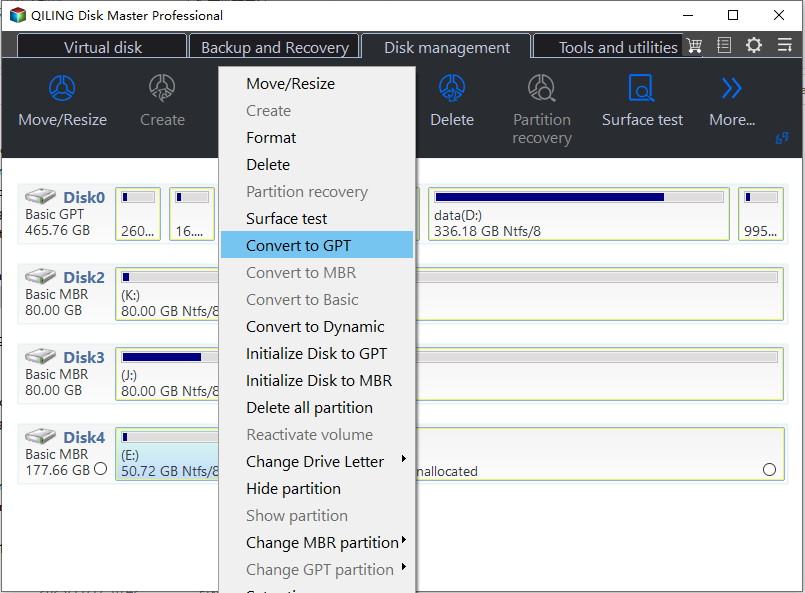
Qiling Disk Master is the best tool for converting MBR to GPT, surpassing Windows 10's MBR2GPT tool in ease of use. I recommend it for its user-friendly interface, and it offers advanced features to help manage your disks beyond just conversion.
- Rebuilt MBR
- Convert GPT to MBR
- Convert dynamic disk to basic
- Convert FAT32 to NTFS or vice versa
- Convert MBR to GPT without losing data
If you're looking to convert your disk from MBR to GPT, this tool is a must-have for Windows 10, 11, 8, or 7.
Conclusion
The MBR2GPT.exe tool is introduced in detail, including its concept, limitations, functions, and usage. It can convert MBR to GPT in Windows 10 v1703, but may fail or not be supported in earlier versions. In such cases, Qiling Disk Master can be used to resolve the issue.
FAQs Related to MBR2GPT
I believe you have understood what MBR2GPT is and learned how to use this tool. Here, I list some other questions for you to learn more about. Check them out.
1. How do I know if my BIOS is MBR or GPT?
To check if your disk is MBR or GPT, you can use Disk Management. In Disk Management, right-click the target disk and select 'Properties,' then click the 'Volumes' tab and check the 'Partition style' field, which will indicate whether it's MBR or GPT.
2. How long does MBR2GPT take to convert MBR to GPT?
To convert a disk to GPT, you can use a command such as mbr2gpt /convert /disk:0 /allowFullOS. Replace 0 with the target disk number, confirm the disk is correct, and then press Enter to start the conversion.
3. Is it safe to use MBR2GPT?
MBR2GPT is a safe and reliable tool that converts a disk from Master Boot Record (MBR) to GUID Partition Table (GPT) without causing data loss, as per Microsoft.
Related Articles
- Repairing Disk Errors This Might Take an Hour - How to Fix?
- 2023 Guide | How to Turn On Offline Sync Google Drive/Google Docs
- HP USB Disk Storage Format Tool Free Download [New]
- How to Fix com.apple.DiskManagement.disenter error 49153 [Ventura/Sonoma]
Are you experiencing the com.apple.DiskManagement.disenter error 49153 on macOS Ventura or Sonoma? This troubleshooting guide provides effective fixes to help you resolve the issue. - [Fixed]Unable To Update Minecraft Native Launcher 2023
Minecraft is facing updating issues in the app due to the native launcher issues. The updates are getting struck and halting the gameplay. The article discusses the reasons and solutions in detail to solve the unable to update Minecraft native launcher issues on Windows PC. - Upgrade from Monterey to Ventura | Detailed Information
Do you want to Upgrade from Monterey to Ventura? For that, you need to know more details about the upgrade. Besides, there are different ways to upgrade to Ventura. You can visit the App Store or choose the Software Update option.
Products
Articles & Tutorials
- Data Recovery
- Data Backup
- File Recovery
- File Backup
- System Backup and Restore
- Disk and Partition Clone
- Technical articles
- Mobile articles
- Disk Master Help
- Windows Data Recovery Tutorials
- Windows Secure Delete Tutorials
- Windows Partition Management Tutorials
- Windows File Backup and Restore Tutorials
- Windows System Backup and Restore Tutorials
- Windows Disk Backup and Restore Tutorials
- Windows Clone Tutorials