How to Know If Windows Using UEFI or Legacy (1min-Check)
To determine if your current Windows is using UEFI or Legacy boot mode, you can check. This is important because Windows 11 requires UEFI and secure boot to upgrade. If your PC is running in Legacy mode, it may not be eligible for the free Windows 11 upgrade. However, reading the article will provide the right answer and clarify any concerns.
***Windows 11 Upgrade Checker Windows 11 is available to download for free, but you should check if your PC meets the system requirements to run it.
Something to Know About UEFI
UEFI and Legacy BIOS are two types of motherboard firmware settings used by Microsoft Windows, with UEFI being the newer and more modern concept that is gradually replacing Legacy in modern computers.
UEFI, or Unified Extensible Firmware Interface, overcomes several limitations of Legacy BIOS. It allows for larger hard drive support, exceeding 2TB, and enables more than four primary partitions. Additionally, UEFI facilitates a faster boot process and provides a more secure startup, addressing some of the shortcomings of Legacy.
Microsoft requires Windows 11 to use TPM 2.0 and UEFI Secure Boot to enhance security, and a lack of UEFI Secure Boot will prevent a Windows 10 device from getting the Windows 11 free upgrade.
UEFI vs. Legacy BIOS: What's the Difference?
When it comes to changing a boot priority or deciding whether to install an operating system on a GPT or MBR disk, it's essential to consider the differences between UEFI and Legacy BIOS. UEFI (Unified Extensible Firmware Interface) is a newer firmware interface that supports GPT disks and provides a more secure and feature-rich environment, while Legacy BIOS is an older technology that relies on MBR (Master Boot Record) disks. Understanding these distinctions is crucial for ensuring a smooth installation process and optimal system performance.
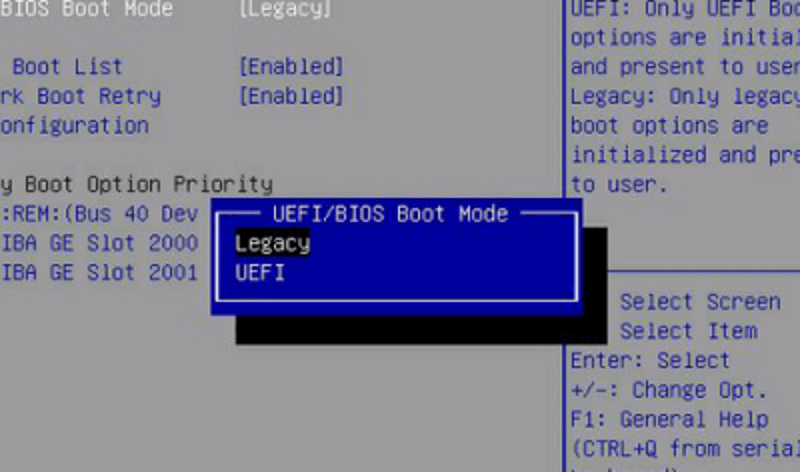
How to Check the BIOS Mode Without Accessing BIOS
As Windows 11 is approaching, it's essential to know which BIOS mode your computer is using - UEFI or Legacy. In most cases, we don't need to worry about this, but with the new Windows 11 requirement asking for UEFI only, it's crucial to find out which boot mode your computer is currently running.
Method 1. Check System Information
To check the BIOS mode without accessing the BIOS firmware, you can simply open the System Information window, which will display the current operating mode.
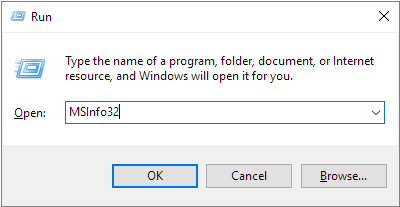
Step 1.To open the System Information window, press the Windows + R keys together to launch the Run box, type "MSInfo32" and hit Enter. This will display the System Information window.
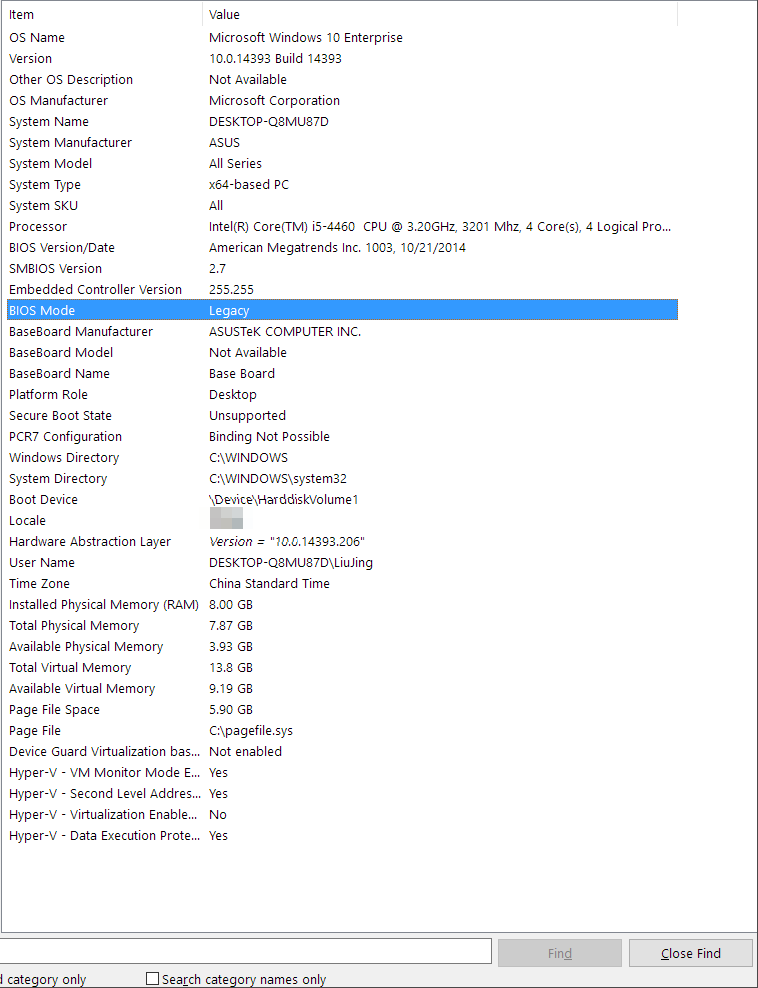
Step 2.On the right pane, find the "BIOS Mode". If your PC uses BIOS, it will display Legacy, but if it uses UEFI, it will display UEFI.
Method 2. Check setupact.log
To determine if your computer is using UEFI or Legacy BIOS, you can check the setupact.log file in Windows File Explorer. This file contains information about the system's setup process, including the BIOS mode used. By searching for "UEFI" or "Legacy" in the file, you can quickly identify which mode your computer is using.
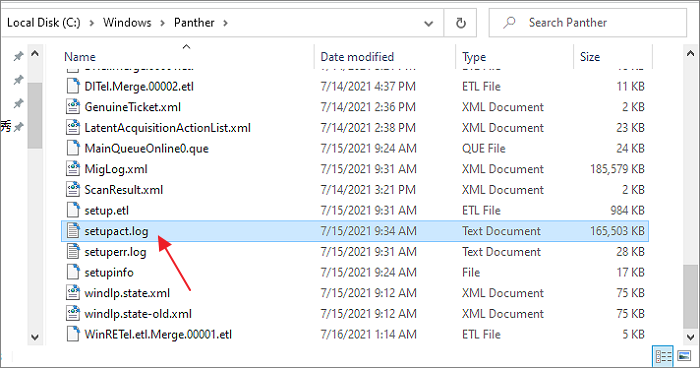
Step 1.To open File Explorer and navigate to the C:\Windows\Panther folder, press the Windows key + E together. This will open File Explorer, and you can then navigate to the C:\Windows\Panther folder.
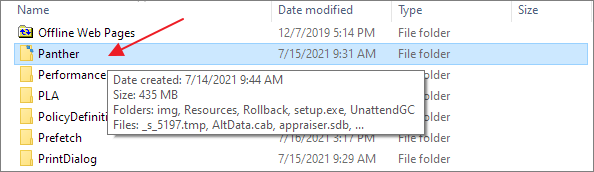
Step 2.Scroll down the window you'll find a text file called setupact.log. Open it in Notepad.
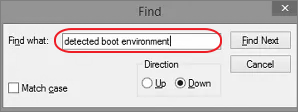
Step 3.To find the Detected Boot Environment in Notepad, press Ctrl + F to open the Find dialog, enter "Detected Boot Environment" and click Find Next.
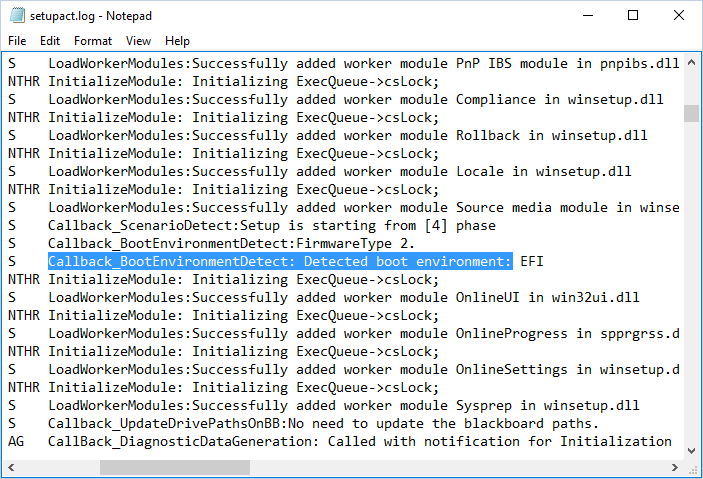
Step 4.After running the command, you will see the UEFI or BIOS version displayed in the output, which may look something like this:
- Callback_BootEnvironmentDetect: Detected boot environment: BIOS
- Callback_BootEnvironmentDetect: Detected boot environment: UEFI
Can You Change Legacy to UEFI Boot Mode to Support Windows 11?
To upgrade your computer or laptop to Windows 11, it's necessary to change the BIOS mode from Legacy to UEFI, especially if you have a newer Windows device that supports UEFI but is currently using Legacy BIOS.
To switch from Legacy to UEFI, Windows uses the MBR2GPT command tool to convert the disk's MBR to GPT, requiring deletion of existing partitions and a Windows reinstall. Otherwise, Windows won't boot after disabling Legacy.
The MBR2GPT tool makes the conversion process tedious, sophisticated, and risky, prompting the development of third-party tools to ease the transition and improve user experience when changing the BIOS mode to support modern computers and Windows 11.
To change Legacy to UEFI, we'll use Qiling Partition Master to convert the MBR to GPT, a process that won't erase any data or remove any partition on your disk.
Step 1. Download and launch Qiling Partition Master on your Windows computer.
Step 2. Click the MBR disk that you want to convert.
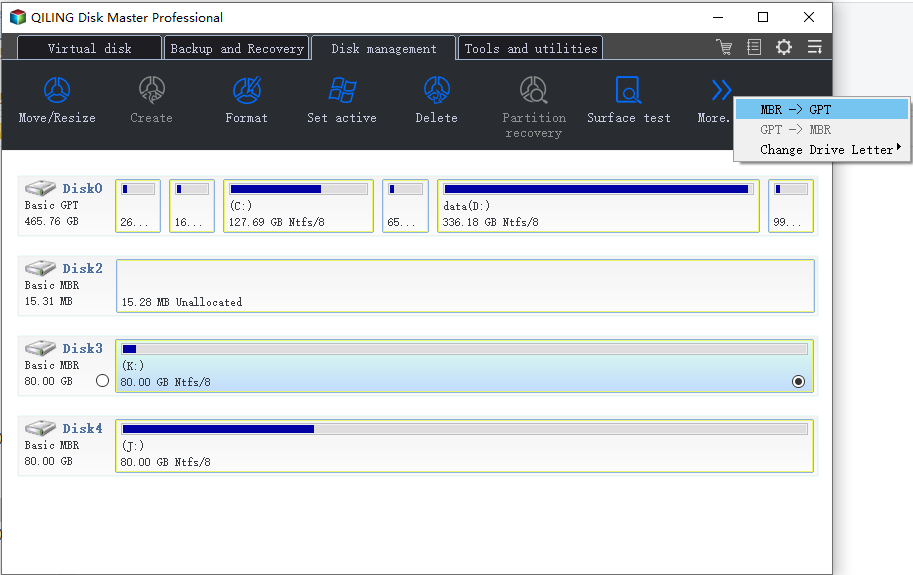
Step 3. Click "More..." and click "MBR -> GPT" to convert partition.
Go to the BIOS settings to disable Legacy and set the UEFI as the boot mode to resolve the issue.
Step 1. Shut down and restart your computer.
Step 2.To access the BIOS Setup Utility, press the F2 key repeatedly until the BIOS Setup Utility screen appears. Note that different computers may use different BIOS keys, such as Del for desktops and F2 for laptops, so if you're unsure, try pressing the Esc key.
Step 3.To select UEFI mode, go to the Boot tab, use the up and down arrows to choose UEFI mode, and press Enter.
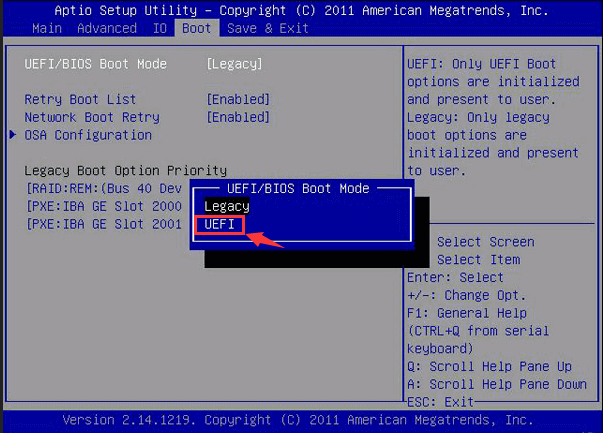
Step 4.To save the changes and exit the screen, press F10.
Windows 11 requires Secure Boot, which is only available in the UEFI firmware setting. To enable Secure Boot, first turn on UEFI. Then, see how to turn on Secure Boot.
Related Articles
- How to Fix White Screen of Death on Windows Computer
- Fixed: We Couldn't Format the Selected Partition | 0x8004242d Error [2022]
- How to Shrink Partition in Windows 11/10
- Solved 2022: Desktop Window Manager High Memory Windows 11/10
- Resize Windows 10 Partition with Free Windows 10 Partition Manager
Qiling offers a free Windows 10 partition manager that serves as a partition magic tool, allowing users to safely and quickly manage their partitions. - How to Resize Partition Using GParted and Qiling Partition Master
To resize GPT partitions, you can use GParted or a more handy tool like Qiling Partition Master.
Products
Articles & Tutorials
- Data Recovery
- Data Backup
- File Recovery
- File Backup
- System Backup and Restore
- Disk and Partition Clone
- Technical articles
- Mobile articles
- Disk Master Help
- Windows Data Recovery Tutorials
- Windows Secure Delete Tutorials
- Windows Partition Management Tutorials
- Windows File Backup and Restore Tutorials
- Windows System Backup and Restore Tutorials
- Windows Disk Backup and Restore Tutorials
- Windows Clone Tutorials