What Is a TPM, How to Check and Enable TPM 2.0 for Windows 11 [Full Guide]
What Is a TPM Chip
The Trusted Platform Module (TPM) is a secure encryption processor that integrates cryptographic keys to protect hardware, and can be either integrated into a PC's motherboard or added to the CPU.
From 1999 to 2003, a group of tech giants, including Microsoft, HP, IBM, and Sony, collaborated through the Trusted Computing Group (TCG) to develop standards and specifications for secure computers. They focused on creating a common platform for hardware and software across different operating environments, leading to the development of the Trusted Platform Module (TPM) specification. The TPM specification has since undergone revisions, with the most recent version, TPM 2.0, being the latest iteration. The last major update to the specification was TPM Main Specification Version 1.2, released in 2011.
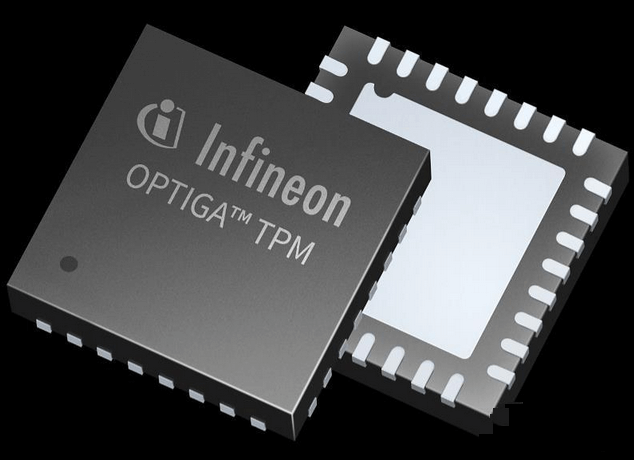
PM-compliant chips must be able to generate encryption and decryption keys, perform high-speed encryption and decryption, and serve as an auxiliary processor to protect the BIOS and operating system from modification.
What Does the TPM Do
The TPM (Trusted Platform Module) chip has various uses, primarily including device identification, authentication, encryption, and verification of device integrity.
Platform integrity
The Trusted Platform Module (TPM) ensures the integrity of any computer device, regardless of its operating system, by verifying the trustworthiness of the boot process from start to finish, including the combination of hardware and software, and the loading of the operating system and applications.
The responsibility for ensuring the integrity of TPM use lies with the firmware and operating system, which can utilize TPM to form a root of trust, as seen in UEFI. TPM is also used in Microsoft Office 365 licenses, TXT, and Outlook to maintain platform integrity.
Encrypt any partition of the hard disk
We can encrypt any hard disk partition with TPM technology, which is used by some computer manufacturers for one-click restore functions and by large commercial software companies, such as Microsoft, for partition encryption, like BitLocker.
Store and manage passwords
Operating systems require authentication to protect keys, data, or systems, often using passwords or other methods. In contrast, the TPM (Trusted Platform Module) security chip stores keys in a memory cell solidified in the chip, ensuring they remain secure even when power is lost, making it more secure than traditional BIOS management passwords.
What's the Difference Between TPM 1.2 and TPM 2.0
The TPM 2.0 specification allows for greater encryption flexibility compared to TPM 1.2, enabling the use of newer and more secure algorithms to improve drive signing and key generation performance.
TPM 2.0 technology is newer and more secure than TPM 1.2, offering stronger encryption and better support for newer algorithms.
Microsoft Requires TPM 2.0 on Windows 11
Microsoft has taken security seriously for a long time, ensuring its operating systems are supported by hardware like the TPM 2.0 chip.
Windows 10 can run without a Trusted Platform Module (TPM), but Windows 11 requires TPM 2.0 to install. This security feature helps protect against threats like phishing and ransomware attacks that can cause significant harm. By having TPM 2.0, the security risk to the Windows operating system is significantly reduced.
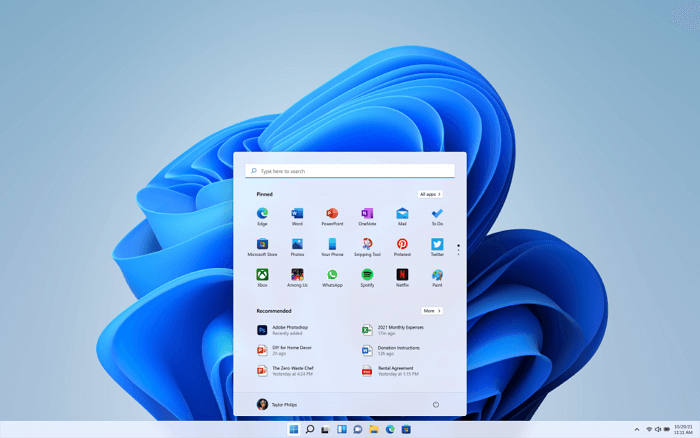
Microsoft requires all Windows PCs to have TPM 2.0 enabled by default, starting from July 28, 2016. This means that any newly manufactured Windows device, including laptops, desktops, and 2-in-1 devices, must come with TPM 2.0 enabled. If you're buying a device pre-loaded with Windows 10, it should have TPM 2.
Must-read:To check if your PC can run Windows 11, you can use the Windows 11 Upgrade Checker or PC Health Check. These tools will assess your computer's hardware and software to determine if it meets the system requirements for Windows 11.
How to Check If Your Computer Has a TPM 2.0 Chip
If your computer meets the other Windows 11 minimum system requirements, it may support TPM 2.0, especially if you bought it after 2016. However, if your computer is older than a few years or you've built one yourself, you may need to buy a new motherboard that includes TPM 2.0 to support Windows 11.
You can follow the way below to check TPM 2.0 Windows 11 Status.
Step 1.Press Win+R keys to start the Run Window
Step 2.Type tpm.msc in the Run box and click the "OK" button.
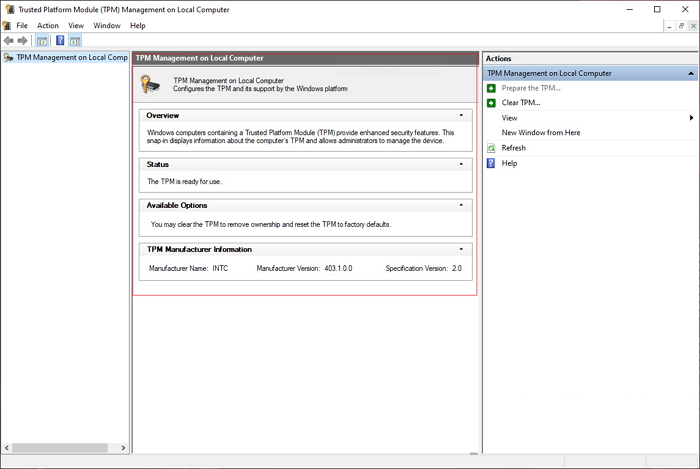
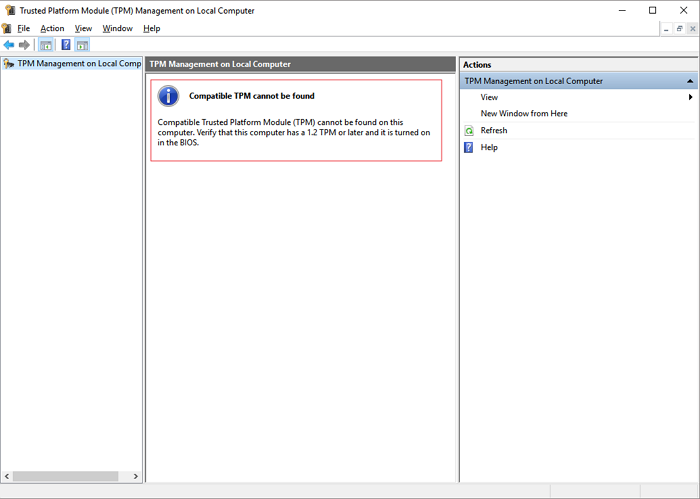
Step 3.Then, you might see one of the following results:
The TPM is ready to use with some detailed information.
The TPM is not available or has been deactivated, resulting in the "Compatible TPM cannot be found" error message.
How to Enable TPM 2.0 for Windows 11 on Your Computer
If the TPM can't be detected or found, you can still enable TPM for Windows 11 by going to the UEFI mode and following the instructions.
Method 1. Enable TPM 2.0 in Settings
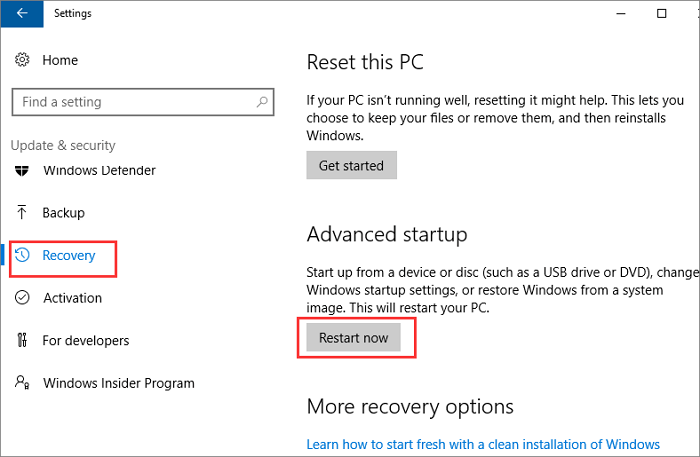
Step 1. To open the Settings app and update your Windows, press the Win + I keys to open Settings. From there, select the "Update & Security" option.
Step 2.To restart your computer in recovery mode, click on the left side panel and select "Recovery". Then, under the "Advanced startup" section, click on the "Restart now" option. This will initiate the recovery process.
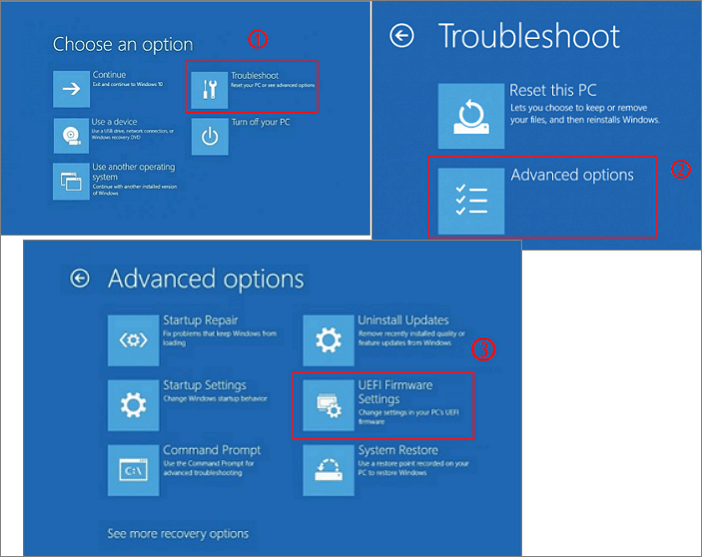
Step 3. To access the UEFI firmware settings, go to "Troubleshoot > Advanced options > UEFI Firmware Settings" and select "Restart".
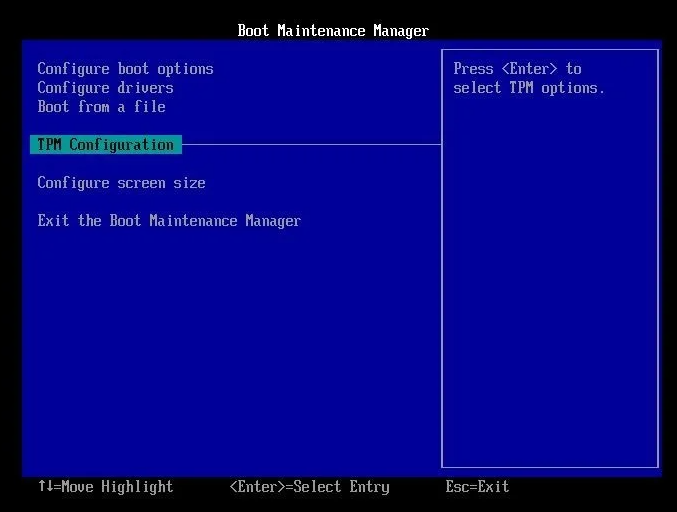
Step 4. Go to the Security Settings. Select the TPM settings configuration option.
Step 5.To enable TPM if it's disabled, go to Settings, click on "Update & Security", then "Recovery", and finally "Learn how to boot in Safe Mode". From there, click on "Troubleshoot", then "Advanced options", and select "UEFI Firmware Settings". This will take you to the BIOS settings.
Method 2. Enable TPM 2.0 in Boot Maintenance Manager
Step 1.To access the boot mode, restart your computer and repeatedly press some dedicated keys as displayed on the screen. These keys vary based on the motherboard manufacturer, but here are the keys for some popular brands: Dell (F2), HP (F9), Lenovo (F1), and ASUS (F2).
- Dell: F2 or F12
- HP: ESC or F10
- Acer: F2 or Del
- Lenovo: F1 or F2
- ASUS: F2 or Del
- MSI: Del
- Samsung: F2
- Toshiba: F2
- Microsoft Surface: Press and hold the Volume Up button
Step 2. To open the Security Settings page, use the arrow key to navigate to that section.
Step 3. Find the TPM settings configuration option as the screenshot in Method 1.
Step 4. Enable the TPM. Exit the settings and Restart your computer.
How to Download and Install Windows 11 on Your Computer
You can download and install Windows 11 using a simple method with a bootable USB cable. If your device meets the installation requirements, you can download Windows 11 now.
Step 1. The Win11 builder is integrated with the Qiling Disk software. After installation, click the download button and launch the program.
Step 2. Switch WinToGo Creator to Windows Install Drive Creator. The obtained system information is available on the home screen, and it keeps updating all the time. Apart from Windows 11, Win11 builder also supports you to download Windows 10/8.1.
Step 3. Connect your USB flash drive to the computer and click the "Create" button, as Win11 builder will automatically detect the USB device.
Step 4. The software will erase data from a used USB drive. Once you start the download process, wait for it to finish or take a break to do something else.
Step 5. After downloading the Windows 11 iso image file to a USB drive, start the installation process by following the on-screen instructions from the bootable USB drive, completing the installation wizard step by step.
The Bottom Line
The Trusted Platform Module (TPM) chip is a device crucial for system and device security, playing an increasingly important role with Windows system upgrades and heightened security focus. It's ideal for your computer to have and have TPM 2.0 enabled. If your computer is equipped with a TPM chip but it's not turned on, you can activate it by following the instructions in this article.
Can I Add a TPM to My PC
In theory, yes, you might be able to add a separate TPM 2.0 chip to your computer's motherboard, but only if you're familiar with the hardware and software security settings in your system BIOS. However, this is not a practical or recommended solution for several reasons. First, the TPM chip is an integral part of the system's security architecture, and adding a separate chip would require significant modifications to the system's BIOS and firmware. Second, even if you could add a TPM chip, it's unlikely to be compatible with the existing system, which would require a complete reinstallation of the operating system and potentially other software.
The process of setting up a hardware TPM on a homemade computer can be challenging, as it requires proper configuration in the BIOS, which may vary depending on the motherboard and CPU used.
The general user can't install a TPM chip to the motherboard themselves. If your computer is old and you want to try Windows 11's features, consider upgrading to a new computer with a TPM 2.0 chip.
Related Articles
- [3 Ways] How to Uninstall Apps on Windows 11
- One PC Plays as Two: How to Dual Boot Windows 11 with Windows 10 Together
- Turn On Secure Boot for Windows 11 Installation
- 0xC1900101 Error in Windows Update, Cannot Install Windows 11 [FIXED]
- How to Remove/Delete Hidden Partition on USB Drive in Windows 11/10/8?
Plan to delete hidden partition on USB drive to get more space for further use? Here come the effective methods! - Easily Solved: Can't Delete System Partition of Windows 10, 8, 7
If you're unable to delete the system partition within Windows Disk Management, this article can provide a solution. It offers a guide on how to delete the C drive in Windows 7, 8, or 10.
Products
Articles & Tutorials
- Data Recovery
- Data Backup
- File Recovery
- File Backup
- System Backup and Restore
- Disk and Partition Clone
- Technical articles
- Mobile articles
- Disk Master Help
- Windows Data Recovery Tutorials
- Windows Secure Delete Tutorials
- Windows Partition Management Tutorials
- Windows File Backup and Restore Tutorials
- Windows System Backup and Restore Tutorials
- Windows Disk Backup and Restore Tutorials
- Windows Clone Tutorials