UEFI vs. BIOS: What's the Difference and Which is Better
When it comes to changing a boot priority or deciding between a GPT or MBR disk to install an OS, the terms UEFI and BIOS need to be addressed. But what is UEFI/BIOS, and what's the main difference between them? This article aims to help you understand the distinction between UEFI and BIOS, which motherboard firmware to use, and how to check if your computer uses UEFI or BIOS.
We'll determine which one is better suited for your PC and help you get the necessary software to convert your BIOS to UEFI.
QUICK NAVIGATION:
- 1. What's UEFI
- 2. What's BIOS
- 3. What's the Difference Between UEFI and BIOS
- 4. UEFI vs. BIOS: Which is Better
- 5. How to Check UEFI or BIOS
- 6. How to Convert MBR to GPT Disk to Support UEFI Firmware
What's UEFI
UEFI (Unified Extensible Firmware Interface) is a modern replacement for the legacy BIOS, first introduced with Windows Vista Service Pack 1 and Windows 7 in 2007. Most modern computers, including desktops and laptops, now come with UEFI support, which aims to become the dominant firmware mode in the future.
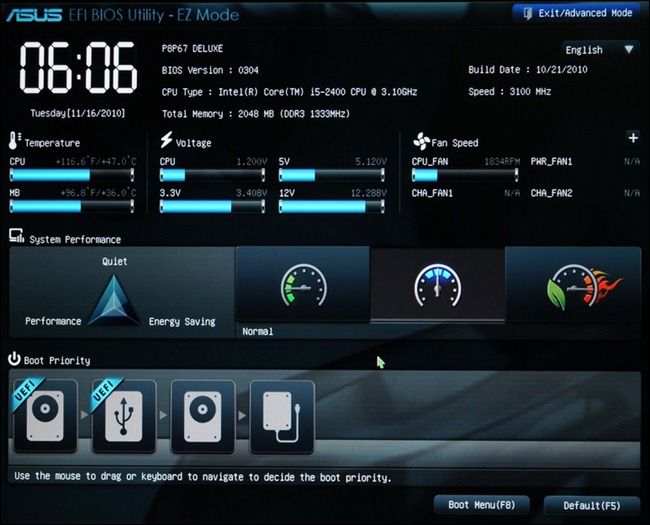
The success of this alternative can be attributed to its perfect features and great enhancements, making it a great alternative to the original.
1. Graphic and slicker interface
2. Support over 2.2 TB hard drives
3. Improved speed of startup and shutdown
PCs with UEFI firmware provide a user-friendly setup interface with a graphic interface and a mouse cursor, allowing users to easily navigate to different sections and boot options. Additionally, UEFI supports GUID Partition Table (GPT), enabling the creation of more than 4 primary partitions. This makes UEFI a more modern and flexible alternative to traditional BIOS systems.
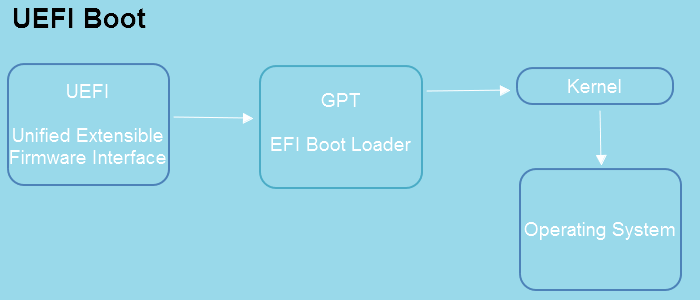
It has developed with unique highlights you cannot find in the BIOS.
1. Support secure boot
2. Support networking features
UEFI has features like Secure Boot and networking, which provide security advantages and remote troubleshooting capabilities, but are not available in traditional BIOS.
What's BIOS
BIOS, which stands for Basic Input-Output System, was born in the 1980s. Although it has evolved and improved over time, it is now largely outdated as most modern computers use UEFI (Unified Extensible Firmware Interface) instead.
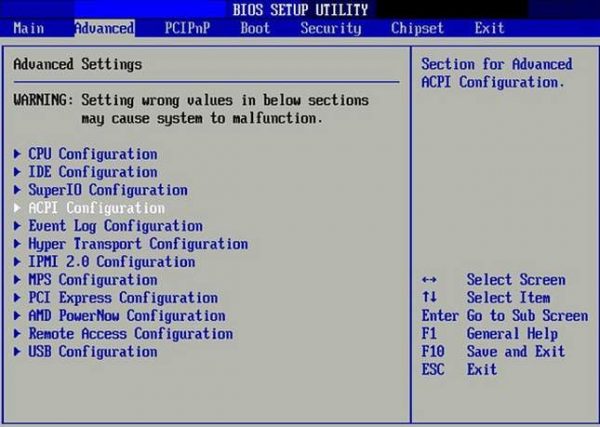
See, the BIOS must run in 16-32-bit processor mode has limitations, including 1 MB of space and difficulty initializing hardware devices, leading to a slower boot process. This makes it less suitable for today's fast-growing society that requires large storage capacity and fast data processing. Additionally, it cannot boot from drives over 2.1 TB, which is a common size for modern hard drives, making it less practical for current computer use. This ultimately results in lagging behind UEFI.
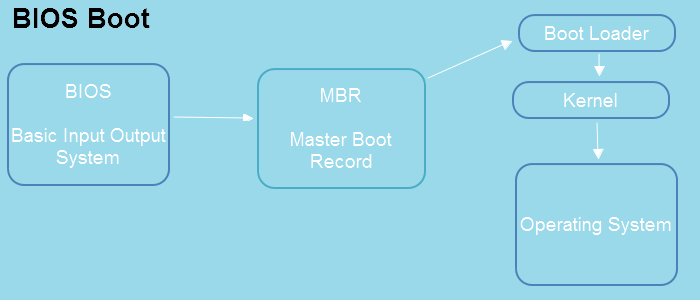
The BIOS performs a POST (Power-On Self Test) to verify the hardware configuration is ready for normal operation. Following this, the BIOS searches for a Master Boot Record (MBR) to launch the bootloader, which eventually boots Windows. The MBR's functionality constrains the BIOS to only recognize hard drives with capacities up to 2.1 TB.
What's the Difference Between UEFI and BIOS
UEFI and BIOS are two types of a computer's motherboard firmware that define how a PC turns on, boots, and runs, with UEFI being a more modern and advanced version of the traditional BIOS.
The main difference between UEFI and BIOS is that UEFI uses exclusive methods to wake up the operating system, making it a more prevalent and preferred choice over BIOS. This is due to the way they interact with the operating system, with UEFI providing a more efficient and modern way of booting up the system. The primary comparison image shows this difference, and further details can be found in the following text.
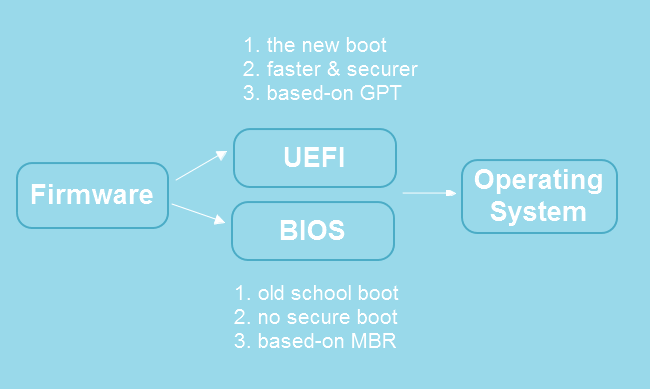
UEFI vs. Traditional BIOS: Which is Better
If you're looking for a PC, you might want to consider one with UEFI firmware, which is more secure and can support faster boot times. However, if you're looking for a more budget-friendly option, a PC with BIOS firmware might be a better choice. Ultimately, the decision comes down to your specific needs and preferences.
UEFI (Unified Extensible Firmware Interface) has several advantages over BIOS (Basic Input/Output System). For instance, UEFI provides a more secure environment for booting and loading operating systems, thanks to its support for secure boot mechanisms.
- UEFI (Unified Extensible Firmware Interface) supports larger storage capacities, allowing for drives of over 2.2 TB, whereas traditional BIOS only supports smaller partitions and drives.
- UEFI offers a more detailed and useful setting menu compared to traditional BIOS.
- UEFI (Unified Extensible Firmware Interface) supports secure boot, which helps prevent malware from damaging a PC by ensuring that only authorized software is loaded during the boot process.
- UEFI runs in 32-64-bit mode offers faster boot times compared to 32-bit mode, as the addressable address space is increased based on the BIOS settings, resulting in a more efficient boot process.
- UEFI has the advantage of using GUID Partition Table (GPT), which allows it to easily launch EFI executables and has no issues with detecting and reading large hard drives.
If you're a beginner, BIOS is a good choice, but if your hard drives are less than 2.2TB, it's recommended. Otherwise, you can move on to converting MBR to GPT.
How to Check UEFI or BIOS
The comparison between UEFI and BIOS motherboard firmware types may leave you wondering what mode your computer is in and how to access the UEFI or BIOS environment.
Most modern computers come with either pure UEFI or a combination of UEFI and BIOS. Unless you purchased your computer many years ago, it's likely that you're using BIOS.
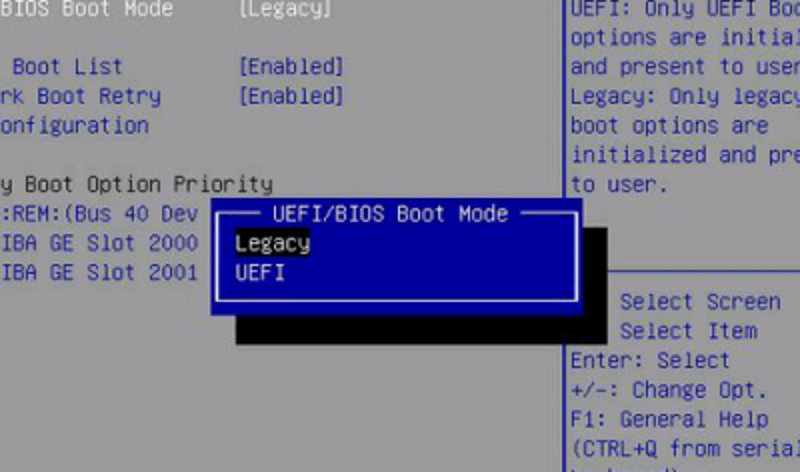
To distinguish between UEFI and BIOS, look for the mouse cursor and menu style on the setup screen. If the mouse cursor is visible and menus are graphical, it's likely UEFI. If the menus are all in text, it might be BIOS, but some manufacturers may not differentiate the two modes in appearance. In such cases, check other features like the ability to boot from USB drives or the presence of specific UEFI features like secure boot or firmware updates.
How to Check If Your Computer Uses UEFI or BIOS
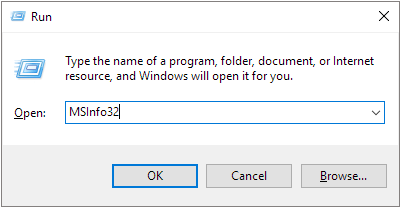
Step 1. To open the system information window, press the Windows key + R keys simultaneously to open the Run box, then type MSInfo32 and hit Enter. This will display the system information.
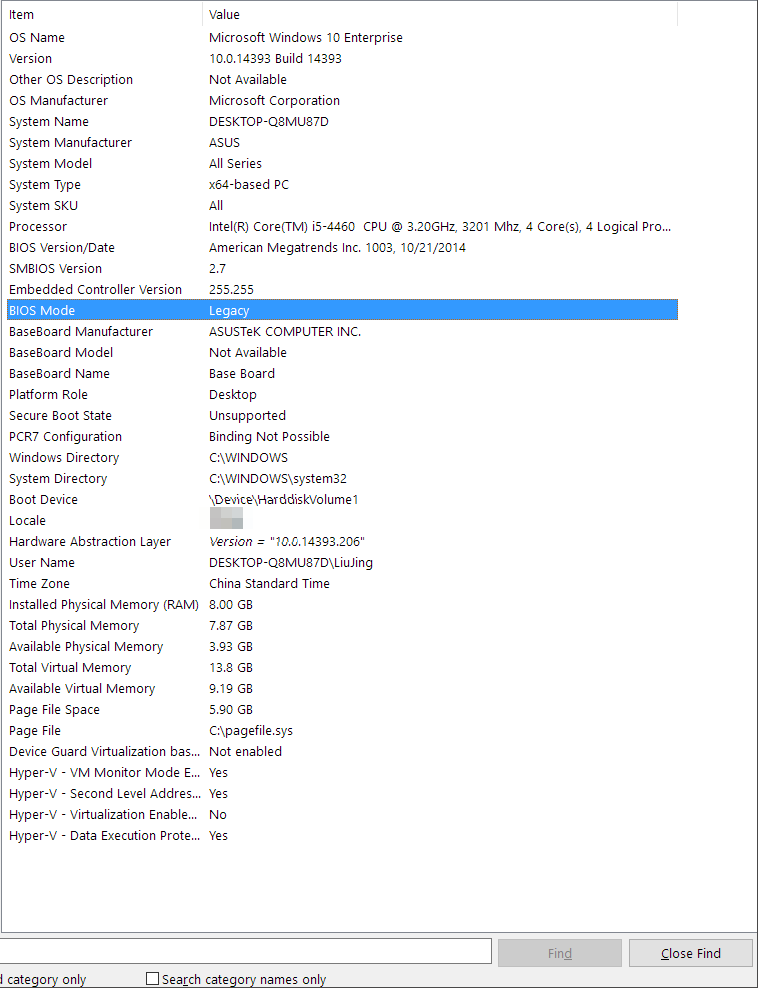
Step 2. The "BIOS Mode" in the right pane is either "Legacy" if the PC uses BIOS or "UEFI" if it uses UEFI.
How to Access UEFI or BIOS Environment
Generally, you can press F2 to access traditional BIOS, while UEFI can be accessed through different keys depending on your system, such as F2, F12, or Del, or by going to the UEFI settings through Windows.
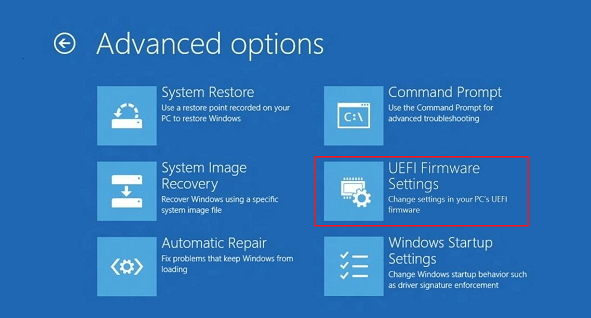
Follow the path to access UEFI:
1. To access the advanced startup options, go to PC settings, then click on Update & Security, followed by Recovery. From there, check the Advanced startup section and select Restart Now.
2. To troubleshoot, click on the menu, choose advanced options, select UEFI Firmware Settings, and then choose to restart.
How to Convert MBR to GPT Disk to Support UEFI Firmware
There is no way to switch Legacy BIOS to UEFI directly if your computer hardware doesn't support UEFI firmware. However, if your computer hardware does support UEFI, you can switch from Legacy to UEFI by changing the settings in your BIOS settings, usually found by pressing F2, F12, or Del keys during startup. This allows you to take advantage of faster startup times and better networking support without needing to upgrade your hardware.
To avoid system boot issues when converting from BIOS to UEFI, it's necessary to convert the MBR disk to a GPT disk. This is because UEFI systems require a GPT disk, while BIOS systems use an MBR disk. By making this change, you can ensure a smooth transition between the two.
To convert MBR to GPT without losing data, use Qiling Partition Master, a professional partition manager that helps you take control of your hard drive and partitions. It offers a feature to convert MBR to GPT, allowing you to install Windows OS on the GPT partition.
Related Articles
- Backup Computer to USB Flash Drive in Windows 10/8/7
- Download System Clone Software to Clone OS in 2 Procedures
- How to Extend Windows Server Partition [Server Guide]
- Windows 11 Shrink Partition: 3 Ways to Shrink Windows Partition
- [Solved] Diskpart Delete Partition Override Not Working
- Is Your PC Slow to Shut Down? Try These Tips!
- Top 10 Best Desktop Imaging Software [2022 Reviews]
Are you looking for backup software that can create a desktop image, i.e., a mirror image of the system or set of files, and restore when needed? Then check out these ten best desktop imaging software for consumers and enterprises, which you can try and then choose.
Products
Articles & Tutorials
- Data Recovery
- Data Backup
- File Recovery
- File Backup
- System Backup and Restore
- Disk and Partition Clone
- Technical articles
- Mobile articles
- Disk Master Help
- Windows Data Recovery Tutorials
- Windows Secure Delete Tutorials
- Windows Partition Management Tutorials
- Windows File Backup and Restore Tutorials
- Windows System Backup and Restore Tutorials
- Windows Disk Backup and Restore Tutorials
- Windows Clone Tutorials