Is Your PC Slow to Shut Down? Try These Tips!
| Workable Solutions | Step-by-step Troubleshooting |
|---|---|
| #1. Check File System | Step 1. Open Qiling Partition Master on your computer. Then, locate the disk, and right-click the partition you want...Full steps |
| #2. Run Troubleshooter | Step 1: Open Windows Settings. Step 2: Click "Update & Security". Step 3: Click "Troubleshoot". Step 4: Scroll down to...Full steps |
| #3. Disable Fast Startup | Step 1: Open Control Panel. Then, click "Power Options". Step 2: Click "Choose what the power buttons do" on the left0...Full steps |
| #4. End Running Process | Step 1: Press "Ctrl + Alt + Delete" together to open the Task Manager. Step 2: Running processes are listed under...Full steps |
| #5. Scan Registry | Step 1: Press Windows+R keys simultaneously and enter "regedit" in the search box. Step 2: Go to the path below...Full steps |
Why is Your PC Slow to Shut Down?
It's frustrating when a PC takes a long time to shut down, especially after being patient with its slow startup and struggles to keep up with tasks. The shutdown process should be faster, allowing users to move on with their day once the shutdown button is hit. However, the actual reason for the slow shutdown is not specified, but it could be due to various factors such as background processes, disk cleanup, or other system tasks that are running in the background.
Windows can take forever to shut down due to too many programs running in the background, consuming system resources and slowing down the shutdown process.
Your PC's hard drive may be fragmented, causing it to work harder to access files and data, delaying shutdown. Running a disk defragmentation tool regularly can help reorganize your hard drive and improve performance.
We'll show you some tips to speed up your computer shutdown.
Tips for Windows Taking Forever to Shut Down
If your PC is taking longer than usual to power down, don't panic! There are several possible reasons for this delay, but fortunately, there are steps you can take to resolve the issue. Keep reading to learn more about fixing your PC's slow shutdown problem.
- #1. Check File System
- #2. Run Troubleshooter
- #3. Disable Fast Startup
- #4. End Running Process
- #5. Scan Registry
#1. Check File System when the PC is Slow to Shutdown
PC Slow to Shutdown is a common problem caused by factors such as an overworked file system or incorrect shutdown procedures. Users can solve this issue by checking the file system via Qiling Partition Master, which identifies the cause and provides instructions on how to fix it.
Step 1. To check the file system on a partition using Open Qiling Partition Master, locate the disk, right-click the partition you want to check, and choose "Advanced" > "Check File System".
Step 2. In the Check File System window, select the "Fix the error on the disk" option and click "Proceed".
Step 3. The software will start scanning your disk's partition file system. Once it's done, click "Finish".
You can quickly and efficiently shut down your PC with just a few clicks. To do this, check the file system via Qiling Partition Master today. (Note: I removed the "So don't wait any longer" part as it was not essential to the main message)
Relate articles about PC/Mac won't shut down:
#2. Run Troubleshooter when PC is Slow to Shutdown
If your Windows is taking forever to shut down, you can try running the Power Troubleshooter in Windows Settings to fix the issue. This built-in tool will scan your PC for common problems and attempt to resolve them automatically, which should help speed up the shutdown process.
Step 1: Open Windows Settings.
Step 2: Click "Update & Security".
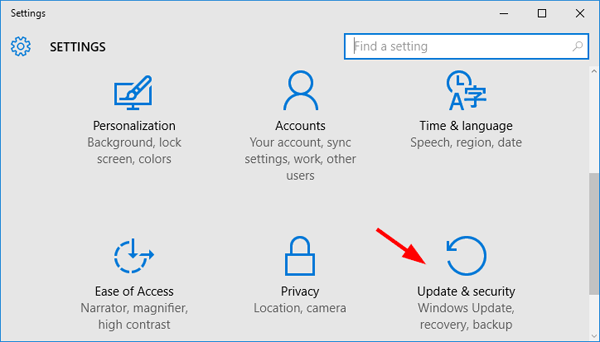
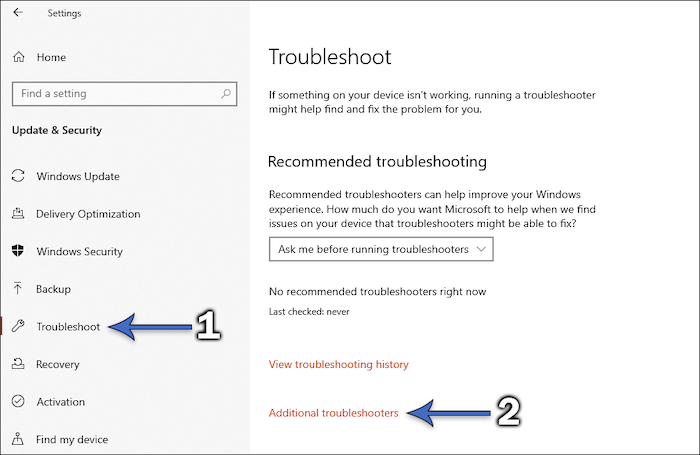
Step 3: Click "Troubleshoot".
Step 4: Scroll down to click "Additional troubleshooters".
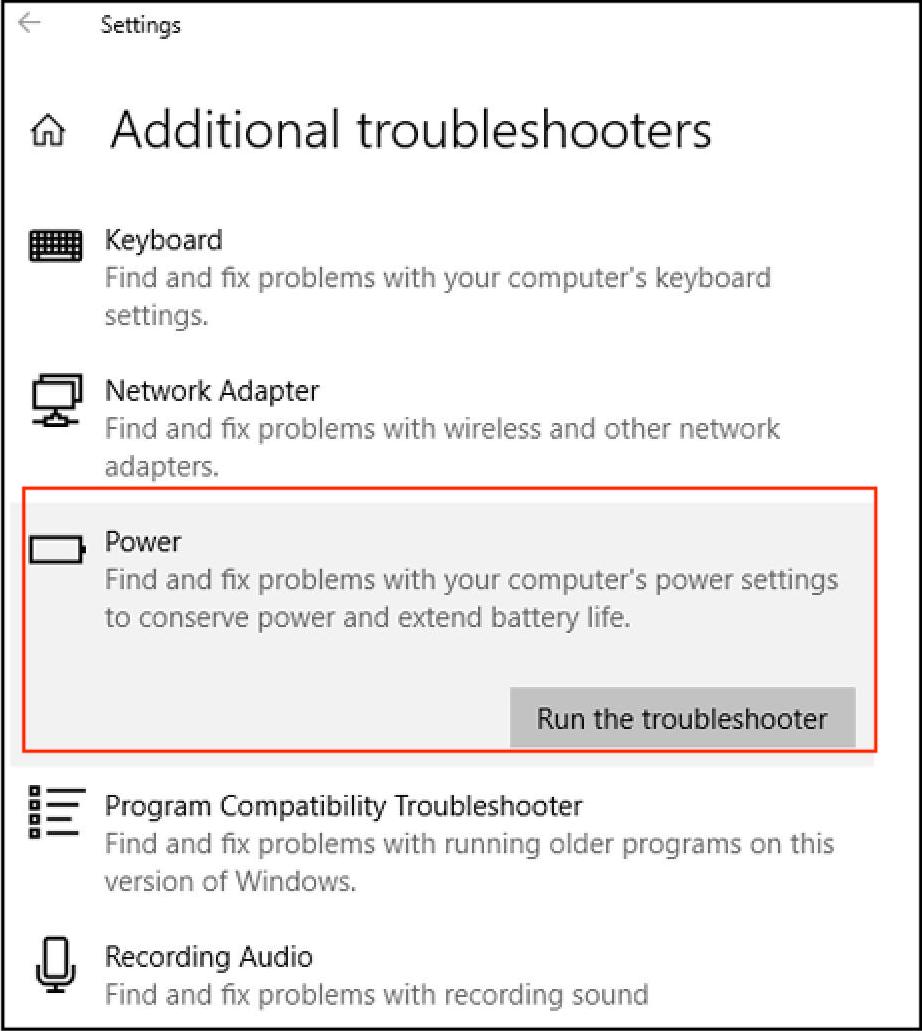
Step 5: Click "Run the troubleshooter" under the "Power" section.
#3. Disable Fast Startup if Your PC is Slow to Shutdown
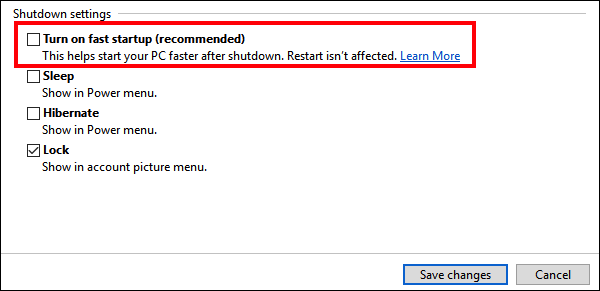
To speed up your PC's shutdown time, you can enable Fast Startup, which preloads boot information before shutting down, making it faster to turn back on. However, this may extend shutdown time, potentially putting your computer in hibernation when all sessions are logged off. Disabling Fast Startup in your settings may improve shutdown speed.
Step 1: Open Control Panel. Then, click "Power Options".
Step 2: Click "Choose what the power buttons do" on the left.
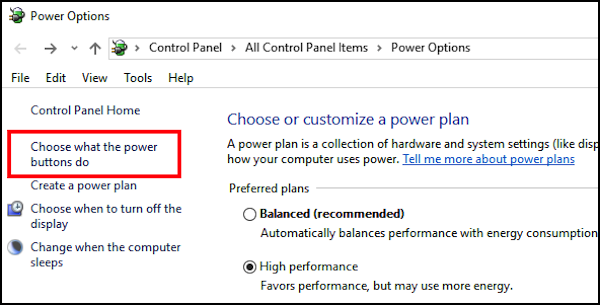
Step 3: To disable fast startup, go to Settings, then click on the "Update & Security" icon, followed by "Recovery". Scroll down to the "Shutdown settings" section and uncheck the box for "Turn on fast startup". Then click "Save changes" to apply.
Note: If these options are greyed out, you may need to click "Change settings that are currently unavailable" above.
#4. End Running Process when Windows Taking Forever to Shutdown
Slow shutdowns can often be attributed to programs running in the background, which can continue to run even after you exit them. As the computer shuts down, it has to ask each program, including those in the background, if it's okay to close them, which can significantly prolong the shutdown process. To address this issue, try closing as many running programs as possible before initiating the shutdown process, which may surprisingly make a big difference.
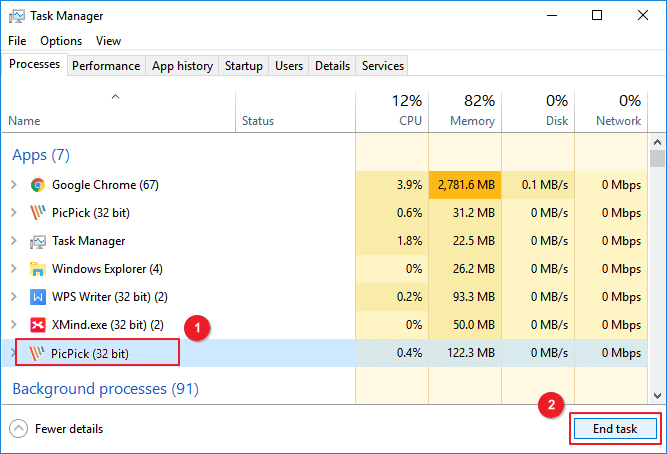
Step 1: Press "Ctrl + Alt + Delete" together to open the Task Manager.
Step 2: Running processes are listed under the "Processes" tab.
Step 3: Choose the running process you want to end and click "End task" to stop it.
If you're interested in learning more about turning off background apps, you can follow this link to find out how to stop programs from running in the background.
#5. Scan Registry when Windows Taking Forever to Shutdown
If your PC takes a long time to shut down, it might be due to corrupt registry files, and resetting Registry Editor can help speed up the shutdown process by preventing Windows from timing out when services are not responding.
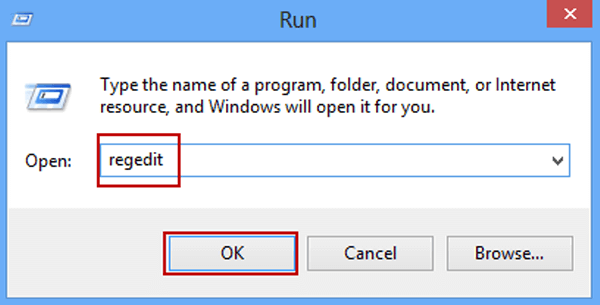
Step 1: To open the registry editor, press the Windows key + R on your keyboard to open the Run dialog box, then type "regedit" in the search box and press Enter. This will open the Registry Editor window, where you can navigate and edit the registry entries.
Step 2: Go to the path below.
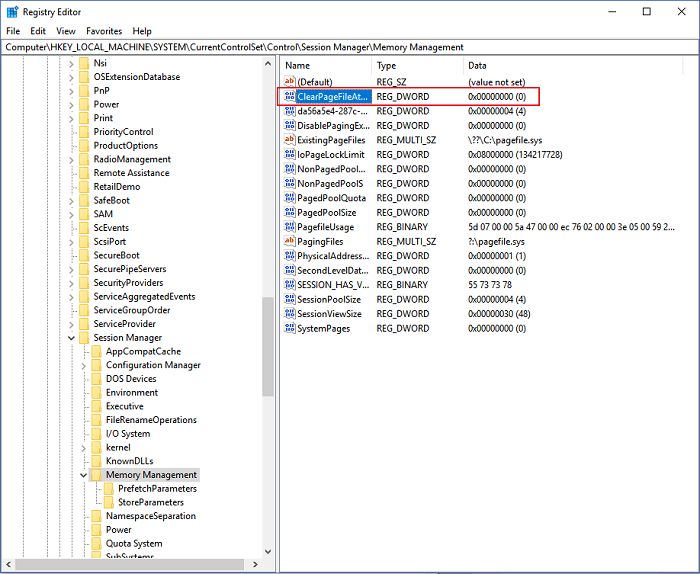
Computer\HKEY_LOCAL_MACHINE\SYSTEM\CurrentControlSet\Control\Session Manager\Memory Management
Step 3: Double-click "ClearPageFileAtShutdown", and change its value to 0.
Step 4: Then go to the path below.
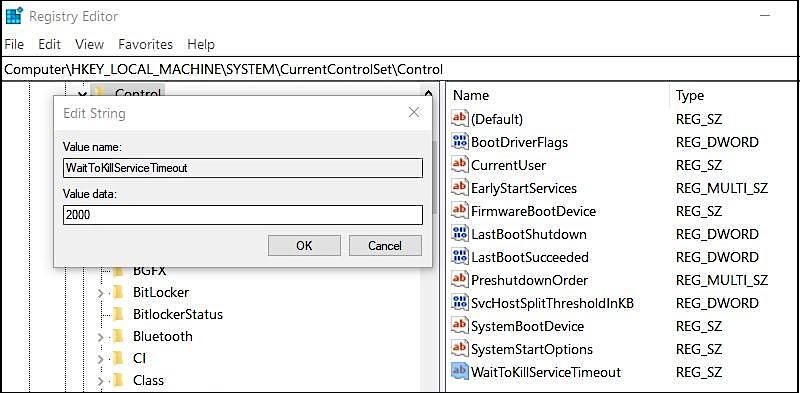
Computer\HKEY_LOCAL_MACHINE\SYSTEM\CurrentControlSet\Control
Step 5: Double-click "WaitToKillServiceTimeout" and set the value to 2000.
Conclusion
Windows users often experience frustration when their PC takes a long time to shut down, making it difficult to quickly close the device when needed.
For users who are computer novices or seeking convenience, using third-party software like Qiling Partition Master is the easiest and fastest way to speed up your shutdown speed. This software allows you to quickly and easily resolve the issue.
Related Articles
- How to Fix Windows 11 Antimalware Service Executable High CPU Usage
- Easy and Step-by-Step Guide to Use SSD for OS Only
- How to Solve Windows 10/7 C Drive Red Bar (Low Disk Space) Problem
- Why and How to Merge Partitions to Solve Disk Space Issues?
- How to Copy NTFS Partition [2024 Detailed Guide]
Copying an NTFS partition is necessary when you need to transfer data from one hard drive to another, or when you're upgrading your computer and want to keep your files. To copy an NTFS partition, you can use the built-in Disk Management tool in Windows. - How to Crack Windows Password [Step-by-Step]
Forgetting your Windows password can be frustrating, but there are solutions available. You can either crack the password without using software or utilize a reliable third-party tool like Qiling Disk Master, which can help you regain access to your Windows 11, 10, and 7 systems.
Products
Articles & Tutorials
- Data Recovery
- Data Backup
- File Recovery
- File Backup
- System Backup and Restore
- Disk and Partition Clone
- Technical articles
- Mobile articles
- Disk Master Help
- Windows Data Recovery Tutorials
- Windows Secure Delete Tutorials
- Windows Partition Management Tutorials
- Windows File Backup and Restore Tutorials
- Windows System Backup and Restore Tutorials
- Windows Disk Backup and Restore Tutorials
- Windows Clone Tutorials