How to Fix Mac Won't Shut Down Problem in 3 Minutes
| Workable Solutions | Step-by-step Troubleshooting |
|---|---|
| 1. Fix Mac Won't Shut Down Problem |
|
| 2. Ensure the Security of Open Files | Is your Mac rebooting itself for no apparent reason? It is inconvenient to return to your Mac...Full steps |
Upgrading your Mac's OS, hardware, or software, or switching from a Windows PC to a Mac, can sometimes cause it to refuse to shut down. To properly shut down your Mac, it's not necessary to unplug it or remove the battery, but you may need to force it to shut down using the "Restart" or "Force Quit" options, or try a soft reset by pressing the power button for 10 seconds. If this doesn't work, you can try booting in safe mode or running a diagnostic test to identify and resolve any issues.
The software can sometimes block your Mac from properly shutting down, causing warnings like "Application blocked shut down" or no errors at all. Peripherals or other reasons might be the culprit, but there are remedies to address the issue.
Recovering files on a Mac after a shutdown can be a frustrating experience, but there are several ways to retrieve them. One option is to use the built-in "Time Machine" feature, which automatically backs up the Mac's data to an external drive.
The user's MacBook Pro froze and shut down, resulting in the loss of a Pages document. To recover the file, they can try using the "Last Opened Documents" feature in Pages, which might still have a copy of the document. Alternatively, they can check the "Recent Documents" list in the Apple menu, which may also have a saved version of the document.
How to Fix Your Mac Won't Shut Down Problem (Around 3 Minutes)
If you're experiencing the issue where your Mac won't shut down, try the following methods. First, try restarting your Mac in safe mode by holding the Shift key while booting up.
1. Disconnect Any Peripherals
When trying to shut down your Mac, try disconnecting any attached peripherals and see if it resolves the issue. If you have an iMac, unplug everything except your mouse or Magic Trackpad to troubleshoot. This may help resolve any problems that were caused by the peripherals.
To safely remove external drives, right-click on the disk icon and select "Eject [DISK]" or drag the volume to the Trash bin. If you're unable to get a drive to eject, it's likely the source of your problem.
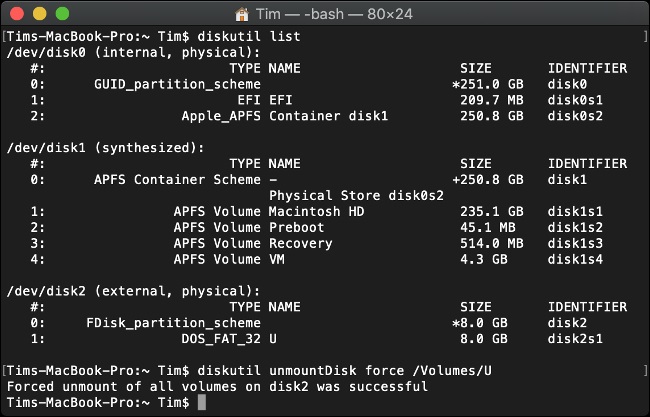
Otherwise, you can use the Terminal to force ejection with the following command:
diskutil unmountDisk force /Volumes/DISK
To acquire a list of associated drives, use the command `az storage account show --name
diskutil list
2. Force Shut Down Your Mac
To shut down your Mac, you can either shut it down normally or execute a forceful shutdown, which instantly closes all running programs. There are three ways to shut down your Mac:
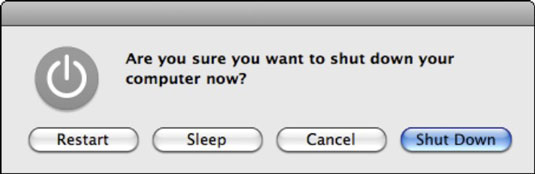
To shut down your Apple computer, select the Apple key, then choose Shut Down. A confirmation box will appear, asking if you're sure you want to turn off the computer. Click Cancel or Shut Down to exit the program, or the computer will automatically shut down after a few minutes if you don't respond.
Press the Control+Eject key combination (or press the power button). A dialogue box will appear, click the Shut Down button.
To force your Mac to shut down, press and hold the power button for a few seconds or press the Control +Option + command + Eject key combination.
A force shutdown can be helpful if your Mac's entire system freezes or hangs, but it's generally recommended to force quit the problematic program instead. This approach is usually more effective and safer than shutting down the entire system.
3. Reset SMC and PRAM/NVRAM
If you've tried the methods mentioned earlier and still haven't seen any changes, you can try resetting the System Management Controller (SMC) and PRAM/NVRAM. This can sometimes resolve issues by restoring the system to its default settings.
Reset SMC
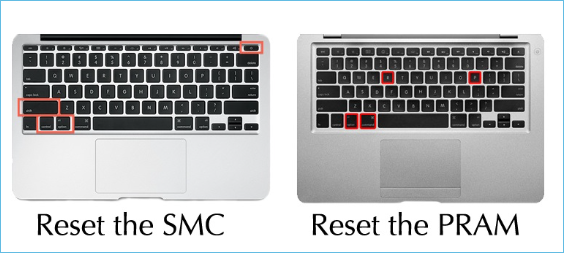
The System Management Controller (SMC) is an integrated chip in a Mac that controls energy in most physical components, located inside the logic board, and can be reset to fix issues like preventing the computer from shutting down.
Step 1. To safely shut down your Mac, turn it off and unplug the battery charger (if connected).
Step 2. Press "Shift + Control + Option" and hold the power button. Hold both keys until the Apple logo appears. Release the keys.
Step 3. Press the power button for ten seconds, then release it. This will solve your problem.
Reset NVRAM
If resetting the System Management Controller (SMC) doesn't resolve the issue, resetting the Non-Volatile Random-Access Memory (NVRAM), also known as the Parameter RAM (PRAM), may be the next step to try and resolve the problem. NVRAM stores key Mac settings and allows for quick access when needed. If you're experiencing difficulties shutting down your Mac, resetting the NVRAM might be worth a try. To do this, simply turn off your Mac, press the power button, and immediately hold down the Command (⌘) + Option (⌥) + P + R keys. Keep holding these keys until you hear the boot chimes for the second time.
Step 1.To restart a Mac, shut it down completely, then immediately turn it back on while holding down the Option, Command, P, and R keys at the same time. This key combination is used to perform a System Management Controller (SMC) reset, which can help resolve various issues, including freezes, boot problems, and other system-related issues. The SMC is a small chip on the logic board that manages power and other system functions, and resetting it can often resolve issues that are not related to the operating system or software.
Step 2.Hold down the Command (⌘) and R keys on your Mac's keyboard until you see the Apple logo and progress bar. Allow time for the device to boot. The problem will be fixed if all goes according to plan.
Take Care of Open Files When Mac doesn't Shut Down Just Restarts
If your Mac is rebooting itself for no apparent reason, it's likely due to a software or hardware issue. Check for software updates, as outdated operating systems can cause problems. Also, ensure that your startup disk has enough free space, as a low disk space can cause issues. If you're running multiple programs at once, try closing some of them to see if that resolves the issue. Additionally, check for any conflicting login items or startup programs that might be causing the problem.
If your Mac is having trouble starting, create a backup of your important data and settings. If that's not possible, you may need to wipe your Mac or take other measures to delete saved data. Before diving into in-depth troubleshooting, make sure your data is secure. Consider using a free Mac data recovery program to scan and restore lost files.
Deep Data Recovery for Mac
- Recover lost or deleted Mac files, documents, photos, audio, music, and emails with ease, using effective recovery tools and techniques.
- If you've accidentally formatted your Mac's hard drive, emptied the recycle bin, or lost data from a storage device, don't panic. You can recover deleted files from these situations using specialized software designed for Macs, such as Disk Drill, Deep Data Recovery, or Stellar Data Recovery.
- The software offers advanced scanning capabilities, allowing for sessions to be exported and imported, and providing a preview feature before initiating the recovery process.
You can follow the step-by-step guide to learn how to use this Mac data recovery software to recover the deleted or lost data.
Step 1. Launch Qiling Deep data recovery software on your PC, select file types, and click "Fast Scan" to start the recovery process.

Note: You can choose different search modes based on where and why the data was lost.
Step 2. Select the disk location where the lost data and files are stored, then click the "Scan" button to start the scanning process.

Step 3. Deep Data Recovery for Mac will immediately scan your selected disk volume and display the scanning results on the left pane.

Step 4. Select the desired file(s) from the scan results and click the "Recover" button to retrieve them.
Conclusion
Mac won't shut down troubles can occur at any time, but as an Apple user, you can rely on solutions and valuable data recovery programs like Qiling free Mac data recovery software, which boasts a 100% recovery rate to prevent data loss and mishaps.
Related Articles
- How to Recover Deleted Photos from iCloud on Mac
- TRIM SSD Data Recovery
- Screenshots Management - How to Crop a Screenshot on Mac
- 3 Steps to Clean Install macOS from USB Bootable Installer
- SanDisk Repair Tool to Fix SanDisk Memory SD Card/Pen Drive/USB/SSD
If you're looking for SanDisk SD card repair tool, SanDisk USB repair tool, or SanDisk format tool, I suggest you try the right SanDisk repair tool to fix the memory card, USB drive, Pen drive, HDD, or SSD problems according to the symptoms. - Fixed: Flash Drive Shows Up as CD Drive
This post aims to help people who saw their USB flash drive showing up as CD, DVD ROM drive on the computer. If your flash drive shows up as a CD drive and you are unable to open the USB drive in Windows 11/10/8/7, as usual, the troubleshooting here is exactly what you need.
Products
Articles & Tutorials
- Data Recovery
- Data Backup
- File Recovery
- File Backup
- System Backup and Restore
- Disk and Partition Clone
- Technical articles
- Mobile articles
- Disk Master Help
- Windows Data Recovery Tutorials
- Windows Secure Delete Tutorials
- Windows Partition Management Tutorials
- Windows File Backup and Restore Tutorials
- Windows System Backup and Restore Tutorials
- Windows Disk Backup and Restore Tutorials
- Windows Clone Tutorials