3 Steps to Clean Install macOS from USB Bootable Installer
Quick Navigation:
| Workable Solutions | Step-by-step Troubleshooting |
|---|---|
| 3 Steps to Clean Install macOS |
Step 1. Download macOS...Full steps Step 2. Create the bootable installer after...Full steps Step 3. Install macOS from the bootable...Full steps |
To upgrade or install the latest macOS update on your Mac, you can use the Software Update option within the system. However, for a clean install of a macOS version, you'll need to install it from an external drive or USB.
Some Basics of macOS install from a bootable USB Drive
Installing a Mac operating system can be a challenging process, requiring the use of Terminal command lines and creating a bootable installer. However, we aim to make this process simple and error-free. To start, let's address some frequently asked questions that users often have.
Q1: Why do you install macOS from USB?
Installing macOS from a USB drive offers several advantages over the automatic software update option. With a USB installation, you can choose the specific version of macOS you want to install, which is not possible with an automatic update.
- You can do a clean install of macOS on your Mac to get rid of junk apps and files that are piling up on your device, allowing you to start fresh with a clutter-free system.
- Troubleshooting Mac startup issues, fixing corruption, or recovering files can be useful.
- Installing macOS on multiple systems and machines can be a time-consuming and labor-intensive process. However, using a single macOS installation file and a cloning or imaging tool can save time and effort by allowing you to create a duplicate of the installation on each machine, eliminating the need to reinstall macOS on each device individually.
Q2: How do I create a bootable installer for macOS?
The available installers for various macOS versions, including Monterey, Big Sur, Catalina, Mojave, High Sierra, and El Capitan, can be found on the Mac App Store. To create the installer, you will need to use specific Terminal commands for each respective macOS version.
Q3: Can I install macOS from USB without the internet?
A bootable installer for macOS doesn't download the operating system from the internet, but it does need an internet connection to obtain firmware and other model-specific information for the Mac being installed on.
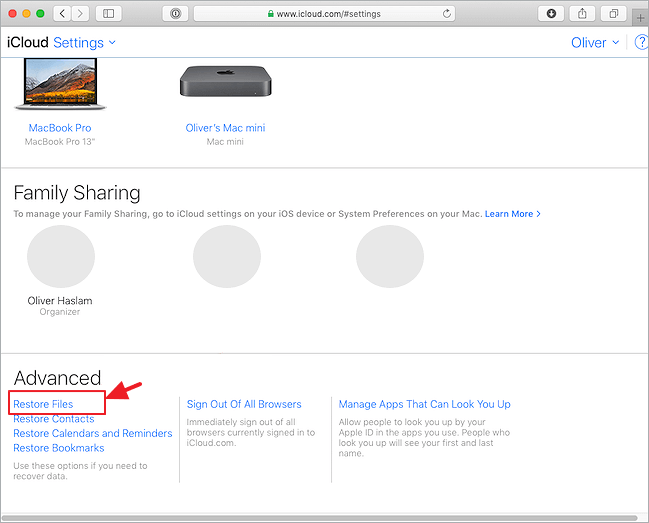
How to Recover Files After Factory Reset Mac?
Reinstalling macOS or factory resetting a Mac is often necessary after a system crash, computer slowdown, or when preparing to sell an old Mac computer. This process allows users to erase all data and settings, returning the device to its original factory settings.
Step 1. Download macOS
To install the desired macOS version, click the download link for it.
- macOS Monterey
- macOS Big Sur
- macOS Catalina
- macOS Mojave
- macOS High Sierra
When downloading macOS, the installer will be saved to the Applications folder as an app called "Install macOS [version name]". If the installer opens automatically, quit it without proceeding with the installation. To get the correct installer, download it from a Mac running macOS Sierra 10.12.5 or later, or El Capitan 10.11.6. Enterprise administrators should download from Apple's website, rather than a locally hosted software-update server.
OS X El Capitan is presented in a disk image format named InstallMacOSX.dmg.
Step 2. Create the Bootable Installer After Download
To create a bootable macOS installer on a 16GB USB drive, use a vacant drive, and ensure that you've backed up any data from an old USB drive you plan to reuse. The installer process will format and erase all data on the USB, so save your data beforehand. Additionally, the USB drive needs to be formatted as Mac OS Extended (HFS+) to work properly.
Connect the external USB drive to your Mac, which will be used for the bootable installer. To create the bootable installer, you'll need to apply the 'createinstallmedia' command in Terminal for the following six operating systems.
- In the Finder, find the Applications/Utilities folder, then double-click Terminal.
- Each macOS installer needs an exclusive command line in the table. We suggest you copy one of the following commands and paste it in Terminal. (You may require to replace MyVolume in all the command lines with the real name of your own USB flash drive.)
Monterey:
sudo /Applications/Install\ macOS\ Monterey.app/Contents/Resources/createinstallmedia --volume /Volumes/MyVolume
Big Sur:
sudo /Applications/Install\ macOS\ Big\ Sur.app/Contents/Resources/createinstallmedia --volume /Volumes/MyVolume
Catalina:
sudo /Applications/Install\ macOS\ Catalina.app/Contents/Resources/createinstallmedia --volume /Volumes/MyVolume
Mojave:
sudo /Applications/Install\ macOS\ Mojave.app/Contents/Resources/createinstallmedia --volume /Volumes/MyVolume
High Sierra:
sudo /Applications/Install\ macOS\ High\ Sierra.app/Contents/Resources/createinstallmedia --volume /Volumes/MyVolume
El Capitan:
To create an El Capitan installation media, run the following command in Terminal: `sudo /Applications/Install\ OS\ X\ El\ Capitan.app/Contents/Resources/createinstallmedia --volume /Volumes/MyVolume --applicationpath /Applications/Install\ OS\ X\ El\ Capitan.app`
After typing the command in Terminal, press Return to enter the command. You will then be prompted with confirmation warnings, which you can respond to by typing 'Y', including confirming the erasure of the USB volume, approving Terminal to access files on the volume, and allowing the copy to proceed.
Once all operations are complete, the USB drive will have the same name as the installer you downloaded, such as "Install macOS Monterey". At this point, quit Terminal and disconnect the USB drive, then proceed to the final installation procedure.
Step 3. Install macOS from the Bootable Installer
To boot a Mac from a bootable USB drive, the process differs between Intel-based Macs and Apple Silicon-based Macs.
| Intel Macs | Apple Silicon Macs |
|---|---|
|
|
|
|
Closing Words
To download macOS, create a bootable installer on an external USB, and then perform a clean install, follow these simple steps: use Terminal command lines to erase and format the USB drive with a proper file system, and then save the installer to it. Note that while this process is generally straightforward, there is a small chance of data loss, and it's a good idea to use a hard drive recovery software like Qiling in case you need to recover files while reinstalling macOS.
Deep Data Recovery for Mac
- Recover lost or deleted files, documents, photos, audio, music, and emails with ease, thanks to advanced data recovery software and techniques that can effectively retrieve and restore lost data, even from damaged or corrupted storage devices.
- To recover emptied Trash bin, memory card, flash drive, digital camera, and camcorders, you can try using data recovery software. This software can scan the device for deleted files and attempt to recover them.
- Data recovery support is available for various situations, including sudden deletion, formatting, hard drive corruption, virus attacks, and system crashes, to help restore lost data and minimize downtime.
Related Articles
- Mac is slow! How to fix a Mac running slow, laggy, and freezing a lot
- How Recover Deleted or Unsaved InDesign Files on Mac
- Repair and Recover Your Corrupted SD Card on Mac
- How to Recover Deleted iMessages on Mac with Four Effective Ways
- How to Delete Files, Folders, and Directories in Linux Using Command
To delete a file in Linux, simply navigate to the Terminal and use the 'rm' command followed by the file name. For example, to delete a file named 'example.txt', you would type 'rm example.txt' and press enter. - Ultimate Guide on SD Card Recovery
Recover deleted photos, videos, and files from SD cards used in digital cameras. Learn safe recovery methods for Windows, Mac, and Android.
Products
Articles & Tutorials
- Data Recovery
- Data Backup
- File Recovery
- File Backup
- System Backup and Restore
- Disk and Partition Clone
- Technical articles
- Mobile articles
- Disk Master Help
- Windows Data Recovery Tutorials
- Windows Secure Delete Tutorials
- Windows Partition Management Tutorials
- Windows File Backup and Restore Tutorials
- Windows System Backup and Restore Tutorials
- Windows Disk Backup and Restore Tutorials
- Windows Clone Tutorials