How to Recover Formatted Hard Drive on Mac with Unformat Software
Help! Accidentally Formatted Hard Drive Mac, How to Unformat?
"Is there any way or software to unformat Mac hard drive? I have accidentally formatted an 80GB external Fujitsu hard drive on my Mac while backing up the Mac with Time Machine. This hard drive contained family albums with thousands of photos. How can I recover formatted hard drive Mac to get back crucial pictures? Please help!"
If you've encountered the same problem, finding a way to unformat your Mac hard drive can be extremely urgent. You might think it's difficult or impossible to recover data from a formatted hard drive, but it's not. With a professional and easy-to-use data recovery software for Mac, you can recover your data with a high success rate. We highly recommend trying Deep Data Recovery for Mac, which has the highest chance of successfully recovering formatted hard drive on Mac.
Free Download Mac Unformat Tool - Deep Data Recovery
After formatting a hard drive on Mac, you can still recover data if you haven't overwritten the old files. It's a relatively simple process, and you can use software like Qiling, a well-established data recovery tool with over a decade of experience. Its high product quality and recovery capabilities make it stand out from other options, making it one of the best Mac file recovery tools available.
Qiling data recovery software allows you to:
- Recover deleted files from various storage devices, including PCs and Macs, hard drives and solid-state drives, USB flash drives, SD and CF cards, digital cameras, and mobile devices like iPhones and Androids.
- Data recovery software can recover files in various scenarios, including accidental deletion, formatting, system crashes, emptying the Trash bin, virus attacks, and more, providing a safeguard against data loss.
- Advanced data recovery software can recover virtually any type of image, video, audio, archive, or document file that has been lost or deleted, including but not limited to: images (jpg, png, gif, etc.), videos (mp4, avi, mov, etc.
- You can recover files from various file systems, including APFS, HFS+, HFS X, FAT (FAT16, FAT32), exFAT, and NTFS partitions.
Deep Data Recovery can recover formatted hard drives, deleted files, lost data after OS reinstallation, and files from formatted USB drives, among other things.
How to Recover Formatted Mac Hard Drive in 3 Steps
With the easy-to-use data recovery software, this process involves simple steps that can help you retrieve your important files and data.
Step 1. Launch Deep Data Recovery. Select file types and click "Format Scan" to begin the recovery process.

Note: You can choose different search modes based on where and why the data was lost.
Step 2. Select the disk location where you lost data and files, then click the "Scan" button.

Step 3. Deep Data Recovery for Mac will immediately scan your selected disk volume and display the scanning results on the left pane, showing the files and folders found.

Step 4. To recover your files, select the desired file(s) from the scan results and click the "Recover" button to have them restored.
Deep Data Recovery for Mac is a versatile software tool that helps recover data from formatted external hard drives, and is a wise choice to equip your Mac with a data recovery tool to rescue your data when unexpected data loss happens.
How to Recover Formatted Hard Drive on Mac for Free
To recover data from a Mac-formatted hard drive for free, use the free version of Deep Data Recovery, which allows you to recover up to 2GB of data. If you have less than 2GB of formatted data, you can use the free version. Otherwise, you'll need to upgrade to the pro version to recover more data.
Why Can We Recover Data from Formatted Hard Drive on Mac
When a hard drive is formatted, it doesn't completely erase files. The operating system, such as Windows or macOS, only removes the entry and marks the space occupied by the deleted data as available for later use. This means that files can still be recovered from a formatted hard drive, as the data itself is not deleted, but rather the pointer to it is removed.
Ideally, after formatting or deleting files, it's best to stop using the hard drive and immediately apply a data recovery program to scan and recover the lost files. The sooner you initiate the recovery process, the better your chances of successfully retrieving the deleted files.
Bonus Tips: How to Protect Mac Hard Drive Data
Formatting a hard drive can lead to data loss, and writing new data to the same space can cause the original data to be overwritten and become unrecoverable. To maximize data recovery, it's essential to stop using the hard drive and use specialized software to recover as much data as possible before writing new data to the marked space.
Making a backup of data is much easier than data recovery, and you can protect your Mac data by copying files to an external hard drive or uploading them to a cloud drive, or using a Mac backup and recovery software like Qiling Backup to create regular backups.
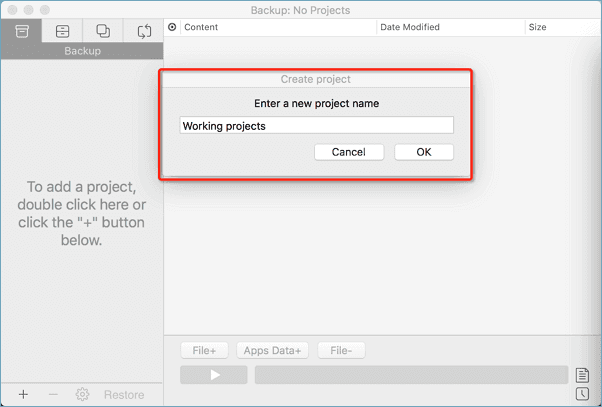
Step 1. Launch and run Qiling Backup for Mac.
To create a backup project, click the "Backup" tab or simply click the "+" button at the bottom-left corner, then name the backup project and click "OK".
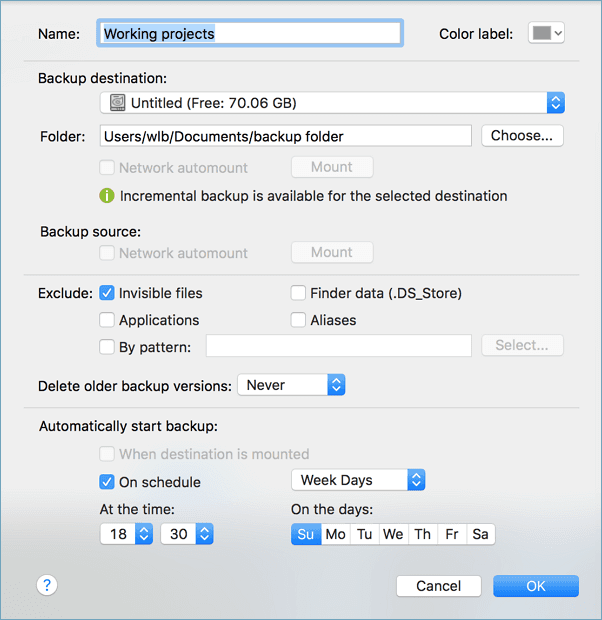
Step 2. Set up the backup destination to store Mac files as backups, automatic backup frequency, and click "OK".
Step 3. To add files and folders to the backup project, click "File+" to select them individually, and then click the blue "Start" button to initiate the backup process.
Other Useful Ways to Protect Files on Mac Hard Drive
- Be cautious when working with your computer's hard drive to avoid accidental formatting, which could lead to data loss.
- Install and upgrade antivirus software to minimize the risk of viruses and malware infection.
- To protect your hard drive, avoid exposing it to excessive heat and moisture, which can cause damage and compromise data safety. Keeping the device at a comfortable temperature will help ensure the integrity of your data.
- Stop using your hard drive once data loss happens.
- Use a reliable Mac data recovery tool to recover a formatted drive on Mac. This tool can scan the drive and recover deleted or formatted files, even if the drive is no longer recognized by the operating system. It's essential to stop using the drive immediately to prevent overwriting the data.
See More: How to Format a Hard Drive for Mac
Here are the steps to format a Mac's drive using macOS's built-in Disk Utility for FAT32 or exFAT in one paragraph:
Step 1. To access the Disk Utility, connect your hard drive or external hard drive to your Mac and double left-click on the Mac HD, which is the internal Mac hard drive visible on the desktop screen's top-right corner. From there, select "Applications > Utilities > Disk Utility".
Step 2. Select your hard drive on the sidebar, choose "Erase".
Step 3. To format a drive, select it, choose the file system (e.g. MS-DOS (FAT) or ex-FAT), and click "Erase".
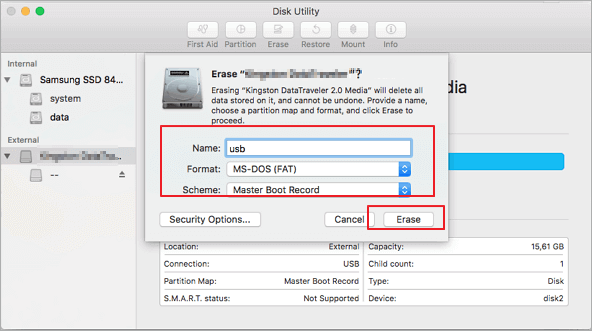
Wait for the process to complete and let the macOS erase it on the drive and reform it by FAT32 or ex-FAT format.
Conclusion
You can recover Mac formatted hard drive data using Qiling data recovery software, which also helps recover crashed, damaged, dead, or corrupted hard drives on Mac or Windows due to various reasons.
Recover Formatted Hard Drive Mac FAQs
Here are common FAQs that you may be interested in. Check if any of them could help you.
Can you recover a formatted hard drive?
You can recover all data from a Mac-formatted hard drive if it was formatted via a quick format. As long as new data haven't overwritten the lost files, you can unformat the hard drive and retrieve the lost files using hard drive recovery software.
How do I recover files from a formatted hard drive Mac?
To unformat a Mac hard drive and recover files, start by connecting the hard drive to your Mac using a USB cable. Then, open Disk Utility and select the hard drive from the sidebar.
Step 1. Launch Qiling Mac data recovery software, select the disk location and click the "Scan" button.
Step 2. This software will immediately scan your selected disk volume and display the scanning results on the left pane.
Step 3. Select the desired file(s) from the scan results, then click "Recover Now" to retrieve them.
How do I unformat an external hard drive on Mac?
To unformat an external hard drive:
Step 1. Connect the external hard drive to your Mac, launch Qiling Mac data recovery software, and select the disk location where the data is stored, then click "Scan" to start the recovery process.
Step 2. This software scans an external hard drive and displays the results in the left pane.
Step 3. Select the file(s) you want to recover from the scan results and click "Recover Now" to retrieve them.
How do I fix a corrupted hard drive Mac?
To fix a corrupted hard drive or external hard drive on Mac, you can try the methods below. However, before attempting to fix it, it's essential to back up and recover data from the corrupted hard drive to avoid data loss due to improper operation.
- Check if your external hard drive is properly connected to your Mac, and that the drive is turned on and recognized by the computer. If it's not recognized, try restarting your Mac and re-plugging the external hard drive. If the issue persists, try using a different USB port or cable to rule out any issues with the current one.
- If your hard drive is corrupted, you can try to fix it by running First Aid in Disk Utility. This tool can check and repair minor logic errors on the drive, which may resolve the issue. To do this, open Disk Utility, select the corrupted drive from the list on the left, and click the "First Aid" button at the top.
- Method 3. Repair the corrupted external hard drive by formatting
How to read Mac formatted drive on Windows PC?
HFSExplorer is a free tool that allows Windows users to access and read drives formatted with Apple's HFS+ file system, providing a completely free way to access a Mac formatted drive on a Windows PC.
Follow procedures below to use HFSExplorer:
Step 1. Install HFSExplorer (https://www.catacombae.org/hfsexplorer/) like any other Windows program.
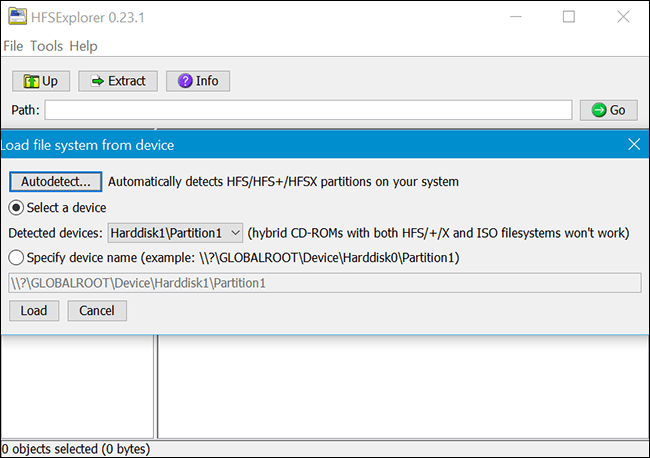
Step 2. Connect the Mac formatted drive to your Windows PC and launch HFSExplorer, which is a free software that allows you to access and read Mac-formatted drives on Windows.
Step 3. To load a file system from a connected device, click the "File" menu and select "Load file system from device". This will automatically detect and load the connected drive.
Step 4. Select the files or folders you want to extract, click "Extract", and choose a folder to copy the files.
Related Articles
- 10 Steps to Fix "There is No Connected Camera" on Macbook Air/Pro/iMac 2022
- External Hard Drive Data Recovery Mac: How to Recover Deleted Files from External Hard Drive
- How to Recover Deleted Applications on Mac with Free and Proved Ways
- SnowRunner Lost Save Files on Steam/PS/Xbox | SnowRunner Recovery
How to Fix SnowRunner lost save files on PC, PS, Xbox, or Switch. We will introduce detailed methods to help you find lost game files, and you can use Deep Data Recovery to recover lost game files quickly. - How to Recover Data from Dead SSD
If your SSD is dead, you must learn how to recover data from dead SSD. Otherwise, you'll lose all the files. Here is the guide for how to recover files from dead SSD in Windows 10/8/7/XP or Mac. - How to Recover Data from Digital Camera Memory Card
It's very easy to lose and deleted videos and photos from a digital camera memory card. Check out the guide for digital camera memory card recovery.
Products
Articles & Tutorials
- Data Recovery
- Data Backup
- File Recovery
- File Backup
- System Backup and Restore
- Disk and Partition Clone
- Technical articles
- Mobile articles
- Disk Master Help
- Windows Data Recovery Tutorials
- Windows Secure Delete Tutorials
- Windows Partition Management Tutorials
- Windows File Backup and Restore Tutorials
- Windows System Backup and Restore Tutorials
- Windows Disk Backup and Restore Tutorials
- Windows Clone Tutorials