Recover Files after Factory Reset Mac or Reinstalling macOS in 2022
Discover practical solutions to recover and restore Mac files after a factory reset, as well as a guide on how to reset a MacBook Pro without losing any data.
| 3 Ways - Recover Files after Mac Factory Reset |
Step-by-step Troubleshooting |
|---|---|
| 1. Run Mac File Recovery Software | If you didn't back up your Mac before, the Mac file recovery software can scan and recover lost data...Full steps |
| 2. Restore from Time Machine | Connect your Time Machine backup disk to your Mac...Full steps |
| 3. Restore from iCloud Backup | Visit iCloud.com via your Mac browser, sign with your Apple ID...Full steps |
Applies to: MacBook Pro, MacBook, MacBook Air, iMac, iMacPro, etc.
How Do I Recover Files from My MacBook after Factory Reset?
I recently had to reinstall my macOS on my MacBook after it crashed, but unfortunately, I lost some important files like photos and documents in the process.
After reinstalling macOS, you can try using the built-in "Disk Utility" tool to recover files. To do this, go to Disk Utility, select the drive you want to recover files from, and click on the "First Aid" button. Then, select the "Recovery Mode" option and follow the on-screen instructions.
Mac users often reinstall macOS, Mac OS X, or factory reset their Macs after a system crash, computer slowdown, or when preparing to sell their old Mac.
Can You Recover Files after Factory Reset Mac or Reinstall macOS? Yes!
You can recover lost files after reinstalling macOS or Mac OS X on your Mac. Despite the data loss, there is still hope for retrieving your files.
macOS reinstallation or factory resetting a Mac only performs a quick erase of the volume, which erases the file directory without overwriting the original data on the drive.
The ability to recover files after reinstalling the Mac operating system is possible, thanks to this feature, as long as you act quickly.
If you've lost your data due to a macOS/Mac OS X reinstall, stop using your computer to prevent further data overwriting. Instead, learn how to recover your lost Mac files on your own.
How to Recover Files After Reinstalling macOS/Mac OS X [3 Fixes]
If you've factory reset your Mac or re-installed macOS, recovering your files depends on whether you have a backup. If you do, you can restore your files from the backup. If not, there are still three practical ways to recover your Mac files, the three methods below.
- #1. Run Mac File Recovery Software for Help
- #2. Restore from Time Machine Backup from External Disk
- #3. Restore from iCloud Backup
The sooner you implement the file recovery method, the better chance you have of successfully restoring lost Mac data. Depending on your specific situation, choose the appropriate solution and follow the tutorial to quickly recover your lost files.
#1. Restore Mac Files after Factory Reset using Mac File Recovery Software
If you've reinstalled macOS or Mac OS X without a backup, this tool can help you find and recover all the files you lost during the process.
When you lost data after factory resetting your Mac, reinstalling the latest macOS or earlier Mac OS X, you can eliminate your worries by using reliable Mac data recovery software.
Among the numerous Mac data recovery tools, Deep Data Recovery is a recommended option to try. It is 100% effective in restoring files after reinstalling macOS or Mac OS X, making it a reliable choice for recovering lost data.
This software can easily scan a Mac hard drive or external storage device to recover lost files after reinstalling macOS or Mac OS X, even if no backups were made. Its effectiveness has been proven by its users, making it a reliable option to try.
Steps to Recover Files After Reinstalling macOS/Mac OS X
Step 1. Launch Deep Data Recovery. Select file types and click "Fast Scan" to start.

Note: You can choose different search modes based on where and why the data was lost.
Step 2. Select the disk location where you lost data and click the "Scan" button.

Step 3. Deep Data Recovery for Mac scans your selected disk volume immediately and displays the scanning results on the left pane.

Step 4. To recover your files, select the desired file(s) from the scan results and click the "Recover" button. This will restore the files to their original location.
Deep Data Recovery for Mac is the top choice for Mac data recovery due to its strength, security, and user-friendliness.
If you're unable to recover your files from a previous backup, you can use the recovery tool to restore more files from the following cases: deleted files, files with corrupted data, files from an old version of the software, or files that were accidentally overwritten. This tool can also be used to restore files from a previous version of the software, or to recover files that were deleted due to a system crash or other unexpected event.
- Recover files lost due to various data loss situations, including accidental deletion, formatting, system crashes, virus attacks, and more, with efficient recovery tools and techniques.
- Data can be retrieved from various storage devices, including internal and external hard drives, USB drives, memory cards, SD cards, cameras, and other storage devices. This allows for the recovery of important files, photos, and videos that may have been lost or deleted.
- Recover lost or deleted Microsoft files, photos, videos, music, Adobe files, and over 200 other file types with a single tool.
#2. Restore from Time Machine Backup on External Disk
You can recover lost files on your Mac after a factory reset by using Time Machine backups stored on an external disk. Connect the external disk to your Mac, open Time Machine, and select the backup that was created before the factory reset. Then, browse through the backup to locate the files you need to recover.
If you've factory reset your Mac, you can try to recover lost files using Time Machine backup. If you've created a Time Machine on an external hard drive, you can use it to restore your files. This method can be a practical solution to recover lost files after a factory reset.
You can recover your lost Mac files with a 100% success rate. To do this, follow these steps: first, make sure you have a backup of your Mac files, either through Time Machine or another backup method; if you don't have a backup, you can try using data recovery software to scan your Mac's hard drive for lost files; if you've reinstalled macOS or Mac OS X, you can try using a recovery mode to restore your files from a previous backup; if all else fails, you can try contacting a professional data recovery service for help.
Restore Factory Resetting Deleted Files from Time Machine Backup
Step 1. Make sure your Time Machine backup external disk is connected to your Mac and turned on.
Step 2. To access Time Machine on a Mac, open Launchpad and click on the "Others" tab. From the list of available apps, click on the Time Machine icon to launch it. This will take you directly into the Time Machine interface, where you can manage backups and restore files as needed.
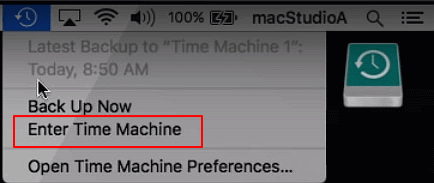
Step 3. To recover your lost files, you can use the Up and Down arrows to scroll through the timeline and browse through the backups that contain your lost files.
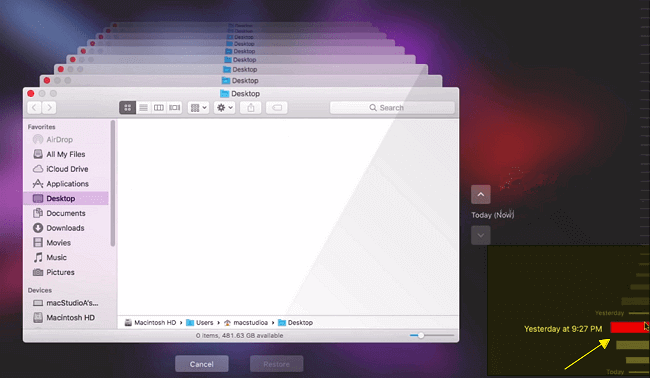
Step 4. Find the lost Mac files you want to recover, click "Restore" to retrieve them.
On macOS Big Sur, Catalina, or Mojave, the software can automatically recover lost data from a Time Machine backup.
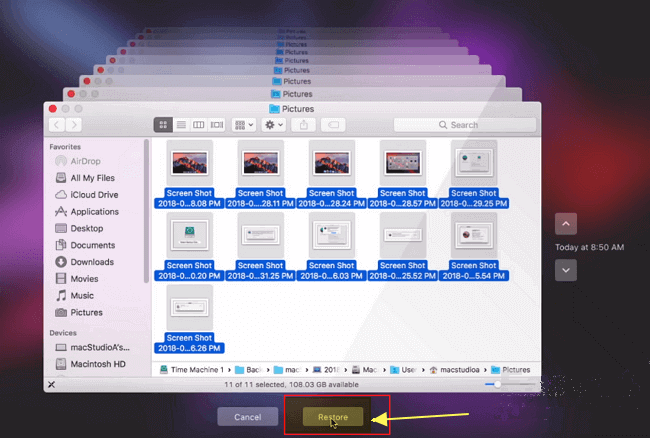
After reinstalling macOS/Mac OS X, you can restart your Mac and view the previously lost files again, which you can then reuse.
#3. Recover Files after Factory Reset Mac from iCloud Backup
This service allows users to sync and restore Mac data from an iCloud backup, completely free of charge.
If you synced or uploaded important Mac data to iCloud before factory resetting or reinstalling macOS, you can easily restore your lost files from the iCloud backup.
Steps to Recover Files due to Factory Reset on Mac
Step 1. Visit iCloud.com via your Mac browser, and sign in with your Apple ID.
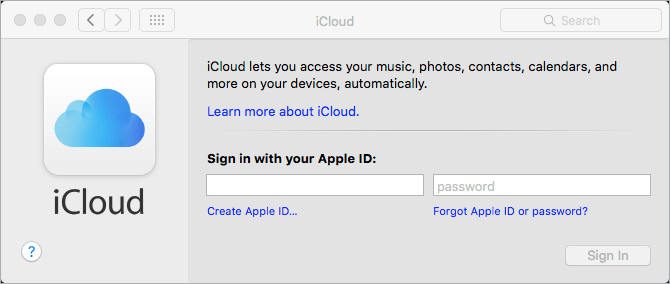
Step 2. To restore files, go to Settings, scroll down to the bottom, and click on "Restore Files" under Advanced.
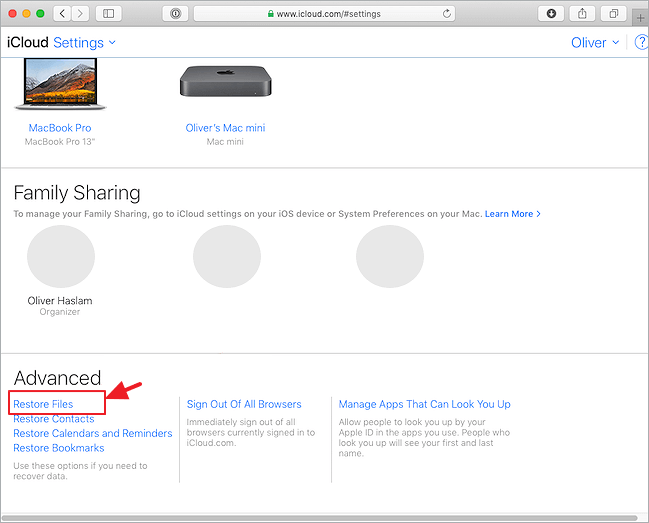
To restore contacts, bookmarks, calendars, and reminders from iCloud, click the corresponding option under Advanced.
Step 3. Check the backup files or click "Select All" if you really need to restore everything. Click the Restore button to recover them.
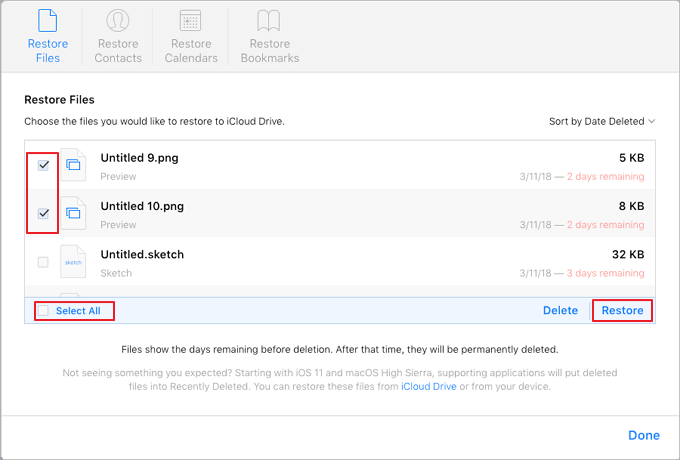
After completing the tutorial steps, most of your files lost due to a factory reset or macOS reinstallation will be restored on your computer.
Bonus Guide: Factory Reset Mac or Reinstall macOS/Mac OS X without Losing Data
If you've performed a factory reset on your Mac and lost important files, you can attempt to recover them by trying the recommended fixes, such as using Time Machine backups, restoring from a backup, or using data recovery software. However, this process can be complex and time-consuming.
To factory reset your Mac or reinstall macOS without losing any data, follow these brief steps. First, create a backup of your Mac using Time Machine or another backup method to ensure your files are safe.
#1. Back-Up Your Mac Data to an External Device First
It's essential to back up all your data before any potential issues arise, and you can do this by using Time Machine to copy files to an external disk or by utilizing reliable Mac file backup software for assistance.
You can either use software to backup your files or manually copy them to an external hard drive one by one.
To save your time and energy, we would like to recommend you try Time Machine or Qiling Backup.
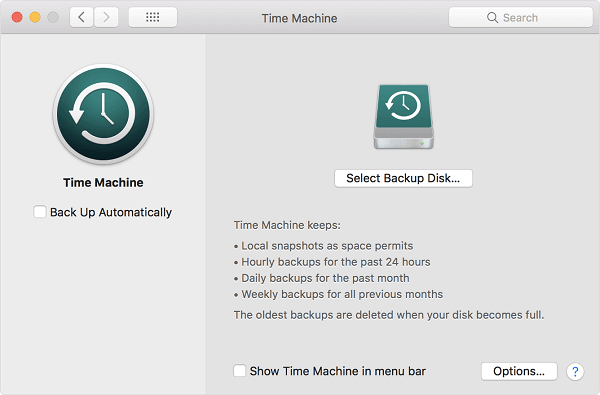
- Using Time Machine
- Pros: ①. Free; ②. Easy to Use;
- Cons: You need to manually select files one by one for the backup process.
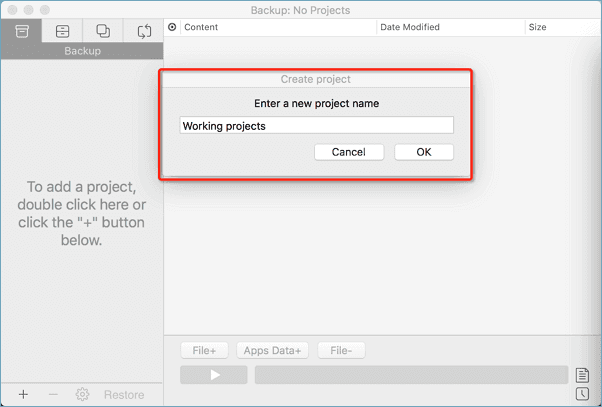
- Using Qiling Backup
- Pros:The software is easy to use and allows for a 3-step process to back up your Mac to an external disk.
- Cons: Not free.
#2. Prepare Mac for Factory Resetting or macOS Reinstallation
Before reinstalling macOS or Mac OS X, you should prepare by backing up your important files, ensuring you have the correct installation media, and verifying your computer's compatibility with the latest operating system version.
- 1. Deauthorize iTunes
- 2. Turn off FileVault
- 3. Disable iCloud
- 4. Sign out of iMessage
- 5. Erase Touch Bar Data
When you are done with the preparations, you may now start factory resetting or reinstall your Mac OS X or macOS with the next tip.
#3. How to Reset or Factory Reset MacBook Pro, MacBook, MacBook Air, iMac/iMac Pro
To start the reset process on your Mac, follow these steps:
Step 1: Reboot Mac in Recovery Mode
To restart your Mac and access the macOS Utilities window, simply restart your computer and, as it's booting up, hold down both the 'Command' and 'R' keys simultaneously. This will bring up the Utilities window, allowing you to access various system functions and utilities.

Step 2: Erase Mac hard drive
To erase your Mac's startup disk, open Disk Utility, click 'Continue', select your startup disk (Macintosh HD), click "Erase", choose "Mac OS Extended (Journaled)", and click "Erase".
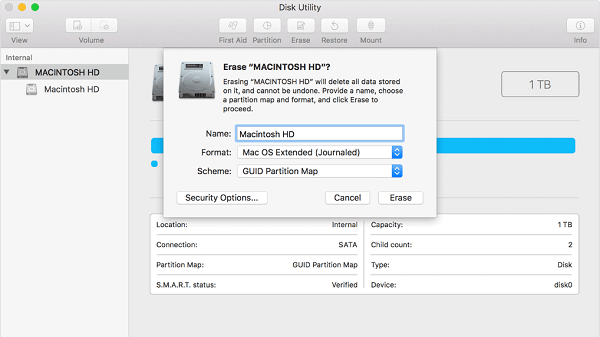
Step 3: Reinstall macOS on your Mac computer
To reinstall macOS, start by booting into macOS Utilities, then click "Reinstall macOS" and confirm to proceed. Follow the on-screen instructions to complete the process.
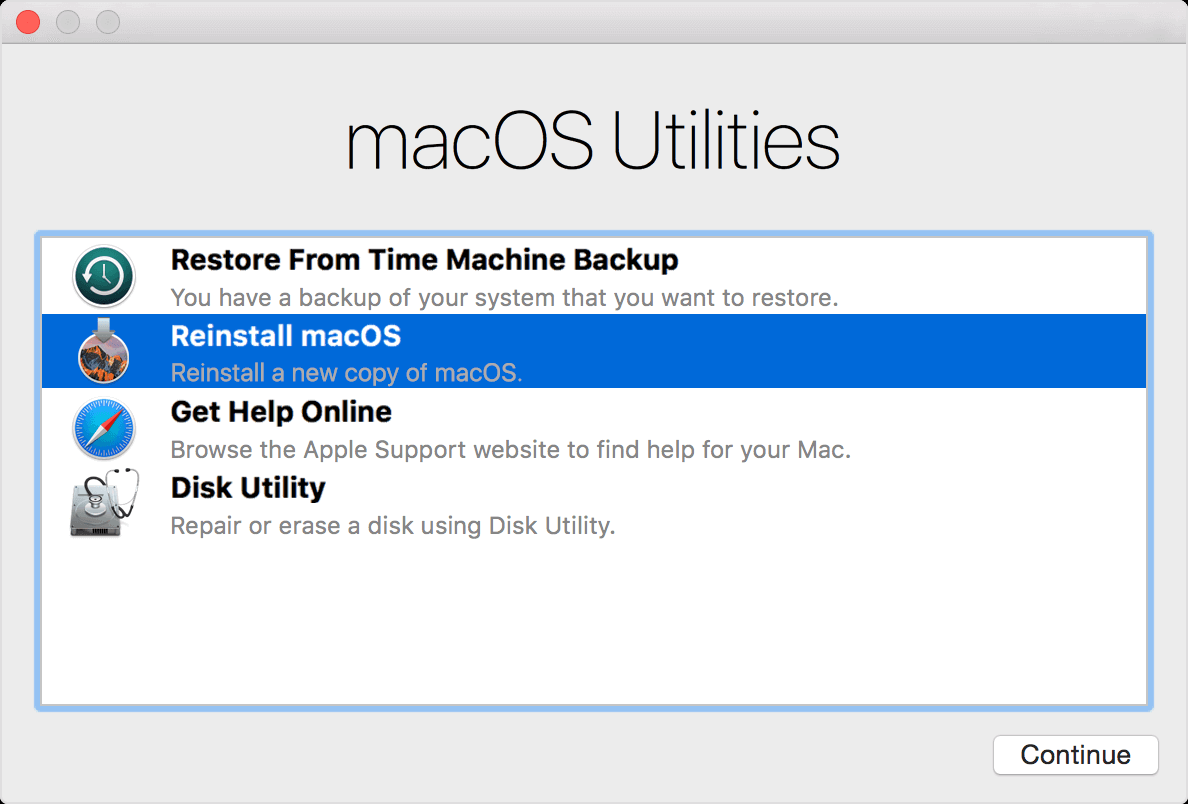
Congratulations, you've successfully reinstalled your macOS and your Mac now works like a brand new computer! After completing the process, you can enjoy a fresh start with your device.
#4. Restore Files from Backup
If you have backed up your data in advance, you can restore it on your Mac using Time Machine or Qiling Backup.
Conclusion
If you've performed a factory reset on your Mac or reinstalled macOS/Mac OS X, you may be wondering how to restore your files. Fortunately, there are three practical solutions to help you recover your lost files. First, you can try using Time Machine, a built-in backup feature that automatically saves your files to an external drive.
If you didn't create a backup before resetting your Mac, consider using Deep Data Recovery for Mac as an emergency solution. It will thoroughly scan and recover your lost files quickly.
If you're looking for a step-by-step guide on how to reset your MacBook Pro, you can find the instructions in the last part of this page. For additional tips on recovering data, visit our website's Mac File Recovery page for assistance.
Related Articles
- Best Data Recovery Solutions for Mac with T2 Chip in 2022
- Fix Corrupted Hard Drive on Mac with Two Methods
- MacOS Update VS. Clean Install: Which One to Choose
- Follow Our Tips to Resolve A Collection of Mac No Startup Disk Issues
- How to Fix Windows 10 Update Error Code 0x80070002
Error code 0x80070002 can be frustrating, but it's not impossible to resolve. Here are four methods to help you fix this issue, presented in a step-by-step manner. - How to Fix Xbox One Only Shows Green Screen
Are you experiencing issues with your Xbox One, only showing a green screen? This article is here to help you troubleshoot the problem and get your console up and running again.
Products
Articles & Tutorials
- Data Recovery
- Data Backup
- File Recovery
- File Backup
- System Backup and Restore
- Disk and Partition Clone
- Technical articles
- Mobile articles
- Disk Master Help
- Windows Data Recovery Tutorials
- Windows Secure Delete Tutorials
- Windows Partition Management Tutorials
- Windows File Backup and Restore Tutorials
- Windows System Backup and Restore Tutorials
- Windows Disk Backup and Restore Tutorials
- Windows Clone Tutorials