MacOS Update VS. Clean Install: Which One to Choose
To gain access to the latest version of macOS, you can either update your existing version or completely replace the previous one with a new operating system. There are different methods to perform these installations.
When deciding between updating or clean installing macOS, it's essential to weigh the pros and cons of each method. Updating macOS preserves user data and settings, making it a convenient option for those who don't want to reconfigure their system. However, it may not resolve underlying issues, and the process can be time-consuming.

What Are macOS Update And Clean Install
Choosing the macOS update is a preferred method to get the latest version of the operating system, offering several advantages, including not having to worry about formatting the hard drive.
The new operating system will seamlessly replace the old one, preserving all your programs and files without any changes, modifications, or deletions.
A clean installation is a type of software installation where the previous version is deleted completely, giving a brand new start to the computer, with the installation clearing the hard drive.
The system will be free from trail software and bloatware, allowing for more space and a reduced risk of malware attacks, making it a more efficient and secure system overall.
macOS Comparison: Monterey vs Big Sur
When comparing macOS Monterey to macOS Big Sur, there are some key differences to consider. For more information, you can learn more with just a few clicks.

macOS Update VS. Clean Install
Users choose between macOS updates and clean installs based on their needs, with each method having its own features. Here we will list the features of each method, allowing you to compare them and choose the one that suits you.
Clean Installation
A clean installation is a method of installing an operating system or software where the entire system is reinstalled from scratch, erasing all previous data and programs. This approach allows for a fresh start, eliminating any potential conflicts or issues that may have arisen from previous installations.
- Get rid of unwanted or unnecessary bloat: A clean installation is the most common method of operating system installation, allowing you to remove unwanted bloat and pre-installed apps that you don't need. This method is also the best way to get rid of unnecessary software that came pre-installed on your system, resulting in a clean and ready-to-use system.
- No worry about the deletion of essential apps: If you have to reinstall essential apps, you can do so from the Mac App Store or other third-party stores, but be prepared for a longer process.
- Take a great amount of time: A clean installation requires ensuring the desired OS version is compatible with the system, otherwise, you may encounter multiple issues, which can be time-consuming, energy-draining, and resource-intensive.
- No option to the previous version: With a clean installation, you won't have the option to roll back to the previous OS version because the computer has been completely wiped clean.
macOS Update
The other installation method is to update your Mac's existing operating system, which can be done by listing the main features of this method.
- No need to log out from any apps: This method allows you to update your system without logging out of any apps, and all your files, apps, and programs will remain in their current locations.
- Take a short amount of time: Upgrading macOS is a relatively quick process that saves time compared to a clean installation, as you won't have to re-download apps or rebuild the operating system from scratch.
- No worry about getting the wrong version of the system: Updating macOS is the safest and easiest way to get the new version of the operating system for your computer, as it ensures you have the correct version.
- Roll back to the previous version: One significant advantage of updating to a new operating system is the ability to roll back to a previous version if needed. This means you can easily revert to a previous version if you encounter problems or don't like the latest update. However, this also means you may need to deal with pre-existing issues in the system, and some applications may not be compatible with the new OS. If you do decide to roll back, you can refer to this article for instructions on how to get old versions of macOS.
Step-by-Step Guide: macOS Update And Clean Install
There are two methods to complete the task. Please select the method that suits you best and follow the instructions to complete the task.
macOS Update:
Step 1. To access the Apple menu, go to the corner of your PC or computer screen and click on the Apple logo, which is usually located in the top left corner.
Step 2. Select "System Preferences".
Step 3. Now, press the "Software Update" option.
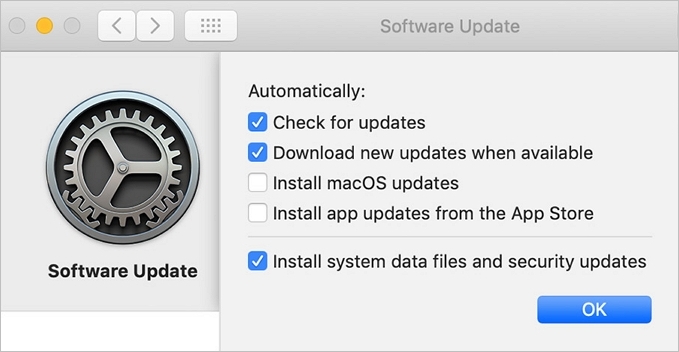
Step 4. You will be given the choice of "Upgrade Now" or "Update Now" from this point on.
Step 5. Select the "Update Now" option.
Tip: It's a good idea to back up your important files and data before updating your system.
Note: The "Upgrade Now" and "Update Now" options differ significantly. "Upgrade Now" refers to the installation of a major new version, often with a new name, whereas "Update Now" involves installing the latest version of the currently installed software, without a name change.
Clean Install:
There are several ways to clean install macOS on your system. Review the methods below and choose the one that fits your situation.
Step 1. Using the "Erase All Content and Settings" option.
Step 2. Select the "Apple" icon on the screen, go to "System Preferences".
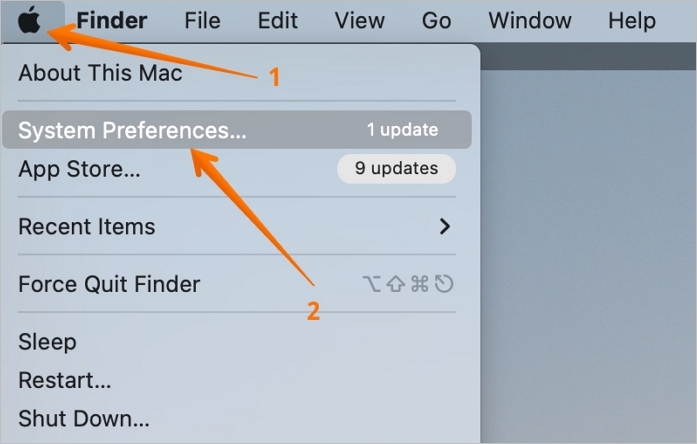
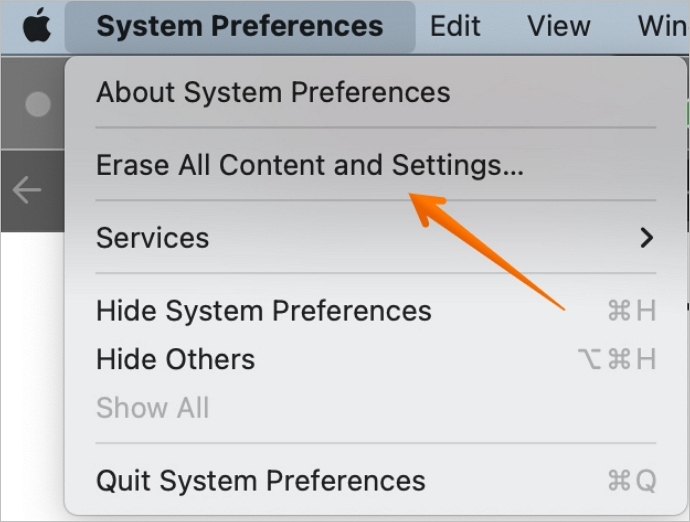
Step 3. Once you click on "System Preferences", a menu will appear. From this menu, click on the "Erase All Content and Settings" option to reset your device.
Step 4. Here, you will need to type the password that unlocks the system. This is the password that was previously set up and stored securely, which will allow you to access the system and gain full control over it. The password will be entered in the designated field, and once confirmed, the system will be unlocked, granting access to all its features and functions.
Step 5. After selecting this option, you will be prompted to confirm that you want to proceed. A message will appear explaining what will be removed, and you will need to click "Continue" to proceed further.
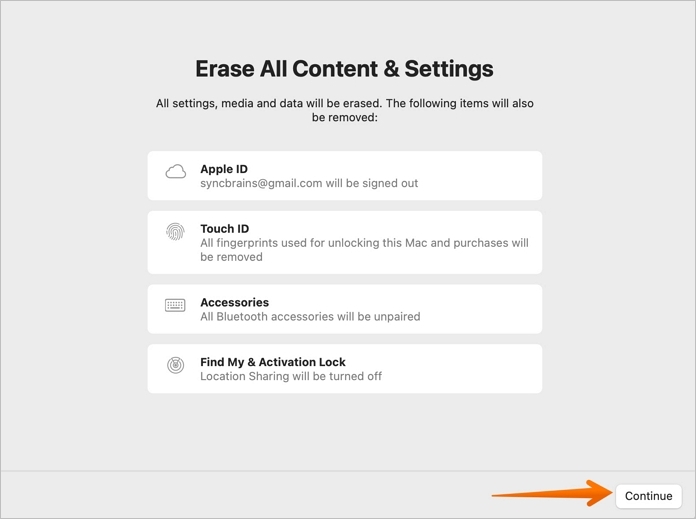
Step 6. You need to enter the Apple ID password. This will sign you out of your Apple ID account.
Step 7. You will be asked to confirm whether you want to proceed with the action you initiated. A pop-up message will appear to re-verify your intention.
Step 8. Click on the "Erase All Content and Settings" option.
The system will start the process, which may cause the computer to restart multiple times. This is a normal part of the process and should not cause concern. It is essential to allow the system sufficient time to complete the process.
Once you've completed the installation process, you'll see a "Hello" message on the screen, indicating that the process is complete. At this point, your computer is fully restored to its original state, and you can start using it again.
Note: This feature only works on Macs released after 2017, specifically those with a T2 security chip or Apple Silicon chip, which are typically found in newer Mac models.
Here are two other methods for a clean installation:
- Using the macOS recovery
- Using a bootable USB stick
Bonus Tips: What Can You Do if Data Lost During the Process
If you lost data while trying to install the latest macOS, you can use a data recovery software like Deep Data Recovery for Mac to retrieve your lost files.
You can use Deep Data Recovery to retrieve lost data from your Mac, including photos, music files, videos, emails, documents, and more, as well as from other Mac-based devices such as memory cards, external SSD, USB flash drives, Time Machine backup drives, and HDD.
Deep Data Recovery can help recover lost data due to various reasons, such as virus attacks, hardware failures, human errors, or system crashes, helping to alleviate panic and anxiety in such situations.
The software offers a range of recovery features, such as scanning mode, cloud recovery, and file filter, allowing users to quickly scan and select the files they want to retrieve, making it easier to focus on restoring files or data that needs to be recovered immediately.
Deep Data Recovery, with 15 years of experience, specializes in handling data recovery issues. They can assist with mac data recovery problems, and their experts will resolve any queries with ease.
Here, we will provide you with the full steps to recover your lost data during this process. You can follow the instructions to finish it.
Step 1. Launch Deep Data Recovery, select the desired file types, and click "Fast Scan" to initiate the recovery process.

Note: You can choose different search modes based on where and why the data was lost.
Step 2. To recover data lost after an operating system update, you should choose the location where the data was stored, typically the "This PC" or "C:" drive, and click the Scan button to begin the recovery process. This will allow the recovery software to search for and retrieve any lost files. Be sure to select the correct location to ensure that the software is searching the correct area.

Step 3. Deep Data Recovery for Mac will immediately scan your selected disk volume and display the scanning results on the left pane.

Step 4. After the scan, select the target files that were unknowingly lost during or after the update and click the Recover button to recover them all.
People Also Ask
1. Does updating Mac operating system delete everything?
Updating a Mac operating system doesn't delete everything, but users must be careful to avoid data loss. Improper installation can sometimes lead to issues, so it's essential to take a backup of crucial data beforehand to be on the safe side.
2. Does updating macOS improve performance?
Updating macOS can improve system performance by incorporating the latest features, which can lead to a boost in overall performance.
3. What to back up before clean installing Mac?
Before opting for a clean install on a Mac, it's recommended to have several backups in place. This includes backing up the entire system, including all files and programs, as well as saving the installers and licenses for the apps used, and logging out or deauthorizing apps that require an Apple ID password. This ensures that all necessary data and software are preserved for a smooth transition.
Conclusion
When installing a new macOS, users have two options: a clean installation, which wipes the entire system and starts from scratch, or an update, which installs the latest version on top of the existing one. The choice between these two methods depends on individual needs and preferences.
Even with preventive measures in place, data loss can still occur. In such cases, using Deep Data Recovery for Mac can be an effective solution. This software is designed to aid in the recovery of various types of files, making it a useful tool for retrieving lost data.
Related Articles
- 2022 Data Recovery Software for Mac Free Download + Full Version
- Mac Partition Recovery | Recover Deleted/Lost Partition on macOS/Mac OS X
- CF Card Recovery Mac: How to Recover CF Card Data on Mac
- Top 6 Data Recovery Services in Boston, MA
Want to find data recovery services in Boston, Massachusetts that can help you recover photos, documents, and emails from computers or laptops? This guide will definitely solve your issues. - 6 Ways to Solve Desktop icon Reappears after Delete
Desktop icon reappears after delete? This post lists six feasible fixes for you to delete shortcuts from desktop. Besides, you can restore desktop icons/files Windows 10 and get relevant desktop data recovery tips. - Guide: Use Dir/Attrib Command to Show Hidden Files
Learn how to use DIR and ATTRIB commands to show hidden files in Windows, and how to view hidden files with File Explorer.
Products
Articles & Tutorials
- Data Recovery
- Data Backup
- File Recovery
- File Backup
- System Backup and Restore
- Disk and Partition Clone
- Technical articles
- Mobile articles
- Disk Master Help
- Windows Data Recovery Tutorials
- Windows Secure Delete Tutorials
- Windows Partition Management Tutorials
- Windows File Backup and Restore Tutorials
- Windows System Backup and Restore Tutorials
- Windows Disk Backup and Restore Tutorials
- Windows Clone Tutorials