0xC1900101 Error in Windows Update, Cannot Install Windows 11 [FIXED]
Quick tutorial navigation for fixing 0xc1900101 error in Windows update:
| Workable Solutions | Step-by-step Troubleshooting |
|---|---|
| Fix 1. Check Upgrade Space | According to Microsoft, 64 GB* or greater available storage is required to install Windows 11...Full steps |
| Fix 2. Update or Re-Install Drivers | 0xC1900101 error is a driver-related problem. To fix the error, you can update or reinstall drivers...Full steps |
| Fix 3. Run SFC Scan | SFC can scan and fix all protected system files for corruption that cause 0xC1900101 error...Full steps |
| Fix 4. Run DISM Scan | If SFC failed to repair protected system files, use DISM instead, which is more powerful...Full steps |
| Fix 5. Install Windows 11 with bootable USB | When 0xC1900101 error stops you from installing Windows 11, use Qiling Win11Builder to install Win11...Full steps |
User Case: Cannot install Windows 11 - Error 0xc1900101
A user is trying to install the Windows 11 update from Windows Update, but keeps getting error 0xc1900101. The installation starts, but after a couple of restarts, it gets stuck and displays a message saying "Attempting to recover installation", "Undoing changes made to your computer", and then shows error 0xc1900101 on Windows Update.
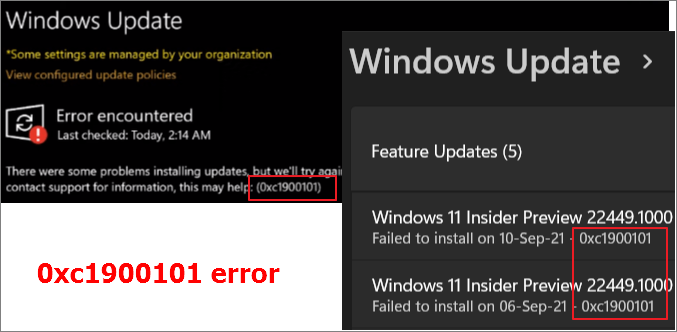
Windows 11 was officially released on October 5, 2022, and has been gaining a lot of attention worldwide, with many people upgrading to the new operating system for the first time.
Some users have encountered the 0xc1900101 error during the Windows 11 upgrade process, preventing them from installing the new operating system. This article aims to provide solutions to fix the issue, helping users overcome the error and successfully install Windows 11.
What Is Windows Update Error 0xc1900101
0xC1900101 errors occur when Windows Update fails to install updates, and users may encounter issues with the installation process. This error code is often related to problems with the Windows Update service, such as corrupted files, incorrect registry settings, or issues with the Windows Update database.
- 0xC1900101 - 0x2000c
- 0xC1900101 - 0x20004
- 0xC1900101 - 0x20017
- 0xC1900101 - 0x40017
- 0xC1900101 - 0x30018
- 0xC1900101 - 0x40021
0xC1900101 errors are typically related to driver issues, such as outdated, incompatible, or missing drivers, which can cause problems on Windows 11 or the latest Windows 10 version.
Windows Update error 0xC1900101 can cause a computer to become unusable, making it a priority to resolve. To fix this issue, you can try the following methods: check for driver updates, run the System File Checker tool, run the DISM tool, and reset Windows Update components. Additionally, you can try a clean boot, disable startup programs, and enable the Windows Update service.
1. Ensure Enough Upgrade Space
64 GB or greater of available storage is required to install Windows 11, with additional storage needed for updates and certain features. Upgrading to Windows 10 requires at least 16GB of storage.
0xC1900101 errors may occur if you upgrade without meeting the minimum required memory, so ensure you have enough available drive space before upgrading.
To free up hard drive space on Windows 11, start by deleting any unnecessary files and folders, and consider using the built-in Disk Cleanup tool to remove temporary files and other items you don't need. You can also use the Storage Sense feature to automatically delete temporary files and empty the Recycle Bin.
2. Update or Re-Install Drivers
0xC1900101 error is a driver-related problem, typically resolved by upgrading or reinstalling drivers.
Update Disk Drivers
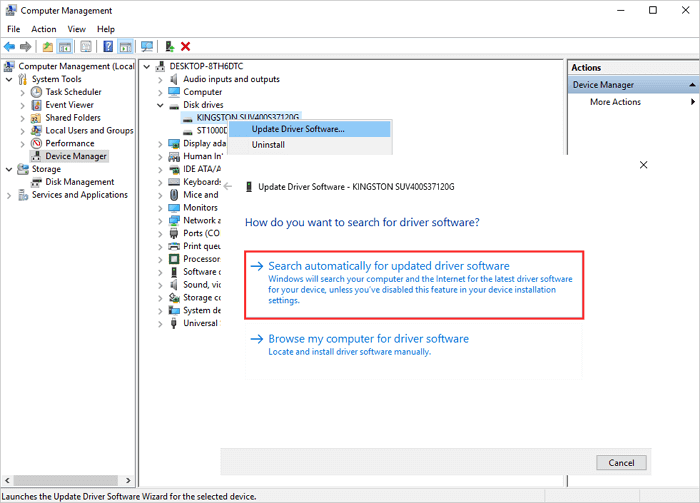
Step 1. To access the Device Manager, right-click on "This PC" and select "Manage". From the left panel, click on "Device Manager".
Step 2. Right-click the outdated or problematic disk driver, select "Update Driver Software..." from the context menu.
Step 3.On the Update Driver Software window, select "Search automatically for updated driver software" and let the process complete. Once done, your computer will have the latest driver software, and you can try upgrading your Windows again.
Un-install and Re-install Disk Drivers
The 0xC1900101 error can be resolved by uninstalling and reinstalling the driver, which may help to resolve the issue.
Right-To resolve the issue, click on the target disk driver, then click "Uninstall". After that, restart your computer, and Windows will automatically check and reinstall the driver.
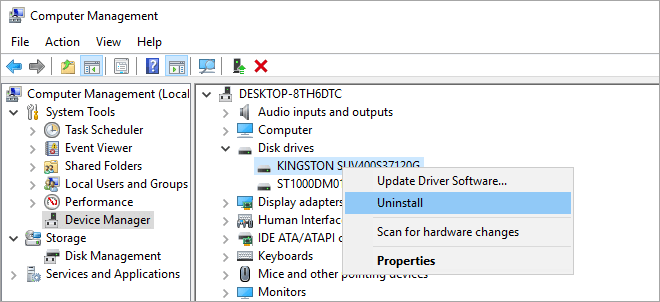
You can download and install the latest driver from the disk website to update your computer.
3. Run SFC Scan to Fix 0xC1900101 Error
0xC1900101 error on Windows update may be caused by system file error or corruption, which can be repaired using the SFC tool to scan and fix all protected system files.
Step 1. Right-click the Start menu, and choose Command Prompt((Admin) from the context menu.
Step 2. On the Command Prompt window, type sfc/scannow and press "Enter".
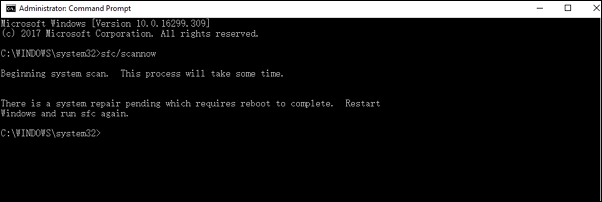
If a protected file is corrupted or altered, the SFC scanner will replace it with a correct copy from the system32\dllcache folder, and can also repair the file cache if found to be changed or corrupted.
4. Run DISM Scan
If SFC fails to repair protected system files, you can try using DISM (Deployment Image Servicing and Management) instead, which is a more powerful and capable tool.
Step 1. Right-click the Start menu, and choose Command Prompt((Admin).
Step 2. To fix corrupted system files and upgrade to Windows 11, open Command Prompt, type `DISM /Online /Cleanup-Image /RestoreHealth`, and press Enter. Wait for the process to complete, then restart your computer and check if the upgrade is possible.
If the previous method doesn't work, you can try using Qiling Windows 11 Builder (now renamed as Qiling OS2Go) to install Windows 11. This tool allows you to create a bootable USB drive with Windows 11, which can then be used to install the operating system on your computer.
5. Download and Upgrade to Windows 11 with a Bootable USB Drive
If you're having trouble installing Windows 11, you can try using Qiling's Windows 11 installation software, which allows for easy download and upgrade to Windows 11. To do this, you'll need a 4GB USB flash drive to download the prepared Win11 ISO file, and then you can install Windows 11 using the bootable USB drive.
Step 1. The Win11 builder is integrated with Qiling OS2Go software. After installing it, click the download button and launch the program.
Step 2.The name of the software was changed from WinToGo Creator to Windows Install Drive Creator, and it supports the creation of Windows 11, 10, and 8.1 installations. The software provides real-time system information on its home screen, which updates continuously.
Step 3. Connect your USB flash drive to the computer and click the "Create" button once Win11 builder detects it.
Step 4. The software will delete data from your USB drive if it's used, so be sure to back up any important files first. Once the download process begins, you can wait for it to finish or step away to do something else while it completes.
Step 5. After successfully downloading the Windows 11 iso image file on the USB drive, start the installation process by following the installation wizard step by step from the bootable USB drive on your computer.
6. Uninstall Problematic Applications
Some users have reported that third-party software can interfere with Windows upgrades, causing the 0xC1900101 error.
If you've recently installed apps and Windows 11 upgrade fails, try uninstalling them in reverse order, then try the upgrade again. If it works after removing a specific app, that app is the culprit of the software conflict.
Concluding Words
To resolve 0xC1900101 errors in Windows Update, consider trying other solutions such as unplugging peripherals, running antivirus software to remove viruses or malware, and removing additional RAM or your network card. These steps can help identify and address potential issues that may be causing the error.
The 0xC1900101 error on Windows 10 or Windows 11 can be resolved by troubleshooting using methods from a tutorial, and if other issues persist, contacting technical support via live chat for further assistance.
Related Articles
- How Do I Fix 'This PC Can't Run Windows 11' Error? Your Complete Guide Is Here
- We Couldn't Install Windows 11 - Error Code 0x800f0830
- How to Stop Windows 11 Update (Block It Forever)
- Windows 11 Must Read | All You Should Know about Windows 11
- Extend System Partition into Non-Contiguous Space with Freeware
If you're unable to add unallocated space to your C drive in Windows, you can use free partition software to extend your partition into non-contiguous unallocated space. This allows you to utilize free space that's not adjacent to your C drive, effectively expanding your C drive's capacity. - How to Format Bootable USB Flash Drive to Normal in Windows 7?
This article illustrates how to format bootable USB stick to normal flash drive with NTFS or FAT32-based file system using reliable bootable USB drive format tool in Windows 7, 8, 10, 11.
Products
Articles & Tutorials
- Data Recovery
- Data Backup
- File Recovery
- File Backup
- System Backup and Restore
- Disk and Partition Clone
- Technical articles
- Mobile articles
- Disk Master Help
- Windows Data Recovery Tutorials
- Windows Secure Delete Tutorials
- Windows Partition Management Tutorials
- Windows File Backup and Restore Tutorials
- Windows System Backup and Restore Tutorials
- Windows Disk Backup and Restore Tutorials
- Windows Clone Tutorials