2023 Guide | How to Turn On Offline Sync Google Drive/Google Docs
Working on the go becomes easy with Google Drive, but poor WiFi connections can be a challenge. To overcome this, Google provides an Offline Sync feature that allows you to work offline on Google Docs and Drive files. This feature is especially useful when you don't have a stable internet connection, making it easier to stay productive even without WiFi. If you're interested in learning more about how to turn on Offline Sync for Google Drive and Google Docs, we have a complete guide available.

Google Workspace apps like Docs, Slides, and Sheets are best used with a subscription plan, but they can be accessed offline with an internet connection. However, they cannot be used without an internet connection.
What Does Offline Sync Google Drive Mean?
Offline Sync Google Drive The Offline Sync feature allows you to access and edit files offline, saving any modifications made during the time, which can be particularly useful for individuals who prefer to work without internet distractions, and then syncs the changes to Google Drive once reconnected.
The online synchronization process can be problematic, consuming too much internet and requiring robust network connectivity, which can be a challenge, especially in areas with persistent network issues. This can make conventional syncing a hassle, but Google Drive's Sync Offline feature provides a solution, allowing you to save changes without worrying about losing them in the absence of internet.
Before proceeding with it, you should learn how to do it! Then, the below-mentioned section will help you do the same.
How to Turn On Offline Sync Google Drive [Windows & Mac]
To use Google Drive offline sync on Windows and Mac, you need to download the Google Docs Workspace extension. This requires an initial internet connection to set up. If you try to work offline without sync, you'll encounter an error.
You can save all your recent files, including those you're working on, using Google Drive Backup and Sync.
How to Turn On Offline Sync Google Drive on a Windows PC
To set up offline sync, make sure Chrome is your default browser, as using Microsoft Edge or Mozilla as default may cause issues.
To turn on offline sync for Google Drive on a Windows PC, follow these steps: Open Google Drive, click on the gear icon in the top right corner, select "Settings", and then toggle the switch next to "Offline" to the "On" position. This will allow you to access and view your Google Drive files even when your device is not connected to the internet.
Step 1. Head over to Google Chrome.
Step 2. Visit the Chrome Webstore to search for the Google Docs Offline extension, then press the "Add to Chrome" button.
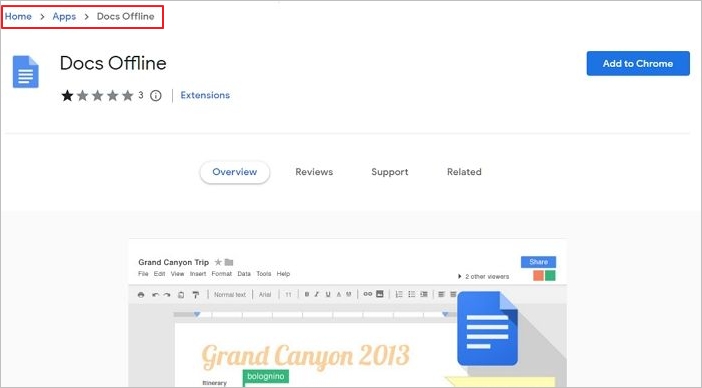
Step 3. You will receive a prompt to sign in with your Google Account if you haven't signed in.
Step 4. Go to www.Drive.google.com
Step 5. To access Google Drive settings, open Google Drive and click on the gear icon located beside the search drive box. This will open the settings page where you can make changes to your account.
Step 6. Navigate to General.
Step 7. To edit the offline checkbox, click on the "Sync Google Docs, Sheets, Slides & Drawings files" to this computer.
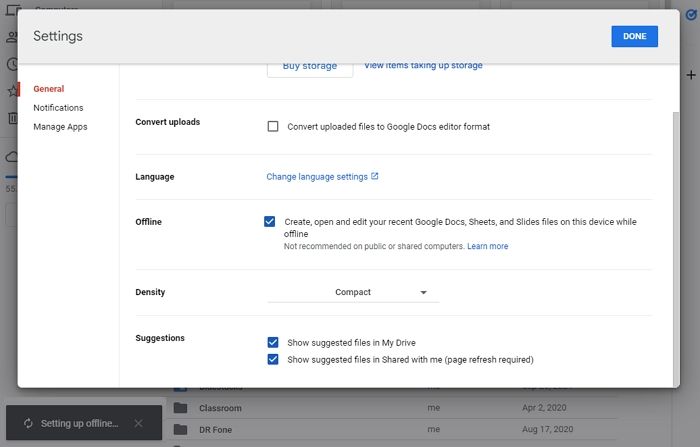
Step 8. To proceed, press the "Done" button on the Settings page's top-right side.
If you want to save your offline changes, the task will be done for you. However, to download your previously saved GDrive files to your computer, you'll need to download and set up the Backup and Sync for Drive.
Save Google Drive Files to Windows
Follow the steps given below to do so:
Step 1. Go to the Google Drive Download Center and download Backup and Sync.
Step 2. To install and launch the software, first, download the software from the official website or a trusted source. Once downloaded, run the installation file and follow the on-screen instructions to complete the installation process.
Step 3. Open Google Drive Preferences, and switch to Google Drive.
Step 4. Select the "Mirror Files" option to sync everything on your PC.
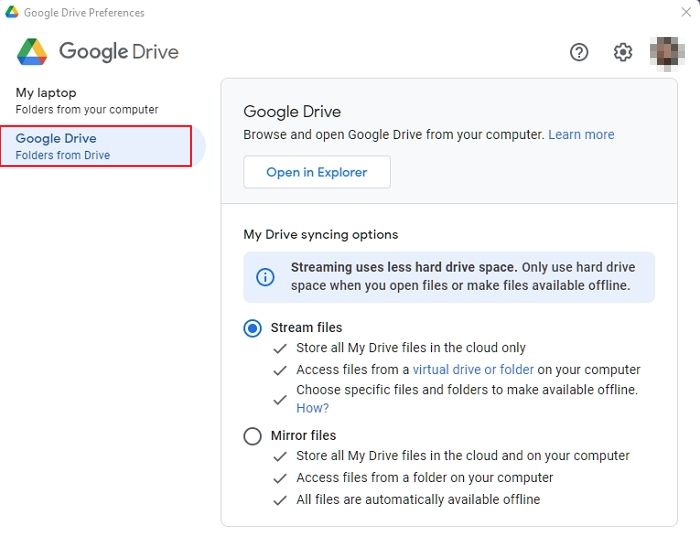
Google Drive will save all your files to your computer, or you can select specific folders to sync, prompting you to choose the particular files.
To save your computer's files to your Google Drive, go to the left pane and click on "My Laptop". Then, select the checkboxes for "Desktop", "Documents", and "Pictures" based on your preferences.
How to Turn on Offline Sync Google Drive on Mac?
On a Mac, using Safari is common, but to set up offline sync on Google Drive, you should make Chrome your default browser by downloading and installing it first.
To set up Chrome as your default browser on Mac, follow these steps: Open Chrome, then go to Chrome menu > Settings, and under "Appearance," toggle the switch next to "Make Chrome the default browser" to the "On" position. This will set Chrome as the default browser for your Mac.
Step 1. Click on the Apple icon from the top-left side of your home screen. This will open a menu with various options, including Settings, which will allow you to adjust your device's settings.
Step 2. Select System Preferences from the drop-down menu.
Step 3. Go to General from the pop-up that appears.
Step 4. To change the default web browser to Google Chrome, click on the Default Web Browser option in your system settings, then select Google Chrome from the list of available browsers.
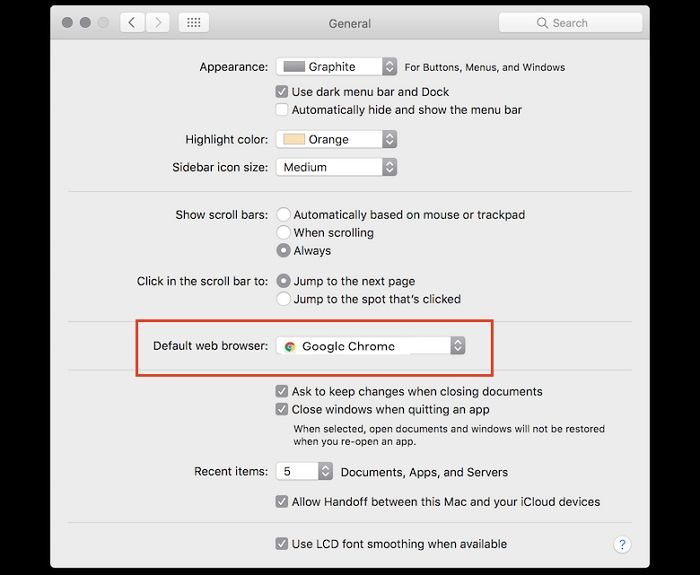
If Chrome is not visible in the Default Web Browser list after installation, try rebooting your Mac and setting it as the default browser. This should resolve the issue and get you ready to set up offline sync.
Follow the steps given below to turn on offline sync on Google Drive on Mac:
Step 1. Open Chrome and head over to the Chrome Webstore
Step 2. To enable Google Docs Offline, search for Google Docs Offline in the Chrome Web Store, then click the Add to Chrome button to install the extension.
Step 3. Go to Google Drive and open its Settings
Step 4. Navigate to General from the left pane
Step 5. To enable the feature of syncing Google Docs, Sheets, Slides & Drawings, click on the Sync Google Docs, Sheets, Slides & Drawings checkbox.
Step 6. Hit the blue-colored Done button to save your changes
To save Google Drive files on Mac for offline access, you can use the Google Drive app to sync your files, or use the Files app to add Google Drive as a location and then enable offline access for the files you want to save.
Save Google Drive Files to Mac
Follow the steps given below to do so:
Step 1. Download and install Google Drive's Backup and Sync.
Step 2. To access the Configuration section of the app, sign in with your Google Account, which will allow you to open the settings menu.
Step 3. To save all Google Drive files on a Mac, change the Sync settings to Mirror files, which will duplicate all files on the Mac.
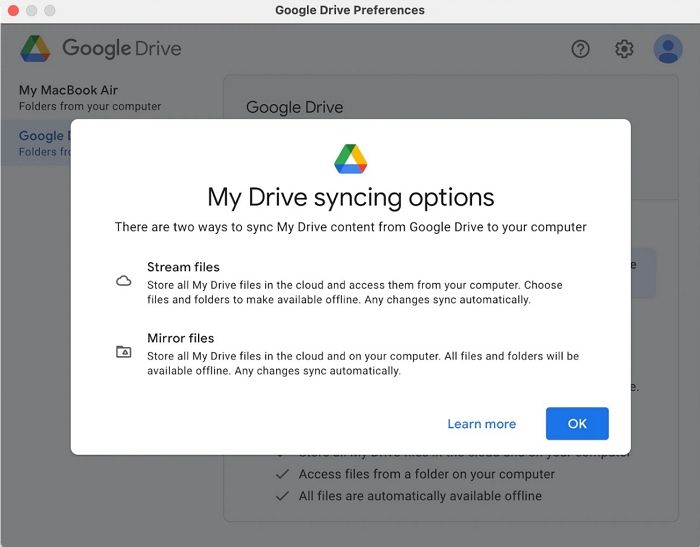
Step 4. Let files download on your Mac, and you can access them anytime. They will automatically open in Chrome with the help of the extension.
How to Backup Google Drive to Other Drives
Backing up Google Drive files to another cloud drive service can provide a secure offsite backup. While relying on Google Drive alone, saving files to another Drive can help keep things organized. However, using a remote FTP server for this purpose can be challenging due to limited free storage, making it necessary to explore alternative options.
You can back up your Google Drive to other cloud drives, such as Qiling Cloud Drive, and then transfer it to an FTP server. This is a good option because Qiling Backup Home is a reliable and efficient way to manage your backups, allowing you to easily store and access your files.
- 250 GB of Free Cloud Storage
- Ideal for a limited budget
- Suitable for personal as well as professional purposes
- Secure files better by Saving them.to Security Zone
- Reliable, fast, and easy to use
You can even back up using its software when creating a backup to a hard drive with its full-offline backup feature.
Step 1. To start backup, click the File backup button.

Step 2. On the left-hand side, you'll see a list of local and network files to be backed up, with the option to expand the directory and select specific files.

Step 3. Follow the on-screen instructions to select the desired storage location for the backup.

Step 4. To encrypt the backup with a password, click on "Options" in the "Backup Options" section. This allows you to customize the backup operation to meet your specific needs, providing a range of features to explore.

To specify the backup schedule and choose whether or not to start the backup at a certain event in the Backup Scheme, you can select a schedule from the provided options or create a custom schedule. This will determine how often backups will be performed, such as daily, weekly, or monthly, and at what time of day.

Step 5. Backups can be stored locally, in Qiling's cloud, or on a network attached storage (NAS) device.

Step 6. Qiling Backup allows customers to back up data to a third-party cloud drive or the company's own cloud storage.
To back up your data to a third-party cloud drive, select Local Drive, scroll down to add Cloud Device, and enter your account information.
Step 7. To initiate a backup, select the option to proceed. Once the backup process is complete, it will be displayed as a card on the left-hand panel. You can access more detailed information about the backup job by clicking on it.

To restore a backup from Google Drive, click on the backup and follow the on-screen instructions.
How to Turn On Offline Sync Google Docs
Turning on offline sync in Google Docs is a must-know feature. After downloading the Google Docs Offline extension, you can enable it to function, allowing you to access and edit your documents even without an internet connection.
To turn on offline sync for Google Docs, follow these steps:
Step 1. Go to Docs.google.com
Step 2. To access the menu, tap on the Hamburger icon located in the top-left corner of the screen.
Step 3. Navigate to Settings
Step 4. Toggle on the Offline button
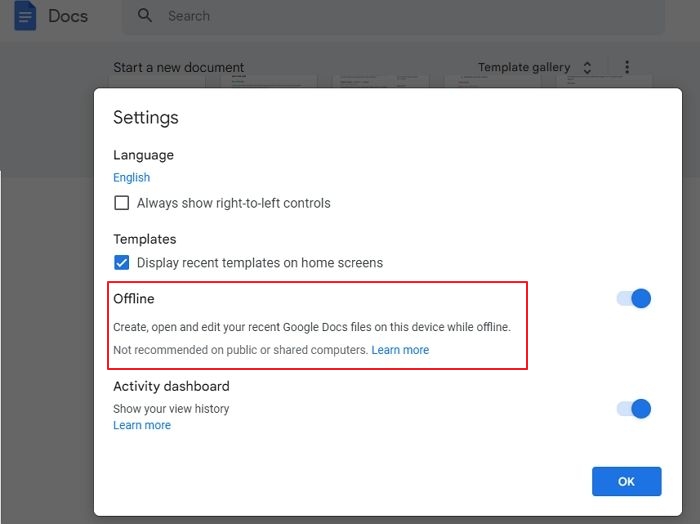
Step 5. Press the OK button to save it
If you want to work offline on a specific file, you can do so by opening the file in your local environment and making any changes you need to make. This way, you can work on the file without any internet connection, and once you're done, you can sync the changes with your online version.
Follow the steps given below to do so:
Step 1. Open the document you want to access offline
Step 2. Click on the File menu on the top-left
Step 3. A drop-down menu appears; click on Make Available Offline
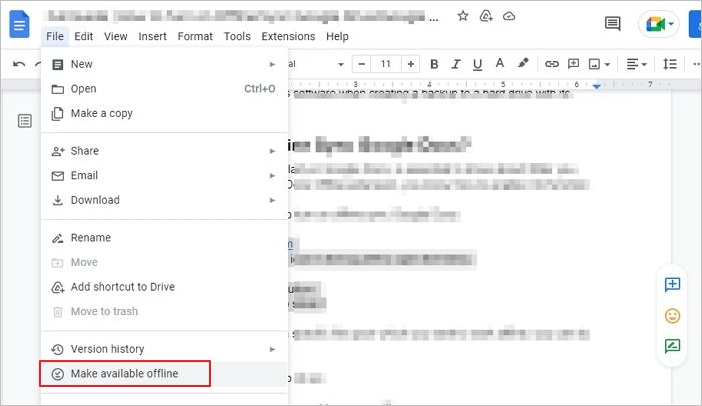
You can access files offline, and if needed, choose offline access for specific files, allowing you to still access essential files even without an internet connection.
Frequently Asked Questions?
You may have some doubts and confusion about offline backups, but we're here to provide the answers to all your questions!
1. How to turn off offline sync Google drive?
- Open Google Drive Settings and go to General.
- To disable offline access to Google Docs, Sheets, Slides, and Drawings, click the Sync Google Docs, Sheets, Slides, and Drawings checkbox to toggle it off.
2. How to turn on offline sync on Google docs?
- To access the settings of the Google Docs app, open the app (such as Docs, Slides, or Sheets) and go to its settings.
- To access Google Docs offline, toggle on the Offline button. Having the Google Docs Chrome extension installed is also helpful for syncing files offline.
3. What files can you access offline from your Google Drive?
You can access various files offline, including Google Docs, Sheets, Slides, Photos, Videos, and PDF files, from Google Drive.
4. How to fix Google Drive not working
To fix Google Drive not working:
- 1. Check Your Internet Connection
- 2. Clear Your Caches and Cookies
- 3. Update Your Browser Version
- 4. Turn on Offline Cache Mode in Chrome...
Final Verdict
Offline Sync allows you to work on Google Drive and Docs files without an internet connection, saving them locally on your PC. The changes are synced with your Google Drive and Docs files when you reconnect to the internet, and you can also save files directly to your device for offline access.
To back up Google Drive files to a remote FTP server using Qiling Backup, you can upload your Google Drive files to Qiling Backup's cloud storage, then transfer them to your device, and finally upload them to an FTP server for offsite backup.
Related Articles
- Fixed: How to Recover Files When Windows 10 Desktop Icons Are Missing
- Windows Update Troubleshooter Download Full Version [2022 Tips]
- How to Backup PS4 to External Hard Drive? [Full Guide 2022]
- How to Fix Cannot Delete a Protected Partition in Diskpart [Ultimate Guide]
- Blackmagic Disk Speed Test Alternative for Windows [Top 5]
If you're looking for alternatives to Blackmagic disk speed test, this blog post explores the top 5 options, allowing you to try new speed testing software for more reliable and accurate results. - Boot From USB HP Laptop | Everything You Need to Know
To boot from a USB on an HP laptop, follow these steps. First, ensure the USB drive is bootable and contains the operating system you want to install. Next, create a bootable USB drive using a tool like Rufus or the HP USB Recovery Creator.
Products
Articles & Tutorials
- Data Recovery
- Data Backup
- File Recovery
- File Backup
- System Backup and Restore
- Disk and Partition Clone
- Technical articles
- Mobile articles
- Disk Master Help
- Windows Data Recovery Tutorials
- Windows Secure Delete Tutorials
- Windows Partition Management Tutorials
- Windows File Backup and Restore Tutorials
- Windows System Backup and Restore Tutorials
- Windows Disk Backup and Restore Tutorials
- Windows Clone Tutorials