Why is Google Drive Not Working and How to Solve It
Simple Steps to Solve Google Drive Not Working Problem
Google Drive not working can be frustrating, especially when you need to access important files or upload critical documents. This issue can be a problem for many users, and it's not just you. If you're experiencing issues with Google Drive, you might want to try troubleshooting the problem by checking your internet connection, restarting the app, or clearing cache and data. If the problem persists, you may want to contact Google support for further assistance.
The good news is that you can fix the Google Drive not working problem, and this article provides potential fixes to help you resume your work.
When you try to open a file in Google Drive and get the warning "Temporary Error (502)", it means your documents are temporarily unavailable. Wait and try again later, as this issue is usually transient.
- Method 1: Check Your Internet Connection
- Method 2: Clear Your Caches and Cookies
- Method 3: Update Your Browser Version
- Method 4: Turn on Offline Cache Mode in Chrome
- Method 5: Reduce the Size of Your File
- Method 6: Check Virus Scanning Software and Advertisement Blockers
- Method 7: Verify Your Proxy and Firewall Settings
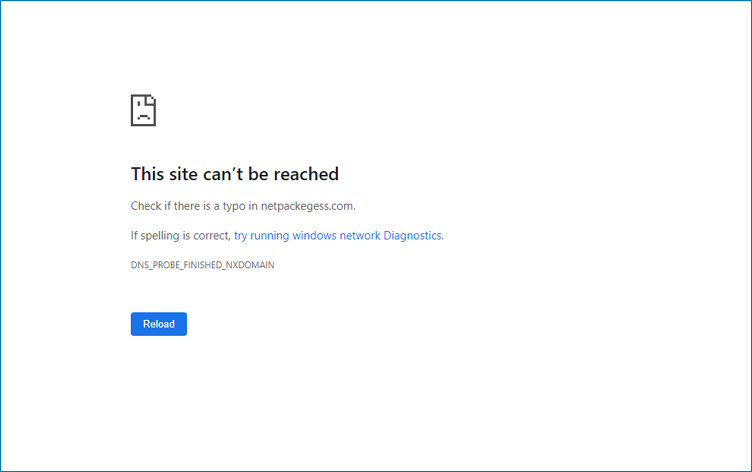
Method 1: Check Your Internet Connection
Google Drive may not work due to a network connection issue, causing a "Trying to connect" error or slow loading of documents, often resulting from a weak internet connection.
Try connecting to a different network to see if your files load properly. If your connection is spotty or unavailable, you can still use offline mode.
Method 2: Clear Your Caches and Cookies
To avoid Google Drive not working, launch the Chrome browser and delete all of its cookies and caches, which will prevent the browser from taking extra time to display loaded material due to excessive cached data.
Step 1. To access the settings menu, click the three dots in the upper right corner of the screen, which will display a drop-down list, and then click on "Settings" from that list.
Step 2. To clear browsing history, cookies, and other data from your browser, click on the three dots or lines at the top right corner, then select "Settings" or "Options". From there, navigate to the "Privacy and security" or "Privacy and services" section, and choose what you want to clear, such as browsing history, cookies, and cached data.
Step 3. If you want to delete your data after all instances of your profile are closed, you can turn on or off the data type feature. This allows you to control what data is retained or deleted once your profile is no longer in use.
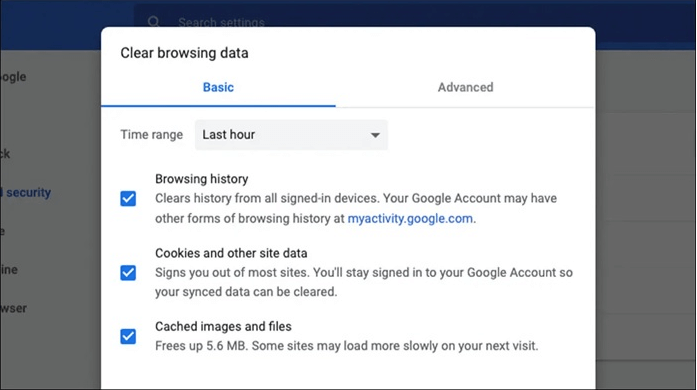
When you close your browser, it will automatically erase the data you've chosen to delete, including your browsing history, cookies, and other site data. To confirm this, go back to the same settings page and check if the toggles you've enabled still have the same date. Additionally, you can check if your history has been cleared by going to edge:/history.
Please send feedback describing your problem if chrome does not clean your data. Feedback includes three parts. Firstly, an explanation of what you want to do. Secondly, a list of all installed programs. Thirdly, the amount of data that needs to be cleaned.
Method 3: Update Your Browser Version
If your Google Drive isn't working, it may be due to a low version of the Chrome browser, which is required for Drive to function. To resolve this, ensure that your operating system and browser are supported by checking the system requirements and supported browsers, which currently include the two most recent versions of all popular browsers.
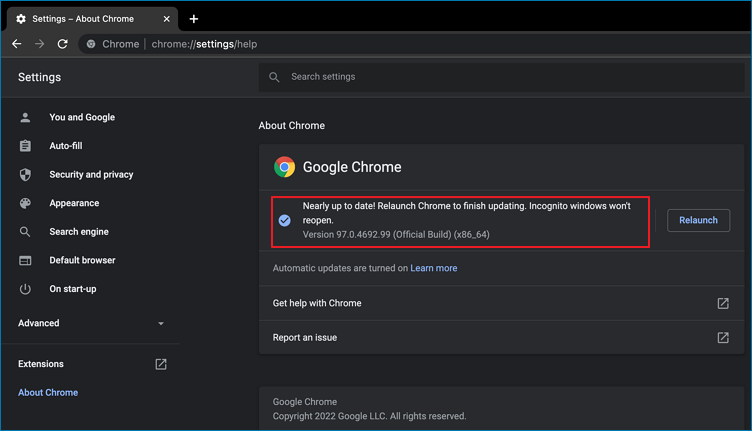
Step 1. To access the settings, click the three dots in the upper right corner of the screen and select "Settings" from the drop-down list.
Step 2. Click [about chrome] you will see [checking for updates].
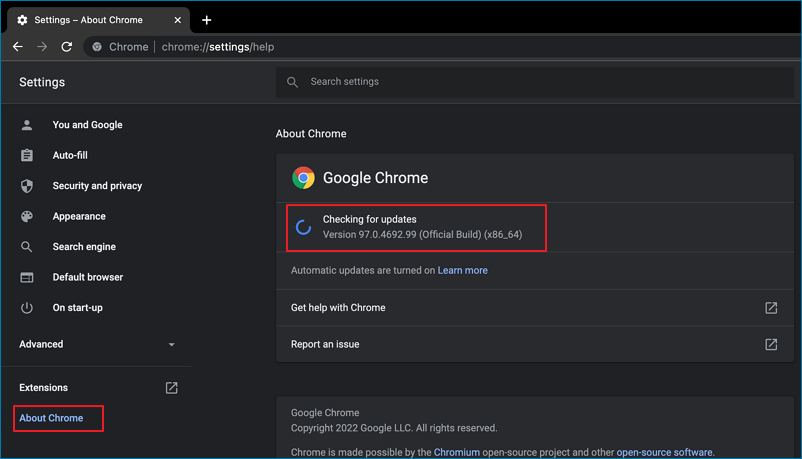
There is nothing more for you to do when you see a message. Chrome is current, and everything is good.
If an update is available, Chrome will automatically start downloading and installing it, even if there isn't a visible "Update" button.
Step 3. The message "Nearly up to date! " will appear after downloading the update, and then you must restart the browser for the update to take effect.
Method 4: Turn on Offline Cache Mode in Chrome
Enable offline mode in Chrome by going to chrome://flags/#enable-offline-load-stability, chrome://flags/#enable-offline-load-stability-2, and chrome://flags/#enable-offline-load-stability-3, then clicking on "Enable" for each flag, and restarting the browser. However, be cautious and aware that enabling these features can have unintended consequences and may not be suitable for all users.
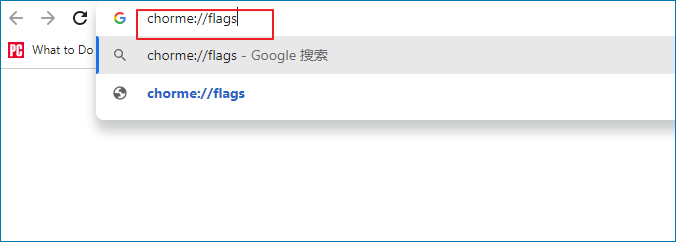
Step 1. Type chrome://flags and hit Enter.
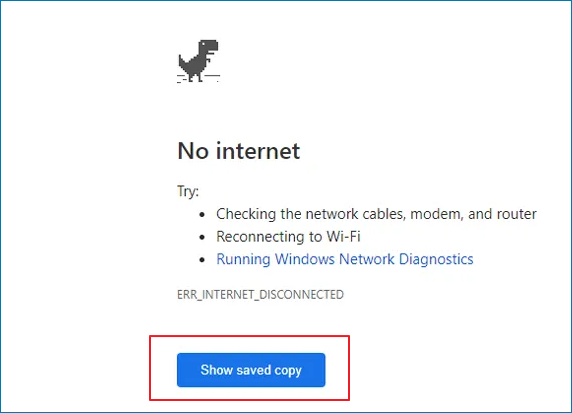
Step 2.To quickly locate the feature, type "show saved" into the Search flags box, and once found, click the "Default" button to open the drop-down menu.
Step 3.You can now browse the web since we have enabled the offline mode.
Method 5: Reduce the Size of Your File
To avoid issues with large files in Google Drive, it's best to divide them into smaller files if they exceed the storage limit or are close to it, ensuring smooth loading and minimizing the chance of Google Drive not working.
Method 6: Check Virus Scanning Software and Advertisement Blockers
Virus scanning software and ad blockers on your local system can sometimes prevent Drive files, such as Google Docs, Sheets, and Slides, from working correctly, so ensure they're not blocking.
Method 7: Verify Your Proxy and Firewall Settings
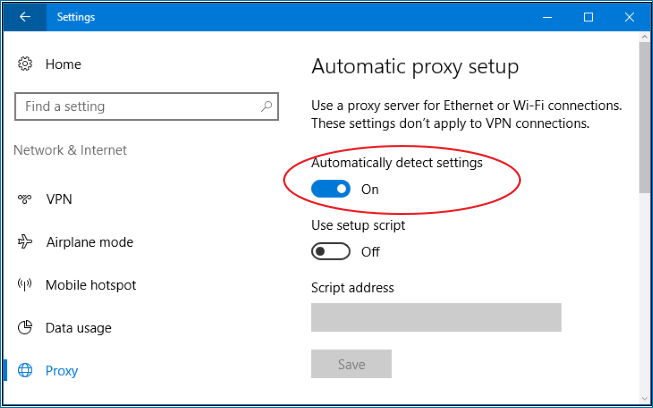
If Google Drive connections are being blocked by your firewall or proxy settings, you need to manually allow them to access your Google Drive. This can be done by verifying and adjusting your firewall and proxy settings to permit access to Google Drive. This will ensure that you can continue to use Google Drive without any issues.
Google Drive Not Working Q&A
You can find more information about the topic by looking at the part of the text that I mentioned. If you have any further questions, feel free to ask.
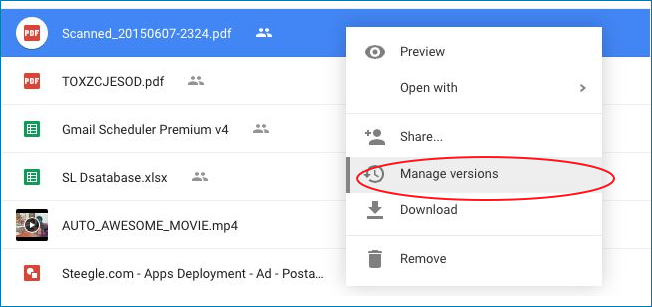
1. How to update files in Google Drive?
Step 1. Right-click the file, then select Manage versions.
Step 2. To update the file, click the "Upload a new version" button and select a new file from your computer.
Step 3. Click Close once the updated version has finished uploading.
2. How do I open google drive in Chrome?
Step 1. Go to google.drive.com in chrome.
Step 2.Upload or create the files you want.
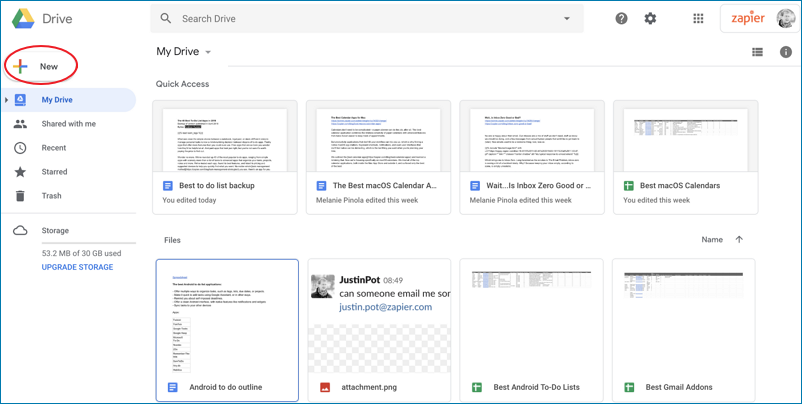
Step 3. Share and organize the files if you need them.
3. Why is Google Drive upload not working?
To restart the Google Drive app and potentially restart the upload, try the following: On an Android device, go to Settings, then Apps & notifications, see all apps, and tap on Google Drive. From there, tap Force Stop, and then attempt your upload again. This should resolve the issue.
The Bottom Line
Google Drive not working can be frustrating, but there are some fixes that can help resolve the issue. If you're experiencing problems with Google Drive, try restarting your browser, checking your internet connection, or clearing your browser cache. You can also try signing out and back into your Google account, or checking for any updates to the Google Drive app.
Related Articles
- How to Open MSG File on Mac? [Full Guide]
- How To Change Startup Programs on Windows 10? [Updated 2022]
- How to Backup Sticky Notes Windows 11 [Step-by-Step Guide]
- Windows 10 Keeps Restarting or Continuously Reboots? Fix It Now!
- How to Fix Getting Windows Ready, Don't Turn off Your Computer (2022 Tips)
If your PC is stuck on the “Getting Windows ready” screen, try these solutions one by one to resolve the issue without turning off your computer. You can also use Qiling data recovery software to efficiently restore any lost files during the process. - Fix GRUB Loading Error 15, 17, 21, 22 and Recover Data
Fix GRUB loading errors 15, 17, 21, and 22 on dual-boot systems. Learn step-by-step solutions for each error code and recover lost data after repairing GRUB on your computer.
Products
Articles & Tutorials
- Data Recovery
- Data Backup
- File Recovery
- File Backup
- System Backup and Restore
- Disk and Partition Clone
- Technical articles
- Mobile articles
- Disk Master Help
- Windows Data Recovery Tutorials
- Windows Secure Delete Tutorials
- Windows Partition Management Tutorials
- Windows File Backup and Restore Tutorials
- Windows System Backup and Restore Tutorials
- Windows Disk Backup and Restore Tutorials
- Windows Clone Tutorials