How to Open MSG File on Mac? [Full Guide]
MSG files are typically associated with Microsoft Outlook and are not natively supported on Mac. However, you can use third-party apps or online services to convert or open MSG files on your Mac. One option is to use an email client like Mozilla Thunderbird or Microsoft Outlook for Mac, which can import MSG files. Alternatively, you can use online conversion tools or cloud-based services like Google Drive or Dropbox to access and open MSG files. If you have any specific requirements or preferences, I can provide more tailored suggestions. Would you like me to elaborate on any of these options?
MSG files are created by Microsoft Outlook on a Windows PC and can only be launched by specific applications.
If you're having trouble opening MSG files on your Mac, don't worry - there are other ways to access them. We'll discuss MSG files and how to open them on Mac in detail below.
What is MSG File on Mac?
MSG files are Microsoft Outlook Item files that can only be opened on a Windows PC using MS Outlook. They are used to store Outlook mail messages and are not compatible with Mac systems.
The files, typically saved with a .msg extension, may contain emails, tasks, and other Outlook items saved in a file. Despite the availability of a Mac version of the Outlook software, this does not resolve the issue of opening MSG files on a Mac.
From this, it is clear that Mac cannot recognize the MSG format. Let us further find out how to open these files on your device.
How to Open MSG File on Mac? [6 Ways]
Here are the 6 ways to open MSG files on a Mac in one paragraph:
- Method 1. Run Outlook for Windows on Your Mac
- Method 2. Install an MSG Viewer
- Method 3. Install an MSG Converter
- Method 4. Try Changing the File Extension
- Method 5. Send it to an Outlook.com Account
- Method 6. Use a Virtual Machine
Method 1. Run Outlook for Windows on Your Mac
To install Windows on a Mac, you'll need an Intel-based Mac and the Boot Camp utility, which allows you to easily install Windows on your Mac. Additionally, a Windows installation drive is required.
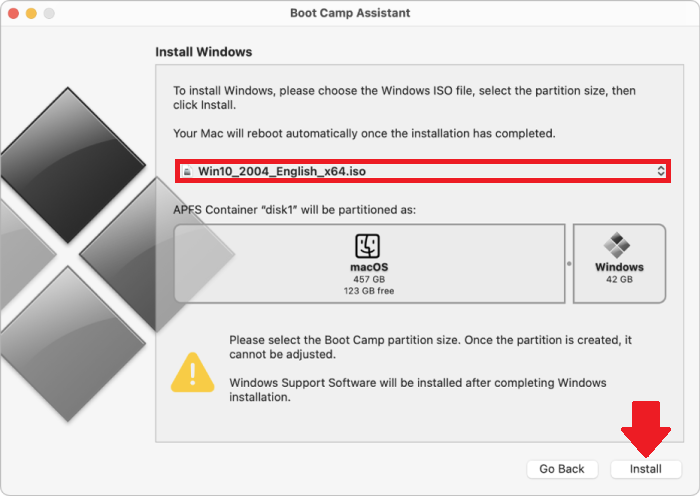
After installing Windows on your Mac, hold down the Option key to choose between running Windows or macOS. Once Windows is booted, you can install Microsoft Outlook. With Outlook installed, you can read and open MSG files.
This solution is expensive and time-consuming, making it only suitable for those who need regular access to Outlook for Windows. However, it's not compatible with new Apple Silicone Macs.
Method 2. Install an MSG Viewer
You can also install a third-A Mac application that quickly opens Outlook messages and converts them into VCF format, allowing users to easily view and manage their contacts.
MSG Viewer for Outlook is a useful app that can be used to open and view MSG files. It can be downloaded from the Mac App Store for free, or purchased directly from the official website for $17.99.
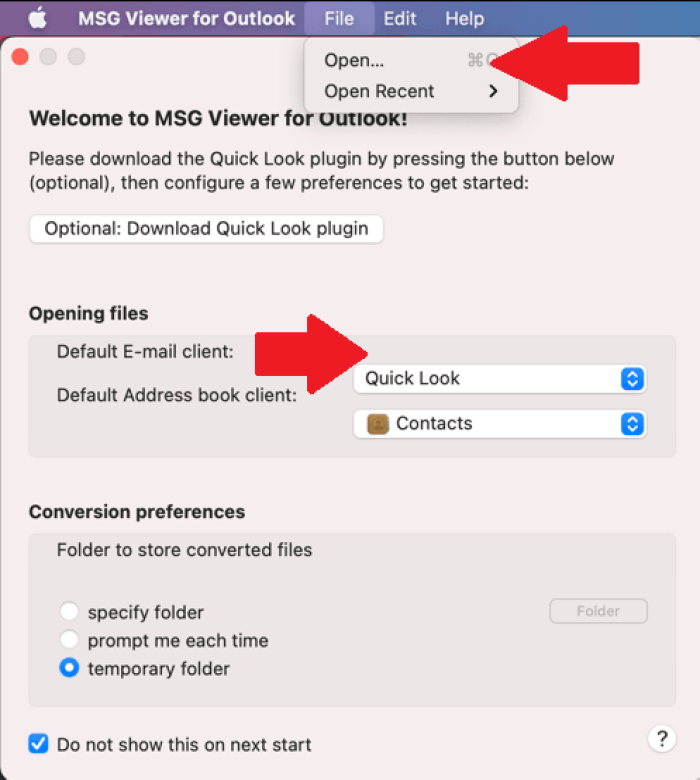
The free version of the app only partially converts files, requiring a paid upgrade for full functionality, including batch processing.
Once installed, the MSG Viewer for Mac allows you to open and view MSG files, just like using Microsoft Outlook on your Mac.
Method 3. Install an MSG Converter
MSG Converters display MSG files in a format similar to Outlook, allowing users to open and use them. These apps come in both free and paid versions, with the latter often offering additional features and upgrades.
MailRaider, msg-MailRaider and msg-extractor are two software tools used to extract data from MSG files, which are email files used by Microsoft Outlook. MailRaider is a user-friendly tool that can be purchased from the Mac App store for $1.99 or downloaded as a free trial version from the official website. It extracts plain text from MSG files. On the other hand, msg-extractor is a more advanced tool that extracts the entire contents of an MSG file. It is a popular choice among users who need to extract data from MSG files.
You can check the Apple app store for information on available apps and download them for your device.
Method 4. Try Changing the File Extension
Changing the file extension of an MSG file can allow it to be opened in another application, particularly if it was created by a program other than Outlook. The two alternative extensions that can be used are .txt and .eml.
1. Changing MSG to a Text File
Changing the file extension to TXT is helpful if you want to view the file's content, as it will allow you to see the file's contents without opening any attachments.
Step 1. To access the contents of a MSG file, right-click on the file and select the option to open it with a compatible email client, such as Microsoft Outlook, or with a MSG viewer application. This will allow you to view the email message, including the subject, sender, and body. If you don't have a compatible application installed, you can search online for a free MSG viewer or purchase a third-party application to open and view MSG files.
Step 2. To view the contents of a MSG file, select "Open With" and choose TextEdit.app or click on "Other" to find the text editor in the list, which will allow you to scroll through the contents and see information such as the sender and recipient details.
2. Changing MSG to an EML File
This method is one of the easiest and most used by your Mac's mail application.
Step 1. To rename a file, right-click on it and select the Rename option from the context menu.
Step 2. Type .eml at the end of your file name.
Step 3. You'll be asked to grant access to change the file extension, and after that's done, try opening the file to verify its contents.
Method 5. Send it to an Outlook.com Account
You can email the MSG file to your Outlook account as an attachment and then try opening it by double-clicking on the attachment.
If you don't have an Outlook account, you can create a new one by visiting the site Outlook.com.
Method 6. Use a Virtual Machine
Virtual Machine or Windows VM allows you to access and read documents created in Windows, and also enables you to run Outlook if you have a version of Windows installed on your Mac desktop.
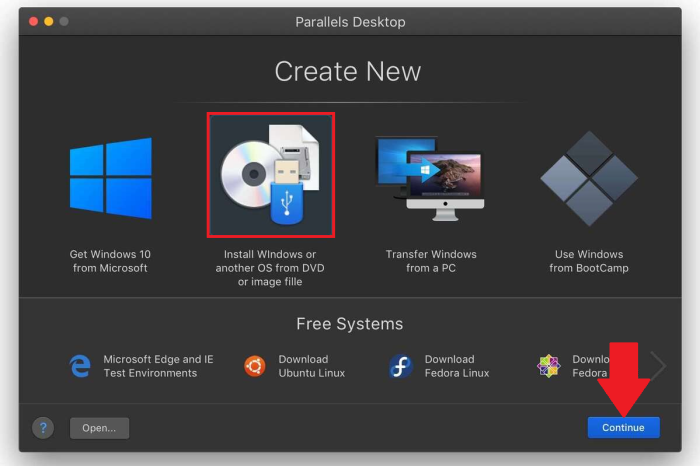
VMWare, Virtual box, and Parallels are Mac-compatible software that allows you to run virtual machines, making it easy to install and run Windows on your Mac, and subsequently view .msg files.
Final Words
Opening MSG files on a Mac may seem complicated, but the methods discussed above can help you access them. Sticking with straightforward solutions is recommended, as they can help you access your files faster.
There are methods available to access .msg files on Macs, allowing users to view and interact with these files without any issues. This means that the next time you come across an MSG file, you can easily access it on your Mac, thanks to the methods outlined in this article.
MSG File FAQs
Let's discuss a few common questions regarding MSG files in this session.
1. What browser should I use to view MSG files?
MSG files can be opened with any browser, but they are specifically designed to be opened with Outlook or Microsoft-compatible software, and can also be accessed with third-party apps like MSG Viewer or Converter.
2. How to format MSG files on Windows?
All MSG files have an Outlook-To open a MSG file on Windows, ensure that you have an Outlook desktop app installed and set up on your device. If you have Outlook installed, the MSG file format will be based on Outlook, allowing you to open and view the contents of the MSG file. You can also change the file extension to open the contents, but having Outlook installed is the most straightforward way to open and interact with MSG files.
3. Best MSG file viewer recommend
Many MSG viewer applications are available to open and read MSG file contents, with some offering free trial versions, allowing users to try before purchasing.
The best MSG file viewer is one that offers a range of features at an affordable price while maintaining good quality, with options like MSG Viewer for Outlook, SysInfo MSG Viewer, MessageViewer Online, MsgViewer, and Klammer being top contenders.
Related Articles
- Why Format SD Card: Full Guide on the Main Reasons
- Can't Install macOS Ventura? Here Are the 9 Best Solutions
- How Big of A Flash Drive Do I Need to Backup Windows 10 [Full Guide]
- Windows 10 System Restore Points Gone and Missing
- Use CHKDSK to Fix the Selected Volume Corruption Problem in Windows 10
To resolve the issue where Disk Management warns that 'The volume you have selected to shrink may be corrupted. Use Chkdsk to fix the corruption problem', you can use the CHKDSK command or a CHKDSK alternative to fully resolve this error and shrink the volume without losing any data. - How to View Saved Passwords Chrome by 3 Easy Fixes
Do you have a problem remembering your login details? This article reveals how to view your saved passwords on Chrome with any of your devices using two alternative methods.
Products
Articles & Tutorials
- Data Recovery
- Data Backup
- File Recovery
- File Backup
- System Backup and Restore
- Disk and Partition Clone
- Technical articles
- Mobile articles
- Disk Master Help
- Windows Data Recovery Tutorials
- Windows Secure Delete Tutorials
- Windows Partition Management Tutorials
- Windows File Backup and Restore Tutorials
- Windows System Backup and Restore Tutorials
- Windows Disk Backup and Restore Tutorials
- Windows Clone Tutorials