How Big of A Flash Drive Do I Need to Backup Windows 10 [Full Guide]
Electronic devices have become an integral part of our daily lives, making data backup a crucial task to avoid accidental data loss. We've listed some reasons why you need to back up your computer data, so check if you're in one of these situations: you've experienced a system crash, your device has been stolen or damaged, you've accidentally deleted important files, or you're upgrading to a new device and want to transfer your data.
- To avoid accidental data loss
- Create a copy of the data
- Format a computer to sell it
Can I backup Windows 10 with a Flash Drive
You can back up your Windows 10 with a flash drive.
What Size of A Flash Drive Do I Need to Backup Windows 10
A 16GB size flash drive is required to complete a full Windows 10 backup.
A USB flash drive backup is a convenient option that offers ample space for data storage, with various sizes available, including 8 GB, 16 GB, 32 GB, and 128 GB, allowing users to choose the appropriate size based on their specific backup needs.
To back up your files, such as photos, videos, and documents, on your computer, you can choose a 16GB or 32GB flash drive, which can store a large amount of data, including 20,480 pictures, 7,680 MP3 files, or 600,000 pages of documents.
To back up your Windows 10 system, a 16GB flash drive is sufficient, but the minimum required size is an 8GB flash drive. This allows you to create a full backup of your system, and the process will be explained in the following steps.
Pro Tip: How to Backup Windows 10 with a Flash Drive
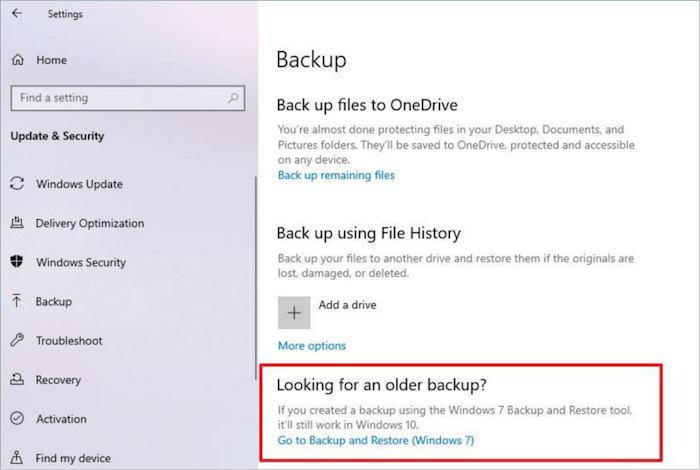
To back up Windows 10 with a flash drive, start by creating a system image and backing up your files. Insert the flash drive into your computer, then go to Settings > Update & Security > Backup > Add a drive. Select the flash drive from the list and choose what you want to back up, such as your system image and files. You can also choose to back up your system image and files to the cloud, if you have a Microsoft account.
Step 1. Open Backup and Restore on your PC, then click on "Backup and Restore (Windows 7)".
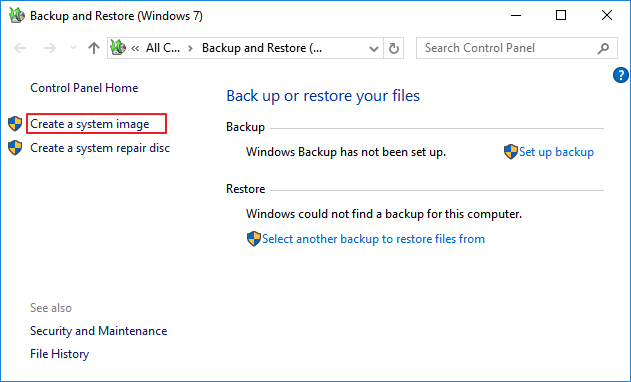
Step 2. Click on "Create a system image" on the left side.
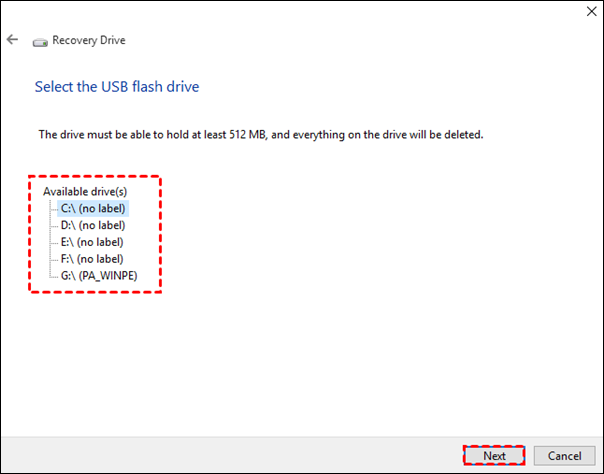
Step 3. To back up Windows to a USB drive, select the USB drive from the drop-down menu under the "On a hard disk" section, then click "Next".
Step 4. Select the drives you want to include in the backup, then click "Next" to confirm the backup settings.
Step 5. To back up Windows 7 or Windows 10 to a USB drive, start the backup process by clicking the "Start backup" button. This will initiate the backup process, which may take some time depending on the amount of data to be backed up.
You have successfully backed up your Windows 10 to a flash drive using the built-in Windows Backup and Restore (Windows 10) tool, or by using an external hard drive or other storage device, or by using a third-party backup software. The backup contains a copy of your system files, programs, and settings, which you can use to restore your system to its current state in case of a system failure or other issues.
Wrap Up
You can back up Windows 10 using a flash drive, and we've provided a complete guide on how to do it. A small flash drive, such as 8GB, can be used to back up your files, while a 16GB flash drive is recommended for backing up your entire system. This allows you to easily restore your files and system in case of any issues or data loss.
Related Articles
- 3 Ways to Force Shut Down Mac
- [Fix] A required device isn't connected or can't be accessed with error
- 5 Ways to Uninstall Application on Mac [Complete Guide]
- How to Restore System Image from External Hard Drive Windows 10
- Fix Windows Update Keeps Saying Update and Restart
Every time you try to update anything, the computer keeps telling you to restart your computer. Have you ever been troubled by this kind of problem? Follow the try-and-true solutions in this post to fix 'Windows update keeps telling me to restart my computer' issue. - Forgot Google Drive Password? Here's What to Do
Did you forget your Google drive password? Do you need to recover your Google drive password without much complexity? Then follow this guide to recover the password from the PC easily, or you can use other account recovery methods depending on the data like username or email id you have with you.
Products
Articles & Tutorials
- Data Recovery
- Data Backup
- File Recovery
- File Backup
- System Backup and Restore
- Disk and Partition Clone
- Technical articles
- Mobile articles
- Disk Master Help
- Windows Data Recovery Tutorials
- Windows Secure Delete Tutorials
- Windows Partition Management Tutorials
- Windows File Backup and Restore Tutorials
- Windows System Backup and Restore Tutorials
- Windows Disk Backup and Restore Tutorials
- Windows Clone Tutorials