3 Ways to Force Shut Down Mac
It is very unfortunate that you are suffering from a frozen Mac at the moment.
If your Mac has become unresponsive, won't shut down, and is overheating, here are some possible solutions to force shut down your Mac and get things working again: you can try pressing the power button for 10 seconds, force quitting apps, or using the "Force Quit" option from the Apple menu. If these methods don't work, you can try booting your Mac in Safe Mode, resetting the System Management Controller (SMC), or using a third-party tool to shut down your Mac. If your Mac still won't shut down, you may need to use the "Force Quit" option from the Apple menu and then restart your Mac. If you're still having trouble, you can try resetting your Mac's System Management Controller (SMC) or using a third-party tool to shut down your Mac. In extreme cases, you may need to take your Mac to an Apple Store or authorized service provider for further assistance.

Before We Force Shut Down Mac
If your Mac is acting unresponsive, try a normal shutdown first. If that doesn't work, use a force shutdown as a last resort, but be aware that you'll lose unsaved work and may experience unexpected data issues. Forcing a shutdown during a system update, for instance, can leave your Mac with a partially installed OS.
If you've tried all other methods to turn off or restart your Mac, you may need to resort to a force shutdown. Before proceeding, it's a good idea to take precautions to prevent data loss. Once you're ready, you can try one of the various methods to force shut down your Mac.
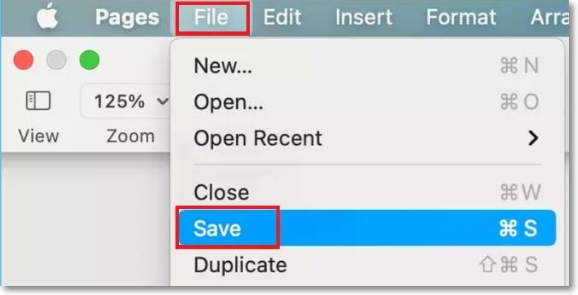
Step 1. Save all open files
When your Mac freezes while working on heavy programs, you can try to save your files before taking further steps. To do so, press the keyboard shortcut "Cmd + S" or navigate to "File" and select "Save". This will help prevent loss of unsaved data.
Step 2. Eject external drives
Once you force your Mac to shut down, it will not allow you to eject any external device safely. This is because the operating system doesn't have time to properly shut down and release the resources being used by the external devices. As a result, if you try to eject the external devices, it may cause data loss or corruption, leading to irreparable damage to the files.
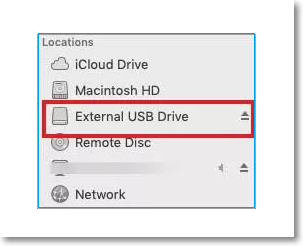
To quickly and safely remove your external devices, simply drag the external drive to the Trash icon on your desktop, or select the "Eject" button next to it in the Finder. This will ensure your devices are properly disconnected.
Step 3. Stop Running Apps
To resolve a frozen Mac, try closing all running applications by pressing Command + Q or selecting Quit (App) from the menu bar. If your cursor is unresponsive, use Cmd + Tab to navigate to other apps and close them manually. This may help the system shut down normally.

If an app is still not quitting, press Option + Cmd + Esc, select the app and choose Force Quit.
If your Mac is still unresponsive, try shutting it down normally first. If that doesn't work, you can force shut down your Mac.
How to Force Shut Down Mac? [3 Ways]
If your Mac is completely frozen and not responding to commands, you'll need to force shut it down. This can be done through three methods:
Method 1. Hold the power button
Regardless of the MacBook model you're using, the Power button is located at the top-right corner of the keyboard on every Mac. Although the button's appearance may vary slightly across different models, its position remains consistent.
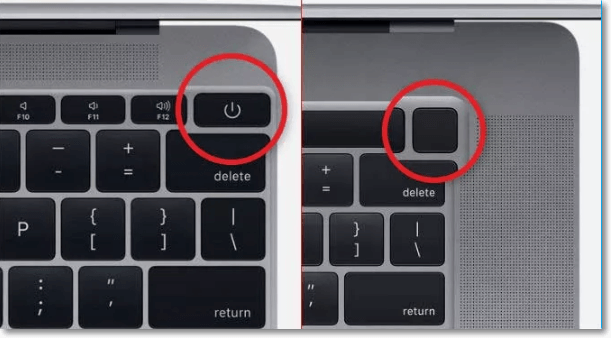
The Power key is located on the far-right side of the touch bar and behind the lower left side on the iMac screen.
To force shut down your Mac, long-press the Power button for 10-12 seconds, then let it go black for 5-10 seconds to allow the processor to cool down, and finally press the power key once again for 10 seconds to restart the system.
- Notice:
- If your Mac is frozen and showing a black screen, hold the power button until the Apple logo appears.
Method 2. Use a keyboard shortcut
You can shut down your Mac using two keyboard shortcuts. The first method allows the system to close all running applications and shut down safely, while the second forces an instant shutdown.
1) Use the following keyboard shortcut to normally shutdown your Mac.
Press the Control + Option + Command + Power buttons to shut down your Mac safely without losing any data.
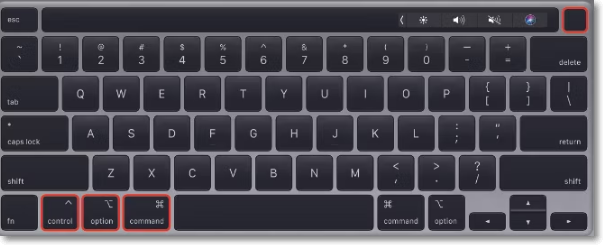
2) If the shutdown process fails, try using another shortcut to shut down the system forcefully. This will close any running programs.
Press the Control + Command + Power.
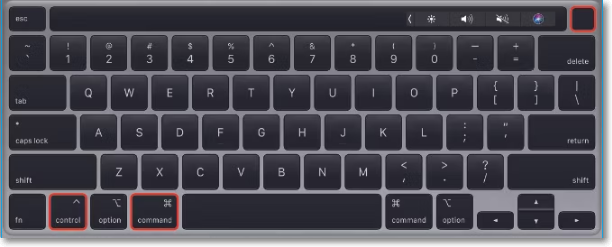
- Notice:
- To shut down your Mac, press and hold the power button for a few seconds until it shuts down completely. This will turn off your Mac and all its connected devices.
Method 3. Drain the battery
If none of the above methods work, you can try to force shut down your Mac by pressing and holding the power button for 10 seconds. This will immediately shut down your Mac, and you can then try to restart it normally. If this method also doesn't work, you can try to charge your Mac for at least an hour and then try to restart it. If it still doesn't work, you may need to take your Mac to an authorized Apple service provider for further assistance.
- Notice:
- Before you do that keep in mind that shutting down your Mac this way is harmful and may cost you huge data loss and file corruption on the hard drive.
If you have an older MacBook, you can quickly drain the battery by removing the power supply and detaching the battery from the bottom. However, if you have a newer model like MacBook Air or MacBook Pro, you'll need to remove the power supply and wait for the battery to drain completely, which can take around 10-15 hours, depending on the battery's health and charge level.
Once the battery is completely discharged, the system will automatically power off. To turn it back on, simply plug it in and charge it for a few minutes, then press the Power button for 10 to 12 seconds to turn it back on.
To safely turn on a Mac desktop, unplug the power cable, let it cool down for a few minutes, and then plug the power cable back in to turn it on.
Final Words
After a force shut down Mac, boot up your system normally and check if all apps are working smoothly. If you still encounter errors while using any program or the system refuses to boot up again, try updating the software and apps. Faulty external storage devices may also be the cause of these issues.
FAQs
1. How long does a Mac take to turn on from the dead?
If your Mac's battery is completely drained, it may take a few minutes for it to turn on again, so you may need to wait at least 5 minutes for it to charge to its minimum level.
2. How do you know a dead Mac is charging?
Plug your USB-Plug in the power adapter into the power outlet and charge your Mac. If the MagSafe connector shows a green or orange light, it means your charger and MacBook SMC are working properly.
3. How do I fix a stuck Mac when shutting down?
If you're having trouble shutting down your Mac, try pressing Ctrl + Opt + Cmd and holding the Power button. This will initiate a shutdown process, closing all running apps and prompting you to save any unsaved documents before shutting down.
Related Articles
- 8 Fixes for WD External Hard Drive Slow Transfer Rate in 2022 [New]
- How to Fix the Sound Not Working on MacBook Pro and Air
- How to Turn off The Firewall in Windows 10 [A Complete Guide]
- How to Upgrade Windows 7 to Windows 10. Get Your PC Ready in A Day!
- Does Formatting a Drive Erase Everything? No!
Does formatting a drive erase everything? No! Learn what formatting actually does, how it differs from wiping, and how to securely erase or recover data from a formatted hard drive. - Does Formatting Laptop Make It Faster? HereAre The Full Answers!
Does formatting a laptop make it faster? Learn the pros and cons, when formatting is worth it, and how to recover accidentally formatted data using reliable recovery software.
Products
Articles & Tutorials
- Data Recovery
- Data Backup
- File Recovery
- File Backup
- System Backup and Restore
- Disk and Partition Clone
- Technical articles
- Mobile articles
- Disk Master Help
- Windows Data Recovery Tutorials
- Windows Secure Delete Tutorials
- Windows Partition Management Tutorials
- Windows File Backup and Restore Tutorials
- Windows System Backup and Restore Tutorials
- Windows Disk Backup and Restore Tutorials
- Windows Clone Tutorials