[Fix] A required device isn't connected or can't be accessed with error
Quick Navigation:
- How to Fix "A Required Device Isn't Connected or Can't Be Accessed" Error in Windows 10/8/7
- Solution 1. Perform an Automatic Startup Repair
- Solution 2. Perform a Startup Repair Using Command
- Solution 3. Perform a System Recovery or Factory Reset PC
Here are three practical methods to fix the error 'Your PC needs to be repaired. A required device isn't connected or can't be accessed.' with error codes 0xc000000e, 0xc000000f, 0xc0000001, 0xc0000225, and 0xc0000185, which are usually displayed along with the message. You can try running the System File Checker (SFC) tool, checking the boot order in the BIOS settings, or using the Windows Recovery Environment (WinRE) to boot your computer in a safe mode and then run the System File Checker (SFC) tool. If none of these methods work, you can try resetting your computer to its original settings by performing a System Restore or a System Reset. Additionally, you can also try running a virus scan to check if any malware is causing the issue.
How to Fix "A Required Device Isn't Connected or Can't Be Accessed" Error in Windows 10/8/7
If 'a required device isn't connected and can't be accessed' error occurs, the system or application will likely freeze or become unresponsive, and may display an error message or prompt the user to check the connection status of the required device. The user will need to troubleshoot the issue by checking the device's power source, cable connections, and ensuring it is properly installed and configured.
"My Dell computer won't boot up, displaying a blue screen with error code 0xc000000f after the Dell logo appears for a second, following a history of random crashes."
You got a new Toshiba Satellite C850 laptop with Windows 8 preinstalled, but it's corrupted and keeps showing a blue screen with error code 0xc000000f, saying a required device isn't connected or can't be accessed, and it's not accepting the Windows DVD for boot.
The "PC needs to be repaired" error disables users from accessing the system, primarily due to Windows' inability to find required system files for booting. If a necessary device is disconnected and inaccessible, solutions such as booting in safe mode, using a bootable USB drive, or running a system file checker can be helpful.
Solution 1. Perform an Automatic Startup Repair
Boot your computer from the Windows 10, 8 or 7 USB or DVD bootable media.
2) Click "Repair your computer".
3) Click "Advanced Options".
4) Click "Troubleshoot".
5) Click "Startup repair".
6) Follow the onscreen instruction.
Solution 2. Perform a Startup Repair Using Command
1) Boot from the Windows 10, 8 or 7 USB or DVD bootable media.
2) Click "Repair your computer".
3) Click "Advanced Options".
4) Click "Troubleshoot" and then "Command Prompt".
5) Call these commands:
bootrec /fixmbr
bootrec /fixboot
bootrec /rebuildbcd
6) The command fails? Try another suggested commands:
bootrec /scanos
bootrec /rebuildbcd
bootrec /fixmbr
bootrec /fixboot
Solution 3. Perform a System Recovery or Factory Reset PC
If you're having trouble with your computer, you can either reach out to the manufacturer for assistance or try to resolve the issue yourself by using bootable USB software.
System Recovery reformats the system drive, reinstalls the original operating system, and reinstalls all original hardware drivers and software.
Factory Reset removes all data, reinstalls the original operating system and software, and reformats the entire hard drive.
To perform a system store and factory reset, you'll need a Windows installation media, which can be created on a separate, fully functioning computer.
To create a Windows system repair disk, you can use the built-in tool in Windows 10/8/7. This disk can help repair Windows if a required device isn't connected and can't be accessed.
Having a Windows installation media can be a lifesaver when trying to fix issues like the "a required device isn't connected and can't be accessed" error. To avoid being caught off guard without one, it's a good idea to make a simple Windows backup using a reliable backup software. This preparation can help you recover your system and avoid the embarrassment of not having a Windows installation media when you need it.
Step 1. Prepare a USB drive which can be written and read.
Step 2. Launch and install Qiling Backup on the Computer B.
Step 3. Find and click "Tools" and choose "Create bootable media".
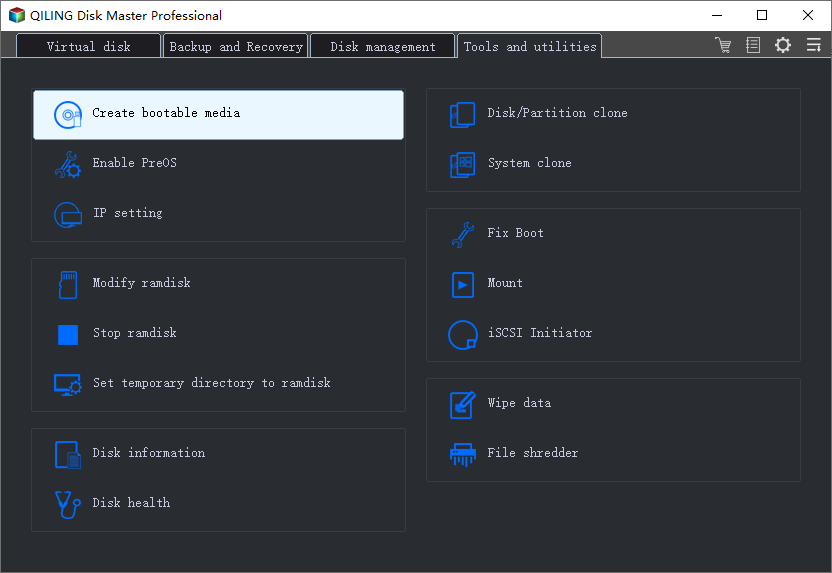
Step 4. To start the installation process, you need to choose the location where the boot disk will be created. This can be done by selecting one of the following options: creating an ISO file, creating a bootable USB, or creating a bootable CD/DVD disc.
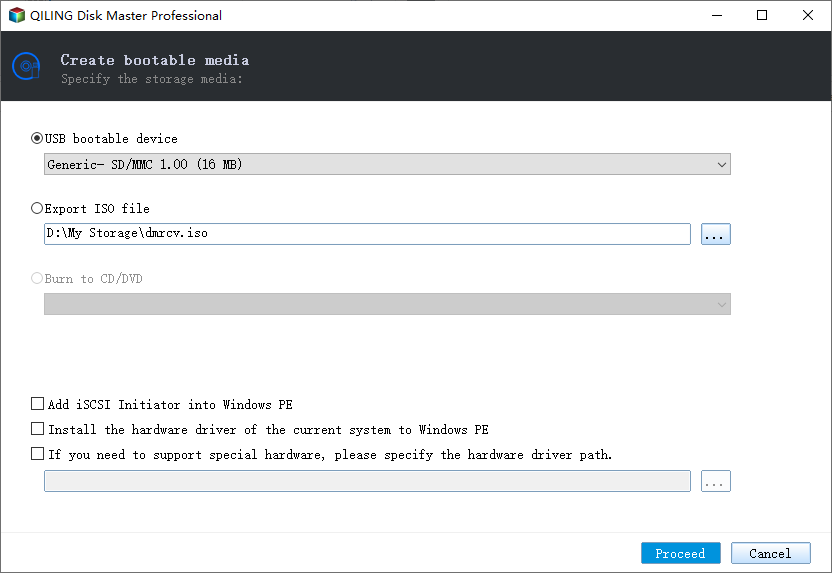
Step 5. Then click "Proceed" to start.
With Qiling Backup bootable USB or DVD, you can bypass the "PC needs to be repaired" issue caused by a missing or inaccessible device, giving you peace of mind when booting up your computer.
Related Articles
- Fix 'Windows Can't Find A System Image on This Computer' Error
- Dash Cam Card Full Error: How to Fix 'Dash Cam Says SD Card Full'
- How to Find Recently Deleted Folder/Photos on Mac
- Fixed: Windows 10 Reset Stuck or Windows 10 Fails to Reset
- Safe Disk Tutorials
Read this guide to learn Safe Disk Tutorials with clear steps, practical tips, and safer troubleshooting methods. - Data Backup and Partition Manager Tutorials
Read this guide to learn Data Backup and Partition Manager Tutorials with clear steps, practical tips, and safer troubleshooting methods. - Data Backup and Drive Clone Tutorials
Read this guide to learn Data Backup and Drive Clone Tutorials with clear steps, practical tips, and safer troubleshooting methods.
Products
Articles & Tutorials
- Data Recovery
- Data Backup
- File Recovery
- File Backup
- System Backup and Restore
- Disk and Partition Clone
- Technical articles
- Mobile articles
- Disk Master Help
- Windows Data Recovery Tutorials
- Windows Secure Delete Tutorials
- Windows Partition Management Tutorials
- Windows File Backup and Restore Tutorials
- Windows System Backup and Restore Tutorials
- Windows Disk Backup and Restore Tutorials
- Windows Clone Tutorials