5 Ways to Uninstall Application on Mac [Complete Guide]
To uninstall applications on your Mac, including Ventura, Monterey, Big Sur, Catalina, and other versions, follow these steps. For a detailed guide, read on to learn the methods of macOS application uninstallation. You can use the Launchpad or Finder to delete apps, and some apps may also have an "Uninstall" or "Remove" option.
| Workable Solutions | Step-by-step Troubleshooting |
|---|---|
| Method 1. Delete Apps on Mac with Trash | Removing applications to the Trash is the simplest way to delete them from your...Full steps |
| Method 2. Remove Apps with Mac Launchpad | On your Mac, Launchpad makes it simple to find and launch apps. Even...Full steps |
| Method 3. Remove Apps on Mac with Finder | Besides the two methods above, you can also use Finder to remove apps you...Full steps |
| Method 4. Uninstall Mac Apps Using Uninstaller | Third-party applications from Internet come with their installers when you...Full steps |
| Method 5. Uninstall Apps on Mac with Terminal | The Terminal is a powerful technique for controlling macOS situations...Full steps |
To uninstall TweetDeck on a Mac, moving it to the Trash from the Applications menu does not completely uninstall it. To fully remove the application, you need to delete its associated files and data. You can do this by emptying the Trash, which permanently deletes the application and its related files. Alternatively, you can use the "Uninstall" feature in the App Store or use a third-party uninstaller like Clean My Mac. However, the most straightforward method is to simply delete the application and its associated files from the Trash.
Removing or uninstalling programs from your Mac can free up space, but the process might be more complicated than you think. Application-related files are scattered across various folders, making it difficult to completely uninstall an app. Fortunately, there are 5 straightforward methods to accomplish this, which are detailed in the rest of the text.
Method 1. How to Delete Apps on Mac with Trash
Removing applications to the Trash is the simplest way to delete them from your Mac. To permanently delete the app, you should:
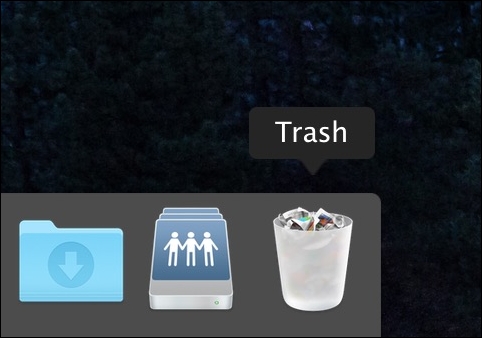
Step 1. Locate where is the Trash Mac on the Dock.
Step 2. Choose to Empty the Trash.
Step 3. If you're unable to force empty Trash on your Mac, check if the application isn't operating in the background.
- Notice:
- To uninstall an app, you should delete it from the Applications folder, rather than dragging its icon from the Dock or desktop to the Trash.
Method 2. How to Remove Programs with Mac Launchpad
To remove programs directly downloaded from the Apple Store using Launchpad, follow these steps:
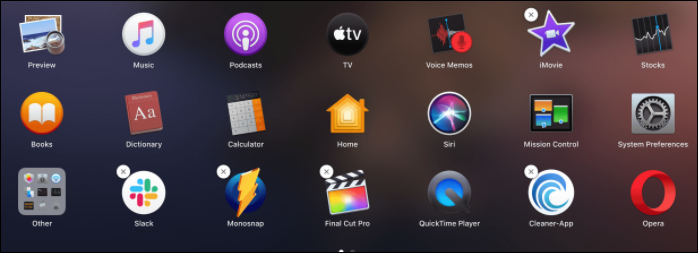
Step 1. Find the Launchpad icon in the Dock and click it.
Step 2. Locate the app that you want to remove.
Step 3. When the unwanted app's icon shakes, click and hold it.
Step 4. To close the app, click the "X" in the upper-left corner of the app icon.
Method 3. How to Remove Apps on Mac with Finder
You can also remove apps downloaded from the Internet using Finder, a method applicable to macOS Ventura, Monterey, Big Sur, and other versions. The procedure is the same as the other methods mentioned.
If you still have questions about removing the apps, please continue to read the method below.
You can remove apps from your Mac using either Launchpad or Finder, depending on your preference. To uninstall an app via Launchpad, simply click and hold on the app icon until it starts to jiggle, then click the "X" in the corner of the icon. Alternatively, you can go to the Finder, select the app in the Applications folder, and drag it to the Trash. Either method will remove the app from your Mac.
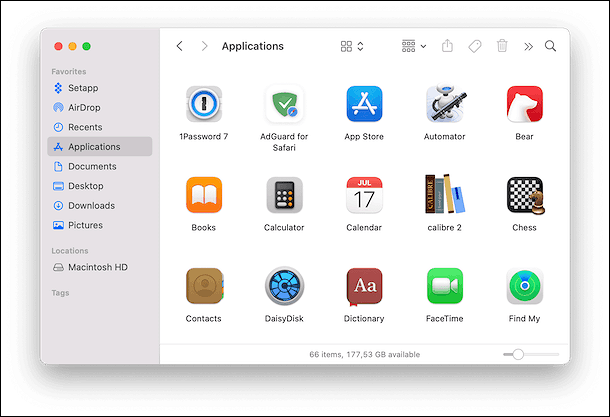
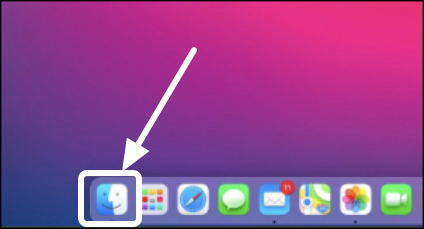
Step 1. To delete an app, first, open the Finder on your Mac. Then, navigate to the Applications folder.
Step 2. Drag the app to Trash.
Step 3. Choose "File" - "Move to Trash".
Step 4. If asked, enter an administrator account and admin password.
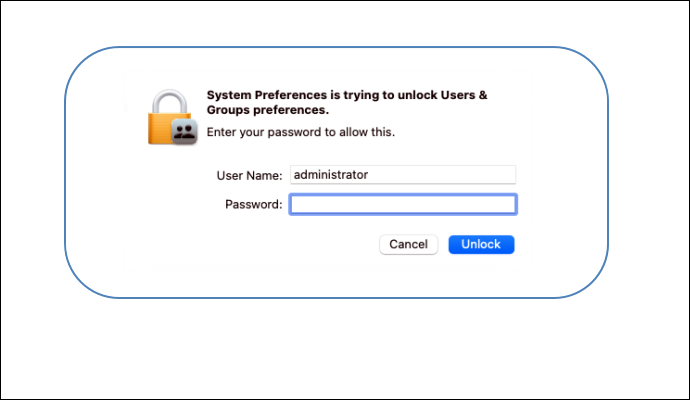
Step 5. Click "Empty Trash" in the Finder's menu.
- Warning
- If you want to completely remove applications, try using the methods below, which may help to delete related files that remain after using Finder or Launchpad.
Method 4. How to Uninstall Mac Applications Using Uninstaller
Third-When you download party applications from the Internet, they often come with their own installers. This can make it more difficult to delete them later, as they may have installed their own utilities and assistance that need to be removed as well.
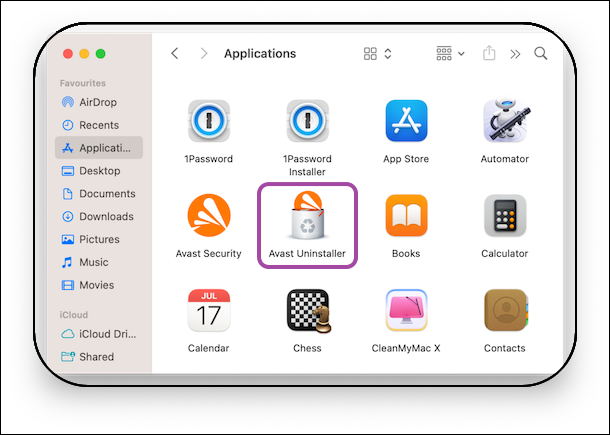
So, when you uninstall a third-To completely remove a party application from your Mac, you'll want to follow a few steps. First, delete the application itself from your Applications folder. Next, go to the Launchpad and drag the application icon to the trash.
Step 1. Open "Finder" - "Applications".
Step 2. To remove a third-party app, locate the app that contains a folder named "Uninstall (app name)" or "(app name) Uninstaller," and follow the uninstallation instructions provided in that folder.
Step 3. Click the folder, and you'll discover the uninstaller.
Step 4. Open the uninstaller and start the uninstallation process.
Method 5. How to Uninstall Apps on Mac with Terminal
The Terminal is a versatile tool for controlling macOS situations, allowing you to uninstall apps without needing a third-party program. You can complete the task with a simple command, even if you're new to using Terminal. After uninstallation, it's also a good idea to set the command to delete files. This makes it easy to remove unwanted apps and clean up your Mac.
Step 1. Select "Applications" - "Utilities" to launch Terminal.
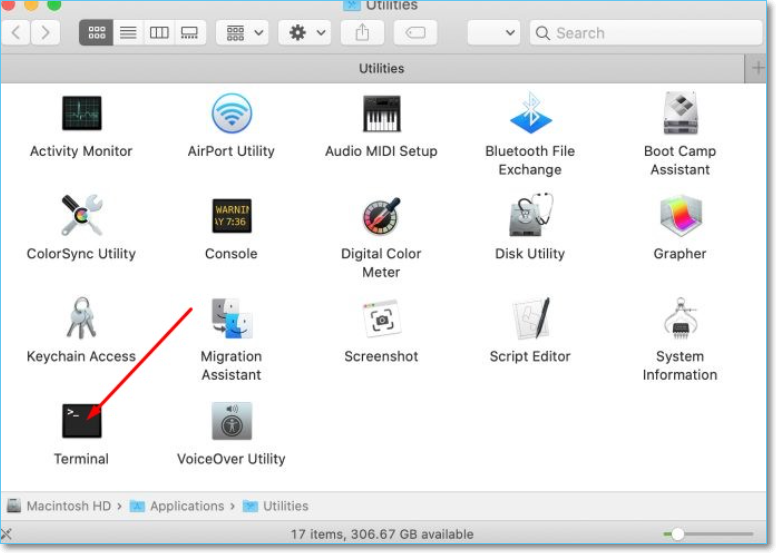
Step 2. Enter the command: sudo uninstall file://

Step 3. To delete an unwanted app icon from the dock, drag the icon into the Terminal window, which will display the path of the app, allowing you to delete it.

Step 4. To uninstall an app on a Mac, press Enter, input your admin password, and Terminal will uninstall the app.
Extra Tip: Recover Lost Data/Files After Uninstalling Apps on Mac
When uninstalling applications on a Mac, some data/files created by the apps may be deleted, and if you want to recover files like documents, pictures, videos, and music, you might be in trouble. Therefore, after learning how to delete or uninstall applications on Mac, it's advisable to also know how to recover deleted files and apps on Mac.
It's frustrating when you unintentionally delete an app or its related files, and third-party tools can risk data corruption and system shutdown when trying to retrieve data. However, a powerful data recovery tool called Deep Data Recovery for Mac can protect your crucial data by recovering deleted files on Mac. To use it, keep your Mac device on and activate the tool as soon as you notice a missing critical app or file, then click Recover next to the relevant hard drive.
- You can recover deleted or lost files from your Mac using a powerful data recovery program.
- The software makes data recovery simple and effective with its many capabilities.
- You can recover deleted files on macOS Ventura, Big Sur, Catalina, or Mojave using Deep Data Recovery for Mac.
- The software is compatible with a wide range of data types and supports numerous file formats.
Here are the Deep Data Recovery steps to recover your deleted files.
Step 1. Select the drive to be scanned
In the main Deep Data Recovery window, select the drive you need to recover lost/deleted files from and click the "Search for lost files" button.
Step 2. Select your lost data/files
Deep Data Recovery for Mac scans the selected disk volume, displaying the results in the left pane, allowing users to sort and find specific files.
Step 3. Recover lost/deleted data
After finding the desired files, preview them and then click "Recover" to initiate the recovery process for your deleted or lost Mac files.
To Wrap It up
You can now easily uninstall Mac programs using various methods, making the process simpler than before. With the right guidance, complete uninstallation is no longer a daunting task. Additionally, you can retrieve files that were accidentally deleted using a precise tool.
Uninstall Applications on Mac FAQs
Here, we included 4 questions that you may also be interested in. Check and find the answers here.
1. How to completely uninstall the application Mac in Terminal?
Step 1. In the command line, type sudo uninstall file:/.
Step 2. Drag the icon of the unwanted app from the Applications folder in Finder into the Terminal window.
Step 3. To uninstall the software and any residual files from your Mac, press Enter after entering your user password.
2. How to uninstall apps on Mac Monterey?
You can use traditional methods like dragging apps to the Trash and the Launchpad in Monterey to uninstall them. Alternatively, specialized uninstallers, third-party apps, and Terminal commands can be used to thoroughly remove the associated files.
3. How to delete apps on Mac that won't delete?
Removing system-embedded programs from your computer using Terminal can be a helpful option if you're comfortable with technology.
4. Why can't I uninstall apps on Mac?
Uninstalling apps on Mac can result in a notification stating that the item 'app name' can't be moved to the trash since it's open, due to the app still running in the background.
Related Articles
- [Fixed] Windows Cannot Delete the Active System Partition on This Disk
- Why Is My Camera Telling Me to Format My SD Card [Full Explanation]
- [Step-by-step Guide] How to Enable and Disable Secure Boot
- A Beginner's Guide | How to Install Hard Drive in PC?
- How to Solve 'Can't Delete Partition on SD Card' [100% Working Solutions]
If you're experiencing issues with deleting a partition on your SD card in Windows, this article can help. It explains why Disk Management may not allow you to delete the partition on your SD card and provides solutions to make space available on your SD card. - How to Solve Can't Delete Volume on USB [100% Working Solutions]
Are you facing issues of can't Delete Volume on USB in Windows? This article discusses the issue of why Disk Management does not delete the volume on USB and provides appropriate solutions with proper guidelines so that you can make space in your USB drive.
Products
Articles & Tutorials
- Data Recovery
- Data Backup
- File Recovery
- File Backup
- System Backup and Restore
- Disk and Partition Clone
- Technical articles
- Mobile articles
- Disk Master Help
- Windows Data Recovery Tutorials
- Windows Secure Delete Tutorials
- Windows Partition Management Tutorials
- Windows File Backup and Restore Tutorials
- Windows System Backup and Restore Tutorials
- Windows Disk Backup and Restore Tutorials
- Windows Clone Tutorials