Where Is Trash Folder on Mac [Beginner's Guide]
Trash is located in the Dock, but you can also find it in the Finder window, under the "Go" menu, or by using the keyboard shortcut Command (⌘) + Delete.
Macs and other technologies like mobile phones, browsers, and emails often give you a chance to reconsider deleting something, allowing you to undo your action and recover your files within a specific window of time. This feature provides a safety net, enabling you to correct mistakes and regain access to deleted content.
The Trash folder on Mac is a useful feature, but its location can be unclear. To find it, you can explore a few key aspects, which we'll cover in this article. This includes understanding where the Trash folder is located and how to restore it, making it easier to manage deleted files on your Mac.
What Is Trash Folder in macOS and Mac OS X
The trash folder in macOS allows you to delete files and place them there, giving you a chance to recover them or permanently remove them, serving as a temporary holding place for deleted files.
The Trash folder on a Mac is a designated recycler for all macOS-based devices, where deleted files are stored for recycling, restoring, or deleting, and not permanently deleted.
The primary benefit of a trash folder is that it allows you to recover deleted files, making it essential to know where to find it on Mac.
Where Is Trash on Mac (Beginner's Guide)
If the introduction to the trash folder on macOS makes you want to use it, you can access it in a few ways. The trash folder can be accessed from the Dock, the Finder, or by using the keyboard shortcut Command + Delete. Additionally, you can also right-click on a file and select "Move to Trash" to send it to the trash folder. These methods allow users to easily and efficiently manage their deleted files on their Mac devices.
Method 1. Use the Terminal to Open Trash Folder
If you're familiar with Terminal on Mac, you know it can perform various functions, similar to a command prompt on Windows-based computers. To get started, simply open the Terminal, which can be used to access and manage files, including recovering deleted files using Terminal commands.
Once you open the terminal on Mac, click on "Terminal" in the Applications/Utilities folder, then follow these steps:
Step 1. Open the Terminal on Mac.
Step 2. Type in cd ~/.Trash in your command line.
Step 3. Press enter.
Step 4. Check the trash folder.
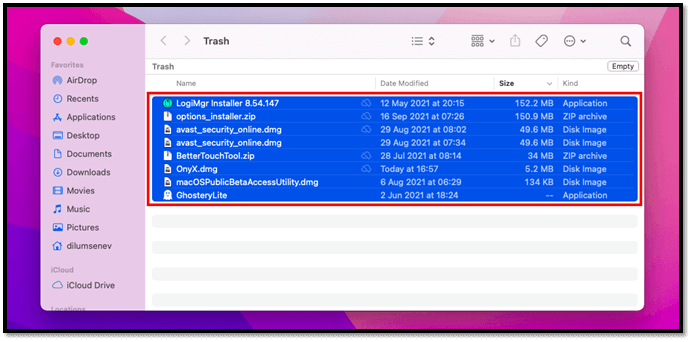
To launch the Trash folder on your Mac, you can type `open -a /Applications/Trash.app` in the Terminal. This command will only open the Trash folder and not delete any files.
Method 2. Use the search functions to find the trash folder
You can also find the trash folder using the search function, which is a straightforward method that requires minimal work. To do this, simply follow a few easy steps: 1) open the search function, 2) type in the name of the trash folder, and 3) select the correct folder from the search results. This method allows you to quickly locate the trash folder without having to navigate through multiple menus or folders.
Step 1. Press Command + Shift + G on your keyboard.
Step 2. The search bar will open, so type Trash
Step 3. Click the icon with Recycle bin on it.

Step 4. Open the trash folder on your Mac and explore it.
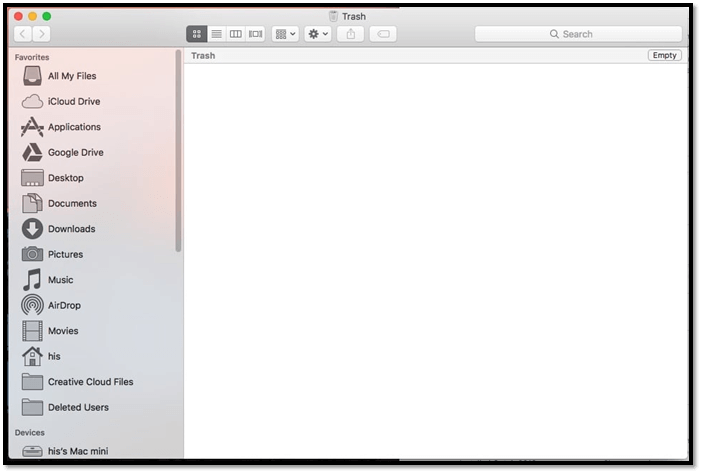
Opening your macOS using this method is a viable way to do so, and it's a much better alternative than using the terminal command line. That's why you should prefer this option anyway.
How to Find and Restore the Trash Bin on a Mac
To put the trash bin back on your desktop, you can right-click (or control-click) on the desktop and select "Show Trash" from the context menu. Alternatively, you can go to Finder > Preferences > Show Trash in the Finder menu bar. If you're using macOS Monterey or later, you can also use Spotlight to search for "Trash" and drag it back to your desktop. If the Trash icon still doesn't appear, try restarting your Mac.
Step 1. Open the terminal on your macOS.
Step 2. You can create a shortcut to the Trash folder on your desktop by running the command "ln -s ~/.Trash ~/Desktop/Trash" in the terminal. The "ln" command is used to create a symbolic link, and the "-s" option specifies that a symbolic link should be created.
Step 3. After entering, you'll see the Trash folder on your Mac desktop, which looks like a wastebasket icon.
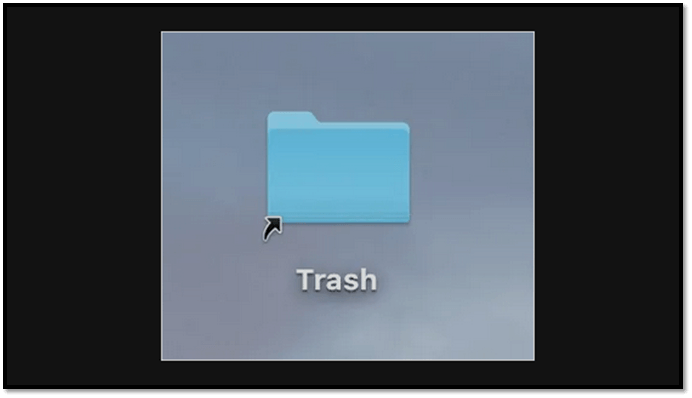
The Trash folder on a Mac can be moved to the desktop, making it easily accessible.
How to Recover Files from Trash Bin on Mac
If the methods mentioned earlier don't work, you can try other approaches to recover deleted files. However, keep in mind that once files are removed from the trash, recovery can be challenging. If the files are still in the trash, you can use the steps mentioned earlier to retrieve them.
If the data is not recoverable using the methods mentioned, you can try other methods which might help you recover some of the lost data.
Method 1. How to Recover Files and Folders from Trash Bin
To recover files from a MacBook or any Mac device, head back into the trash folder and explore the option to restore the files to their original or desired location. This is the first step, and then you can proceed with the recovery process.
Step 1. Open the trash folder by clicking on the "Trash" icon in the dock or by going to the "Finder" menu and selecting "Empty Trash" to view its contents.
Step 2. Right-click on the file(s) you wish to recover.
Step 3. Find and click on "Put back".
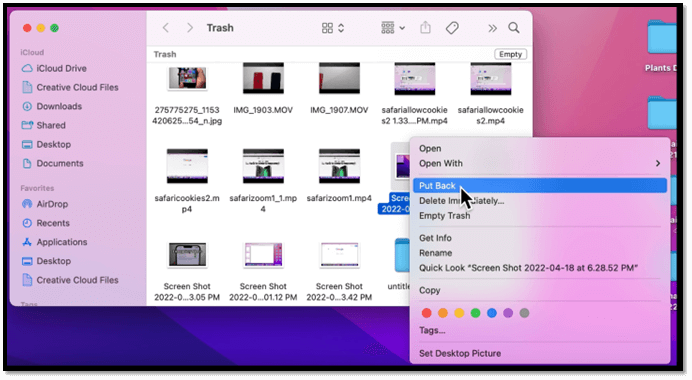
Step 4. Once you click on this option, the file will revert back to its original location.
Step 5. Select more than one file if you wish to recover multiple.
This option is one of the better choices to restore your files to their original location. Keep in mind that the files will only stay in your trash folder for a maximum of 30 days, so if you've deleted something before that, it might not be recoverable.
To change the Trash preference, go into the Finder preference and look for options related to Trash, where you can find the option to change the time period for which items remain in the Trash before being automatically deleted. This option can be set to be less than thirty days, but cannot be increased beyond that.
Method 2. How to Recover Files and Folders from Emptied Trash Bin with Recovery Software
To recover files from an emptied trash bin or permanently deleted files on a Mac, the most effective option is to use recovery software. This is because once files are gone from the Trash, they cannot be recovered manually. Recovery software can help retrieve lost files, making it a reliable solution for recovering deleted files on a Mac.
To recover deleted files from your Mac, a reliable tool like Deep Data Recovery for Mac is essential. This professional software allows you to easily restore data from the Trash, making it a viable solution for your data recovery needs.
The tool you're referring to is likely a file recovery software, such as Deep Data Recovery Wizard. This software has many great options, such as recovering files in cases of accidental deletion, formatting, or even physical damage to the storage device. It can also recover files from various types of storage media, including hard drives, solid-state drives, and external drives.
- Recovering files from an emptied trash folder on Mac.
- Recovering files from unwanted deletion.
- Recovering files from partition loss.
- Restoring files lost by a system crash.
- Recovering formatted files or folders.
- Recovering damaged hard drives or external hardware.
- Recovering files lost or deleted in a virus attack.
This software has an excellent reputation for helping users recover files deleted after the 30-day limit in the macOS trash folder, making it a suitable tool for recovering files lost in a deletion on a mac device.
- Video recovery.
- Photo recovery.
- Backup recovery, such as iTunes.
Deep Data Recovery for Mac enables Mac users to recover deleted files and folders from the Trash with ease, making it possible to retrieve lost data in just three steps.
Step 1. Select the drive to be scanned
In the main Deep Data Recovery window, select the drive you need to recover lost/deleted files from and click the "Search for lost files" button.
Step 2. Select your lost data/files
Deep Data Recovery for Mac scans the selected disk volume and displays the results on the left pane, allowing users to sort and find specific files.
Step 3. Recover lost/deleted data
Once you have located the desired files, preview them, and then click "Recover" to initiate the recovery process for your deleted or lost Mac files.
Bottom Line
To find the trash folder on a Mac, you can simply click on the desktop and look for the Trash icon. If you've accidentally deleted a file, you can try recovering it from the Trash by dragging it back to its original location. If the file is no longer in the Trash, you can use Qiling Data Recovery for Mac to restore lost files, including Word documents and making USB recovery on Mac easy and fast.
Where Is Trash Folder on Mac FAQs
I can try to help you with that. What's the question about?
How do I find the Trash folder on my Mac?
You can find the trash folder on your Mac through search or the terminal. If you're looking for a more straightforward approach, using search is a good option. Alternatively, you can navigate to the terminal and use the command "open ~/.Trash" to access the trash folder.
Where do I find my Trash on macOS Ventura?
If you're having trouble finding the Safari icon on your Mac, you can try using the Spotlight search feature, which can be accessed by clicking the magnifying glass icon in the top right corner of the screen. Alternatively, you can use the search bar to look for Safari. If neither of these options work, you can try using the Terminal app to move the Safari icon to your desktop.
Can't find Trash on Mac, how to fix it?
Before attempting to bring the trash folder to your desktop using the terminal command, make sure you have a basic understanding of how to use the terminal. Once you're comfortable with terminal basics, you can proceed with the command mentioned in the article to relocate the trash folder to your desktop.
Can I recover files after emptying recycle bin?
If the deleted files are still on your Mac, you can recover them. However, if they were deleted more than 30 days ago, you'll need a tool like Qiling Data Recovery to restore them.
- 1. Select the disk location first.
- 2. Click "Scan".
- 3. Deep Data Recovery for Mac will scan the selected disk and list all the deleted data for you.
- 4. Select the files you want and click "Recover".
Related Articles
- Recover Data from Unmountable Hard Drive on Mac
- Formatted Recovery Mac: How to Recover Data from Formatted Mac Hard Drive
- How to Recover a Replaced File on Mac
- [Free] Deep Data Recovery for Mac 11.8 Torrent/Serial Key
- Free Download Bad Sector Repair Tool - Flobo Hard Disk Repair
Flobo Hard Disk Repair is a tool designed to repair hard drive bad sectors, allowing you to recover your hard drive even if it's corrupted, damaged, or dead. - Folder Is Not Accessible Access Is Denied
If you're experiencing issues with accessing files and folders in Windows 10/8/7, such as “Folder is not accessible. Access is Denied” errors.
Products
Articles & Tutorials
- Data Recovery
- Data Backup
- File Recovery
- File Backup
- System Backup and Restore
- Disk and Partition Clone
- Technical articles
- Mobile articles
- Disk Master Help
- Windows Data Recovery Tutorials
- Windows Secure Delete Tutorials
- Windows Partition Management Tutorials
- Windows File Backup and Restore Tutorials
- Windows System Backup and Restore Tutorials
- Windows Disk Backup and Restore Tutorials
- Windows Clone Tutorials