Recover Data from Unmountable Hard Drive on Mac
To recover files from an unmountable volume on your Mac OS X, download and install Deep Data Recovery for Mac, then follow these steps: open the Qiling Mac data recovery tool, select the hard drive volume with the lost data issue, and access all the data.
Part 1. Recover Data from Unmountable Drive on macOS/Mac OS X
Mac hard drive won't mount, preventing system from booting or starting, causing issues with booting or starting the system.
You're experiencing an issue where your drive won't mount on a Mac, but third-party software can access the files. This suggests that the drive is not being recognized by the Mac's operating system, likely due to a compatibility or formatting issue. To resolve this, you can try reformatting the drive using the Mac's Disk Utility, which may allow it to be properly recognized and mounted. Additionally, backing up your data using a third-party software or another external drive is a good idea to ensure your files are safe. However, if you're able to access your files using the third-party software, it's likely that the drive is still readable, and you may be able to recover your data without needing to reformat the drive.
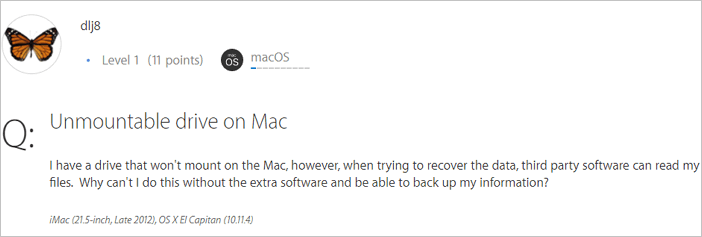
When you encounter an unmountable hard drive on your Mac, your priority is likely to recover data from the unmountable drive. Fortunately, you can still access your files on the problematic hard drive using professional Mac data recovery software, such as Deep Data Recovery, which enables you to recover over 200+ file types from your Mac hard drive or compatible external storage devices in various tough situations.
- Recover deleted files after emptying Trash Bin
- Recover lost data from a formatted USB flash drive
- Restore data from a Mac that won't boot
- Recover lost photos, documents, videos, audios, emails, etc.
- Import or export file scanning results
With this tool installed on your Mac, you can securely recover the data from the unmounted hard drive on your Mac.
Best Mac data recovery software - Deep Data Recovery for Mac
Steps to Recover Data from Unmountable Hard Drive on Mac
Deep Data Recovery for Mac offers a straightforward solution to recover unmountable hard drives on Mac, and also helps with troublesome data loss cases, such as recovering Mac hard drive data. This software is 100% clean and secure, providing full solutions for Mac hard drive recovery, making it a reliable tool for solving all Mac data problems.
Step 1. Search for lost files
Select the disk location to search for lost files and click the "Search for lost files" button.
Step 2. Go through the scanning results
This software will immediately scan your selected disk volume and display pictures, documents, audio, videos, and emails on the left pane.
Step 3. Select the file(s) and recover
Click the data to preview, and click the "Recover" button to have them back.
Part 2. How to Repair Unmountable Hard Drive on Mac
To repair an unmountable Mac hard drive, you can use the First Aid feature in Disk Utility or format the hard drive directly. This allows you to recover data without worrying about loss, and then proceed with repairing or reformatting the drive.
Method 1. Repair an Unmountable Hard Drive on Mac with Disk Utility
Disk Utility is a useful tool that can fix some disk problems, making it worth trying when your Mac's hard drive becomes unmountable.
Step 1. To restart your Mac in recovery mode, go to the Apple Menu and click "Restart". As soon as the shutdown process begins, press and hold the "Command + R" keys on your keyboard until the Apple logo appears on the screen. This will boot your Mac into recovery mode.
Step 2. Click "Disk Utility" > "Continue".
Step 3. To repair a drive, go to "View" and select "Show All Devices" from the dropdown menu, then click on the drive you want to repair in the sidebar.
The Mac hard drive is greyed out and marked as "untitled", indicating it's not currently mounted on the computer.
Step 4. Select the untitled Mac hard drive and click the "Mount" button from the Disk Utility bar.
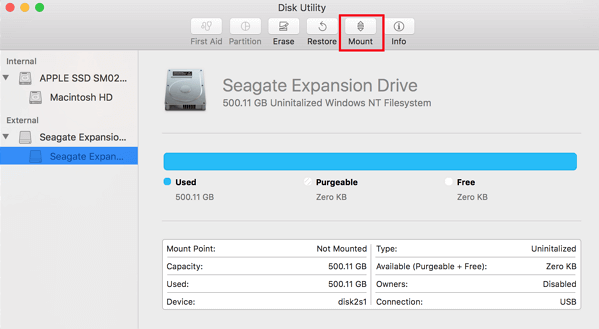
Step 5. If Disk Utility reports that your hard drive is failing, back up your data and replace the disk with a new one. Click the "First Aid" button to run a diagnostic test on the disk. If the test fails, it's likely that the disk is beyond repair and you should replace it with a new one. Make sure to back up your data before making any changes.
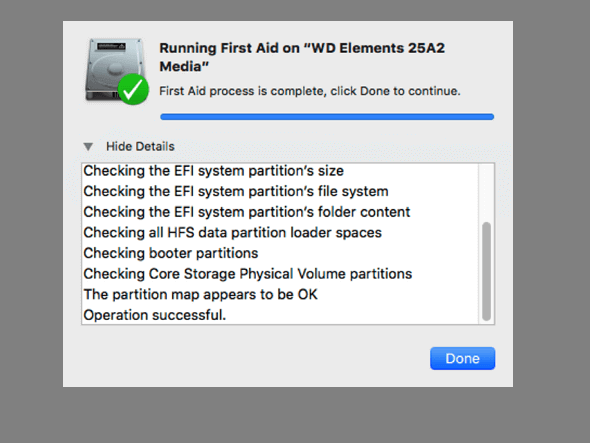
If Disk Utility says the disk has been repaired, you can use your hard drive normally again. If not, you'll need to format your hard drive to fix it.
Method 2. Repair an Unmountable Hard Drive on Mac by Formatting
To fix the issue of accessing an unmounted hard drive, you can try formatting the drive to make it accessible again. This can be done through the Disk Management utility in Windows or the Disk Utility app on a Mac. Simply open the relevant app, select the unmounted hard drive, and click the "Format" or "Erase" button to erase all data on the drive.
Steps to Format Mac Hard Drive
Step 1. Go to "Finder" > "Applications" > "Utilities" > "Disk Utility".
Step 2. Select the drive in the left sidebar and click "Erase".
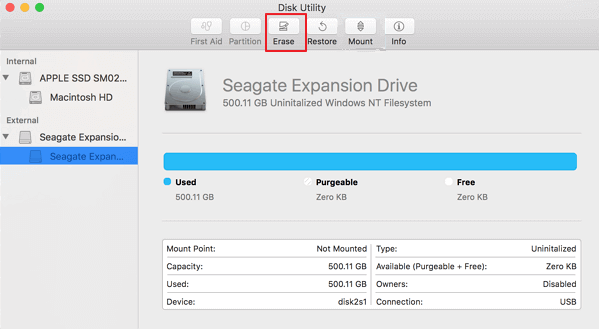
Step 3. Set the OS format to the desired one, rename the drive if needed, and click "Erase" to finalize the formatting process.
After restarting the Mac, you should be able to access and save new data on the drive again.
Part 3. Symptoms and Causes of an Unmountable Hard Drive
The "unmountable hard drive" issue on Mac typically occurs during the booting process, when the operating system tries to mount the local file system and access data on Mac drives. If the macOS or Mac OS X is unable to access the drive or file system, this problem arises.
Symptoms
- The hard drive will be greyed out in Disk Utility.
- If a drive is unmountable, any data stored on it will be inaccessible.
- Data read/write functions, and access becomes quite slow.
- These files are visible, but have no functionality, meaning they cannot be moved or copied.
Possible Causes
- Virus/malware infection
- Files system corruption
- OS malfunction
- Disk Utility failure
Part 4. Repair Unmountable Disk Mac FAQs
There are several hot topics surrounding unmountable drive data recovery, and seeking additional help may be beneficial in resolving these issues.
What does mounting a drive mean?
Mounting a hard disk involves making it accessible to the computer through a software process, allowing the operating system to read and write data to the disk. This process typically enables the operating system to automatically recognize and connect to the disk when it is connected to the computer.
How do I force an external hard drive to mount?
If your external hard drive won't mount, there are several ways to fix the issue. You can try restarting your computer, as this can sometimes resolve the problem.
- Check External Hard Drive
- Mount the External Hard Drive
- Format External Hard Drive...
What happens when you mount a hard drive?
When a drive is mounted, the mount program identifies the type of filesystem on the partition and then uses kernel calls to implement standard filesystem operations, such as reading, writing, listing, and managing permissions.
How can I recover data from the unmounted disk?
Steps to recover data from unmounted disk:
Step 1. Select the disk location where you lost data and files. Click the Scan button.
Step 2. Deep Data Recovery for Mac scans the selected disk volume and displays the scanning results on the left pane.
Step 3. Select the desired file(s) in the scan results and click the "Recover Now" button to restore them.
Conclusion
To fix unmountable Mac volume errors, you can try solutions such as running a disk utility, checking for file system corruption, and restarting your Mac. If these methods fail, you can use data recovery software like Qiling to recover data from your unmountable drive in just minutes. This can help you recover important files and data from a Mac hard disk that is no longer mountable.
Related Articles
- How to Recover Deleted Files on Mac After Emptied Trash Bin (2022 Tips)
- How to Delete a File on a Mac [Four Plans Provided]
- Mac Data Recovery | How to Recover Pictures from Photo Booth on Mac
- APFS Data Recovery: How to Recover APFS Files on Mac/Windows
- Witcher 3 Missing Saves | How to Restore Witcher 3 Game Saves
Witcher 3 missing saves on PC? We are here to help you recover Witcher 3 missing saves; five methods will be mentioned in this guide. You'll know how to recover missing data on different devices. - [Official & Latest] Deep Data Recovery Key 3.1 and Qiling License Code
Stop trying to use Qiling data recovery crack, keygen, or serial number. Deep Data Recovery 3.1 with the official license code and serial key is available here for you to download. With the Qiling data recovery key, you can activate Deep Data Recovery legally and recover your data in the safest way.
Products
Articles & Tutorials
- Data Recovery
- Data Backup
- File Recovery
- File Backup
- System Backup and Restore
- Disk and Partition Clone
- Technical articles
- Mobile articles
- Disk Master Help
- Windows Data Recovery Tutorials
- Windows Secure Delete Tutorials
- Windows Partition Management Tutorials
- Windows File Backup and Restore Tutorials
- Windows System Backup and Restore Tutorials
- Windows Disk Backup and Restore Tutorials
- Windows Clone Tutorials