Mac Data Recovery | How to Recover Pictures from Photo Booth on Mac
Photo Booth is a Mac application that allows users to take photos and videos using an iSight camera, first released in 2005. Initially exclusive to Mac computers, it is now available on both macOS and iPadOS. Notably, Photo Booth should not be confused with the Photos application, as they are two separate and distinct programs.
Photo Booth displays a real-time preview of the camera's view, and photos or videos taken can be added to the Photos app. This article will focus on recovering lost or deleted pictures and videos from Photo Booth.

Why Are My Pictures in Photo Booth Missing?
Mac users may lose Photo Booth pictures due to various reasons. Some common causes include accidental deletion, storage space running out, corrupted files, or software updates that may delete old files. Additionally, users may also delete Photo Booth pictures by mistake while cleaning up their computer or when using other apps that automatically delete temporary files.
1. Accidental Deletion.
Accidental deletion of photos can occur in various scenarios, such as mistakenly deleting photos you intended to keep, or experiencing a sudden computer shutdown while editing photos, including those taken with the Photo Booth feature. In all these cases, the common thread is that your photos have been deleted by mistake.
2. Virus Attack.
Computer viruses can cause destruction and deletion of files on a Mac, often hidden within normal program files, resulting in data loss that may not be immediately apparent.
If you've lost or deleted your Photo Booth photos, There are several methods you can try to recover them. You can try each method one by one until you find your photos again.
Method 1. Undo Delete in Photo Booth
To undo the deletion of the pictures in the Photo Booth, you can try to restore them from the Trash. If the images are not in the Trash, you can try to recover them using a third-party data recovery software. Some of these software can scan your device and recover deleted files, including photos from the Photo Booth.
Step 1. Open Photo Booth.
Step 2. Choose Edit > Undo Delete.
If you've deleted photos multiple times in a row, you can try repeating the deletion process to potentially recover the deleted photos. However, be aware that repeated deletion attempts may lead to data loss or overwrite the original files.
Method 2. Recover from Time Machine Backup
If you've accidentally deleted all photos from Photo Booth or they've disappeared, you can recover them from a Time Machine backup. This method requires having at least one backup file, and it's recommended to recover from the latest backup to avoid overwriting existing data on your Mac.
Step 1. To set up a Time Machine backup on your Mac, start by shutting down your computer. Next, connect the Time Machine backup drive to your Mac.
Step 2. The power button and Option key are pressed simultaneously, and the Option key is held down.
Step 3. When you see the startup manager screen, you can release the Option key.
Step 4. Select the backup drive and click Return.
Step 5. Your Mac will boot into an OS X installer type screen where you can choose to restore from the latest backup files.
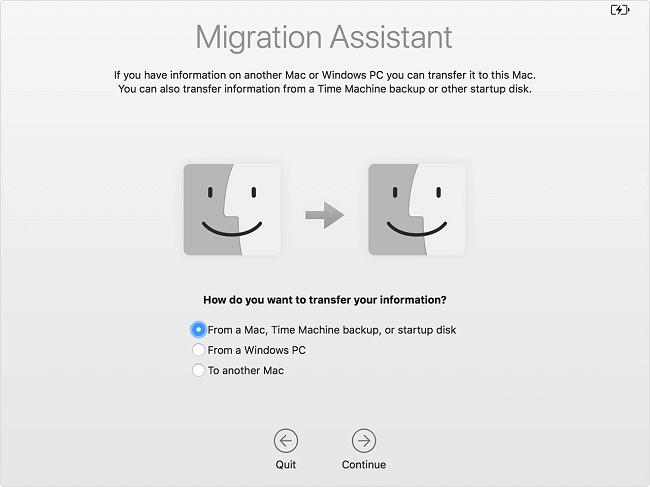
Method 3. Recover with Third-Party Data Recovery Software
If the built-in undo delete method doesn't work and you don't have Time Machine backups, you can try using a third-party data recovery tool like Deep Data Recovery for Mac, which is generally more feature-rich and has higher performance than built-in Mac data recovery tools.
Deep Data Recovery for Mac is a powerful tool that not only recovers lost data in common scenarios like format, virus attacks, or system crashes, but also resolves the T2 chip data encryption issue. Its exclusive innovative technology allows for easy scanning and restoration of encrypted data on Macs with T2 chips, providing a simple and secure way to retrieve lost data.
To recover Mac photos, you can download the software and follow the provided guide, which will walk you through the steps to retrieve your lost photos.
Step 1. Launch Qiling file recovery software on your Windows computer. Select file types and click "Fast Scan" to start the recovery process.

Note: You can choose different search modes based on where and why the data was lost.
Step 2. Click the "Scan" button to start the recovery process. The location where your photos were lost will be scanned for any recoverable files.

Step 3. Deep Data Recovery for Mac starts a quick scan and a deep scan on the selected disk volume, presenting the scanning results in the left pane.

Step 4. You can quickly filter and recover lost photos by selecting them by path and type, then clicking the "Recover" button.
To recover deleted files on a Mac after the trash bin has been emptied, start by stopping any disk activity to prevent further data loss. Then, use the "Time Machine" feature to restore the files from a previous backup.
This tutorial offers practical solutions on how to recover deleted files on a Mac, even after emptying the trash bin, using Mac data recovery software.
The Bottom Line
If you've accidentally deleted your Photo Booth pictures on a Mac, you can recover them by undoing the deletion. Alternatively, if you've backed up your Mac with Time Machine, you can restore the latest backup files to retrieve your photos. If neither of these methods works, you can use Deep Data Recovery for Mac, which scans and attempts to recover your lost photos.
Related Articles
- How to Show Hidden Files on Mac
- How to Recover Data from Dead MacBook Pro Hard Drive
- Mac Won't Boot into Recovery Mode Fixes | Mac Command R Not Working Solutions
- How to Recover a Replaced File on Mac
- Canon Video Recovery Software | How to Recover Deleted Videos from Canon Camera
If you accidentally deleted videos from your Canon camera, recovering them is easier than you think. With the right software, you can restore your videos in just a few steps, whether you're using a Mac or Windows computer. - How to Recover Deleted Videos from Nikon Camera
If you understand how a storage memory card works, you can recover deleted videos from a Nikon camera by using the knowledge to identify and access the deleted files.
Products
Articles & Tutorials
- Data Recovery
- Data Backup
- File Recovery
- File Backup
- System Backup and Restore
- Disk and Partition Clone
- Technical articles
- Mobile articles
- Disk Master Help
- Windows Data Recovery Tutorials
- Windows Secure Delete Tutorials
- Windows Partition Management Tutorials
- Windows File Backup and Restore Tutorials
- Windows System Backup and Restore Tutorials
- Windows Disk Backup and Restore Tutorials
- Windows Clone Tutorials