How to Delete a File on a Mac [Four Plans Provided]
You can easily delete a file on a Mac, but there are multiple ways to do so. To delete files on a Mac, you can use the common method, the Trash, Terminal, or Storage Manager. We'll guide you through each of these methods, so keep reading to learn more.
How to Delete Files on a Mac in Common Way
We'll start with the easiest and fastest method, which is accessible to even newcomers to Macs. To delete files on a Mac, you can use the following three tips:
Tip 1. To delete files, select the desired files, right-click them, and choose "Move to Trash" from the available options.
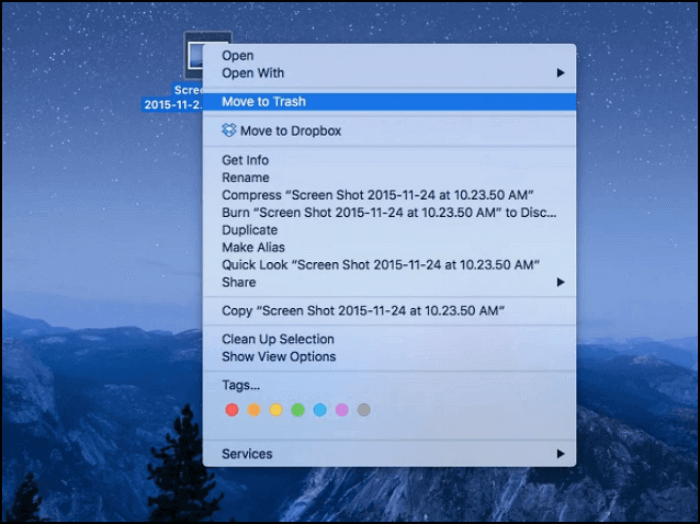
Tip 2. To get rid of unwanted files, you can select them using your mouse, then drag them to the Trash, where they will be stored temporarily.
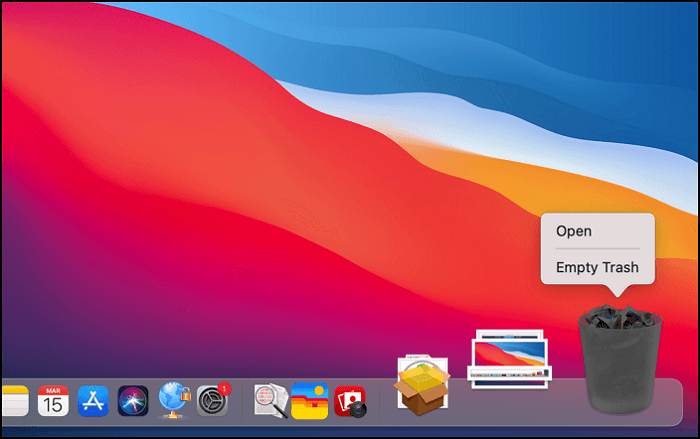
If you don't know where is Trash on Mac, check this picture, and you can find it.

Tip 3. You may already know how to delete files using the methods mentioned earlier. However, if you're looking for a quicker way, you might be interested in learning the Mac shortcut for moving files to the Trash. There are three sets of Mac shortcuts you can use:
- Pressing both Command + Delete on a Mac can move files directly to the Trash, bypassing the "Are you sure you want to move this item to the Trash?" prompt.
- To empty the Trash on a Mac, you can use the keyboard shortcuts Command + Shift + Delete and Command + Shift + Option + Delete. These shortcuts will permanently delete the items in the Trash without moving them to the Trash folder, allowing you to free up space on your computer.
Delete Files Permanently via Trash on Mac
To permanently delete files and folders from the Trash on your Mac, you can empty the Trash. To do this, right-click (or control-click) on the Trash icon in your Dock, and select "Empty Trash". Alternatively, you can also select "Empty Trash" from the Finder menu.
To empty the Trash Bin on your Mac, simply select the Trash icon on the dock, right-click (or control-click) on it, and choose "Empty Trash." This will permanently delete all files currently in the Trash. Alternatively, you can also select the Trash icon, press Command + Delete (or Command + Backspace) on your keyboard, and confirm the deletion to empty the Trash. Regularly emptying the Trash will help maintain your Mac's storage space and keep your computer running smoothly.
Step 1. Find the Trash icon on Mac.
Step 2. Right-click the Trash icon.
Step 3. To permanently delete files, click the "Empty Trash" button. This action will remove all files currently in the Trash, and they will be irreversibly deleted.
To better understand how to delete files on a Mac, we've created a video that provides a clear and concise guide. Before watching, here are five key highlights to keep in mind:
- 01:17 Delete multiple files
- 03:25 Activate your right-click
- 03:48 Open your system preferences
- 03:56 Use secondary click on Mac
- 04:26 How to use Mac trackpad
Use Terminal to Delete Files on a Mac
You can use Terminal on a Mac to delete files quickly, including multiple files at once. To delete files with Terminal, you can follow a simple tutorial that allows you to use the command line to delete unwanted files. This method is a convenient alternative to deleting files through the Finder, and it can save you time when dealing with large numbers of files.
Step 1. To search and open the Terminal using Spotlight Search on a Mac, follow these steps: Press Command + Space to open Spotlight Search, then type "Terminal" into the search field and press Return. Alternatively, you can also type "Terminal" into the search field and click on the Terminal icon that appears in the results list.
Step 2. To delete a file in Terminal, type `rm` followed by the path to the file you want to delete. For example, if you want to delete a file named "example.
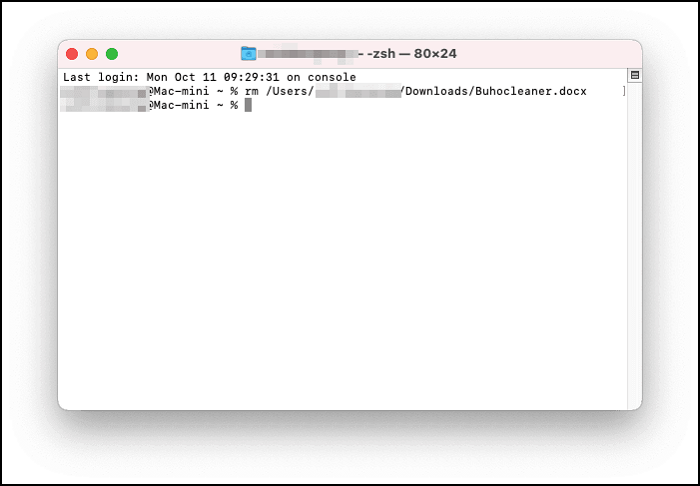
Step 3. Pressing the Enter key will not delete the files permanently. It will only delete them from the current directory.
Note: You can recover deleted files on a Mac using the Terminal command line interface, which is a valuable tool for managing and troubleshooting your computer.
How to Delete Files on a Mac with Storage Manager
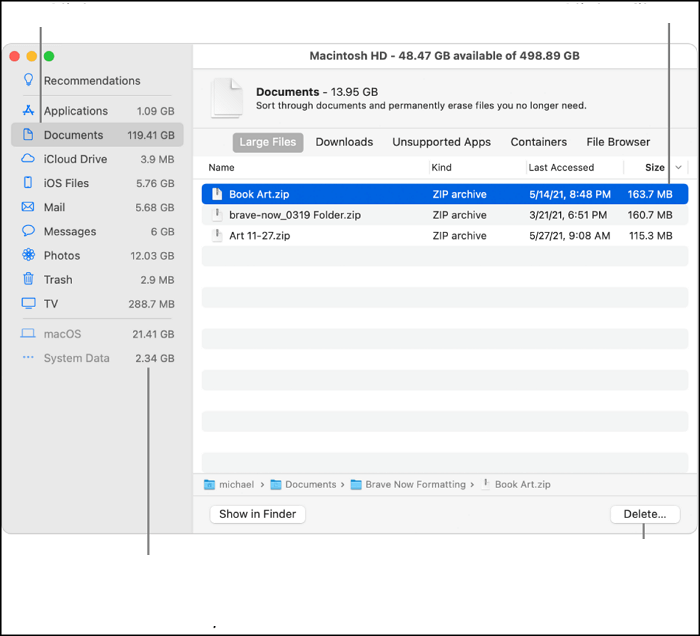
The Storage Manager can help you delete files, folders, applications, and backups with ease. To delete files, you can use the Storage Manager. It is a useful tool that can assist you in deleting unwanted items. Let us start by deleting files using the Storage Manager.
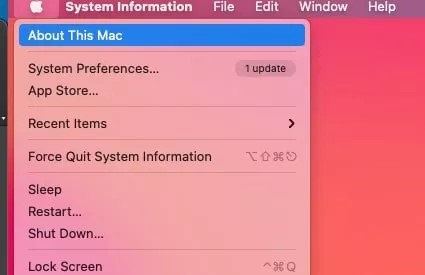
Step 1. Click the Apple icon in the top left corner of the screen, then click "About This Mac".
Step 2. Choose "Storage" and click "Manage".
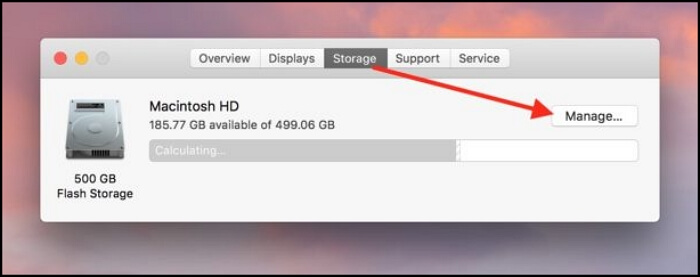
Step 3. To delete unwanted files, select the files you want to get rid of and click "Delete". If a confirmation dialog appears, click "Delete" again.
How to Recover Deleted Files with Data Recovery Software
After reading this guide, you will learn four ways to delete files on a Mac temporarily or permanently, and how to recover files if needed, with the help of Deep Data Recovery software for Mac.
Recovering deleted files from the Mac Trash can be made easy and safe with the right tool. With Deep Data Recovery for Mac, you can recover specific files even after you've emptied the Trash, and even accidentally deleted files can be restored. Let's see how to use this tool to recover deleted files on your Mac.
Step 1. Scan for deleted files
Select the storage device where your files were deleted, and click "Search for lost files".
Step 2. Filter the lost files
The software performs quick and deep scans on the selected volume, aiming to find as many deleted files as possible. It allows users to filter the results by file type and path.
Step 3. Recover deleted files
Double-To recover deleted files, click on the deleted files to preview them. Once you've verified the files you want to recover, click the "Recover" button to restore them.
Bonus Tip: Can't Delete a File on Mac, how to Fix it
When trying to delete a file on Mac, you may encounter issues such as locked files or corruption, preventing you from deleting it. To resolve this, you can try using the "Move to Trash" option, checking for any locked files, using the "Secure Empty Trash" feature, or even booting in Safe Mode to delete the file. If none of these solutions work, you can try using third-party software to force delete the file. However, be cautious when using such software, as it may cause data loss or other issues.
Tip 1. Force quit and delete. Choose "Force Quit" from the Apple menu in the upper-left corner of your screen.
Tip 2. Change permissions from read-only to read-write.
Tip 3. If you find your files are locked, you can unlock and delete them.
Tip 4. You can delete stubborn files through the Terminal on Mac.
Bottom Line
If you've accidentally deleted important files on your Mac, you can use the Trash, Terminal, or Storage Manager to recover them. However, if you've lost data on a USB device, you may need a data recovery tool to retrieve it. We recommend using Deep Data Recovery for Mac, which not only helps recover deleted files but also allows you to create a Mac USB recovery drive, making it possible to recover data from a USB device in case of an emergency.
How to Delete a File on a Mac FAQs
If you have further questions, try to find answers by reading the following Q&As.
Why can't I delete files on my Mac?
Files may be locked or in use, or macOS corruption issues can cause this problem, making it impossible to delete them due to lack of permission to modify the file.
How do you delete all files on a Mac?
To delete all files on a Mac, follow these steps:
- 1. To access System Preferences, click on the Apple icon in the top left corner of the screen, which is usually represented by a picture of an apple. From the dropdown menu, select "System Preferences".
- 2. Go to System Preferences, then select the option to Erase All Content and Settings from the menu bar.
- 3. To erase the device, enter the admin password in the Erase Assistant dialog prompt and click "OK".
What is the delete key on a Mac?
- 1. You can use Command + Delete to move files to the Trash.
- To empty the Trash, press Command + Delete + Shift, and you will be prompted to confirm your action.
- Command + Delete + Shift + Option: This keyboard shortcut allows you to empty the Trash without being prompted for confirmation.
How do I force delete a file on Mac?
You can force delete a file on Mac by using the Terminal command "rm" followed by the file path, or by using the Finder's "Secure Empty Trash" feature, which permanently deletes files without the need for a password. You can also use the "rm" command with the "-i" option to delete files interactively, or use the "Trash" menu to delete files, but keep in mind that these methods may require a password or confirmation.
- 1. Force quit and delete.
- 2. Change permissions from read-only to read-write.
- 3. If you find your files are locked, you can unlock and delete them.
- 4. Delete stubborn files through the Terminal on Mac.
Related Articles
- How to Recover Files Deleted by RM on Mac
- How to Recover Formatted SD Card Mac [for macOS Ventura/Monterey]
- Quick Answer: Why Do Deleted Files Still Appear Mac
- How to Fix Excel File Open But Not Visible on Mac
- XML Repair| How to Repair/Recover Corrupted XML Files
This XML repair and recovery tutorial is offered to help you easily repair/recover deleted and corrupted XML files. Similarly, lost XML files can also be restored by referring to this guide. - 3 Ways to Recover LOST.DIR Files on Android SD Card
The LOST. DIR folder on Android devices is a temporary storage area for deleted files, and it can be safely deleted. However, if you accidentally delete files from your Android device and find them in the LOST.
Products
Articles & Tutorials
- Data Recovery
- Data Backup
- File Recovery
- File Backup
- System Backup and Restore
- Disk and Partition Clone
- Technical articles
- Mobile articles
- Disk Master Help
- Windows Data Recovery Tutorials
- Windows Secure Delete Tutorials
- Windows Partition Management Tutorials
- Windows File Backup and Restore Tutorials
- Windows System Backup and Restore Tutorials
- Windows Disk Backup and Restore Tutorials
- Windows Clone Tutorials