How to Fix Can't Delete Volume on USB
If you're trying to delete a volume on a USB drive to free up space for more data, but are encountering issues, this article is here to help. We'll provide the solutions you need to resolve the problem of not being able to delete the volume on your USB.
Why Disk Management Can't Delete Volume on USB
Disk Management is a utility that helps manage data and space in drives, whether internal or external, and fixes errors in them. However, it may not be effective in deleting volumes on USB drives, particularly in older Windows versions where USB is recognized as a removable device. In such cases, the issue arises because Disk Management only covers internal disks, leaving USB drives unsupported, making it difficult to delete volumes on them.
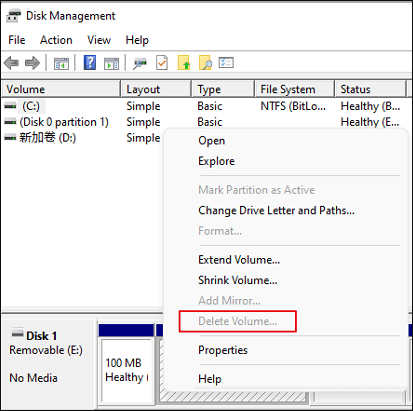
This error is common in Windows versions earlier than 10 Version 1803, where the USB drive is recognized as a removable device, but in later versions, the issue is resolved, allowing you to delete the volume on USB.
Using Disk Management can be a bit tricky, and you may encounter some errors. For example, if you try to shrink a volume that is already full or has no free space, you'll get an error message.
The reason you can't delete a volume on a USB drive is because of the way the operating system handles the device, specifically the file system and permissions. When you insert a USB drive, the operating system assigns a drive letter to it and mounts the file system, but it doesn't give you direct access to the device's internal volume management.
How Do You Delete Volume on USB Flash Drive Successfully
We will explore the process of deleting a volume on a USB Flash Drive, with a focus on two distinct techniques. These methods will be presented as suitable solutions for this purpose.
Way 1: Use Qiling Disk Master to Delete the Volume on the USB - Easy
Many third-Qiling Disk Master Free is a third-party tool that provides effective options for deleting volume on USB and managing disk data, serving as an all-in-one partition manager for Windows 11/10/8.1/8/7 users.
Step 1. Launch Qiling Disk Master, and click "Partition Manager".
Before deleting any partition on your disk, make sure to back up any important data to prevent loss.
Step 2. When deleting a partition or all partitions on a hard drive, you are given the option to choose between the two. This allows you to decide whether you want to delete only the selected partition or all partitions on the hard drive, giving you more control over the deletion process.
- Delete single partition: To delete a partition, right-click on the partition you want to delete and select the "Delete" option from the context menu.
- Delete all partitions: Right-click on the hard drive you want to delete all partitions from, and select "Delete All".
Step 3. Click "Yes" to confirm the deletion.
Qiling Disk Master offers a partition manager with various supporting options, allowing for safe hard drive management and utilization of features like its clone wizard. It also serves as a complete tool with a system of disk optimization tools, making it an excellent option.
Key Features of the Qiling Disk Master
- To fix the "C drive full" error, you can move the unallocated space to the C drive, effectively increasing its storage capacity. This can be done by using the built-in Disk Management tool in Windows, which allows you to resize, move, or delete partitions on your hard drive.
- The process of resizing, extending, and merging partitions is a crucial aspect of data management, allowing users to optimize the use of their storage space. This can be achieved through the use of partition management tools, which enable users to resize, extend, and merge partitions as needed.
- The tool allows for the creation and deletion of FAT32 partitions, as well as partitions based on other file system types, with ease.
- This software can be used to wipe unallocated space or wipe the disk partition data from various storage devices, making the data unrecoverable, thus preventing it from being accessed again.
Way 2: Use Diskpart to Delete Volume on USB - Complex
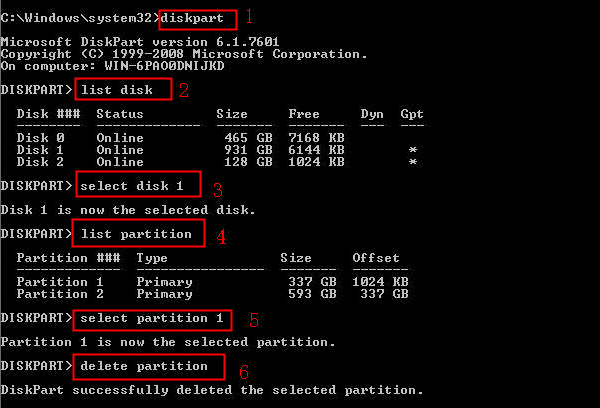
While you may be comfortable with working on Diskpart commands and command-based programs, deleting a volume on a USB drive can be a bit tricky. However, with the right steps, you can use Diskpart to delete a volume on your USB drive, which can help with both internal and external partitions. To do this, you'll need to open Command Prompt as an administrator, navigate to the USB drive, and use the Diskpart commands to delete the volume.
Step 1: To open Command Prompt on your Windows computer, search for "cmd" in the taskbar's search bar.
Step 2: To display all available hard drives on the Windows computer, type in "diskpart" and proceed to the following command: list disk.
Step 3: The command "select disk #" should be used while covering the # with the disk number from your list, such as "select disk 1", "select disk 2", etc. This command is used to select a specific disk in the command prompt.
Step 4: To delete a partition from a USB drive, use the command "list partition" to get a list of all partitions, then select the partition you want to delete by using the command "select partition #".
Step 5: To finalize the process, use the "delete partition" command to delete the selected partition of your USB.
Conclusion
To resolve the issue of "Can't Delete Volume on USB," you can use tools like Qiling Disk Master to manage your disk partition and obtain coherent results. This tool can help you delete the volume on your USB and free up space. With the help of these tools, you can easily resolve the problem and make the most of your USB storage.
FAQs About Can't Delete Volume on USB
You're unable to delete a volume on a USB drive because of various reasons. This includes the fact that the volume is in use, the USB drive is write-protected, or the volume is corrupted. Additionally, some USB drives may have a built-in password or encryption that prevents deletion of the volume.
1. Why is my USB not letting me delete files?
If you can't delete files from your USB drive, it's likely that the write-protection mode is enabled, or the files are in read-only mode, preventing deletion.
2. How do you delete the volume on a flash drive?
To delete a volume on a USB flash drive, you can use Qiling Disk Master to quickly and easily remove the volume.
3. How do I force delete volume?
To delete a volume on a USB drive, use the Diskpart command "delete partition override" to delete the volume in your USB drive.
Related Articles
- Fix IE Browser Shuts Down Suddenly in Windows 10/8/7 Error
- Disk Boot Failure - Insert System Disk and Press Enter in Windows 10
- 5 Ways to Fix Hard Drive Read Speed Slow Error
- Solved: Getting Files Ready for Installation Stuck at 0%, 1%, 10%, 100%
- How to Resolve reCAPTCHA Not Working in Any Browser
If you're experiencing issues with reCAPTCHA not working in your browser, it may be due to outdated browser versions, VPN errors, or malware intrusion. - How to Run CHKDSK on SSD [2023 Most Efficient Ways]
Learn whether you should run CHKDSK on an SSD, when it helps, and how to check and repair SSD file system errors safely.
Products
Articles & Tutorials
- Data Recovery
- Data Backup
- File Recovery
- File Backup
- System Backup and Restore
- Disk and Partition Clone
- Technical articles
- Mobile articles
- Disk Master Help
- Windows Data Recovery Tutorials
- Windows Secure Delete Tutorials
- Windows Partition Management Tutorials
- Windows File Backup and Restore Tutorials
- Windows System Backup and Restore Tutorials
- Windows Disk Backup and Restore Tutorials
- Windows Clone Tutorials