How to Run CHKDSK on SSD
PAGE CONTENT:
SSD, or Solid-State Drive, is a storage device that uses integrated circuit components, offering higher stability and faster data access speed compared to traditional HDDs. However, SSDs have a limited lifespan and may require error checking and repair over time, for which Windows provides built-in tools to assist with the process.
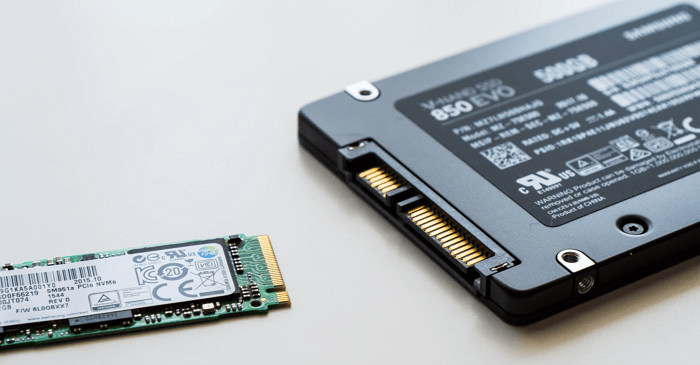
Running CHKDSK on an SSD (Solid-State Drive) is a common concern, but it's actually safe to do so. In fact, running CHKDSK on an SSD can help identify and fix issues that can affect its performance and lifespan. To run CHKDSK on an SSD, you can follow the same steps as running it on a traditional hard drive.
Is It Safe to Run CHKDSK on SSD
Running CHKDSK on an SSD is safe and has no negative effects on the drive. It can be used to check and fix issues on the drive, just like on a traditional hard drive. There is no risk of damaging the SSD or its components. In fact, running CHKDSK can help identify and resolve potential issues before they become major problems.
CHKDSK is a Windows command prompt tool that scans and repairs disks, and it has a negligible impact on SSDs due to its small and fast read operations.
CHKDSK can detect bad sectors on SSD, but it doesn't work on C disks on SSD. It may get stuck or not work properly. To safely and effectively check problems on SSD, you should use the command with the correct parameters and avoid errors. #chkdsk #ssd #badsectors
How to Run CHDSK On SSD Safely: CHKDSK Alternative
CHKDSK has some limitations and is more troublesome to operate, whereas Qiling Disk Master is a professional disk management tool that is easy to operate and can easily check and repair file system errors.
It has a clear interface and is suitable for computer users of all stages. The following are specific step-by-step instructions for checking SSD with this tool.
Step 1. To check the file system on a partition using Open Qiling Disk Master, simply open the software on your computer, locate the disk, right-click on the partition you want to check, and select "Check File System" from the context menu. This will initiate a file system check on the selected partition.
Step 2. In the Check File System window, select the "Fix the error on the disk" option and click "Proceed".
Step 3. The software will begin checking your partition file system on your disk. Upon completion, click "Finish".
Qiling Disk Master is a software that checks SSD health and also allows resizing or deleting partitions on Windows drives and partitions.
How to Run CHKDSK On SSD
If you don't want to use third-party tools, you can use CHKDSK, a built-in Windows feature, to check and repair disk failures. To do this, go to your computer's "This PC" or "Computer" section, right-click on the drive you want to check, and select "Properties". Then, click on the "Tools" tab and select "Check" under the "Error-checking" section. Follow the prompts to run CHKDSK and repair any issues it finds.
Step 1. Click Windows+R and type cmd.
Step 2. Right-click and select Command Prompt and run as administrator.
Step 3. Click "Yes" in the User Account Panel window.
Step 4. The command "chkdsk C: /f /r /x" is used to run the Check Disk utility on the C: drive. The "/f" option forces the utility to check the disk for errors and attempt to repair them, the "/r" option is used to locate bad sectors and recover readable information from them, and the "/x" option is used to force the utility to dismount the volume before scanning, which can help prevent data loss.
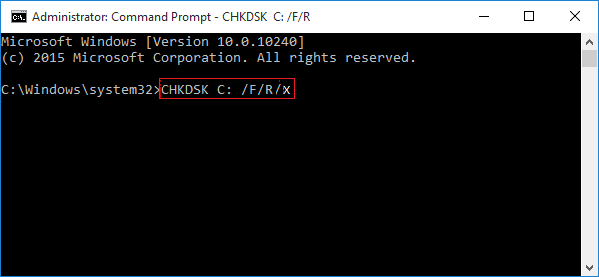
Note: Parameter meaning:
- "C" is the drive letter of the partition to be repaired
- /f refers to the error on the disk to be repaired
- /r refers to locating bad sectors and recovering readable information
- /x refers to unmounting the volume to be checked before scanning
Once done, you can close the window and re-drive the system.
Conclusion
CHKDSK is a useful tool for checking hard drives or corrupted file systems, and can also be used on SSDs. After reading this guide, you'll know how to run CHKDSK on an SSD. Additionally, a comprehensive disk management tool like Qiling Disk Master can easily repair and organize disks, improve system performance, and provide a more thorough solution for disk management.
Qiling Disk Master has advanced features for disk partitioning, including resizing, deleting, creating, and cloning partitions. It can also help with disk-related problems.
FAQs About How to Run CHKDSK on SSD
This section addresses common questions about running CHKDSK on SSDs. Brief answers to these questions are provided, aiming to be helpful to readers.
1. How long should CHKDSK take on SSD?
Running CHKDSK on a drive can take several hours, with the time depending on the drive size and the number of corrupted files. For example, a 1TB drive may take around 5 hours, with larger drives taking even longer and more time if bad sectors are present.
2. How do I check my SSD for errors?
To check for errors on an SSD, you can use the CHKDSK command, which will display the number of bad sectors after completion. Alternatively, you can use Qiling Disk Master to check and repair bad sectors with just one click. These methods provide a straightforward way to identify and potentially fix issues on your solid-state drive.
Step 1. To check disk and partition integrity using Open Qiling Disk Master, right-click on the disk and partition you want to examine, and select the relevant option from the context menu to initiate the check.
Step 2. Select "Advanced" and click "Check File System."
Step 3. Check "Fix the error on the disk" and click "Proceed".
Step 4. Wait for the check to complete and click "Finish".
3. Does CHKDSK fix corrupt files?
CHKDSK (Check Disk) scans and fixes errors on a hard drive, ensuring the file system is consistent and safe. It doesn't recover lost or corrupted files, but instead prompts a restart to repair the file system, which can be done by restarting the computer or at the next boot.
Related Articles
- How to Recover Data from SD Card Formatted As Internal Storage
- Fix and Repair Volume Shadow Copy Service Not Working Error in Windows 10
- How to Fix DRIVER_IRQL_NOT_LESS_OR_EQUAL Error | 10 Ways on Windows 11/10
- Delete OS from A Hard Drive
- How to Factory Reset HP Laptop Without Password
Are you unable to login to your HP Laptop? Do you need to get back your data? Then follow this easy guide to factory reset your HP laptop without password. If nothing else works, you can always recover data using professional software. - How to Factory Reset Lenovo Laptop without Novo Button [2024 Full Guide]
If your Lenovo laptop needs a refresh or you want to erase all data, resetting it is a good option. This post will guide you through the process of factory resetting your Lenovo laptop without using the Novo button, in three simple ways.
Products
Articles & Tutorials
- Data Recovery
- Data Backup
- File Recovery
- File Backup
- System Backup and Restore
- Disk and Partition Clone
- Technical articles
- Mobile articles
- Disk Master Help
- Windows Data Recovery Tutorials
- Windows Secure Delete Tutorials
- Windows Partition Management Tutorials
- Windows File Backup and Restore Tutorials
- Windows System Backup and Restore Tutorials
- Windows Disk Backup and Restore Tutorials
- Windows Clone Tutorials