How to Factory Reset HP Laptop Without Password
If you're looking to factory reset your HP laptop, there might be several reasons behind it, such as preparing it for resale, dealing with a malicious program, or simply wanting to refresh your system. Whatever the case, factory resetting an HP laptop without a password can be a complex process that requires going through multiple steps.
In this article, we will tell you how to factory reset an HP laptop without a password. Please make sure that you read this article till the end.
- Fix 1. Reset the Password to Factory Reset an HP Laptop
- Fix 2. Factory Reset an HP Laptop via the Another Administrator Account
- Fix 3. Use a Windows Installation Disk to Factory Reset an HP Laptop
- Fix 4. Factory Reset an HP Laptop Using the HP Recovery Manager
- Fix 5. Contact a Local HP Service Store to Factory Reset the Laptop
Preparation Before Factory Resetting Your HP Laptop
Factory resetting your laptop can lead to complete data loss, so it's essential to take a backup of crucial data and files before proceeding. This backup can be done via various methods, ensuring that your important information is safely stored and can be easily recovered later.
You can back up your Windows device through an external drive or cloud storage options like Onedrive or Google Drive, which are easily accessible and well-integrated. Onedrive, in particular, offers a useful feature called OneDrive recycle bin retention, making it a popular choice.
When moving data, you risk deleting or corrupting essential files. However, with Deep Data Recovery, you can recover data even after a factory reset without a backup, thanks to its advanced features.
Qiling's data recovery software is a top choice for resolving various file system issues, including corrupted files, inaccessible disks, bad sectors, deleted files, and permanently deleted files, thanks to its advanced AI-powered features.
With Deep Data Recovery, you can recover deleted photos on a laptop, recover lost documents, and even recover files after a factory reset on Windows 10. To get started with the Qiling software, simply follow the steps to begin the recovery process.
Step 1. To recover lost files, run Deep Data Recovery and select the drive where the files were lost. This software allows you to scan and recover data from various devices, including hard drives, solid-state drives, USB drives, SD cards, pen drives, and cameras.

Step 2. Qiling data recovery software supports 1000+ file types, including photos, videos, documents, emails, audio files, and many more, allowing users to browse the full scan results and choose the file type they need by clicking on the file type filter.

Step 3. Select the files you want to preview, then click "Recover" and choose a storage location to save the recovered data.

How to Factory Reset HP Laptop Without Password
To reset your HP laptop without a password, we'll provide a detailed step-by-step guide for each method. We'll walk you through the process of resetting your laptop using the HP Recovery Manager, booting from a USB drive, or accessing the BIOS settings to reset your password.
Fix 1. Reset the Password to Factory Reset an HP Laptop
If you can't remember your HP laptop password, you can try resetting it using the built-in password reset tool in Windows or a password recovery tool like Ophcrack or Hiren's BootCD. If these methods don't work, you can try performing a factory reset on your HP laptop, which will erase all of your data, so make sure you have backed up any important files before proceeding. To factory reset your HP laptop, go to Settings > Update & Security > Recovery, and then select the "Reset this PC" option.
Step 1. On the HP laptop's login screen, click "I forgot my PIN" to reset your password.
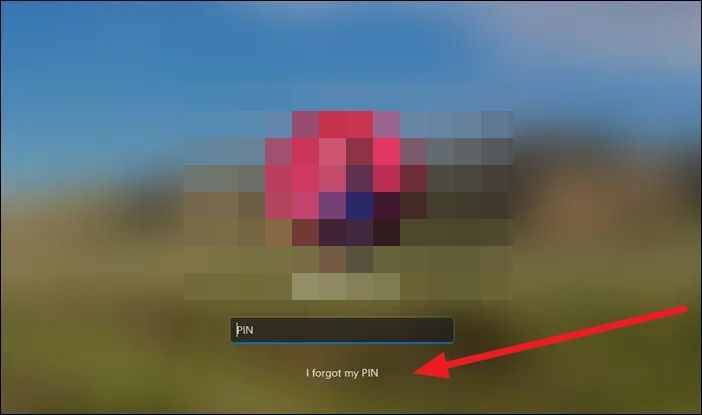
Step 2. If you were logged in to Windows with a Microsoft account, this would open a window where you would be asked to log in to your Microsoft account.
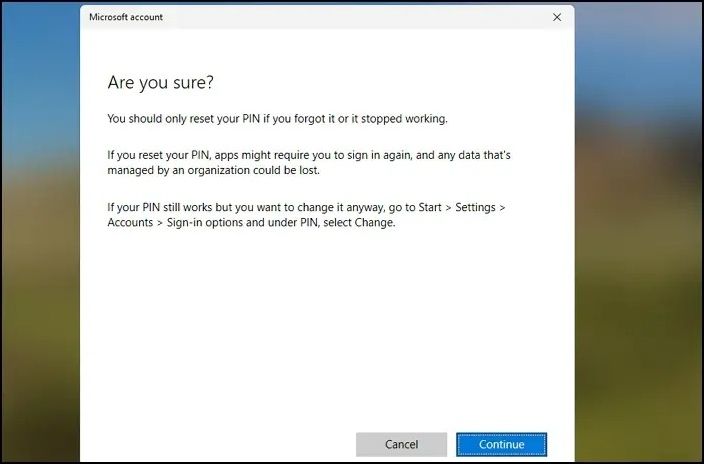
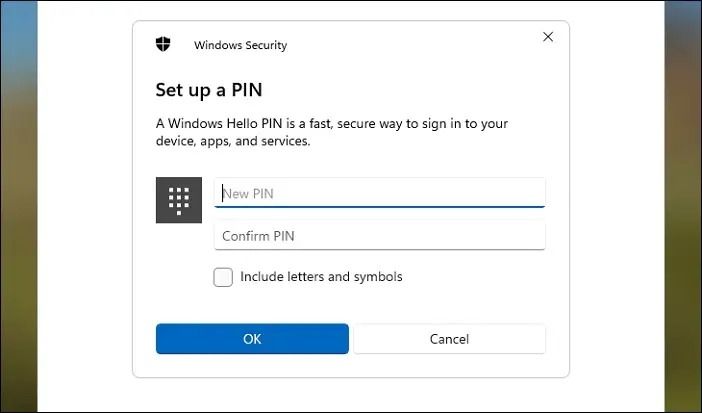
Step 3. Once logged in, you will receive a prompt to confirm whether you wish to reset your password. Proceed with it. On the next screen, type in a new password and log in with it.
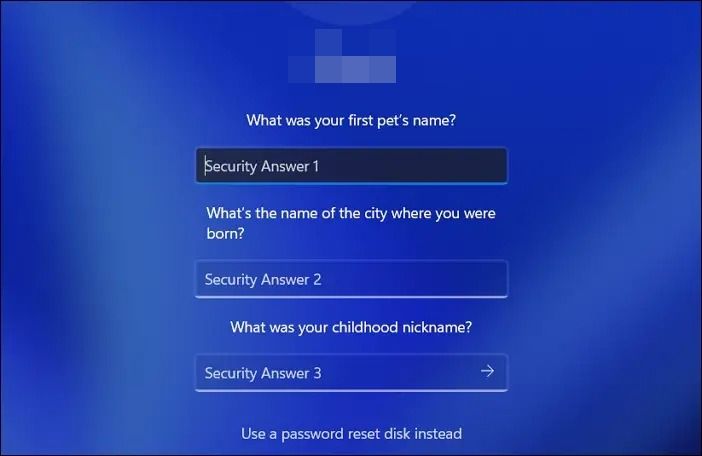
Step 4. To reset a Windows password, start by entering the wrong password on the login screen if you logged in with a local account. This will prompt the previously set-up security questions, which you can answer or use a password reset disk instead.
Step 5. To access the settings on your HP laptop, press the Windows key + I keys on your keyboard, which will open the Settings window, allowing you to navigate and adjust various system settings.
Step 6. To factory reset your HP laptop in Windows settings, go to the left pane, open System, then Recovery, and click Reset this PC, following the on-screen instructions.
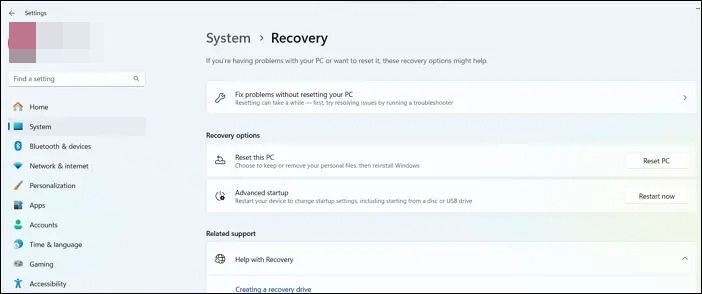
If the "Reset this PC" option is not working, you can try troubleshooting the issue by checking the system's boot order, ensuring the system is set to boot from the correct drive, and verifying that the system is running the latest version of Windows. Additionally, you can try running the Windows Update troubleshooter to resolve any issues with the system's update process.
If "Reset this PC" is not working on Windows 10/8/7, try running the Windows Update troubleshooter, checking for corrupted system files, and ensuring the Windows Media Creation Tool is up-to-date. Additionally, try using the Windows 10 Media Creation Tool to create a USB recovery drive and use it to reset your PC.
If you're experiencing issues with the Reset this PC feature not working on your Windows PC, there are a few potential solutions you can try. First, ensure that your PC is running the latest version of Windows and that you have enough free space on your hard drive to complete the reset process. If you're still having trouble, try booting your PC in safe mode and attempting the reset from there.
Fix 2. Factory Reset an HP Laptop via the Another Administrator Account
To reset your HP laptop, log in to the other account on your laptop and then go to the Start menu, click on Settings, and then click on Accounts. From there, click on "Sign in with a Microsoft account instead" and follow the prompts to reset your laptop. If you don't have access to the other account, you can also try using the Windows Recovery Environment (WinRE) to reset your laptop.
Step 1. To access the other administrator account on the login screen, select that account from the options, enter the correct password or PIN, and proceed with logging in.
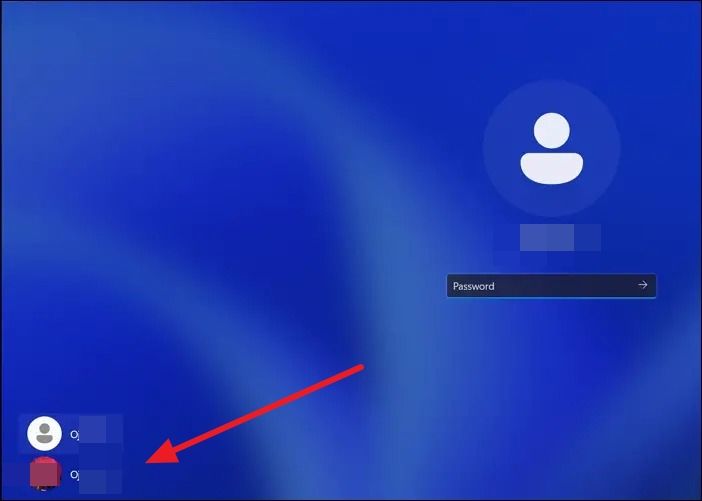
Step 2. To access the Windows settings, press the "Windows + I" keys on your keyboard once you're logged in to the account. This will open the settings menu.
Step 3. To reset your HP laptop, go to System Settings from the left pane, then Recovery, and click "Reset This PC" in the Recovery options, following the on-screen instructions.
If your laptop screen goes black after a factory reset, don't panic! This article will guide you through the process of fixing the display error, getting your laptop screen up and running smoothly again.
If your HP, Lenovo, Asus, or Dell laptop screen goes black but the device is still running, it's likely due to a software or hardware issue. This can be caused by a faulty graphics driver, a malfunctioning display, or a problem with the laptop's BIOS.
To fix a laptop screen that is black but still running, start by checking the brightness and display settings. Ensure the screen is turned on and the brightness is adjusted. Next, try booting the laptop in safe mode to isolate the issue.
If you're unable to access your HP laptop due to a forgotten password, don't worry! You can factory reset your HP laptop without a password by following these steps.
Fix 3. Use a Windows Installation Disk to Factory Reset an HP Laptop
To factory reset an HP laptop without a password, start by creating a Windows 11 bootable installation drive using Microsoft's installation assistant, which can be downloaded from their website. Once you have the installation media USB, insert it into the HP laptop and restart it. In the boot menu, select the USB drive as the boot device. Then, follow the on-screen instructions to select the language and other preferences, and choose the "Reset this PC" option.
Step 1. To restart your HP laptop from the login screen and access the HP boot menu, plug in the USB drive and click "Restart". Immediately press the "F10" key on your keyboard as the screen starts loading, which will take you to the HP boot menu.
Step 2. Now, change the boot sequence to boot into the installation media. Once you boot into the USB drive, a purple screen will appear.
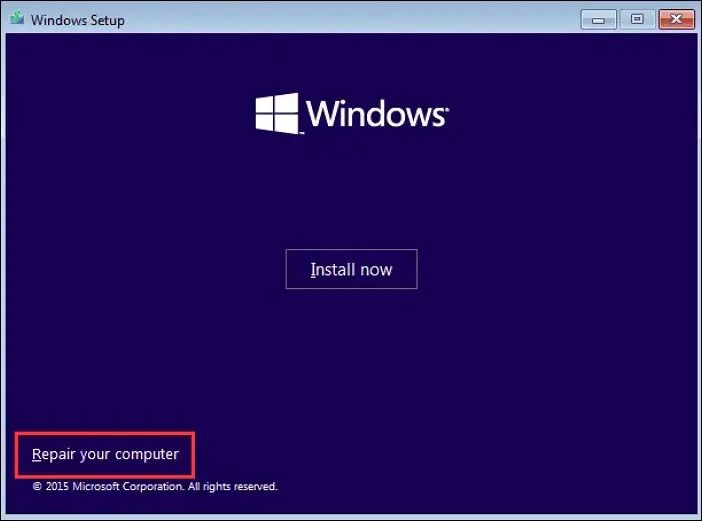
Step 3. On the screen, click on Repair the Computer from the bottom left. Now, on the next screen, open Troubleshoot>Advanced Options>Command Prompt. Once the command prompt is opened, execute the following commands one after the other.
cd Windows\system32
ren utilman.exe utilman.exe.bak
ren cmd.exe utilman.exe
wpeutil reboot
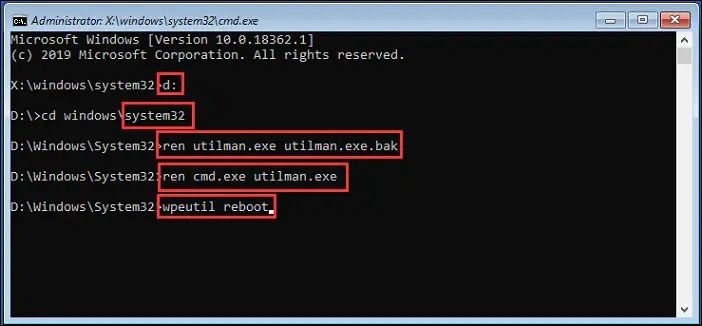
Step 4. Once you've executed these commands, your PC will restart. On the login screen, bring up the command prompt and execute the command "net user John admin123" to reset the password.
Here, John is the account username, and admin123 is the new password. You may have to change the two according to your situation.
Step 5. After you are logged in, bring up the command prompt in administrator mode for one last time and execute the following commands.
ren utilman.exe.bak utilman.exeren utilman.exe cmd.exe
To reset your HP laptop using Windows settings, follow the same steps as before. Go to Settings > Update & Security > Recovery > Reset this PC, and then select the type of reset you want to perform - either "Keep my files" or "Remove everything".
If your HP laptop can't find or use a bootable device, you can try fixing the issue by checking the boot order, updating the BIOS, and resetting the UEFI settings to their default values. You can also try using a different USB port or reinstalling the operating system.
No Bootable Device Error - The error typically occurs when there's an issue with the program's logic or data, causing it to produce an incorrect or unexpected result. This can be due to various reasons such as incorrect coding, data inconsistencies, or external factors like hardware failures.
To fix the no bootable device error on a Windows PC or laptop, try booting in safe mode, checking the BIOS settings, and ensuring the hard drive is properly connected. If the issue persists, try booting from a USB drive or CD/DVD, and consider running a disk check or reinstalling Windows. If none of these solutions work, it may be necessary to replace the hard drive or seek further technical assistance.
Fix 4. Factory Reset an HP Laptop Using the HP Recovery Manager
HP laptops come with a recovery manager that can be accessed from the system troubleshooting options, allowing you to factory reset your laptop without a password. However, this process will result in the loss of all your data. The HP recovery manager can be used to perform a factory reset, but be aware that all data will be erased.
Step 1. To restart your PC, go to the bottom right corner of the login screen and hold the "Shift" button while clicking on the "Restart" option. This will initiate a restart of your computer while preventing any operating system updates from being installed.
Step 2. A blue screen will appear, and then open Troubleshoot > Recovery Manager, and click on System Recovery.
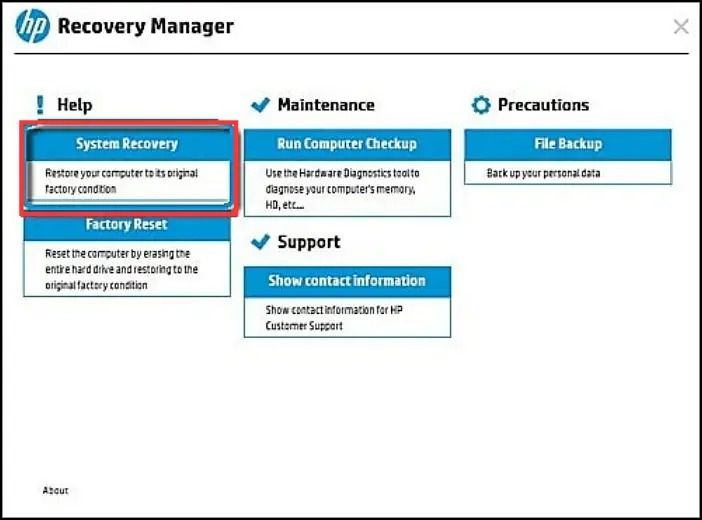
Step 3. Now proceed with the on-screen instructions to reset your HP laptop.
Fix 5. Contact a Local HP Service Store to Factory Reset the Laptop
If your HP laptop is experiencing issues, you can contact the local HP service store as a last resort. They have the ability to factory reset your laptop to its original settings, and may also offer solutions or services for any additional problems you're experiencing.
Conclusion
Factory resetting an HP laptop without a password can be a risk, as it may result in complete data loss, including important files and documents. However, using software like Deep Data Recovery can help recover lost data from a variety of situations, thanks to its advanced features and high success rate.
Factory Reset HP Laptop Without Password FAQs
Although we provided the simplest and most reliable methods to factory reset HP laptops without passwords, some questions still linger. You can find the answers to those questions here.
1. How do I force a factory reset on my HP laptop?
If your HP laptop won't boot to the home screen, press the power button while repeatedly tapping 'F11' to access a menu, then select Troubleshooting and choose to reset your PC, deciding whether to keep your files or remove everything. This process can be lengthy, so ensure your laptop stays plugged in.
2. How do I factory reset my HP laptop without the Start menu?
For HP laptops that can't open the Start menu, continuously turn on the device while pressing 'F11'. This will lead to a Troubleshooting menu, where you can select the option to reset your PC. You'll have the choice to keep your files or remove everything, and possibly additional options like removing files or cleaning the drive. This process can take some time, so it's recommended to keep your laptop plugged in.
Related Articles
- Overall Solutions: How to Ungroup the Taskbar In Windows 11
- How to Connect PS4 Controller to PC? Follow A Full Guide
- Mac Error Code 8072 Occurs? Check Here to Get Rid of It
- Fix: Scanning and Repairing Drive Stuck at 0, 10, 100... in Windows 10
- Full Backup Advantages and Disadvantages [2023 Review]
If you want to know about full backup advantages and disadvantages, this guide can help. It shows you the newest review of the advantages and disadvantages of the full backup. After reading this post, you will have a better understanding of this type of backup. - Great Discover Virus | Here Is Everything You Should Know
Have you heard of the Great Discover Virus? Do you know what Great Discover Virus is? Try the methods below if you do not. This guide explains everything about Great Discover Virus. After reading, you can have an overall understanding of this virus.
Products
Articles & Tutorials
- Data Recovery
- Data Backup
- File Recovery
- File Backup
- System Backup and Restore
- Disk and Partition Clone
- Technical articles
- Mobile articles
- Disk Master Help
- Windows Data Recovery Tutorials
- Windows Secure Delete Tutorials
- Windows Partition Management Tutorials
- Windows File Backup and Restore Tutorials
- Windows System Backup and Restore Tutorials
- Windows Disk Backup and Restore Tutorials
- Windows Clone Tutorials