Mac Error Code 8072 Occurs? Check Here to Get Rid of It
The Mac error code 8072 is a common issue that can occur on any Mac version, not just dependent on the Mac version. It's a frustrating problem that can cause your Mac to freeze or become unresponsive, making it difficult to access important files and applications. To resolve this issue, you can try restarting your Mac, checking for software updates, or running a disk utility to repair any disk errors.
On a Mac, error code 8072 occurs when trying to delete a Time Machine backup, a corrupted file, or even a Trash item. This error message typically reads: "The operation cannot be completed because an unexpected error occurred (error code -8072)".
Determining the exact cause of error code 8072 in Mac Finder can be challenging, making troubleshooting tedious. However, there are multiple solutions that can be adopted and tested to see which one resolves the issue.
| Workable Solutions | Step-by-step Troubleshooting |
|---|---|
| Fix 1. Force Reboot Your Mac | The simplest solution is to force reboot the macOS and reset...Full steps |
| Fix 2. Check the Permissions on Mac | Sometimes, the error occurs because you don't have permission to delete it...Full steps |
| Fix 3. Force Empty Trash Can | go to the Trash and empty it. You should click the Empty button...Full steps |
| Fix 4. Run Disk Utility First Aid | You can also run Disk Utility First Aid to see if it fixes the error code...Full steps |
| More Fixes | The other 2 fixes are available here for you to follow and fix Mac error code 8072...Full steps |
How to Handle the Error Code 8072 on Mac
The Mac error code 8072 can be frustrating, but there are various solutions to resolve the issue. Before attempting any fixes, it's essential to prioritize data security, as data loss can occur. With this in mind, proceed with caution and consider safeguarding your data to minimize potential risks.
Fix 1. Force Reboot Your Mac
If your MacBook is experiencing issues, a simple solution is to force restart it by pressing and holding the power button until the system shuts down, then turning it back on. This can resolve the problem.
Fix 2. Check the Permissions on Mac
The error occurs because you don't have permission to delete it, so you need to check if you have the required permission.
Here are the steps to follow -
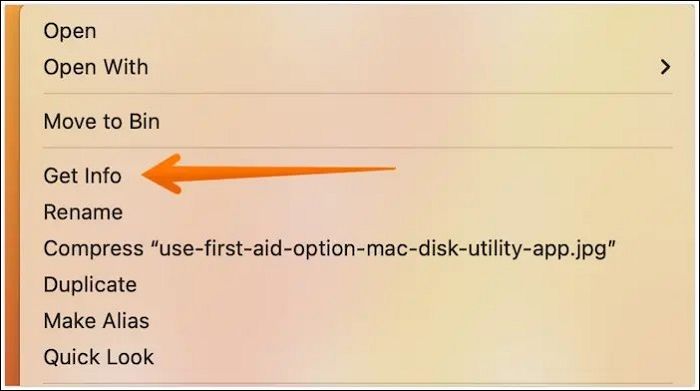
Step 1. To delete a file, go to the file you want to delete and control-click on it. This will open a context menu where you can select the "Delete" option.
Step 2. Select "Get Info".
Step 3. To access the "Sharing & Permissions" option, scroll down in the Get Info window and click on it, then expand the option.
Step 5. Check the list of accounts and the type of permission granted.
Step 6. If you see a lock icon at the bottom, click on it. This will allow you to access the content.
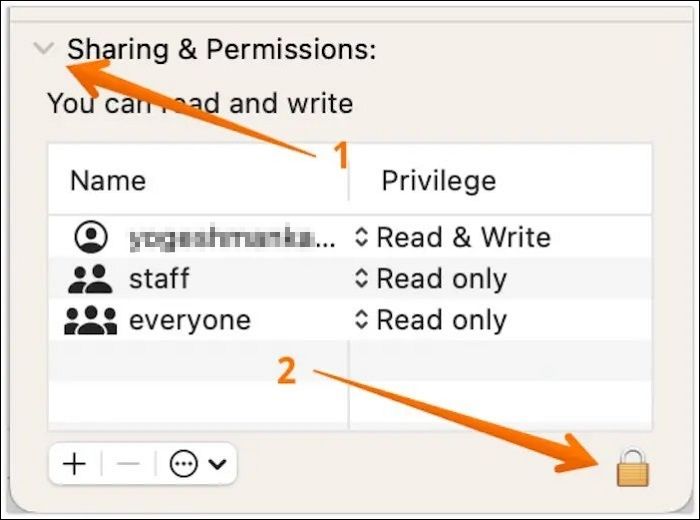
Step 7. Enter your admin password.
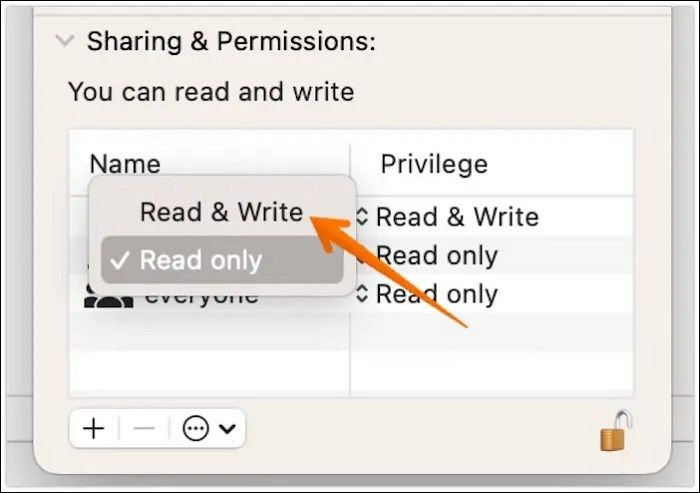
Step 8. To delete an account, choose the account you want to delete, then select "Read & Write" from the options.
Fix 3. Force Empty Trash Can
If you're experiencing issues with emptying the Trash on your system, you can try using Mac Safe Mode to resolve the problem. This mode allows you to boot your Mac in a minimal state, which can help you troubleshoot and fix issues related to the Trash. By booting in Safe Mode, you can try to empty the Trash and see if the problem persists, which can help you identify the root cause of the issue.
Check out the steps here –
Step 1. Go to the "Apple icon".
Step 2. Select "Restart" from the drop-down menu.
Step 3. As the system reboots, press and hold the shift key.
Step 4. Press and hold the power button for 10 seconds to force the Mac to shut down. Release the power button when you see the Apple logo displayed on the screen.
Step 5. The system will enter safe Mode.
Step 6. To empty the Trash, click the "Empty" button located in the upper right-hand side of the Trash window.
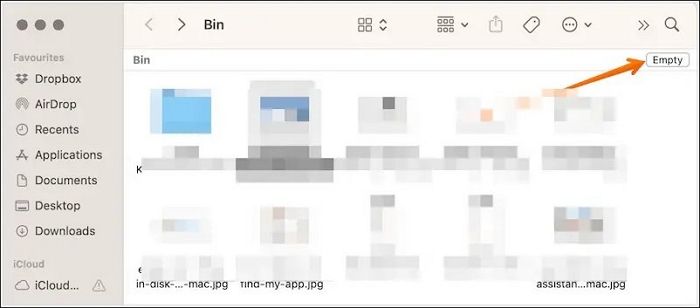
Step 7. After that, click "Restart". Allow Mac to reboot normally.
Fix 4. Run Disk Utility First Aid
You can also run Disk Utility First Aid to see if it fixes the error code. To do this, open Disk Utility, select the affected disk, click the "First Aid" button, and follow the on-screen instructions. This may help resolve the issue.
Step 1. Boot the system into Mac Recovery Mode. Wait for the macOS Utilities window to appear.
Step 2. Now, select "Disk Utility". Select "Continue". Go to "View".
Step 3. Select "Show All Devices".
Step 4. Choose the Mac hard drive from the left sidebar.
Step 5. Click on the "First Aid" tab on the top navigation bar.
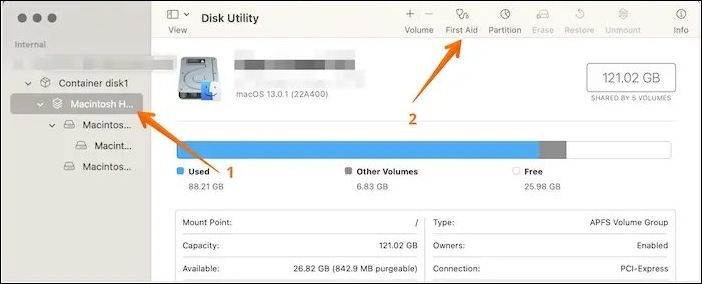
Step 6. When the pop-up appears, click "Run".
Step 7. Choose "Continue".
Step 8. You will see a pop-up box saying – Running First Aid on "SVN" which is the name of your repository. First Aid is a tool that helps resolve issues with your repository, and it's running on your SVN repository. The process should only take a few seconds.
Step 9. Select "Done".
Fix 5. Force Delete Files with Terminal
To resolve the Mac error code 8072, you can use Terminal on Mac. To do this, open Terminal and enter the command "sudo apt-get update" followed by "sudo apt-get install -f" to fix any broken packages. If the issue persists, try running the command "sudo apt-get install --fix-missing" to install any missing packages.
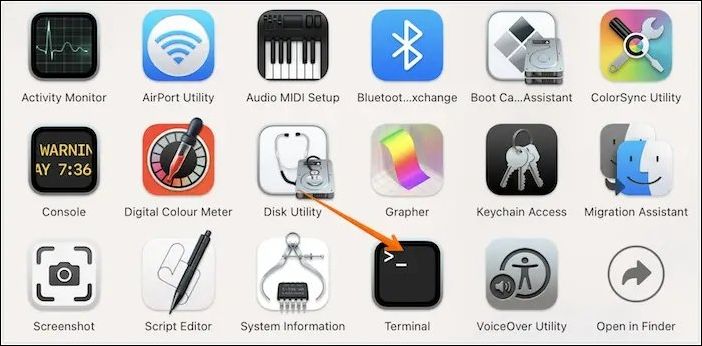
Step 1. Open Terminal. For that, click on "Applications" > "Utilities" > "Terminal".
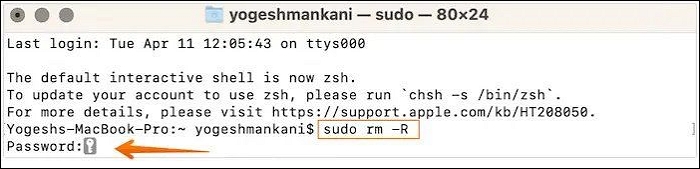
Step 2. You should not use the command `sudo rm -R` as it can cause unintended data loss. Instead, use the command `sudo rm -i` which will prompt you to confirm each file deletion. This will prevent accidental deletion of important files. If you still want to delete a directory and all its contents, use `sudo rm -Ri` with caution.
Step 3. Go to the Trash folder.
Step 4. Select the files you wish to remove.
Step 5. Drag these files to the Terminal window.
Step 6. Now, hit the Enter key.
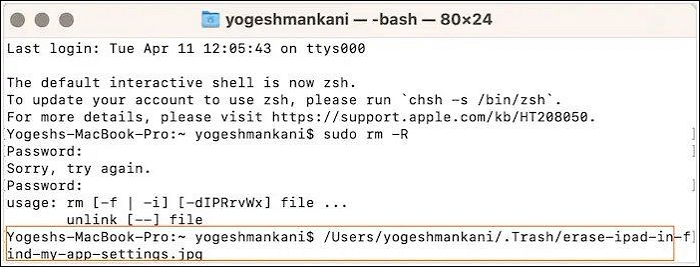
Step 7. When asked, type the admin password.
Step 8. Now, Mac will remove the files from Trash.
Fix 6. Fix from Time Machine
If Time Machine has created the file you want to delete, you can try to fix the error code 8072 by following these steps:
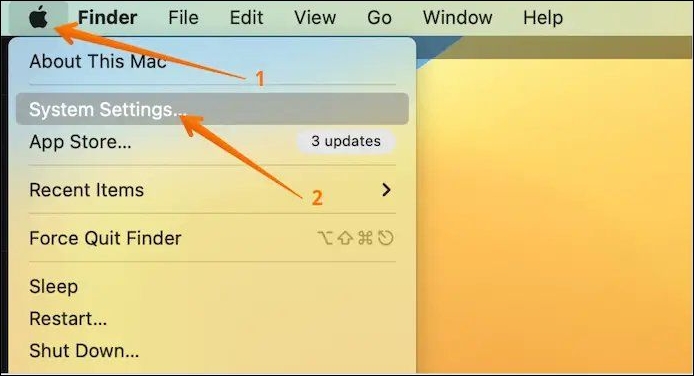
Step 1. Go to the Apple menu, select System Settings from the drop-down menu that appears.
Step 2. To use the Time Machine, first click on the Time Machine icon from the left-hand side of the screen, then click on it.
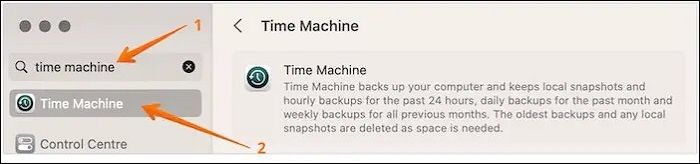
Step 3. To turn off the device, drag the slider to the OFF part on the right-hand side.
Step 4. This turns off the Time Machine.
Step 5. Now, try to delete the files.
Note: To avoid losing important files, turn on Time Machine after deleting them. If you forget to do so, you won't have a backup of the deleted files.
To resolve Mac error code 8072, try restarting your computer in Safe Mode, then run a System Report to identify any issues with your hardware. If the error persists, try resetting the System Management Controller (SMC) or the Power Management Unit (PMU).
How to Recover Deleted Data on Mac
If you're experiencing data loss due to the Mac Error Code 8072, it's essential to prioritize data security. In the event of data loss, consider seeking assistance from professional data recovery software. You can try using Deep Data Recovery for Mac as a potential solution.
The Deep Data Recovery for Mac is a powerful tool that allows you to retrieve various data types without hassle and recover permanently deleted files from different Mac-based devices, featuring file filters and recovery to the cloud.
- Data recovery is the process of restoring data that has been lost or deleted due to various reasons such as accidental deletion, hardware failure, malware attack, or natural disasters. This process involves retrieving and restoring the original data from backups, archives, or other sources, ensuring that the data is recovered in its original form and integrity.
- The system can store and manage various types of digital content, including multimedia files like videos, as well as documents, music files, and photographs.
- Recover data from Mac-based devices such as SSD, HDD, fusion drive, etc.
- To recover trash on a Mac, you can perform a deep and quick scan to help retrieve deleted files without much hassle.
The software is user-friendly, making it easy for novice users to use, and a trial version is available to test its suitability.
Step 1. Select the drive to be scanned
Select the drive you need to recover lost/deleted files from and click the "Search for lost files" button.
Note: Before starting the data recovery process, it's recommended to create a backup of your Mac using the "Disk Backup" feature from the left sidebar to prevent further data loss. Once the backup is created, the software can then recover data from the backup, allowing your computer to write new data again.

Step 2. Select your lost data/files
Deep Data Recovery for Mac scans your selected disk volume, displaying the results on the left pane, allowing you to sort and find specific files.

Step 3. Recover lost/deleted data
Once you have located the desired files, preview them and then click "Recover" to start the recovery of your deleted or lost Mac files.

Why Can I Delete the Corrupted File or Time Machine Backup
The error code 8072 can be caused by multiple factors, making it essential to identify the reasons behind it. By understanding the possible causes, you can gain a better understanding of the solutions, which can help you resolve the issue. Let's take a closer look at the potential reasons.
😦Reason 1. Unintentional format
Accidentally formatting your system can be a stressful experience, especially if you have important files and programs on it. It's a good idea to create a backup of your system and important files regularly, so you can restore them in case of such an event. You can also use a cloud storage service to keep your files safe.
🦠Reason 2. Viruses or malware
The error code 8072 occurs when your system encounters a vicious virus or malware attack, leading to file corruption, making it difficult to remove them.
📃Reason 3. Corrupted system files
The primary cause of the error code 8072 is the presence of corrupted files, which can be due to system crashes, power outages, mismatched versions, or other reasons.
🟦Reason 4. Modification of BIOS settings
Changing BIOS settings without understanding their impact can indeed lead to issues like the 8072 error code on Mac. This highlights the importance of having complete knowledge before making such changes.
💻Reason 5. Sharing of data in the unsupported format
It's essential to share data in supported formats to avoid issues between the system and media, which may result in error code 8072.
Final Thoughts
The Mac Error Code 8072 can be frustrating, even for a robust system like Mac. Issues like this can arise due to various reasons, including unintentional formatting, malware attacks, or corrupt system files, among others. Understanding the root cause of the error is crucial to resolving it.
Users experiencing error code 8072 can try a force reboot, running Disk Utility First Aid or Time Machine, and if data loss occurs, using professional data recovery software.
For Mac users, Deep Data Recovery is a efficient and easy-to-use data recovery software that can help restore data, regardless of the reason. It's worth checking out!
Mac Error Code 8072 FAQs
Knowing more about Mac Error Code 8072 will help you deal efficiently. For that, scroll through the questions and answers listed below -
1. How to fix Mac error code 8076?
Fixing Mac error code 8076 can be achieved through various methods, including using Disk Utility, disabling the "ignore permissions on this device" option, logging out and restarting, and possibly other troubleshooting steps.
2. Whcan't't I create a new folder on my Mac?
If you're unable to create a new folder on your Mac, it's likely because you don't have the necessary writing privileges. To resolve this, ensure you have the required permissions to make the folder by checking your account settings or seeking assistance from an administrator if necessary.
3. How to clear the cache on Mac?
To clear the cache on a Mac, follow these steps:
- Go to Finder.
- Select Go and then Go to Folder.
- Type ~//Library//Caches
- Press Go.
- After reaching the Caches folder, delete what you want.
4. How to recover data after forcing empty Mac Trash?
To recover data after emptying the Mac Trash, it's essential to use reliable data recovery software, such as Deep Data Recovery for Mac, which offers an easy-to-use interface and hassle-free data retrieval.
Related Articles
- Guide on Image Capture on Mac/MacBook Pro [with Shortcut]
- Fix Finder Not Responding After Updating to Sonoma with 5 Proven Ways
- How to Format Tesla USB on Mac [Detailed Instruction]
- How to Fix Samsung 980 Pro Slow Write Speed Efficiently [5 Ways]
- How to Remove Shortcut Virus from Hard Disk/USB/Pen Drive Without Losing Data
When a shortcut virus infects your hard disk, USB, USB flash drive, or external hard drive, all files and folders become shortcuts and unopenable. To remove the virus without losing any data, follow the steps to fix the issue and recover all your files immediately. - How to Repair Damaged BMP Files in 3 Ways
BMP file corrupted or damaged? Learn 3 ways to repair BMP files: use Deep Data Recovery, convert to another format, or open with a different program. Fix your bitmap images fast.
Products
Articles & Tutorials
- Data Recovery
- Data Backup
- File Recovery
- File Backup
- System Backup and Restore
- Disk and Partition Clone
- Technical articles
- Mobile articles
- Disk Master Help
- Windows Data Recovery Tutorials
- Windows Secure Delete Tutorials
- Windows Partition Management Tutorials
- Windows File Backup and Restore Tutorials
- Windows System Backup and Restore Tutorials
- Windows Disk Backup and Restore Tutorials
- Windows Clone Tutorials