Guide on Image Capture on Mac/MacBook Pro [with Shortcut]
Photography and image management are crucial in our daily lives. A reliable and efficient image management program is essential for preserving memories, organizing important documents, and transferring photos from cameras or iPhones to Macs. Fortunately, macOS offers a robust and user-friendly solution, Image Capture, which makes it easy to manage and save your precious images.
Mac users can import, organize and edit photos and videos from various devices using Image Capture, which can also be accessed via a shortcut to speed up the process.
What Is Image Capture on Mac
Mac computers' built-Image Capture streamlines the process of uploading photographs and movies from external sources. It allows users to import images from digital cameras, iPhones, iPads, scanners, and other compatible devices.
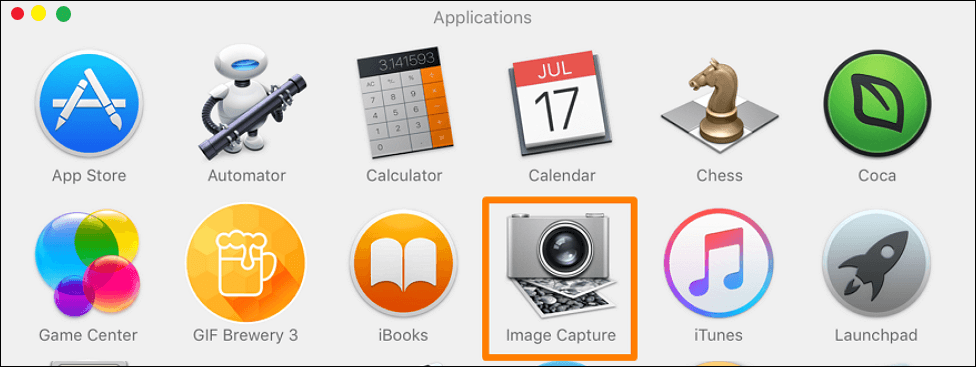
To access an SD card on a MacBook Air and view photos on it, use Image Capture, which shows all media files on a linked device. You can choose and import photographs and movies to your Mac's Photos program or folder.
Image Capture on Mac works by instantly detecting a connected device via USB, displaying media files in a neat interface, and allowing users to import files, adjust import settings, and transfer data between Macs or from the device, all accessible through the Image Capture app in Launchpad's Other folder.
How to Use Image Capture on Mac to Transfer Images
Here’s how to use Image Capture to transfer photos and videos from a camera, iPhone, iPad, iPod touch, or other camera-equipped device to your Mac, and erase the items from the device after transferring:
Step 1. To connect your device to the Mac, turn it on and unlock it with your password. Then, connect it to the Mac using a cable. You may need to unlock your Mac with a password as well.
Step 2. Select the device from the Devices or Shared list in Image Capture on your Mac and choose the photos you want to transfer.
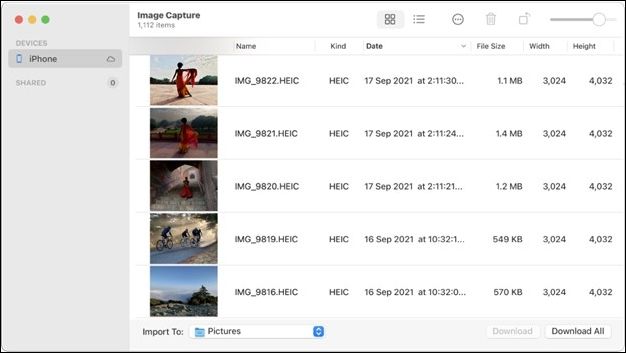
Step 3. To import the photographs, click the "Import" option on the pop-up menu at the bottom of the window. This will allow you to choose where to store the photos, create a PDF, or generate a website.
Step 4. To download photos to a different location, select "Other" and choose a destination.
Step 5. If you chose photos, click "Download" or "Download All".
Some users have reported that their photos are missing after updating to macOS Sonoma. If you're experiencing this issue on your Mac, don't worry, as this article can help resolve the problem.
How to Use Image Capture on Mac to Scan
If you're unsure where your photos are stored on your Mac, Image Capture can help you locate them. This tool can also be used to capture images from a connected scanner, making it a useful utility for managing your digital photos.
You can scan multiple pages simultaneously using an automatic document feeder, or scan multiple images with a flatbed scanner, rectifying any placed crookedly on the scan platform. Each image can then be saved to its own file. To scan, follow these steps:
Step 1. Open the software that came with your scanner, and follow the on-screen instructions to install the drivers. Once installed, open the scanner software and follow the prompts to scan your document.
Step 2. Select your scanner from the Devices or Shared list in the Image Capture app on your Mac.
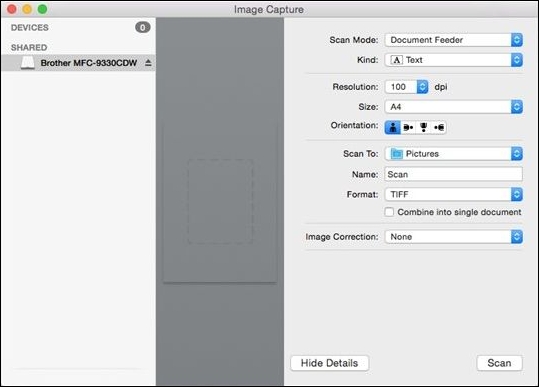
Step 3. Once done, scan your photographs.
If you're having trouble finding important images, like screenshots, on your Mac when using Image Capture to scan, don't worry. This article will guide you through effective ways to locate your screenshots and perform Mac screenshots recovery with ease, so you can access them without any hassle or complications.
If you're having trouble finding your Mac screenshots, don't worry - they're probably just hidden in a folder called "Screenshots" in your "Pictures" library. To access them, go to the "Finder" and click on "Pictures" in the sidebar, then click on "Screenshots" to view your saved screenshots.
To find your screenshots on a Mac, start by checking your desktop for any saved screenshots. If you can't find them there, look in your "Screenshots" folder, which is usually located in your "Pictures" folder. If you still can't find your screenshots, try searching for them using Spotlight.
Image Capture is a built-in Mac application that allows users to import and organize photos from various sources, including cameras, iPhones, and other devices. To use Image Capture, simply connect your device to your Mac using a USB cable, and the app will automatically detect it.
Image Capture on Mac Not Showing All Photos
Image Capture on Mac not displaying photographs during transfer might be frustrating. This issue could be caused by file corruption or device compatibility problems. Fortunately, there are Mac image recovery methods available. I can suggest using Deep Data Recovery for Mac to resolve this issue.
It is a powerful and user-A user-friendly data recovery tool for Mac users, this software specializes in recovering permanently deleted photos on Mac. It can handle various data loss situations, from accidental deletions to lost photos during transfer or system crashes, making it a reliable solution for recovering cherished memories.
Deep Data Recovery for Mac is a reliable tool that helps users recover lost images and data from their Mac, external devices, or formatted drives, especially when Image Capture fails.
The software's comprehensive scanning capabilities and user-friendly features make it a reliable solution for users seeking to recover lost files and maintain peace of mind in unexpected data loss scenarios, allowing users to easily recover their missing photos with just a few steps.
Note: To create a backup, click "Disk Backup" on the left. This allows you to restore photos from a backup image if the disk is damaged or photos are accidentally lost.
Step 1. Scan for lost photos
To recover deleted photos, select the location where they were lost, click the "Search for lost files" button, and follow the on-screen instructions to scan for and recover your deleted photos.

Step 2. Select wanted photos
Deep Data Recovery for Mac will immediately start a scan on your selected disk volume, presenting scanning results in the left pane, where you can filter photos by Path and Type to quickly locate lost files.

Step 3. Recover lost photos
Select the target photos and click the "Recover" button to get them back at once.

How to Uninstall Image Capture on Mac
If you don't use Image Capture or think it takes up too much space on your Mac or MacBook, you can uninstall it. To do this, follow these steps:
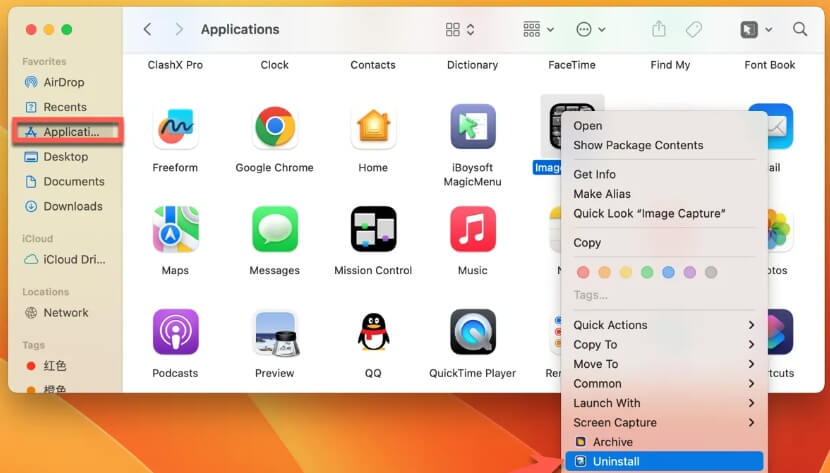
Step 1. Open "Finder" from the left menu, and choose "Applications".
Step 2. Right-click "Image Capture" and choose "Uninstall".
Conclusion
Mastering Image Capture on a Mac or MacBook Pro allows users to efficiently manage their visual material, easily importing photographs and movies from various sources. This built-in application is a great tool for organizing treasured memories and important documents, thanks to its simplicity and strength.
For Mac users, Deep Data Recovery is a reliable solution for recovering lost files, including irreplaceable photos, in case of data loss during transfer or other unforeseen conditions. This tool offers a smooth and safe picture management experience by combining the simplicity of picture Capture with the dependability of Qiling.
Image Capture on Mac FAQs
Here are some questions people frequently ask when they search for Image Capture on Mac: What is Image Capture on Mac? How do I use Image Capture on Mac?
1. How do you use Image Capture on a Mac?
Connect your device to your PC via a cable, then turn it on. Open Image Capture on your Mac, select your device from the Devices or Shared list, and choose which photos to import. You can select just a subset of the photos to import.
To save and download images, go to the Import To pop-up menu at the bottom of the window, select "Other", choose a location, and click "Download" or "Download All" if you're downloading photographs.
2. Where is Image Capture on my Mac?
To access Image Capture on a Mac, open the Launchpad from the Dock, navigate to the Other folder, and find the Image Capture icon.
3. Does Mac have Image Capture?
Image Capture allows you to transfer photos and videos from a camera or other device to your Mac, and then delete them from the device.
4. What can I use instead of Image Capture on Mac?
On macOS, there are several excellent third-party scanning alternatives to Image Capture, offering more sophisticated features, the ability to scan film and slides, and greater accessibility across multiple platforms, with a simpler and more user-friendly interface.
Related Articles
- Right-click Not Working on Mac [6 Methods]
- How to Free Up Space on SSD in Windows 10/8/7
- 5 Best Free Adobe CC alternatives You Don't Want to Miss
- How to Recover Unsaved/Lost Notepad ++ Files with/Without Backups
- What Is Hyper-V P2V and How to Convert It? [Latest Tips]
Learn how to convert a physical machine to a virtual machine (P2V) using Hyper-V. Step-by-step guide covering Disk2vhd and backup/restore methods for seamless P2V conversion. - What Is Hyper-V Snapshot [Full Explanation]
Hyper-V snapshot is a feature that allows you to capture a virtual machine's state at a specific point in time. Learn how to create, manage, and restore Hyper-V snapshots (checkpoints) for testing and disaster recovery. - Fix Windows 11 Screenshot Not Working (2026 Guide)
Products
Articles & Tutorials
- Data Recovery
- Data Backup
- File Recovery
- File Backup
- System Backup and Restore
- Disk and Partition Clone
- Technical articles
- Mobile articles
- Disk Master Help
- Windows Data Recovery Tutorials
- Windows Secure Delete Tutorials
- Windows Partition Management Tutorials
- Windows File Backup and Restore Tutorials
- Windows System Backup and Restore Tutorials
- Windows Disk Backup and Restore Tutorials
- Windows Clone Tutorials