What Is Hyper-V Snapshot [Full Explanation]
Introduction
Virtualization has transformed the way businesses operate and deliver customer service. A key aspect of virtualization is snapshot technology, which allows for the creation of point-in-time copies of virtual machines. Whether you're an expert or newcomer to virtualization, understanding what a Hyper-V snapshot is can be crucial. In essence, a Hyper-V snapshot is a snapshot technology that enables the creation of a copy of a virtual machine at a specific point in time, allowing for easy recovery and rollback to a previous state in case of any issues or changes. This feature is particularly useful for testing, development, and disaster recovery scenarios.
In Windows Server 2012 and later, Hyper-V snapshots are officially known as Hyper-V checkpoints. This change was made to avoid confusion with VSS (NTFS) snapshots and to maintain consistency. In earlier versions of Windows Server OS, these copies can still be referred to as snapshots, but both terms, Hyper-V snapshot and Hyper-V checkpoint, serve the same purpose in a virtual machine.
Hyper-V snapshot technology allows for the creation of point-in-time copies of virtual machines, enabling users to capture and restore specific states of their VMs. The main features of Hyper-V snapshots include the ability to create and manage multiple snapshots, as well as roll back to a previous state if needed.
What Is Hyper-V Snapshot
A Hyper-V snapshot is a point-in-time copy of a virtual machine, capturing its state, RAM data, and hardware configuration at a specific moment, storing this information within the VM. This includes the VM's configuration settings and the guest operating system's state at the time of snapshotting.
Taking a snapshot of a VM creates a point in time, allowing you to revert to a previous state, such as before installing a new software package, to resolve issues. This enables running the system at the point before the installation, effectively undoing any changes made.
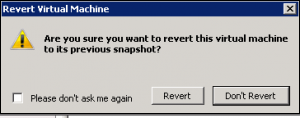
The advantage of Hyper-V technology is that it allows for the creation of online and offline snapshots of a running VM without causing any issues, and multiple snapshots can be taken, deleted, and applied to a single VM.
Hyper-V, a virtualization feature in Windows, allows users to create and manage virtual machines, each with its own operating system, on a single physical host. This enables multiple isolated environments to run simultaneously, improving resource utilization and reducing the need for physical hardware.
Main Features of Hyper-V Snapshot
Hyper-V snapshot is a powerful feature that allows users to create a snapshot of a virtual machine, preserving its state at a specific point in time. This enables users to revert to a previous state in case of any issues or changes, making it an essential tool for testing, development, and disaster recovery. By leveraging Hyper-V snapshot, users can create a backup of their virtual machine, allowing them to experiment with different scenarios without fear of data loss.
Hyper-V Snapshots File Extension
When a new Hyper-V snapshot is taken, a new AVHD(X) file is created to store the data captured at that moment. Along with the differencing disk, state files (BIN and VSV) saved by virtual machines and the snapshot configuration file (XML) are also created. These files are stored in the exact location of the original virtual hard disk.
Once a snapshot is taken, all changes in data are traced and stored in the corresponding differencing disk until a new Hyper-V snapshot is created or the older one is deleted. During this time, the original VHD file operates in a read-only mode.
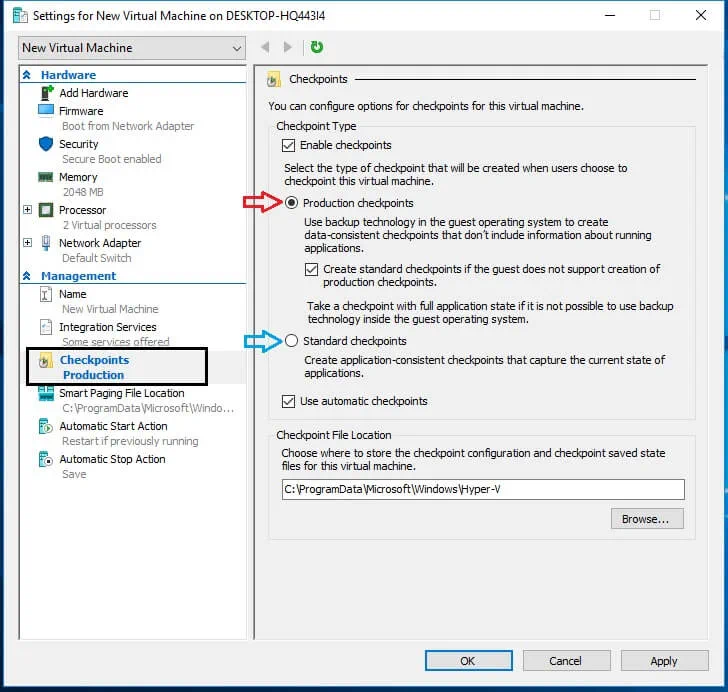
Hyper-V Snapshots Can be Standard or Production
In the past, standard snapshots were the only option for capturing the state and memory of a virtual machine. However, they were not effective in production environments. To address this, Hyper-V introduced production snapshots, which use Volume Shadow Copy Service or File System Freeze to create consistent snapshots of the virtual machine, making them ideal for production environments.
Hyper-V Snapshots Are Not a Backup Alternative
Hyper-V snapshots are often mistaken for backup software, but they serve a different purpose. Unlike backup tools, Hyper-V snapshots don't provide data protection and can't be used to restore a virtual machine's state in case of a failure. Instead, they create a temporary snapshot of the virtual machine's state at a specific point in time, requiring an entire virtual disk to function. This architecture makes them unsuitable for backup purposes, as they become inaccessible and unavailable in case of an interruption above the guest operating system or virtual machine level.
If you are looking for offline backup software to create a copy of your disk, the following recommendations may help.
Top 10 Offline Backup Software Recommended in 2022
Looking for reliable offline backup software? We've got you covered! This post introduces the top 10 best offline backup software options, allowing you to choose the one that best fits your needs.

Multiple Hyper-V Snapshots Can Form a Snapshot Tree
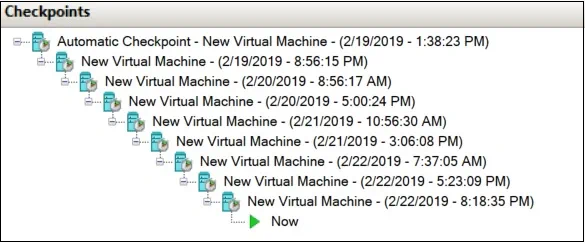
Snapshots taken for virtual machines are displayed in Hyper-V Manager as a tree, with each virtual machine having its own tree. Each new snapshot creates a new level in the tree, and a single tree can contain up to 50 snapshots. It's essential to monitor the tree's size to prevent performance issues and disk space reduction.
How to Take Hyper-V Snapshot on Virtual Machine
There are several ways to take a Hyper-V snapshot using either the Hyper-V Manager or the Virtual Machine Connection tool. To take a snapshot, you can follow these steps:
Method 1. Use Hyper-V Manager to Take Snapshots
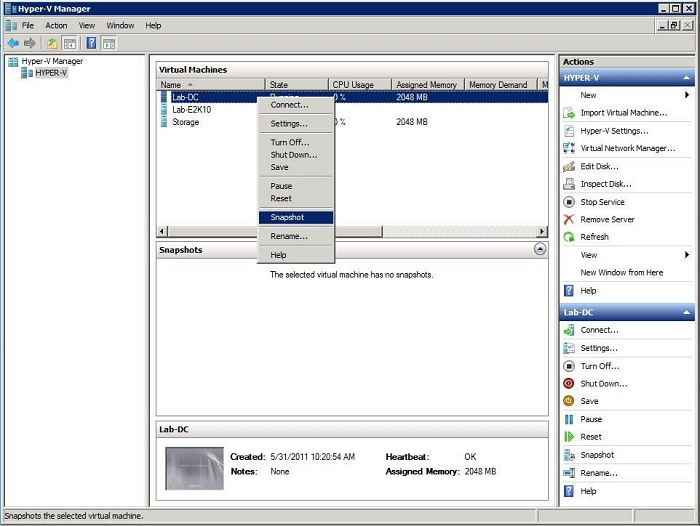
You can take Hyper-V snapshots using Hyper-V Manager. To do this, open the Hyper-V Manager, select the virtual machine for which you want to take a snapshot, and click on the "Snapshot" button in the toolbar. Alternatively, you can right-click on the virtual machine and select "Snapshot" from the context menu.
Step 1. To launch the Hyper-V Manager, go to the "Start" menu, then select "Administrative Tools," and finally choose "Hyper-V Manager" from the list of available tools. This will open the Hyper-V Manager console where you can manage and configure your virtual machines.
Step 2. To take a snapshot of a virtual machine, select the VM where you want to take the snapshot, then click on "Snapshot" from the context menu.
Step 3. When a snapshot is taken, the virtual machine's Operations entry will display "Taking snapshot" along with a percentage value indicating the progress of the snapshot process.
Method 2. Take Snapshot by Virtual Machine Connection Tool
To take a Hyper-V snapshot using the Virtual Machine Connection Tool, follow these steps:
Step 1. Open the Virtual Machine Connection tool window.
Step 2. To take a snapshot, click on the "Action"->"Snapshot" menu option or click on the snapshot button in the toolbar.
Step 3. A dialog will appear during the process, giving the option to rename the snapshot from its default name.
Conclusion
Taking snapshots in virtual machines is a useful feature for many businesses and corporations. It allows you to revert the virtual machine to its original state, removing all unwanted configuration changes and updates that may have caused issues. Learning how to take snapshots is not difficult, and it can be a valuable tool for managing virtual machines.
Related Articles
- What Is M3U8 File? How to Open and Convert M3U8 File?
- What Is Mac Recovery Key? [Everything You Get]
- 3-2-1 Backup Rule: Establish A Secure Data Backup
- Rollback from Windows 11 to Windows 10 - 2 Methods
- [Detailed Guide] How to Fix Cyberpunk 2077 Saves Missing
Losing game progress is a total nightmare, but if your Cyberpunk 2077 save files disappear, there are steps you can take to prevent it from happening again. You can follow simplified ways to fix the issue and ensure your progress is safe. - How to Delete Everything on MacBook [Two 2024 Solutions]
Planning to delete everything on MacBook? Do you want to ensure the data is not recoverable? Then follow this easy guide where we show how to delete everything on MacBook Air and Pro. - Fix HYPERVISOR_ERROR (0x00020001) in Windows 11
Products
Articles & Tutorials
- Data Recovery
- Data Backup
- File Recovery
- File Backup
- System Backup and Restore
- Disk and Partition Clone
- Technical articles
- Mobile articles
- Disk Master Help
- Windows Data Recovery Tutorials
- Windows Secure Delete Tutorials
- Windows Partition Management Tutorials
- Windows File Backup and Restore Tutorials
- Windows System Backup and Restore Tutorials
- Windows Disk Backup and Restore Tutorials
- Windows Clone Tutorials